
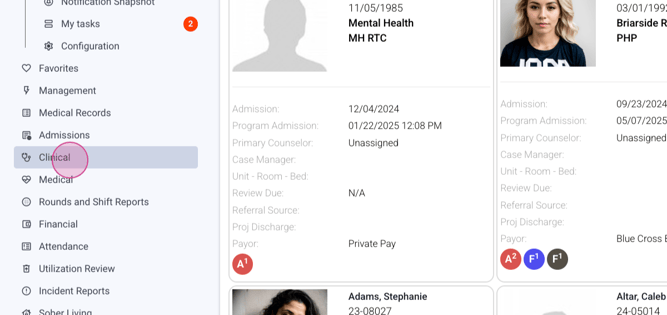
Step 1: Navigate to the Clinical section.
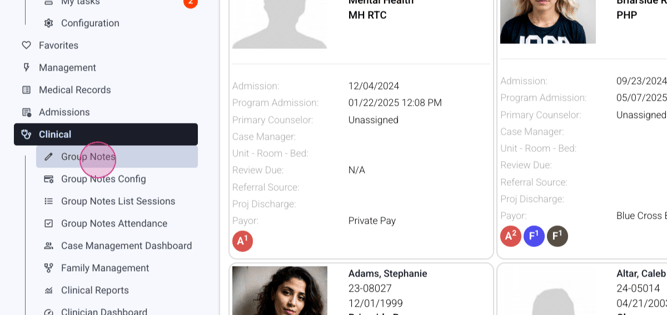
Step 2: Choose the Group Notes option.
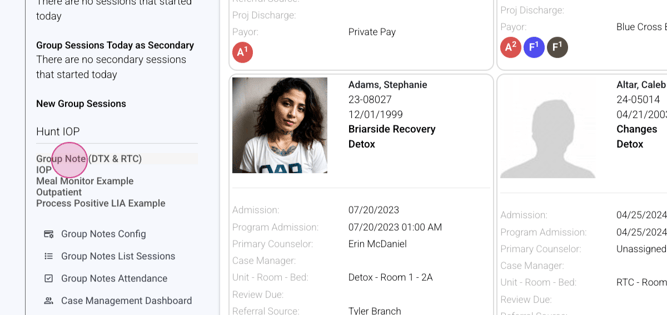
Step 3: Start a new group session.
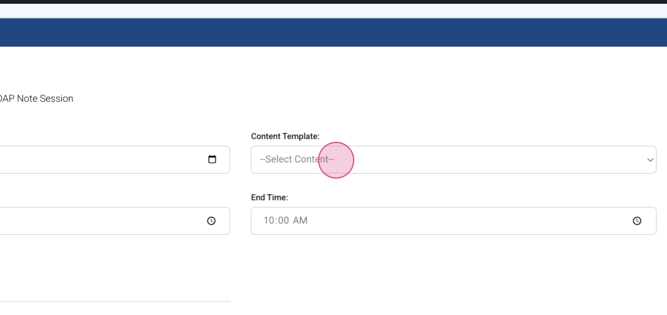
Step 4: Select your content template. For this tutorial, we're using Relapse prevention Planning. This template will be included in the LIA output.
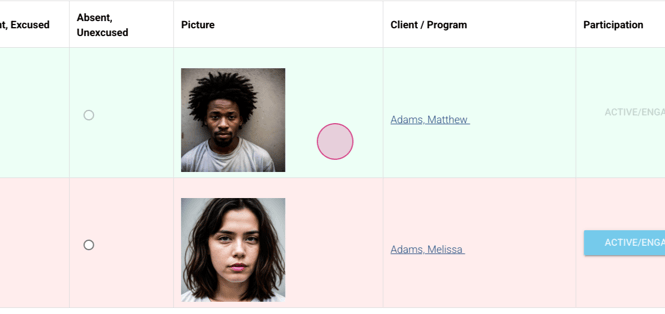
Step 5: Mark the attendance as present.
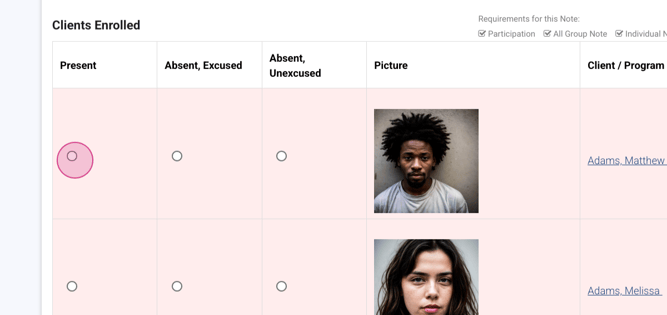
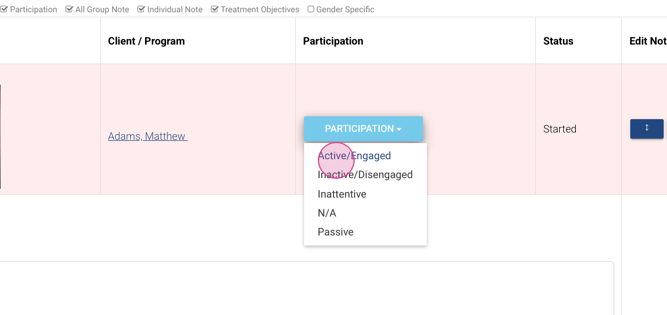
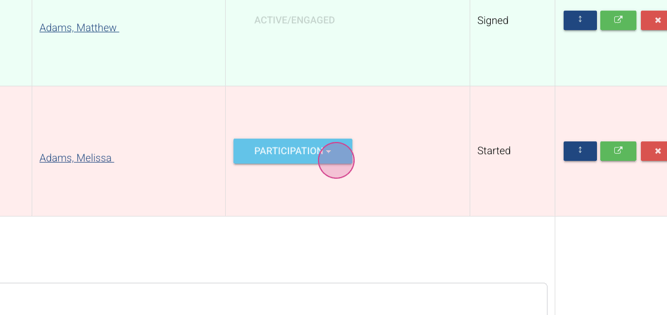
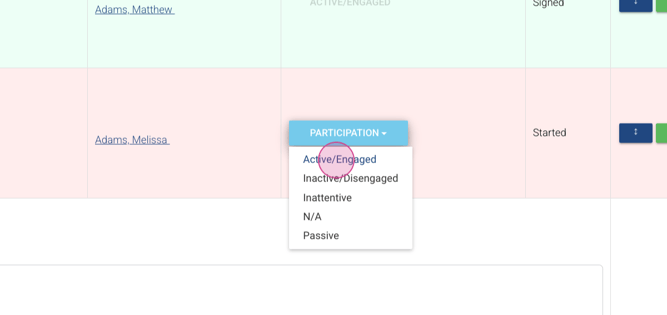
Step 6: Mark the participation as Active Engaged.
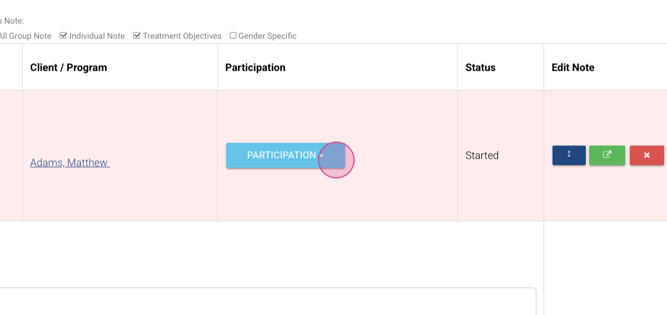
Step 7: If applicable, pull in any treatment objectives addressed within the group.
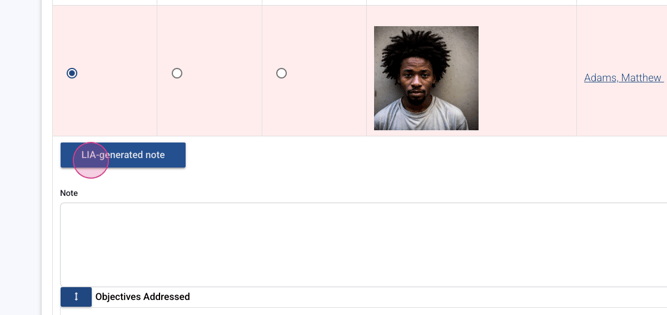
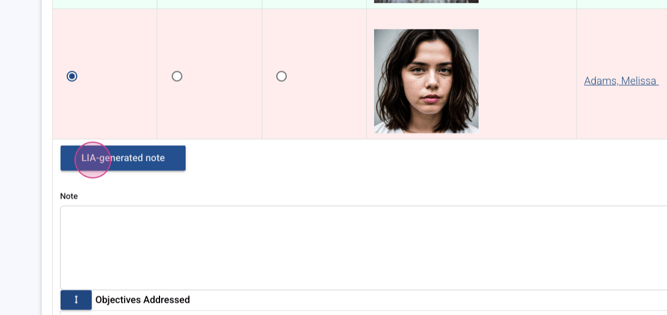
Step 8: Click on LIA Generated note. LIA will generate a group summary.
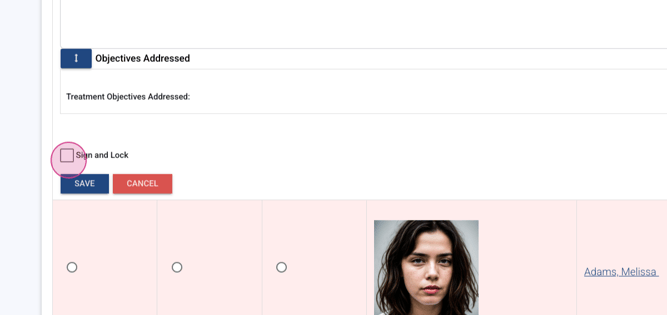
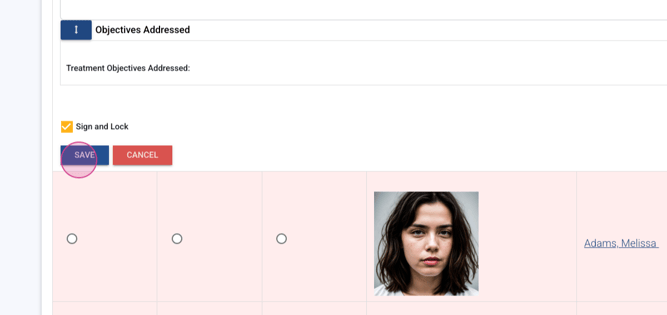
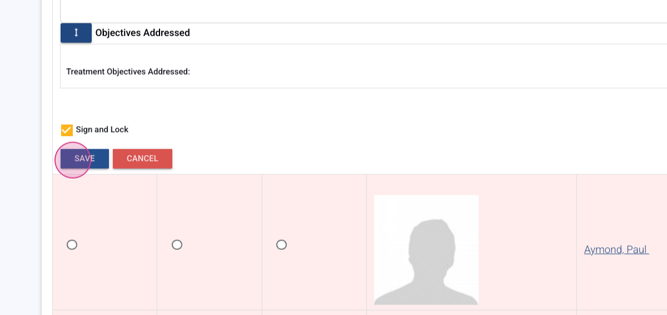
Step 9: Sign, lock, and save the note.
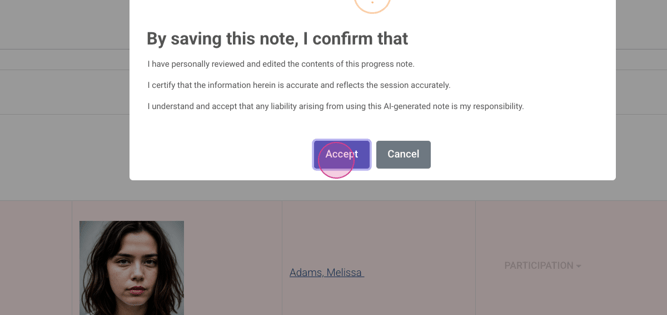
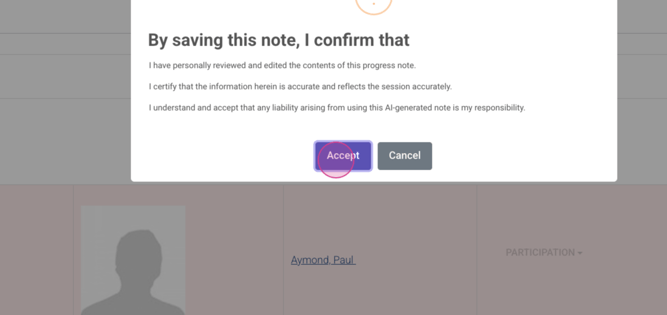
Step 10: Complete your attestation.
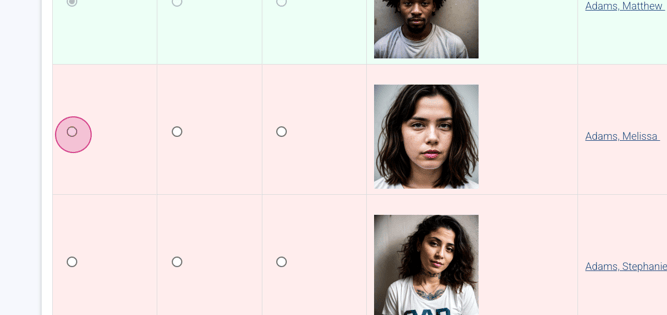
Step 11: If you have two clients who were both present and actively engaged, LIA will generate a unique note for each client.
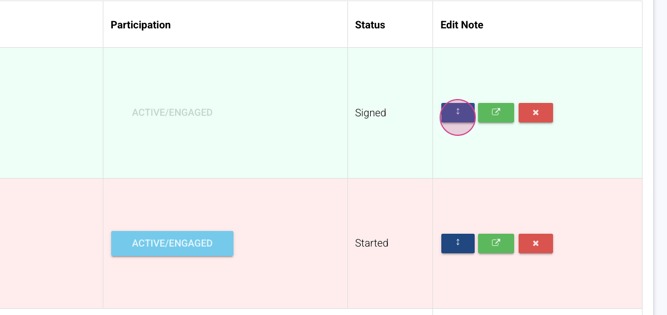
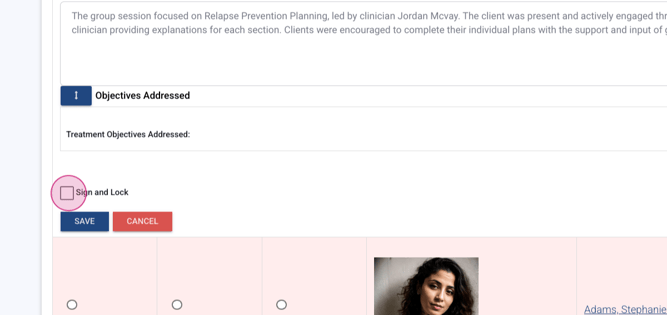
Step 12: Sign, lock, and save the unique notes.
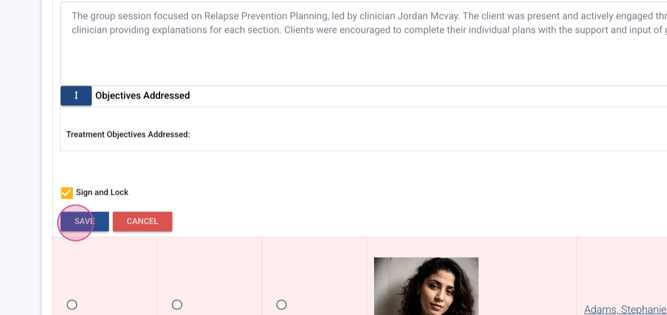
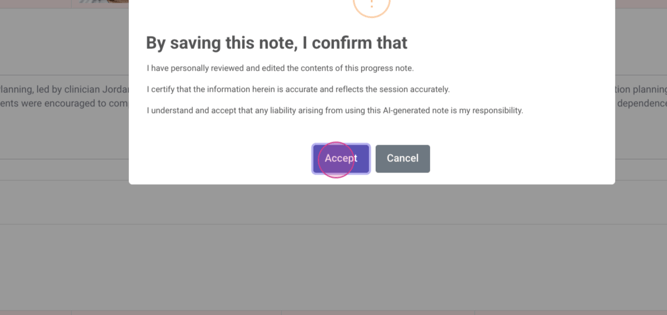
Step 13: Continue this process for the remainder of your notes. If a client was absent, select Absent Excused.
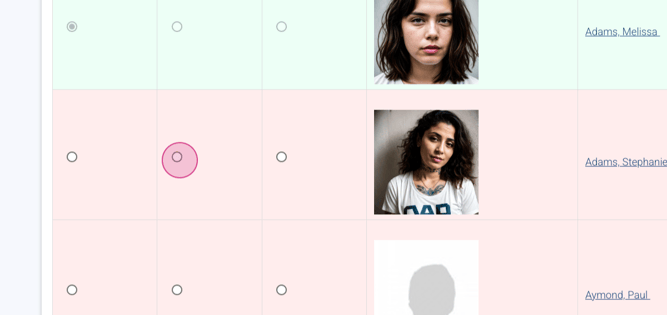
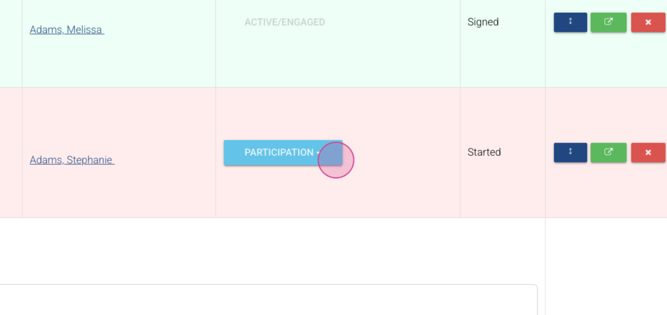
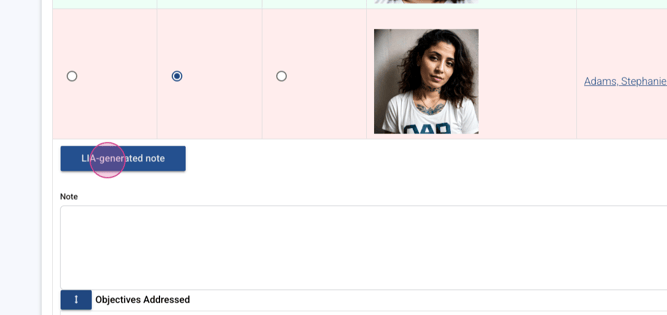
Step 14: LIA will capture the unique group note for the absent client.
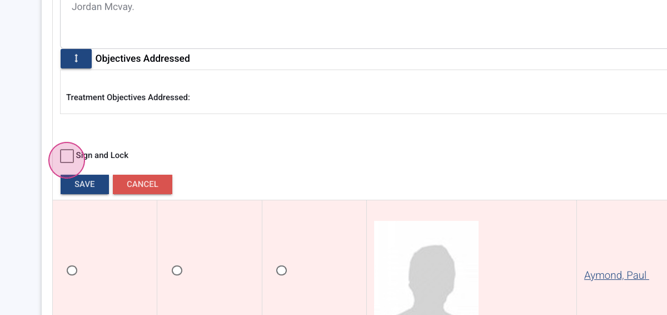
Step 15: Continue with the process.
Stay tuned for more tutorials on Lightning Intelligent Assistant.
