
To enable this functionality for your user, request your system admin to ensure your user is updated with the "support submission" permission.
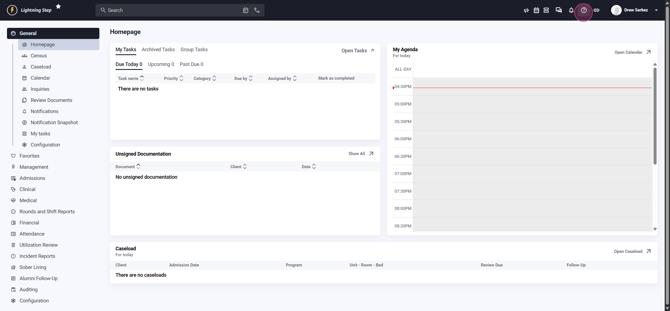
Step 1: Click the support icon in the top right corner to start.
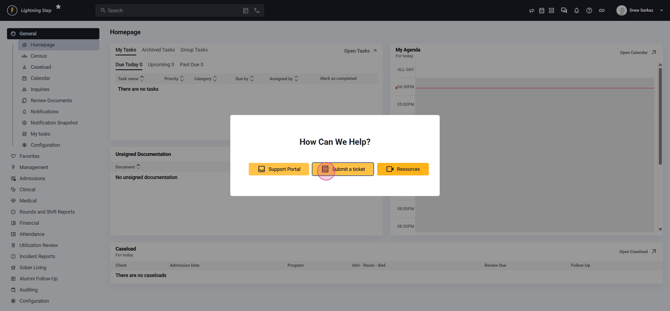
Step 2: Select Submit a Ticket from the menu.
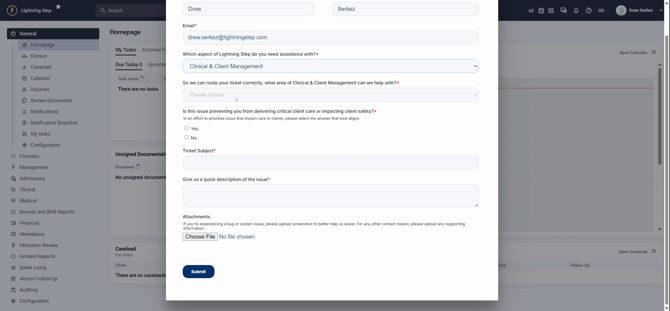
Step 3: The HubSpot-powered support form loads automatically with your name, email, and organization details. Choose the area of Lightning Step you need help with.
Step 4: Pick Clinical and Client Management for this demonstration. Once selected, a second field appears—choose the specific item (like assessments, consents, and notes).
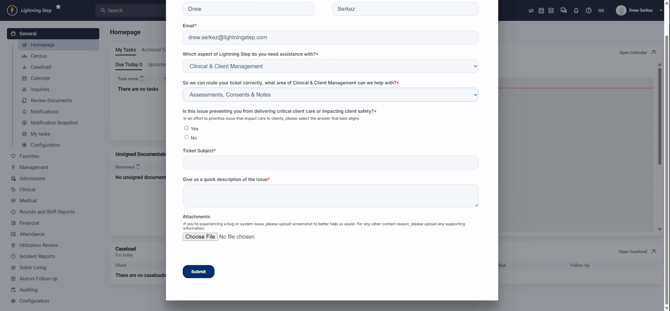
Step 5: Indicate if this issue is preventing essential client care or impacting client safety. Since this example is about assessments or notes, select 'no'.
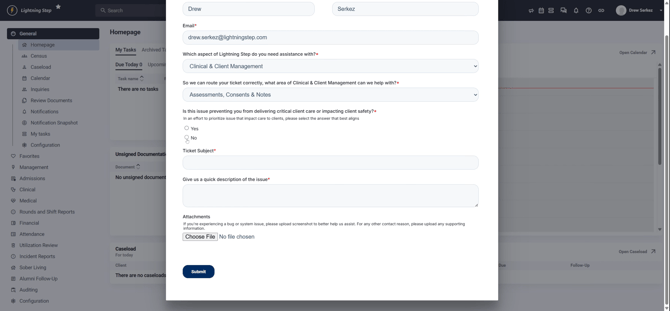
Step 6: Fill in your ticket subject and add a detailed description of your issue or request. You can also attach relevant files if needed.
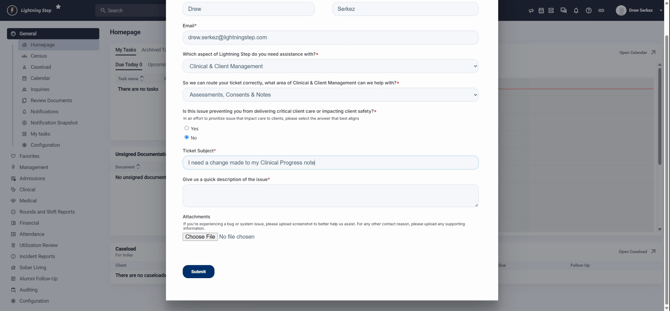
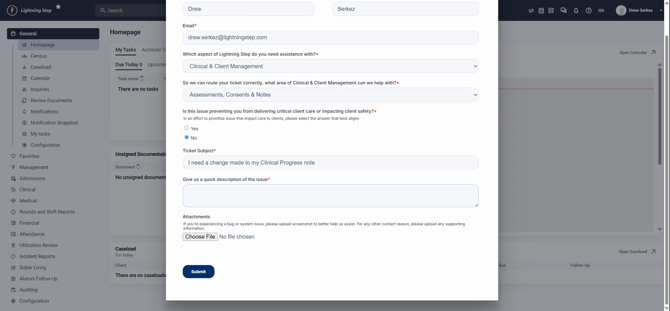
Step 7: Click Submit to send your request.
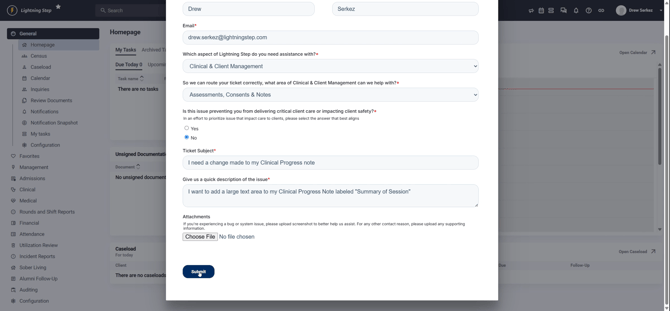
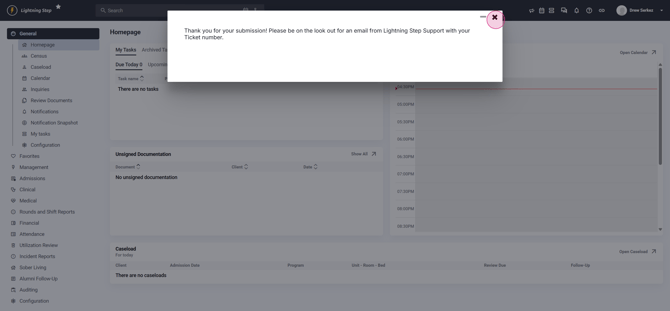
After submitting, a pop-up confirms your ticket and reminds you to watch your email for a ticket number from Lightning Step support.
Pro Tip: Start the process from the section of the system where you need help—the link to that page will be included in your ticket for faster support. To attach a screenshot, minimize the form, capture and save the screenshot, then return and upload it directly.
Step 8: Explore the new Customer Support Portal for next-level support management.
Step 9: Access the portal by clicking the support icon and selecting Support Portal.
Within the portal, review all your submitted tickets—open and closed—in one place. View complete ticket histories and click any ticket to see a right-side panel with the ongoing conversation.
Responses from the Lightning Step team highlight in yellow, so you’ll never miss an update. Use the portal to reply or add new information directly to your ticket specialist.
This fresh support experience is designed to provide faster resolutions and more transparent communication. Lightning Step is here to help every step of the
