
Step 1: Open your personal Lightning Step URL in your web browser. Your URL will look like `yourfacilityname.lightningstep.com` and is provided by your Lightning Step team.
Step 2: Bookmark the login page for easy future access. Click the star or bookmark icon in your browser, give the bookmark a helpful name, and choose a location for it.
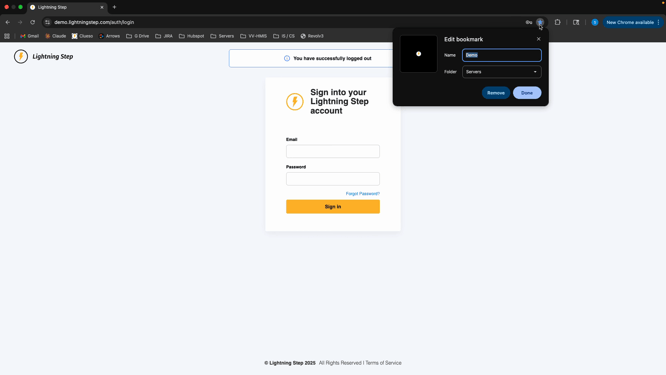
Step 3: On the login screen, enter your email address.
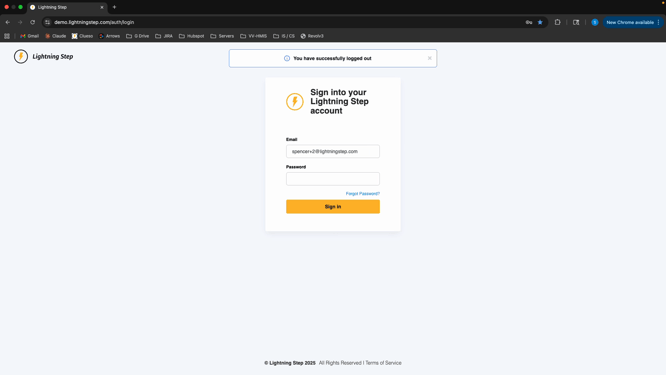
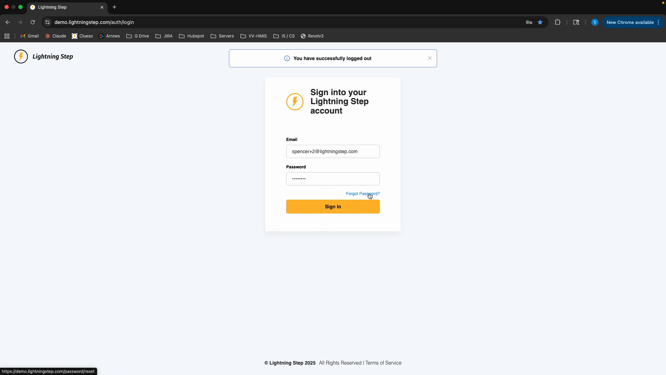
Step 4: Enter your password. For your first login, use the password provided by the Lightning Step team.
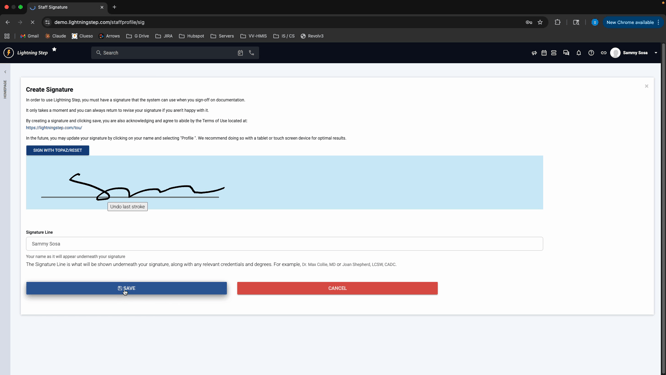
Step 5: After logging in for the first time, you'll be prompted to add your signature. Complete your signature using the on-screen tool.
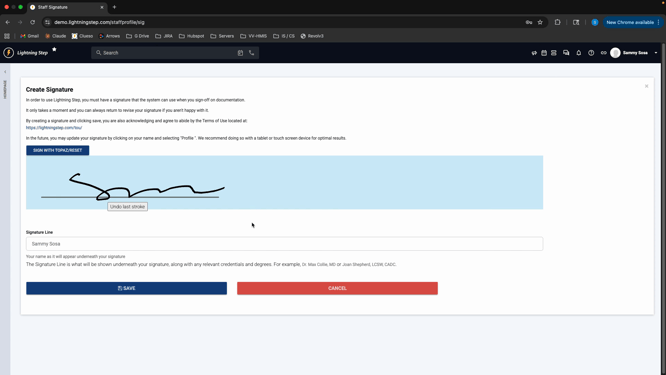
Step 6: Fill out your signature line — this will show below your signature on documents within Lightning Step.
Step 7: Click Save to finish setting up your signature.
Step 8: Review your profile information. Make sure your signature line, mobile phone, extension, and email are accurate.
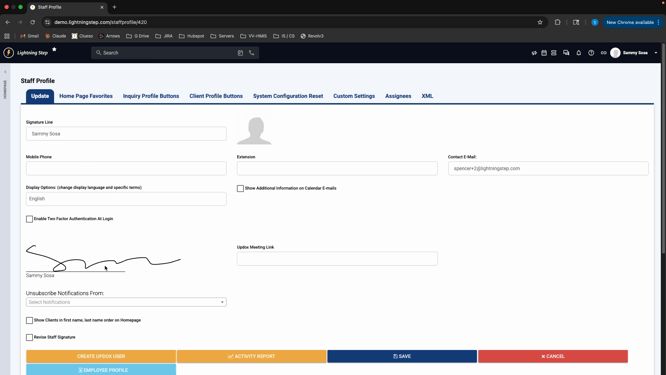
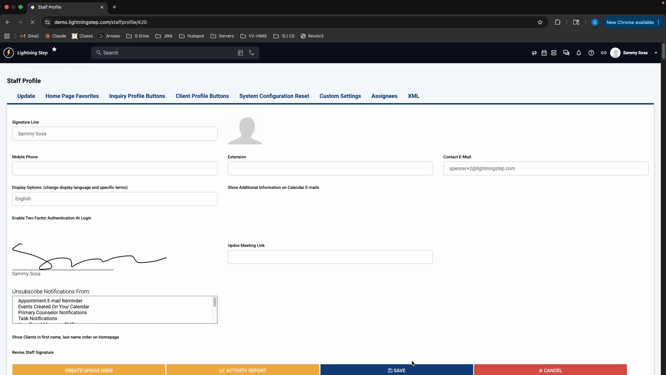
Step 9: If needed, update your information and click Save again.
Changing Your Password After First Login
Keeping your account secure starts with your password. Make sure to update it after your initial login.
Step 1: From your profile, click your name in the top right corner and select Change Password.
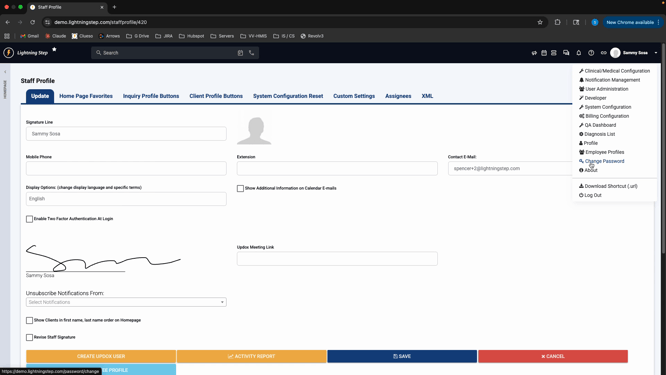
Step 2: Enter a new password, then retype it to confirm. When both fields match, click Change Password.
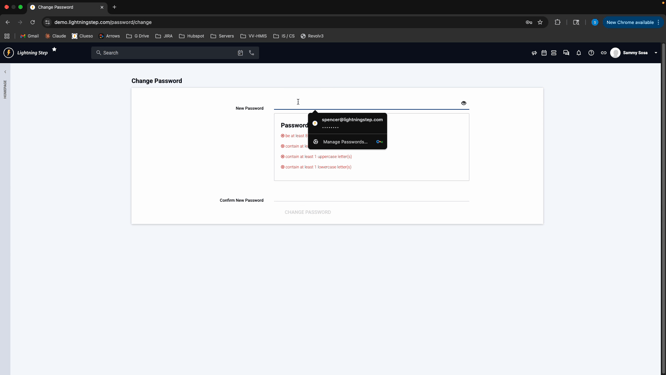
Always update your password after logging in for the first time to keep your account secure. For any future changes to your profile or account settings, access them through your name in the top right corner.
Logging in to Lightning Step for the first time is simple: bookmark your login page, set up your signature, and choose a secure password. Now you’re ready to explore the platform with confidence.
