
Viewing and Finding Clients
Step 1: Go to the Census tab to view admitted clients.
Step 2: Open the Inquiries tab to see all inquiries, including non-admitted clients.
Step 3: Use the search bar to find a specific client by name.
Step 4: Click See Full Table to display all clients, including those who have been discharged.
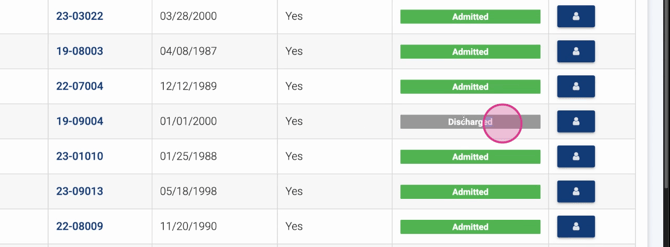
Accessing and Reviewing an Episode of Care
Step 1: Select a client (for example, a previously admitted but now discharged client).
Step 2: Click the Inquiry Profile tab.
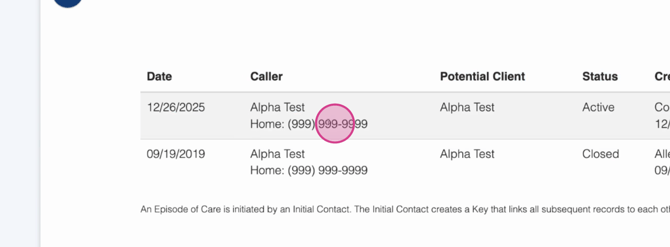
Step 3: Scroll down to find the Episodes of Care section.
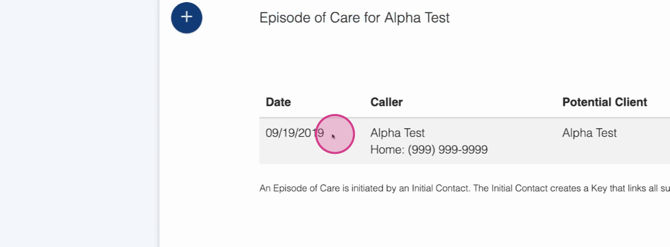
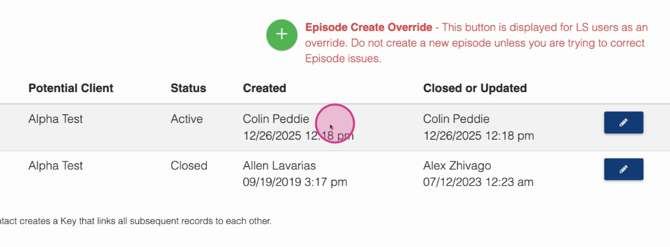
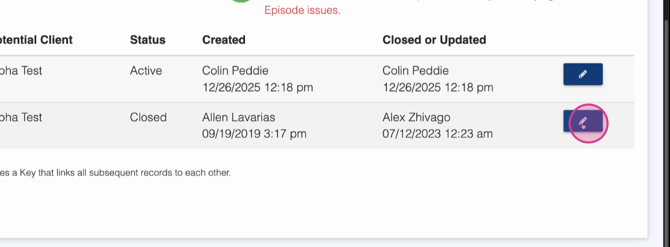
Step 4: Review key details, such as the episode’s start date, caller, potential client, current status (open/closed), who created or closed the episode, and latest updates.
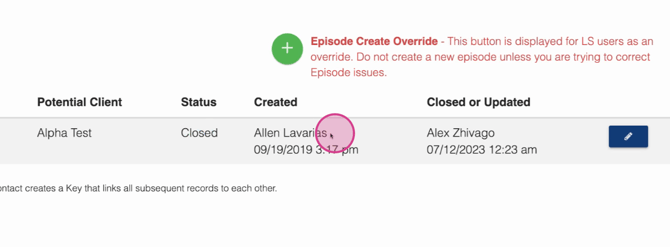
Reopening an Existing Episode
Step 1: Click the pencil icon next to the episode you want to reopen.
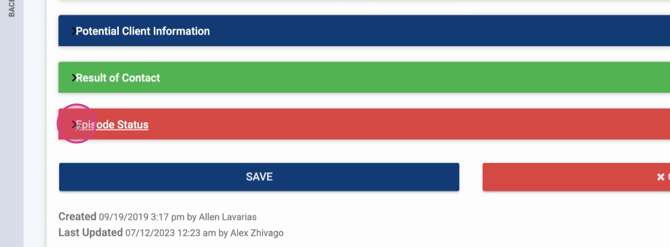
Step 2: Scroll to Episode Status.
Step 3: Uncheck the box for closed status and click Save to reactivate the episode.
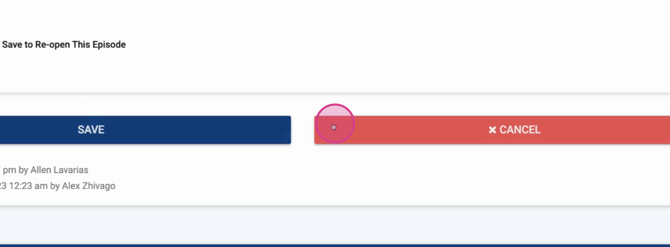
Note: Only users with proper permission can reopen episodes. This is a role-based capability.
Creating a New Episode of Care
Step 1: In the Episodes of Care section, click the plus (+) icon.
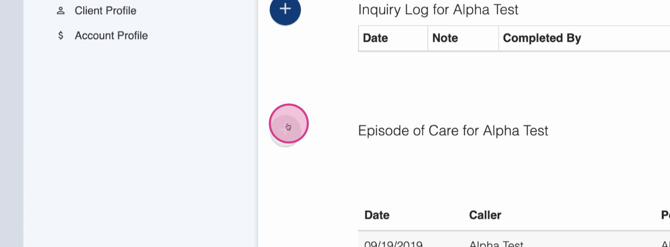
Step 2: Confirm you want to create a new episode (the system may prompt you to reconsider reopening the old one).
Step 3: Review the pre-populated information from past episodes. Make any necessary changes.
Step 4: Confirm a valid email is present.
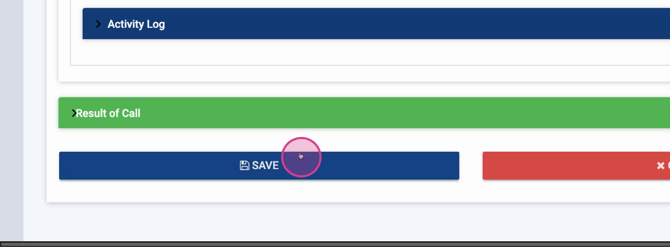
Step 5: Scroll down and click Save. The new episode is now active and can be used for new documentation.
Filtering and Managing Documentation by Episode
Step 1: When viewing client documentation, use episode filters to view items for a specific episode or the entire client history.
Step 2: Apply these filters for documentation, audits, and reports to segment client interactions accurately.
Editing and Viewing Episode Details
Step 1: Click the pencil icon on an episode to see all associated activity.
Step 2: Edit details such as contact results or admission dates.
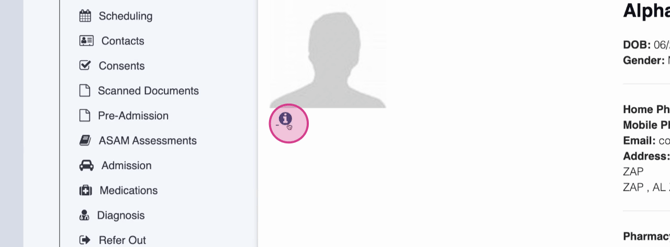
Step 3: Use the eye icon to view episode status, projected admission dates, inquiry status, and more.
Switching Between Episodes
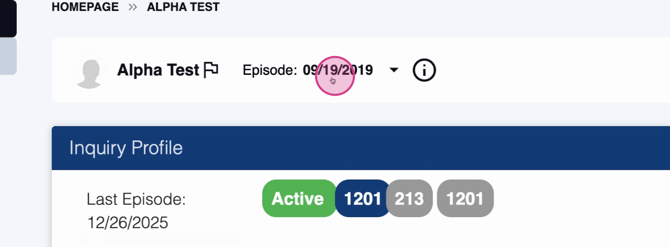
Step 1: At the top right, next to the client’s name, use the episode drop-down menu.
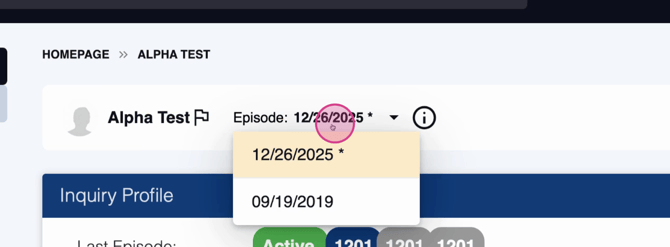
Step 2: Toggle between episodes to view records from specific periods or all episodes.
Managing episodes of care helps you keep each client’s record accurate and up-to-date, supporting comprehensive documentation and reporting. Try switching between episodes and filters to find exactly what you need. If you run into questions, reach out for support!
