
Step 1: From the main Lightning Step site, select Inquiries.
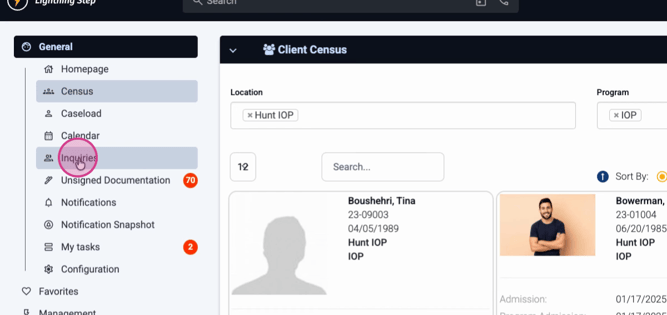
Step 2: Review your list of inquiries in the table view. You'll see details like inquiry name, mRNA, episode date, last log, demographics, potential for admission, current status, projected location and program, assigned staff, and projected admission date.
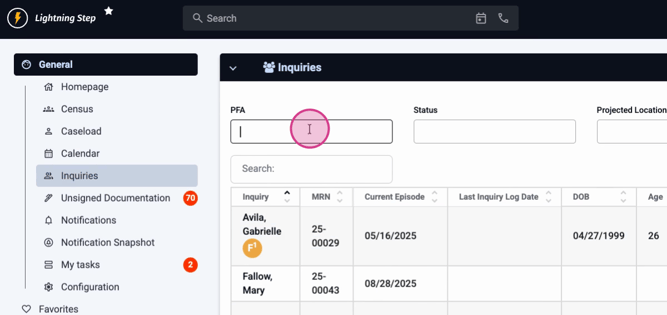
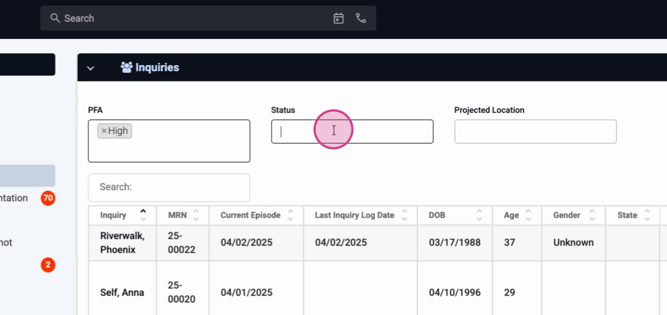
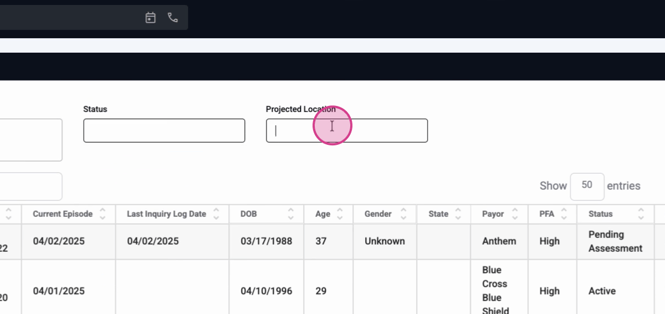
Step 3: Use the filters at the top to focus on specific inquiries:
-
Filter by Potential for Admission.
-
Filter by Status.
-
Filter by Projected Location.
Step 4: Customize the table view. Click the Viewpoint options to toggle columns and display only the information that matters to you.
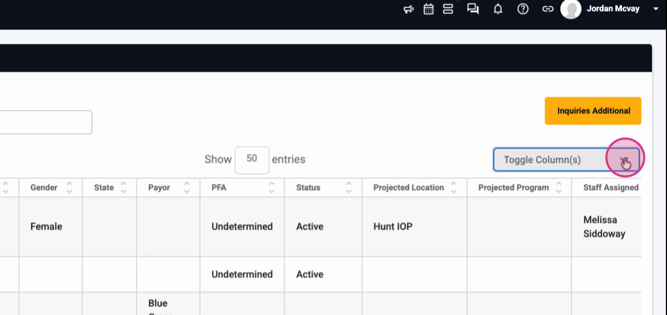
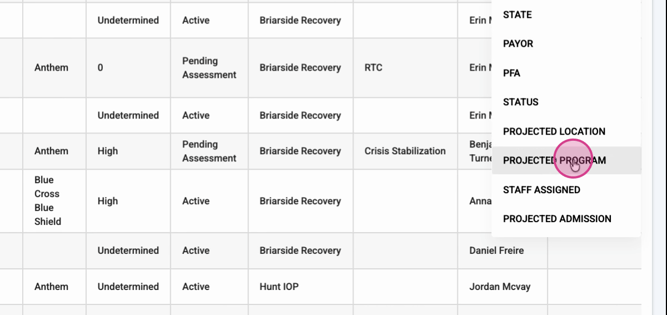
Step 5: Refine your view by selecting or deselecting columns as needed.
Step 6: Click into any inquiry to open the Inquiry Profile.

Step 7: Add a new inquiry log by capturing the Date and Time of your interaction.
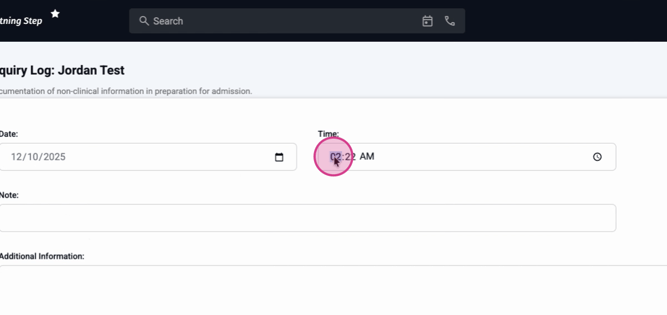
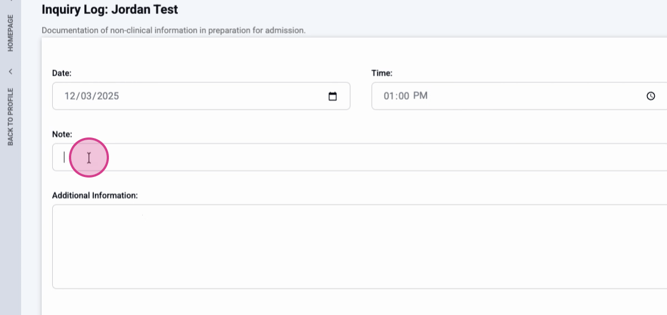
Step 8: View client contact info at the top and use the Note section for any additional details.
Step 9: Update the overall Inquiry Status, Potential for Admission, and the Estimated Admission Date as needed.
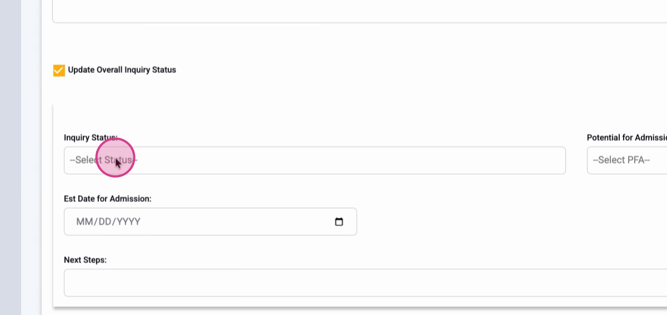
Step 10: Document next steps in the Description section. Assign follow-ups, choose the responsible team member, set due dates, and send email notifications if needed.

Step 11: Lock and save your record to finish your updates.
Managing inquiries in Lightning Step keeps your workflow organized and efficient. Use filters, customizable views, and thorough documentation to ensure no inquiry slips through the cracks.
