
Step 1: Start by navigating to the help desk. Look for the plus icon on the upper left side of the screen, next to the help desk text. Click on this icon to start creating a ticket.
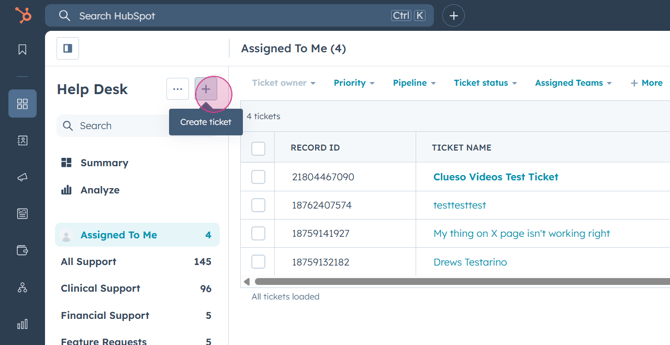
Step 2: A pane will appear on the right side of your screen. Begin by entering the ticket name.
Step 3: The pipeline will default to support, and you don't need to change this. Similarly, the ticket status will default to new, which you should also leave as is.
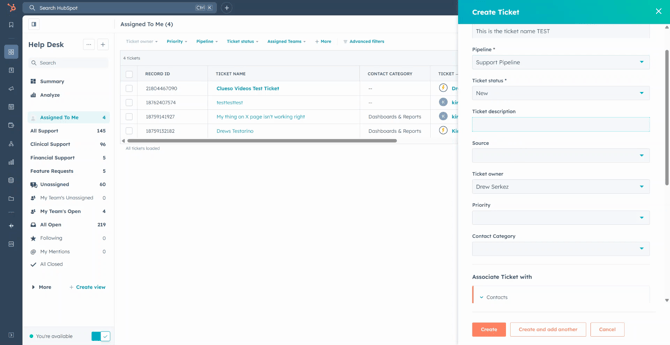
Step 4: Fill in the ticket description with the details of the issue.
Step 5: Next, select the source of the ticket. This could be a chat, email, or phone call. Do not select form - this is for the LS app. For this example, we'll say the ticket came from a phone call.
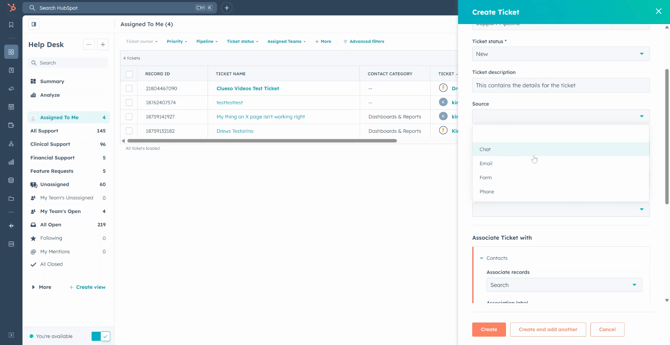
Step 6: The ticket owner will default to the person who created the ticket. If necessary, you can change this to a different team member.
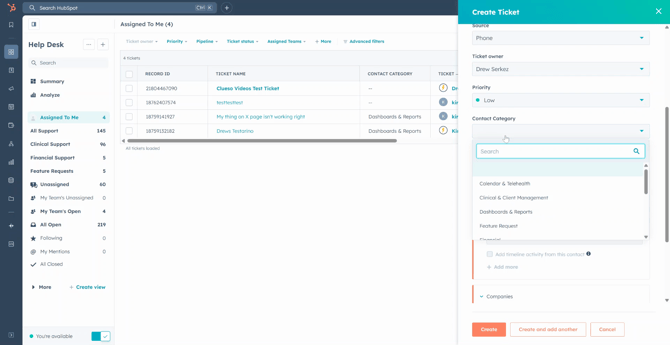
Step 7: Assign a priority and a contact category, which refers to the section of the issue for the ticket. Once you select a contact category, you'll be given subcontact reasons, which are dependent on the contact category.
Step 8: Now, associate the ticket with a contact and a company. To do this, use the Associate record search option.
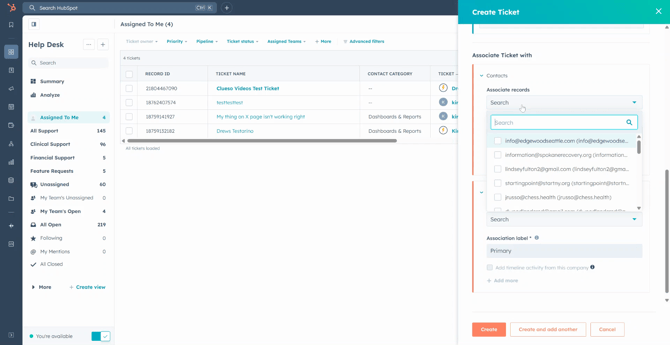
Step 9: Enter the email or name of the contact in the search field.
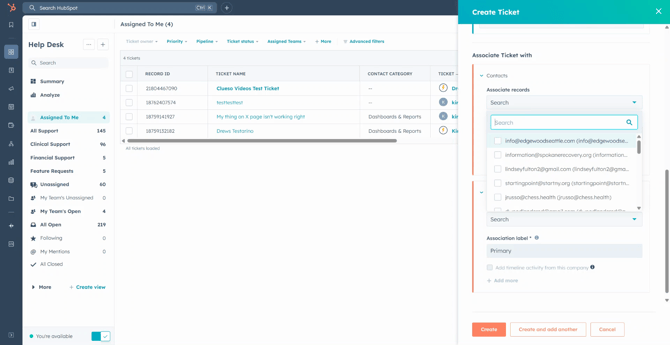
Step 10: Once all fields are filled in, click on Create to generate the ticket.
Step 11: After creating the ticket, you'll be redirected within the ticket to take your next action. If you need to add a note, go to the title at the top of the ticket.
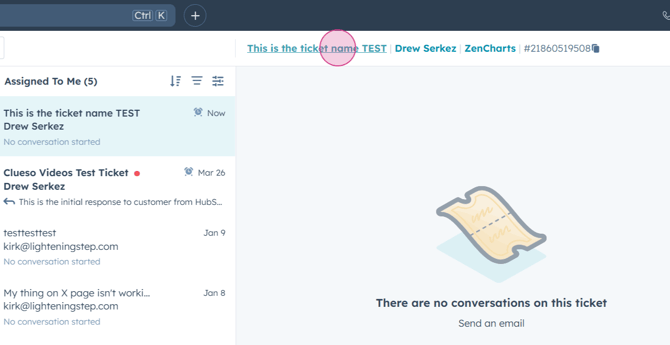
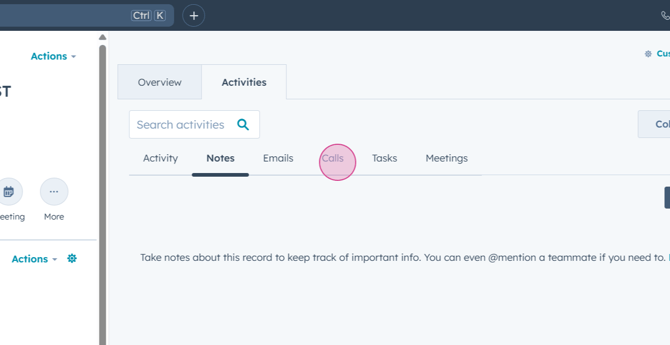
Step 12: Enter your note in the details section of the ticket, where you can see your activity feed.
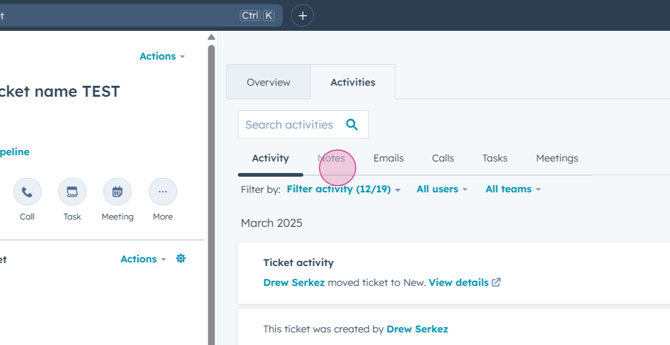
Step 13: You can also log your call. To return to the help desk, click on the Help Desk button in the upper left corner. This will bring you back to your ticket preview feed.
And that's it! You've now learned how to manually create a ticket within HubSpot.
