
Step 1: From the home screen, select Financial.
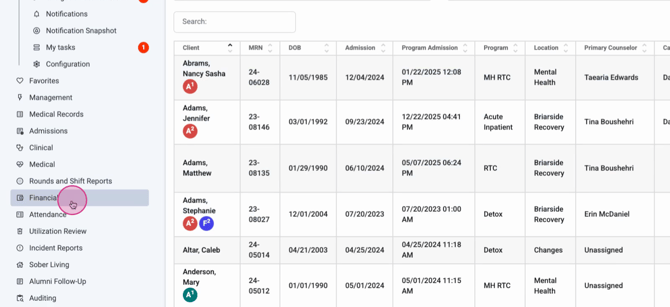
Step 2: Click Financial Dashboard.
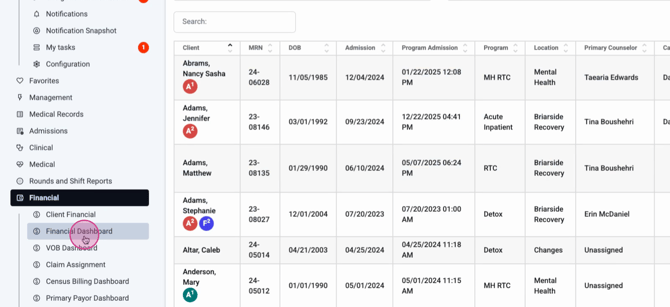
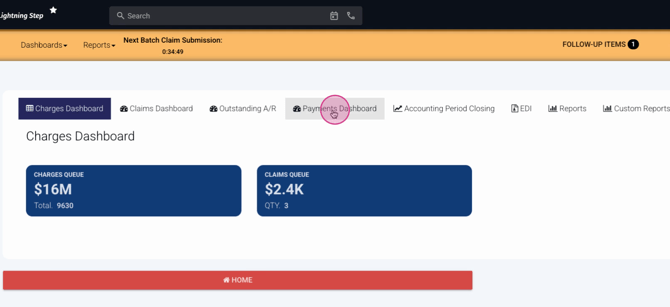
Step 3: In the dashboard, select Payments.
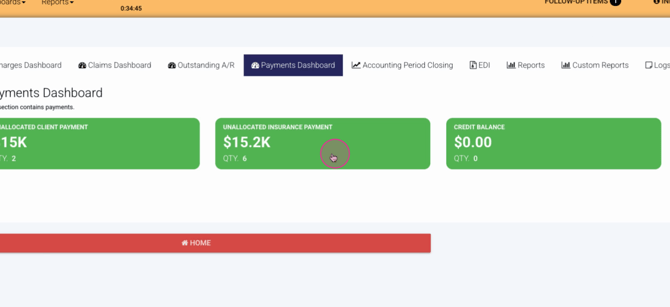
Step 4: Choose Unallocated Insurance Payment.
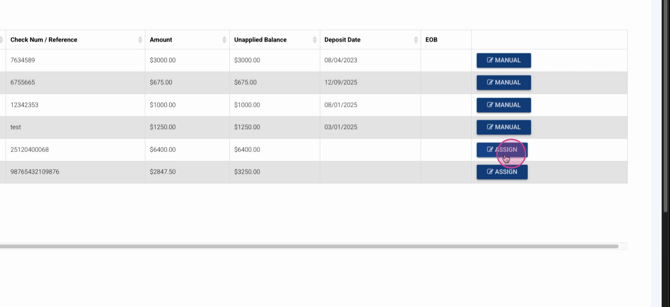
Step 5: Under Electronic Remittance, review the payments you’re ready to post. Click Assign.
 Step 6: When the Allocate Insurance Payment screen appears, expand the first record by clicking on its row.
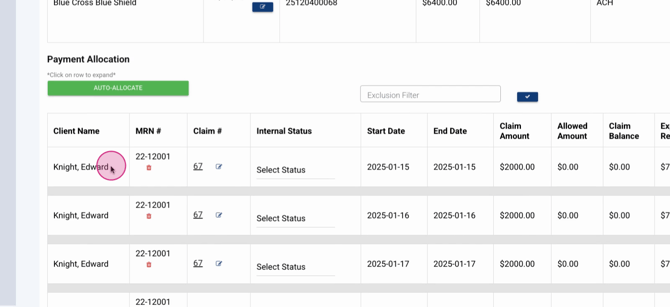
Step 7: Review all details in the gray section: payment amount, adjustments, and the automatically assigned claim.
Step 8: If you need to change the assigned claim, click the Edit button next to the claim number.

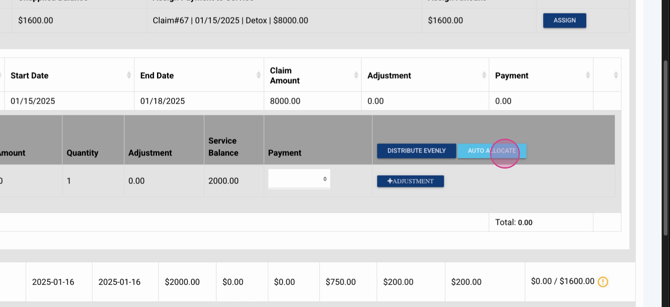
Step 9: Once details look correct, click the light blue Auto Allocate button.
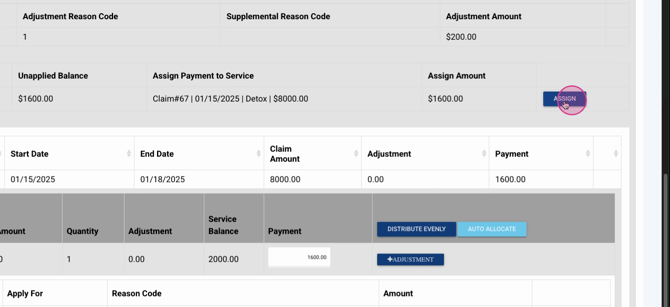
Step 10: Confirm that the payment amount and any adjustments have populated correctly. Click Assign to finalize these changes.
Step 11: If you spot errors, reopen the row, make edits, and click Update.
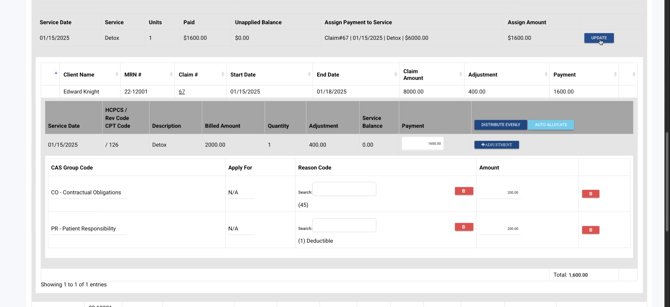
Step 12: Repeat this process for every remaining line on the remittance.
Step 13: When everything is allocated and balanced, you’re done. Clicking Assign or Update saves your changes automatically—no additional save step required.
Reviewing EOB Summaries and Payment History
Lightning Step makes it easy to review a comprehensive EOB (Explanation of Benefits) summary and payment posting history for each insurance payment.
Step 1: To view the EOB summary, open the EOB Summary view for your payment.
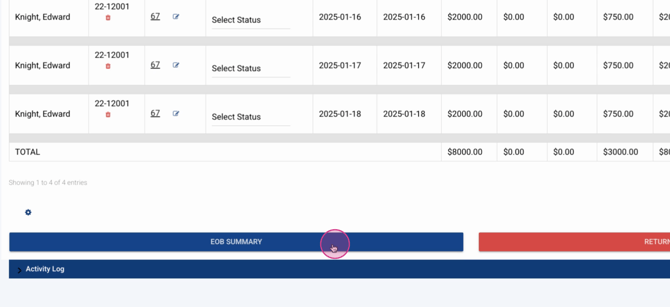
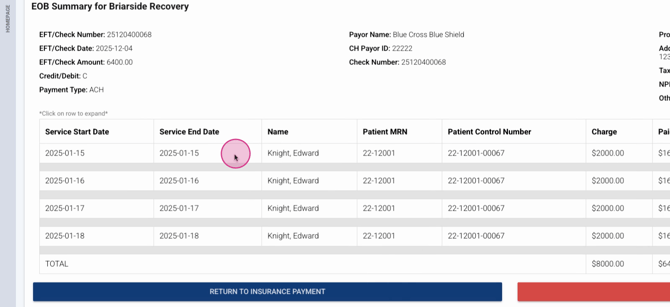
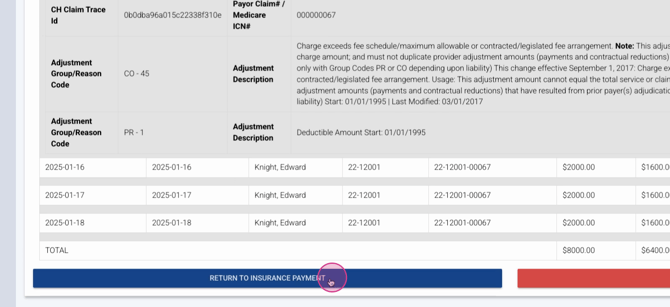
Step 2: Expand each row to see additional details, like reason codes, descriptions, and payer claim numbers.
Step 3: To check posting history, return to the insurance payment screen and click Payment History.
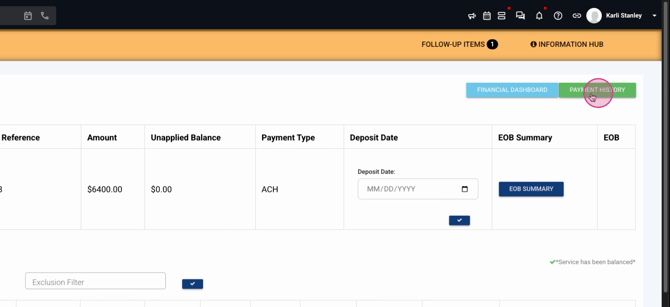
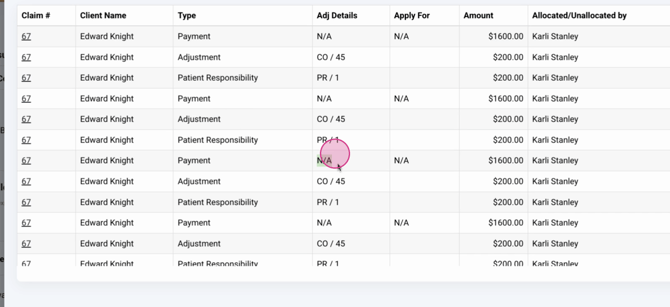
Step 4: In the pop-up, review claim and client information, allocation type (payment, adjustment, or patient responsibility), any reason codes, allocation amounts, the staff who allocated, and the completion date.
Manually posting and allocating electronic insurance payments in Lightning Step gives you greater control and clarity—especially for exceptions or detailed reviews. If you need help or want to learn more, consult your internal documentation or reach out to support.
