
Step 1: Open the Medical Menu Log in to your system. Go to the left-hand menu and click Medical. This opens the medical features list.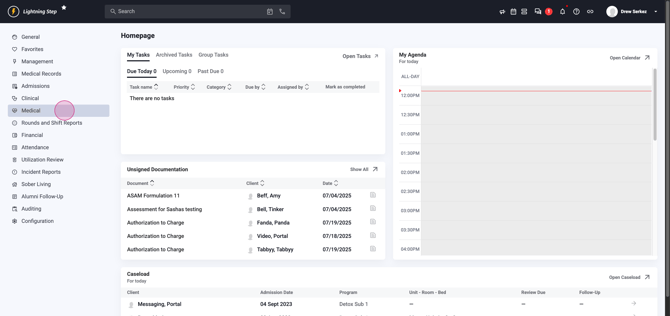
Step 2: Access Medical Administration Expand the Medical menu and select Medical Administration to access the eMAR dashboard.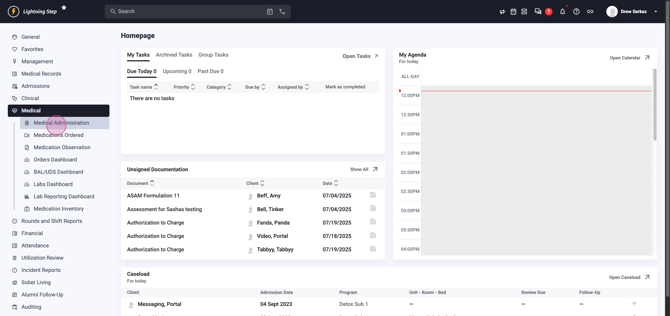
Step 3: Set Filters for Your Search At the top, locate the filter options. Click the expandable filter button to display filter choices.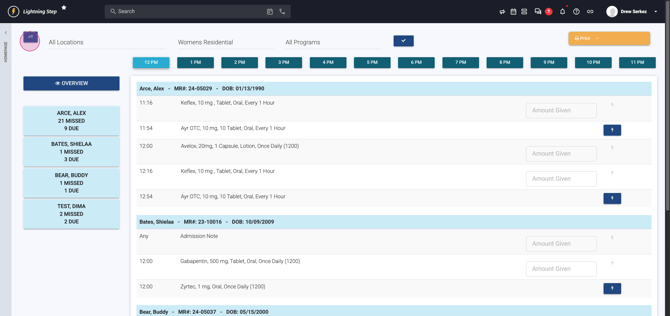 Use the drop-downs to pick your Location,
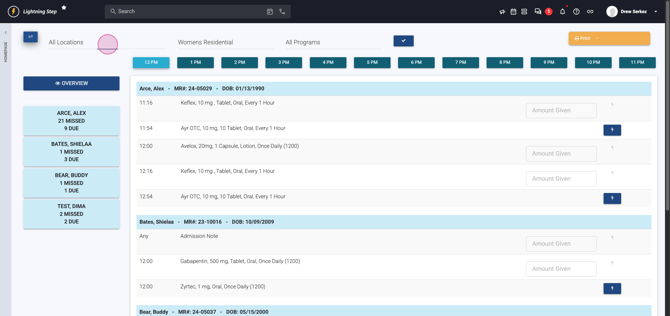 Program,
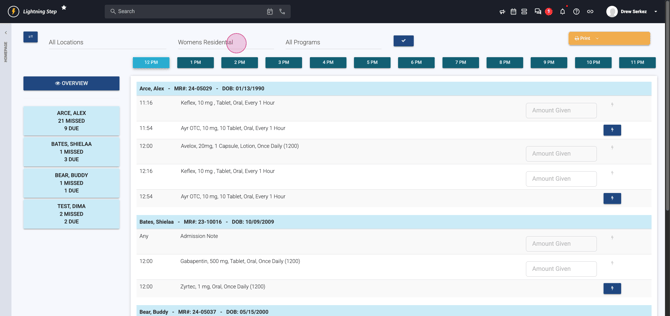 and Unit.
 After selecting, click the blue check mark to apply your filters.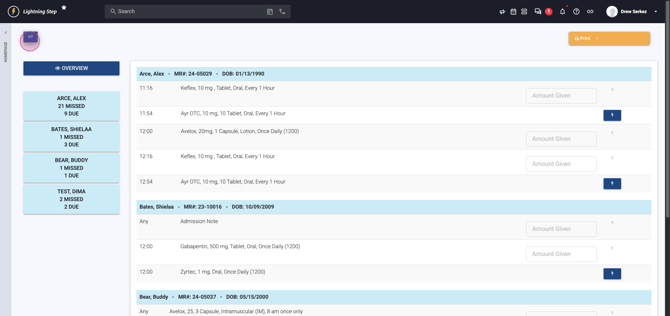
Step 4: Print a Backup MAR Find the yellow Print button at the top right to print a backup of your MARs for scheduled, PRN, and other orders for your selected filters.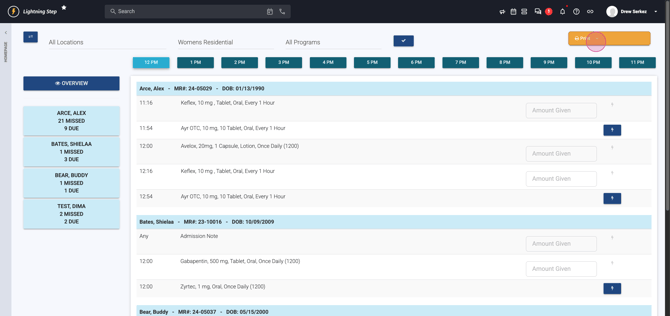
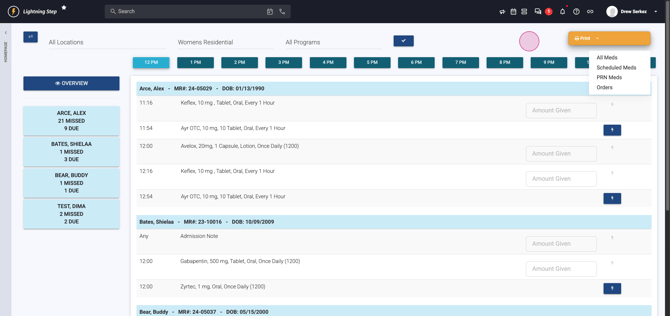
Step 5: Review the Overview Page By default, you land on the Overview page—identified by a dark blue Overview button on the left.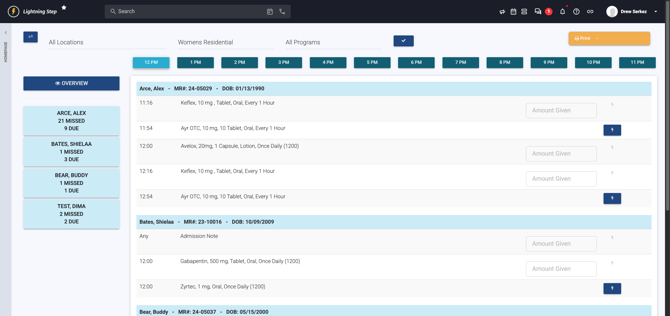
Across the top, you'll see Med Pass hours for the rest of the day.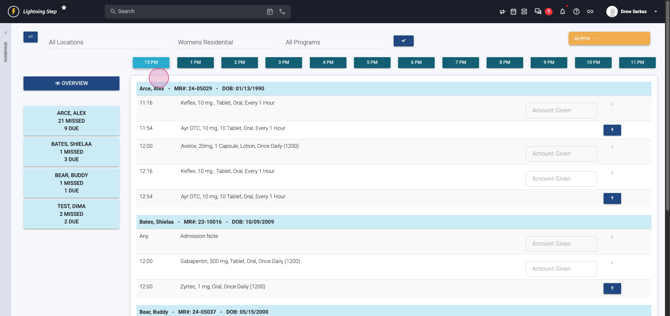
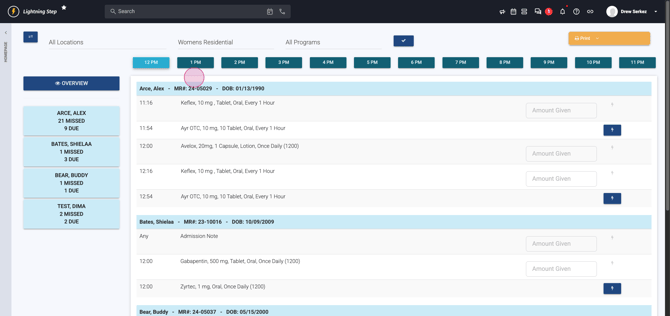
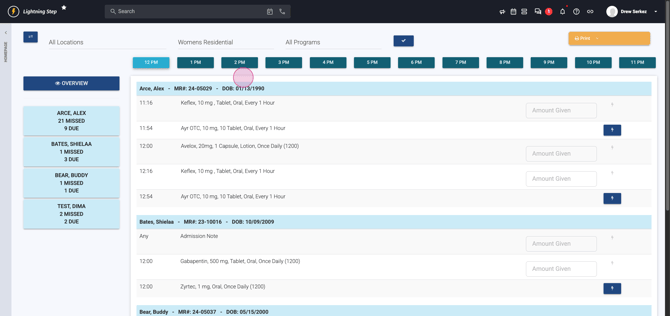
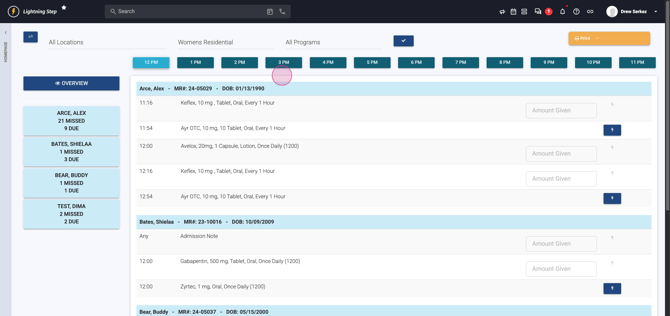
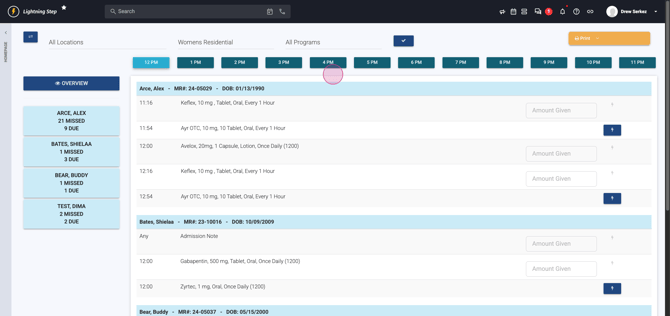
Step 6: Review Scheduled Medications The Overview displays all patients with currently available medications. Each medication has a blue lightning bolt icon to the right. To administer a medication, click the blue lightning bolt.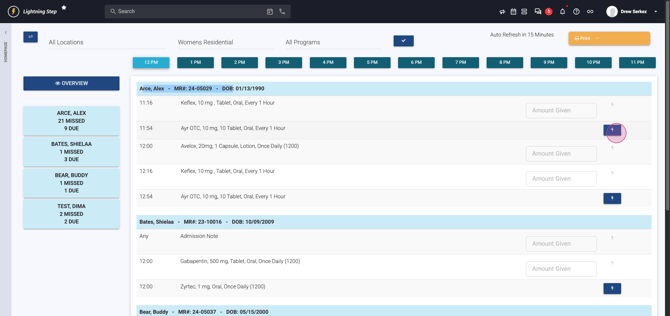
If prompted, enter the amount you gave.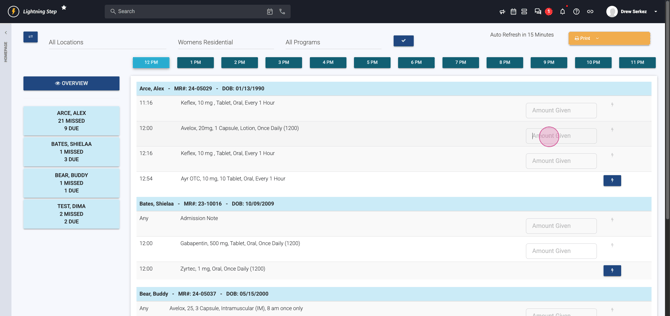 Click the blue lightning bolt again to confirm administration.
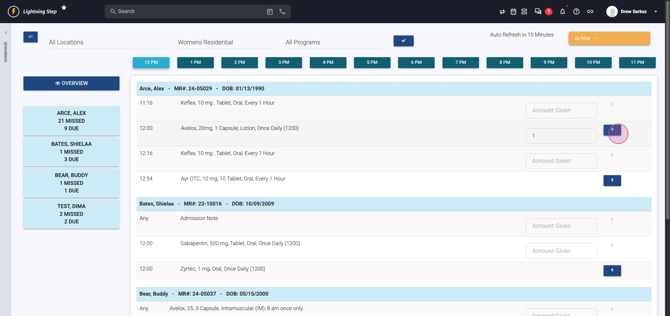 Once a medication is administered, it disappears from the overview list.
PRNs aren't visible here. To view the full medication record for a patient, click their tab on the left.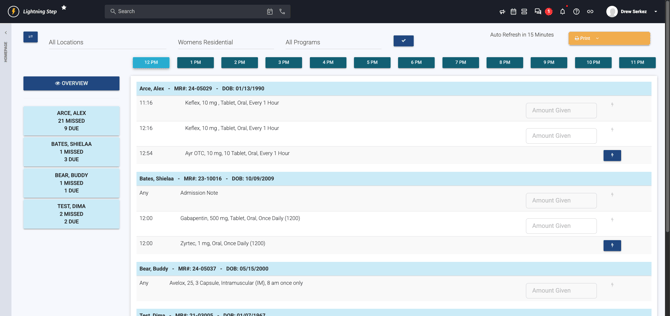
Step 7: Review a Patient’s Medication Record The system brings you to the Scheduled Medications tab.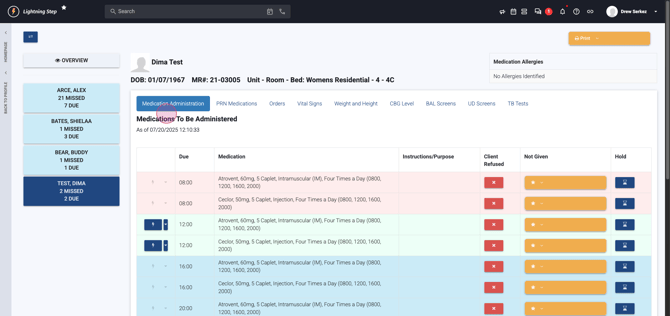 Here, all medications and their Med Pass times are listed. Medication status is color-coded: - Red with a pink background: Missed medications (the Med Pass time has passed).
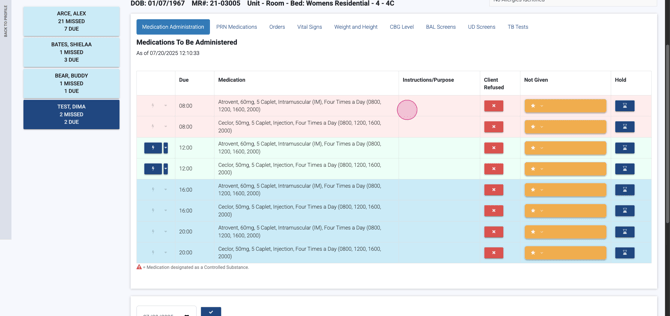 - Green: Actively due for Med Pass.
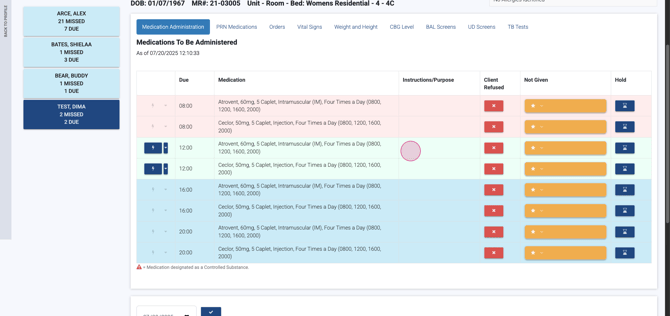 - Blue background: Medications due later today.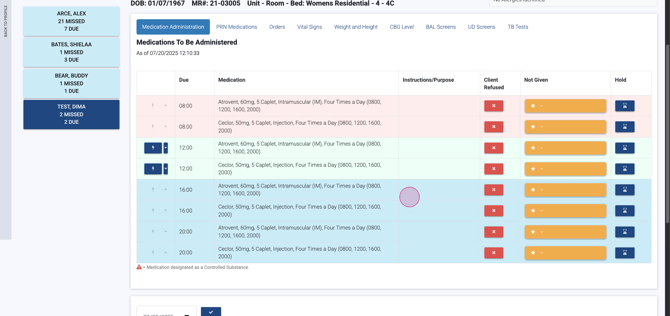
Step 8: Refuse or Undo Missed Medications For missed meds, click the red X to mark as refused.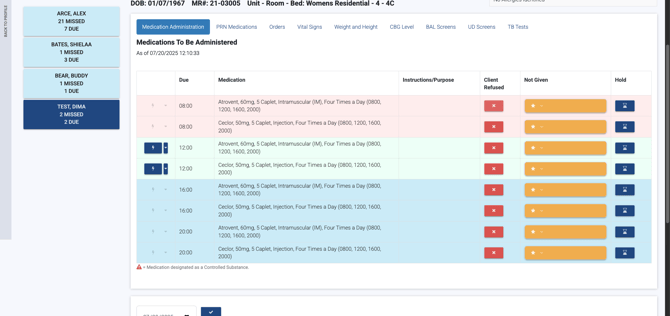 The medication moves to the "Medications not given" table.
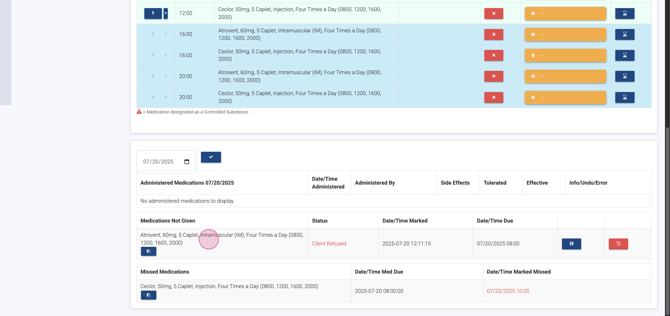 To correct an error, click the red Undo button.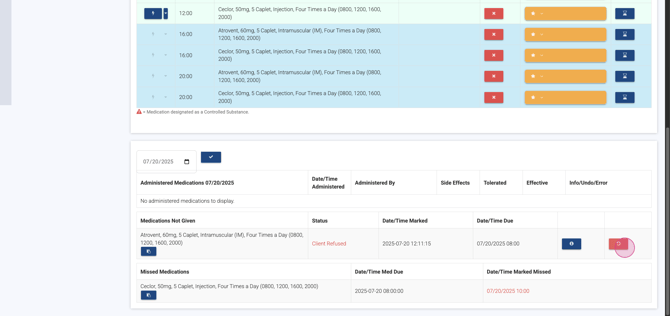
Step 9: Place Medications on Hold Need to hold a medication? Click the blue hourglass.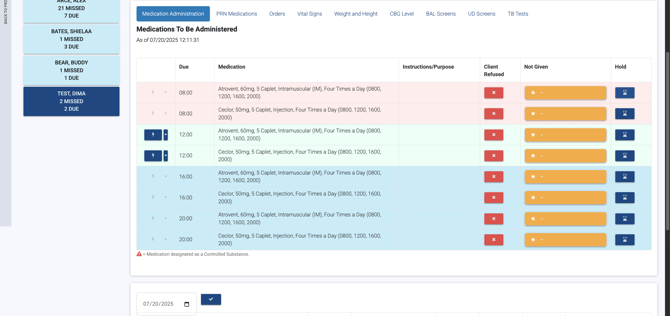 Enter the reason for the hold
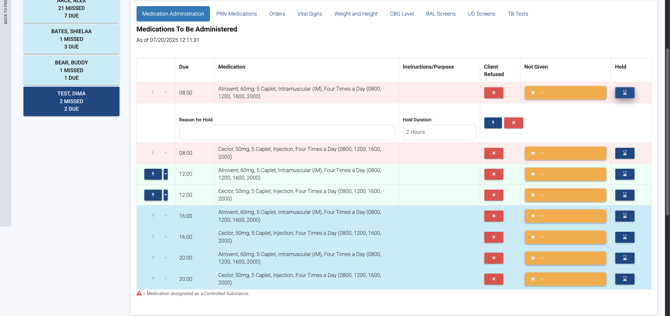 and set the duration.
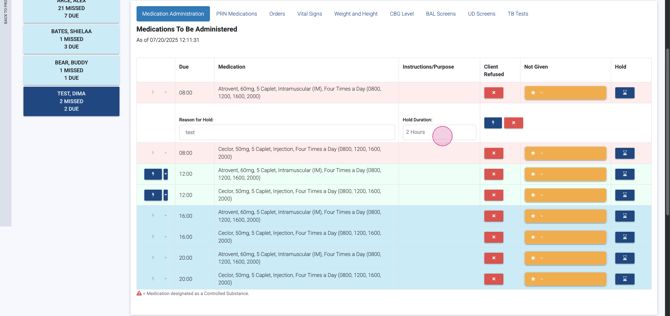 Choose a two-hour hold for this example. Confirm by clicking the blue lightning bolt.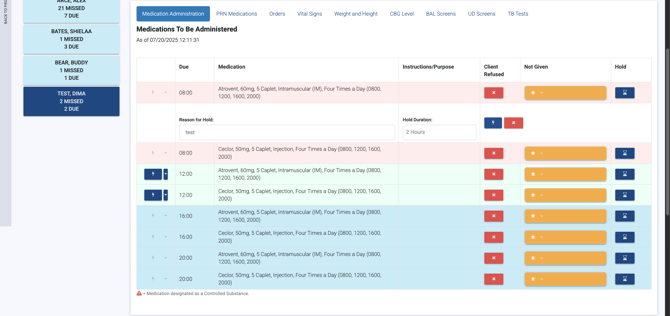
A pop-up asks if you want to hold all meds or just this one. Select Hold Only This Medication.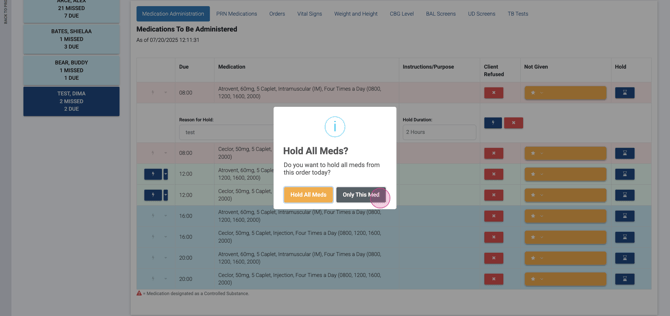 The held medication's background turns tan, and its new due date displays when you refresh.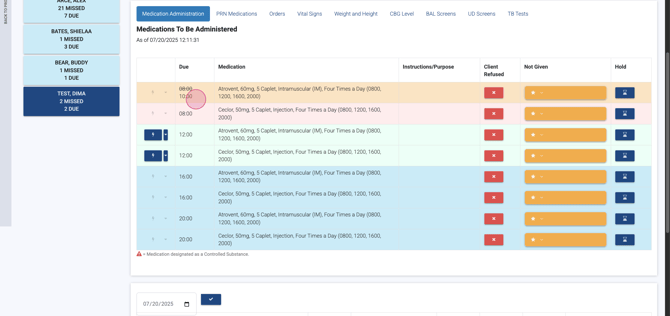
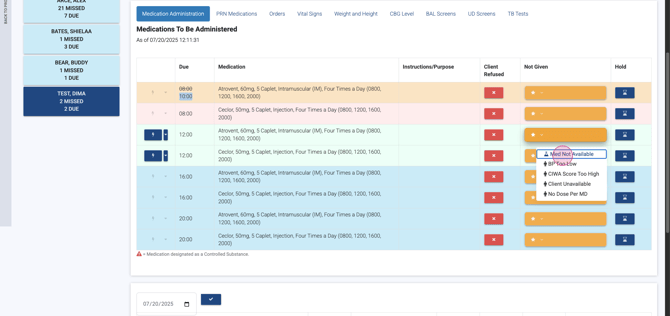
Step 10: Indicate Why Medication Can't Be Administered If a medication can’t be given, press the large yellow button and select the reason, such as "Med not available," "Blood pressure too low," "Client unavailable," or "No dose." For this demo, select "Med not available."
Step 11: Administer a Due Medication Click the blue lightning bolt next to a due medication.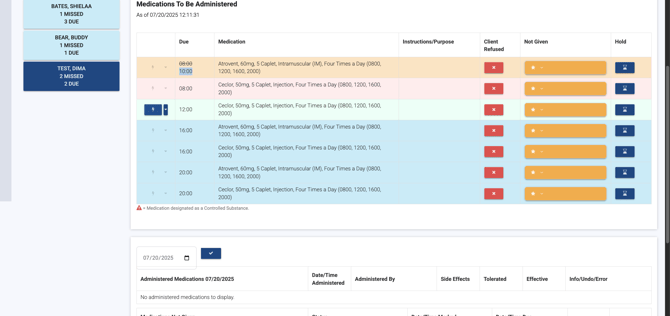 Enter the amount you gave,
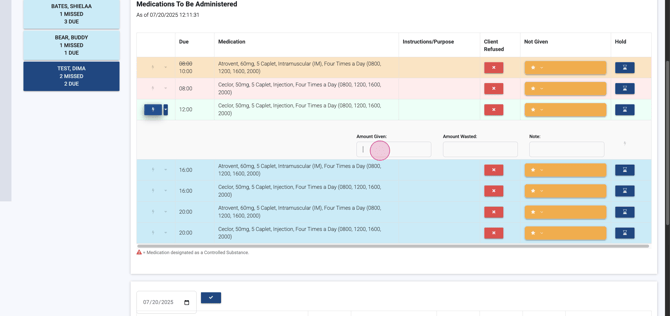 any amount wasted,
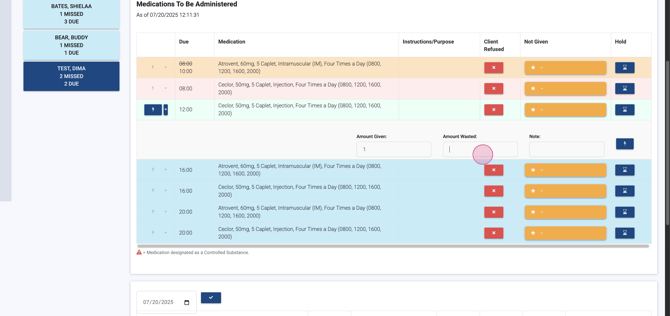 and relevant notes.
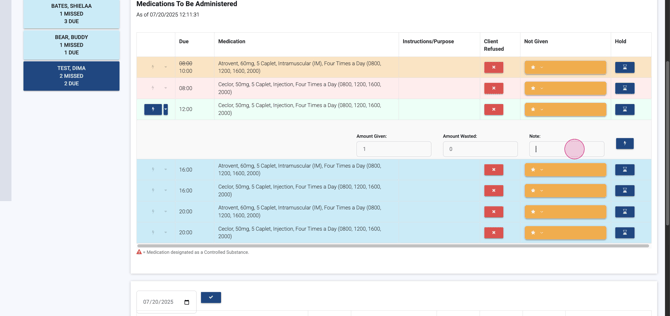 Hit the blue lightning bolt to confirm administration.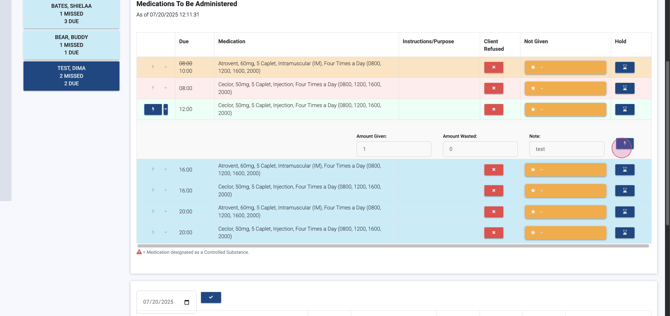
Successfully administered medications now display in the Administered Medications table.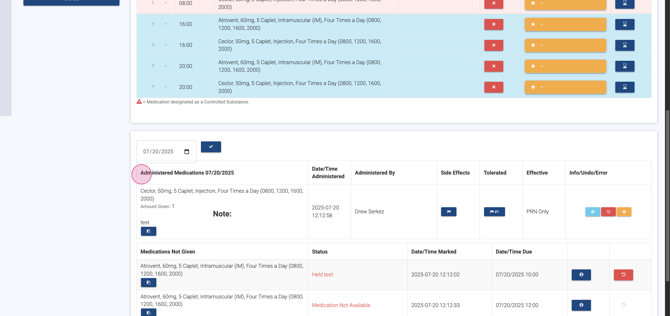
Step 12: Record Side Effects or Tolerance After administering a medication, note any side effects or indicate if the medication was tolerated. Choosing either option provides a note entry area.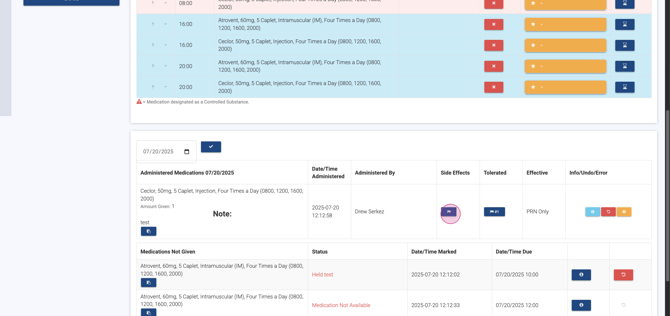 For Tolerated, select yes or no and use the green check to confirm for PRN meds.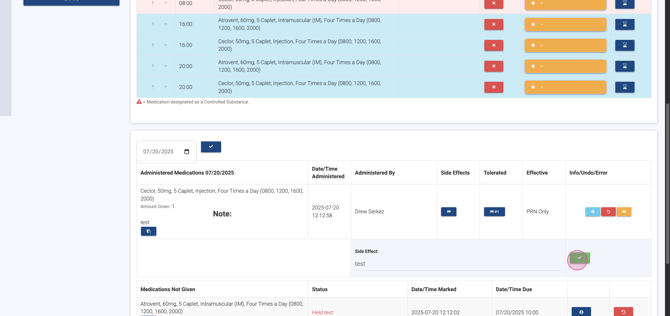
Step 13: Manage and Track PRN Medications Switch to the PRN medications tab.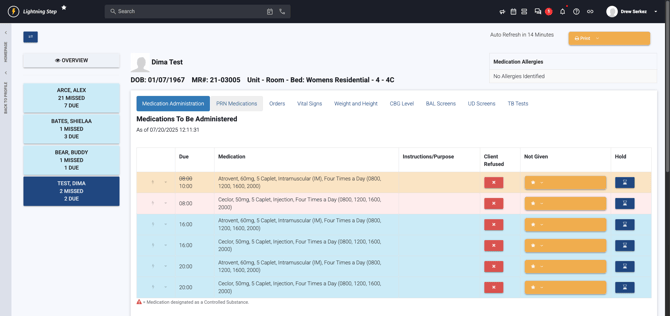 Click the blue lightning bolt to administer a PRN med.
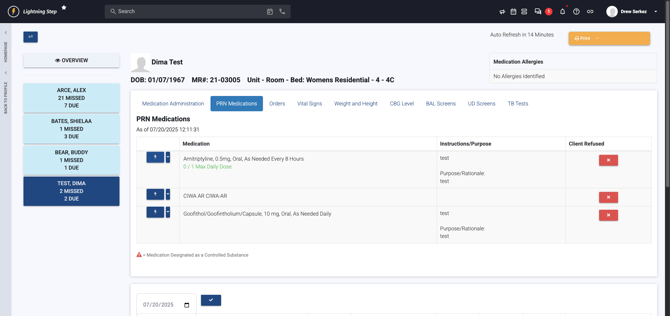 This moves it to Administered Medications.
To track effectiveness, locate the Effective column.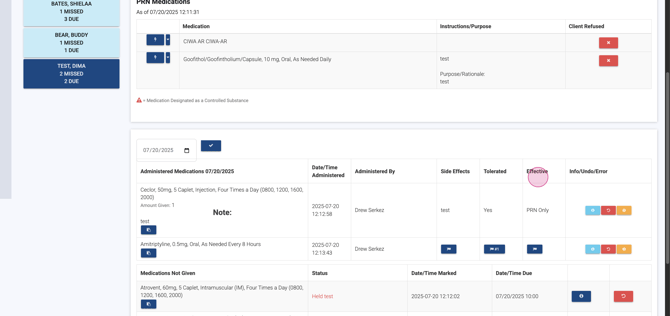 Choose yes or no as prompted.
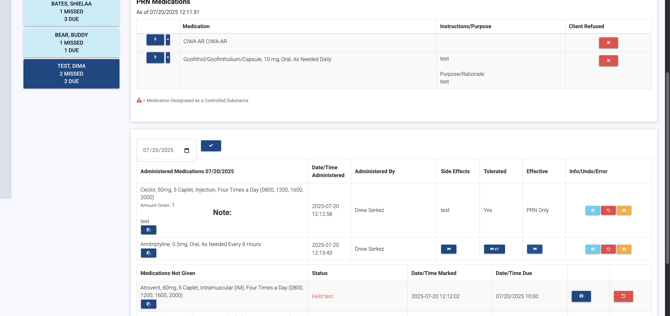 Press the green checkmark to save your entry.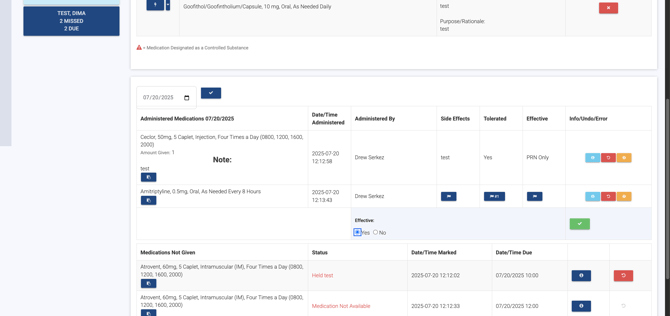
To refuse a PRN, click Refused.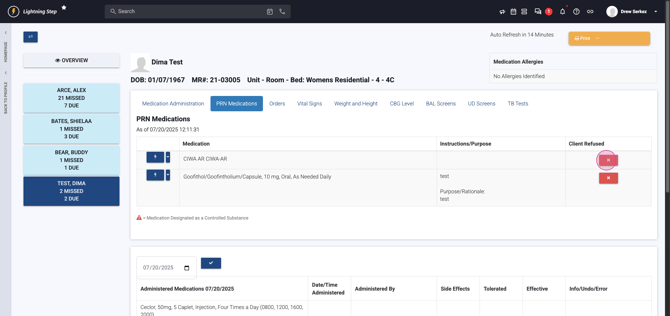 The med moves to Meds Not Given.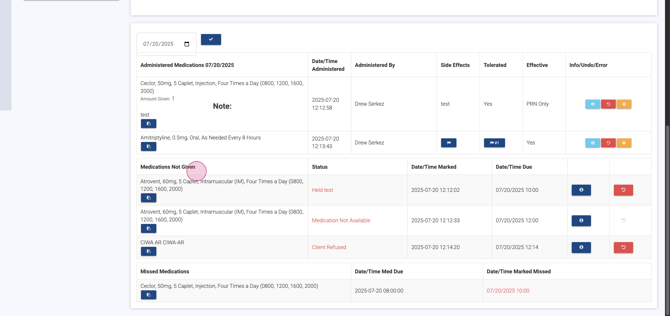
Step 14: Use More Options Access extra functions under the More drop-down. View orders,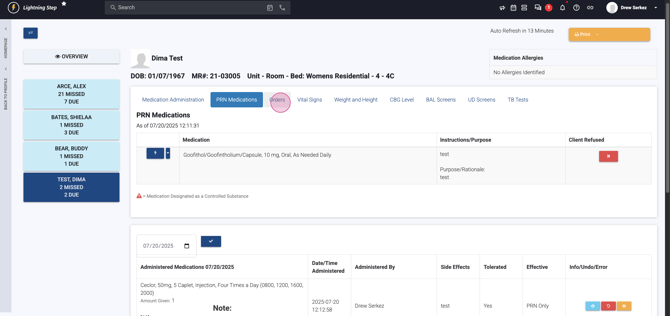 add an order if you’re a provider,
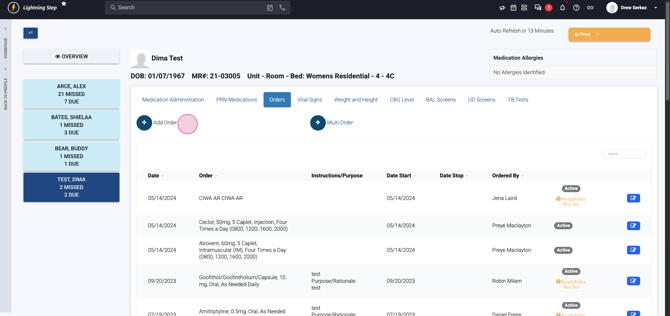 and record vital signs
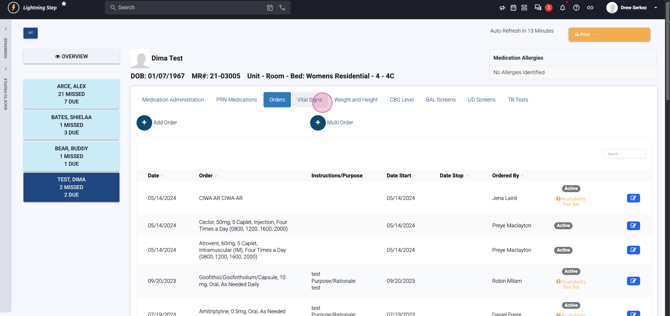 —including weight, height, BMI,
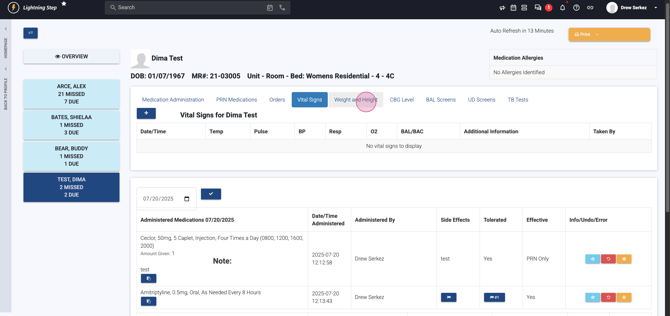 CBG,
CBG,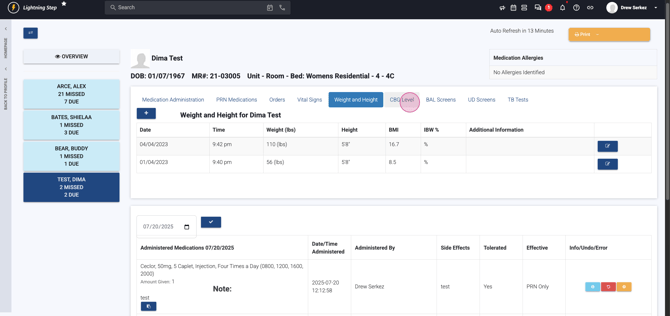 blood alcohol level,
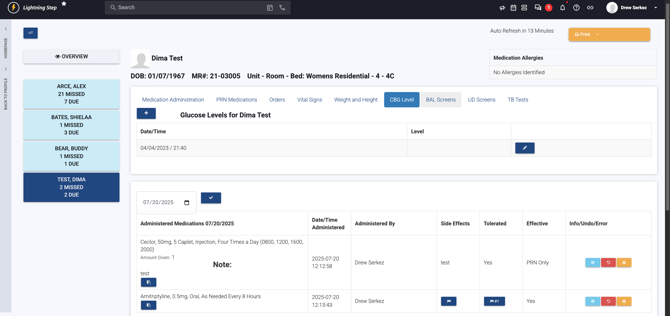 UDS,
UDS,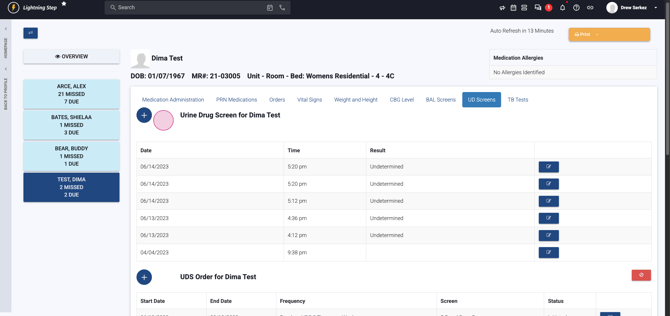 and tuberculosis tests.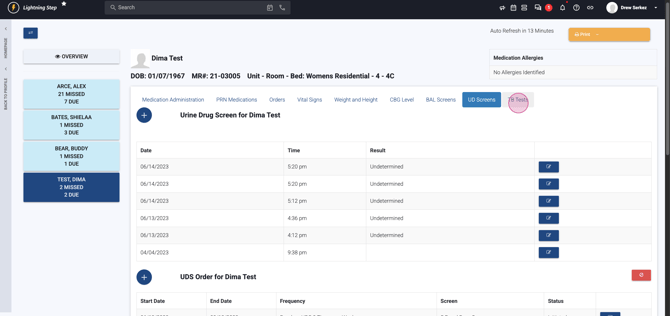
Exit the MAR section by clicking the Lightning Step logo at the top left.
Thanks for following along!
