
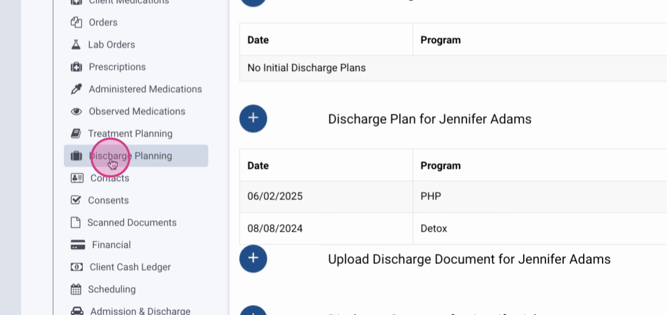
Step 1: Navigate to the left-hand menu and locate the Discharge Planning tab. Here, you'll find discharge summaries and the discharge medication list.
Step 2: Click on the Discharge Medication List. This is where you'll document the status of the patient's current active orders.
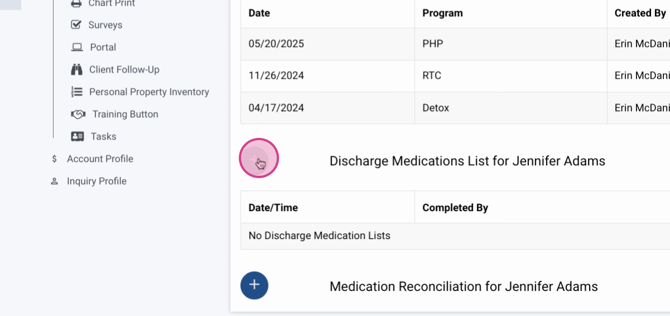
Step 3: Continue to populate the discharge medication list.
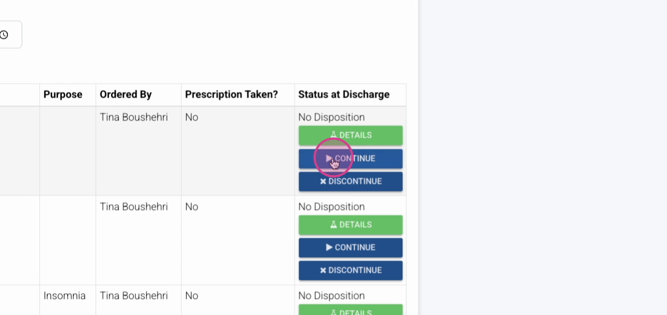
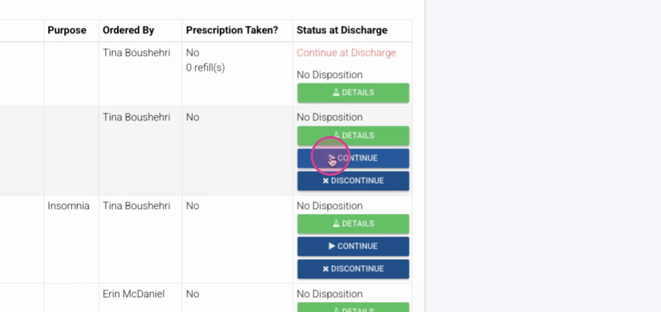
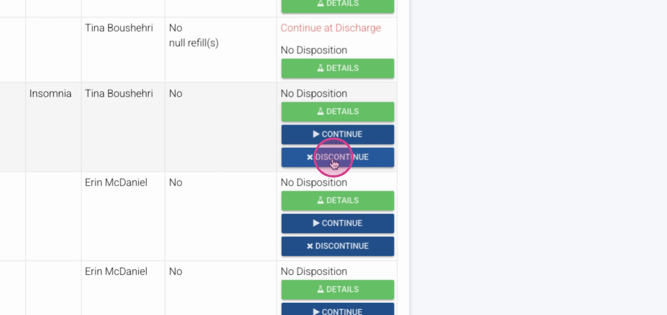
Step 4: Click on the Details button to capture any discharge dispositions and prescriptions given.
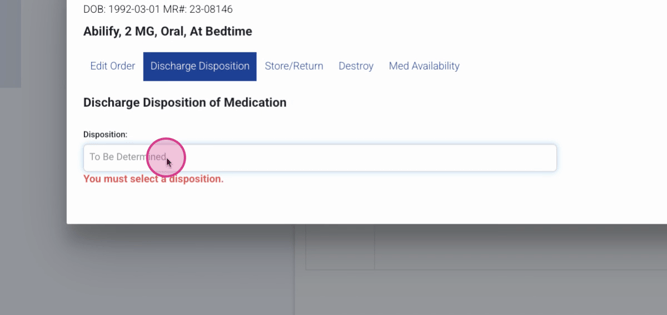
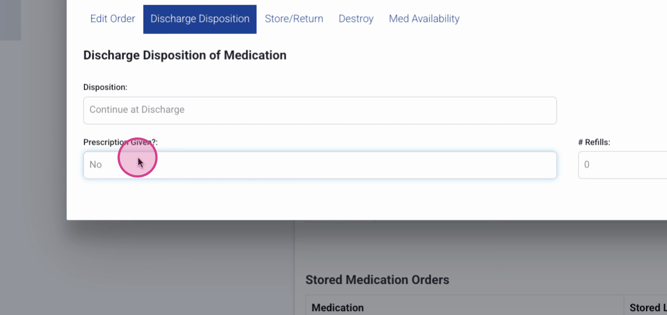
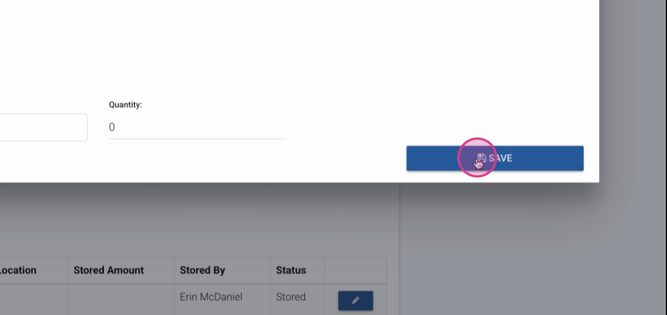
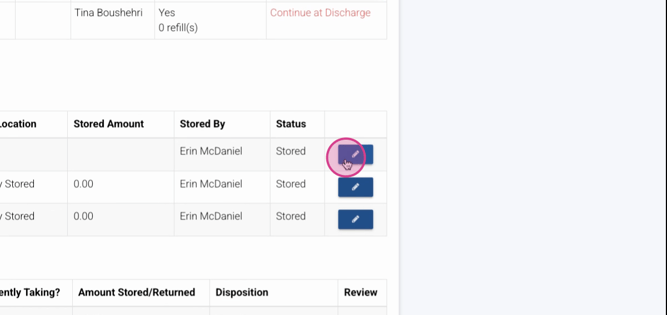
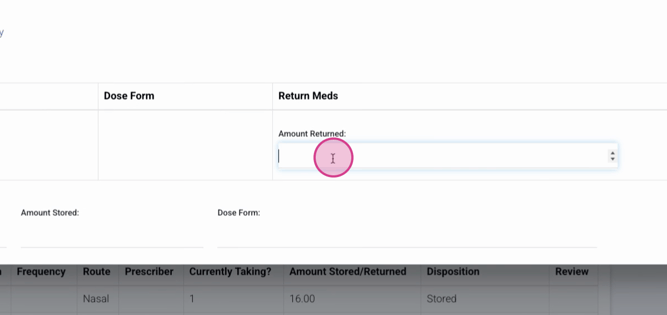
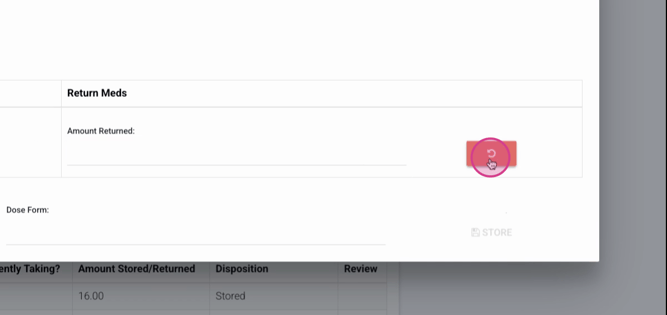
Step 5: Click on Continue at Discharge. Here, you can document any stored meds and return any outstanding meds.
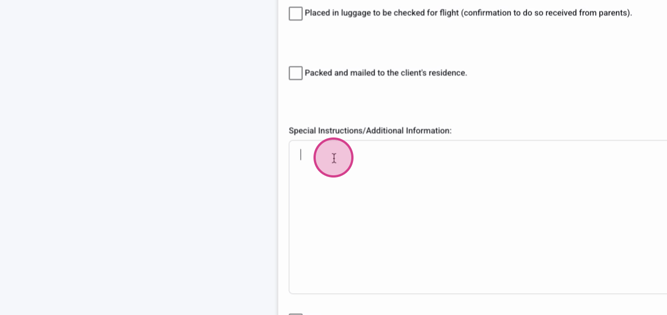
Step 6: Scroll down to the bottom of the page. Here, you'll find a section for meds to be continued, method of transport, and any special instructions or additional information.
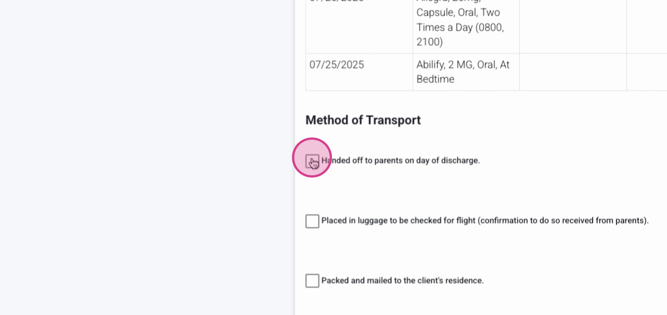
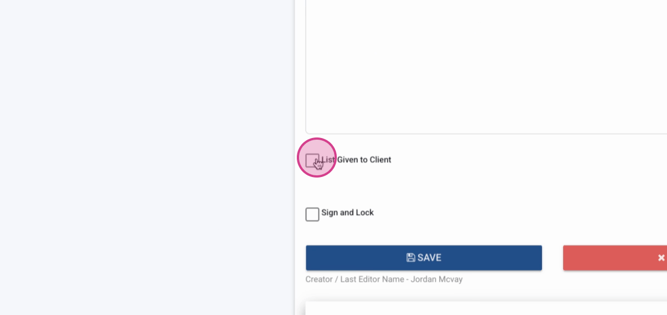
Step 7: Confirm that the medication list was given to the patient.
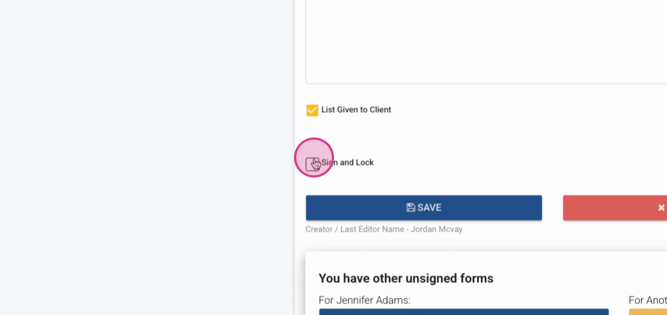
Step 8: Finally, click on Sign Lock and Save to finalize the discharge process.
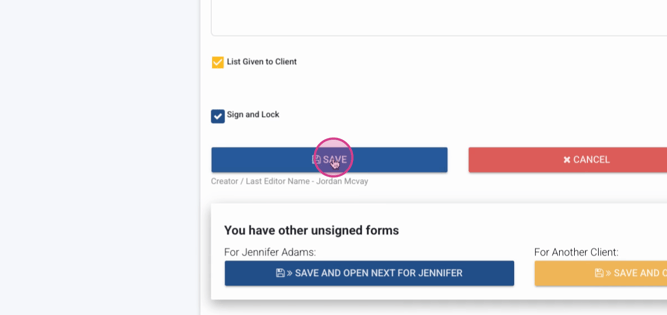
By following these steps, you'll be able to efficiently manage the medication list at discharge.
