
Step 1: Start by exploring the new, fully integrated electronic prescribing system. We've consolidated all medication-related navigation buttons into a centralized dashboard named Medication Management. You'll also notice a new button labeled Pharmacy.
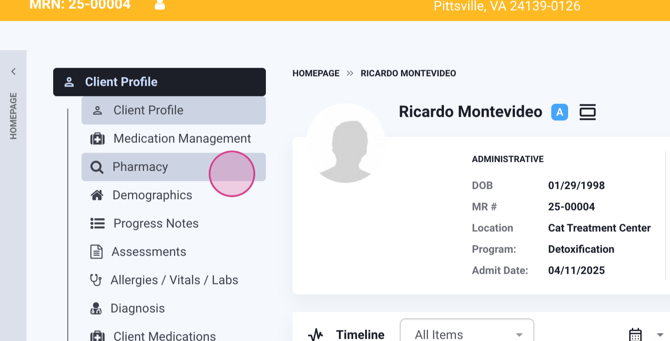
Step 2: Click on the Pharmacy button to manage your client's pharmacies.
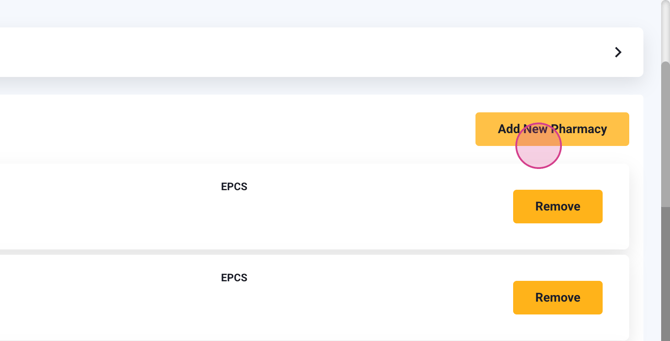
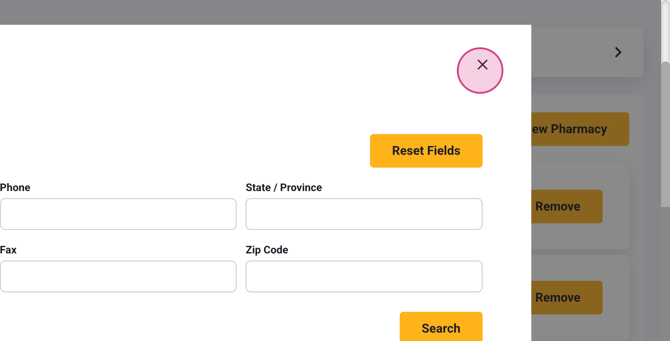
Step 3: To add a new pharmacy, input the pharmacy's name, address, and other relevant fields to narrow down your search.
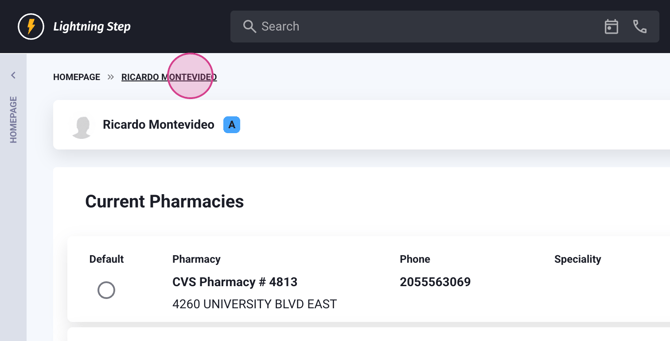
Step 4: In Medication Management,
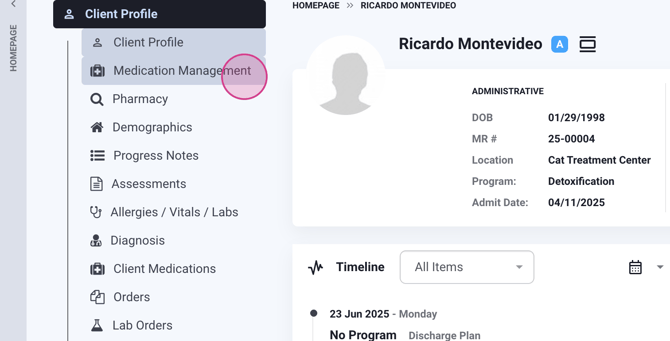
you'll find tabs dedicated to each ordering type. The Orders tab displays your med orders that appear on the med administration record.
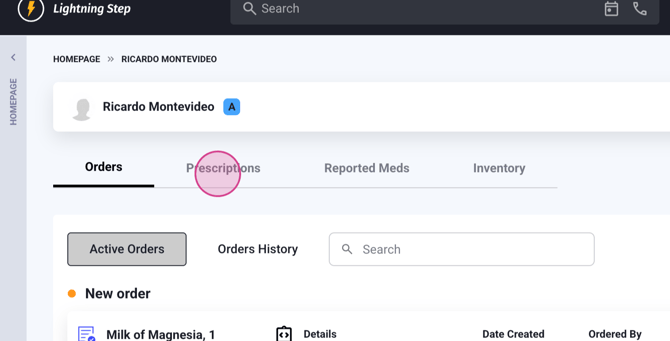
The Prescriptions tab contains prescriptions to send to the pharmacy.
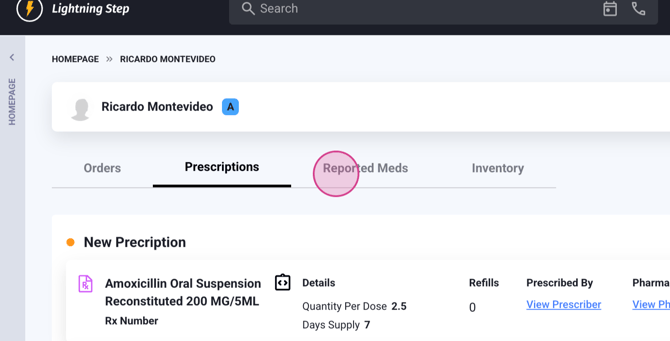
The Client Reported Meds tab is where you'll find client-reported medications.
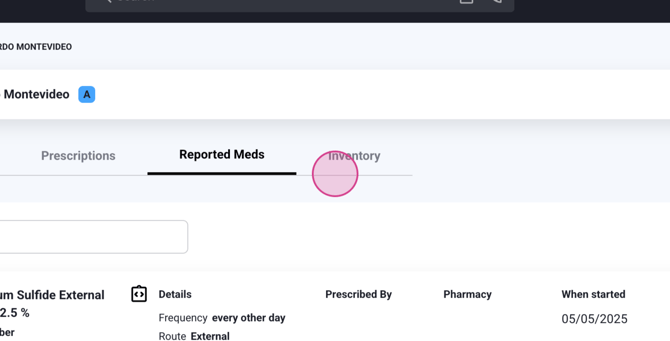
And the Medication Inventory tab is where you'll manage your medication stock.
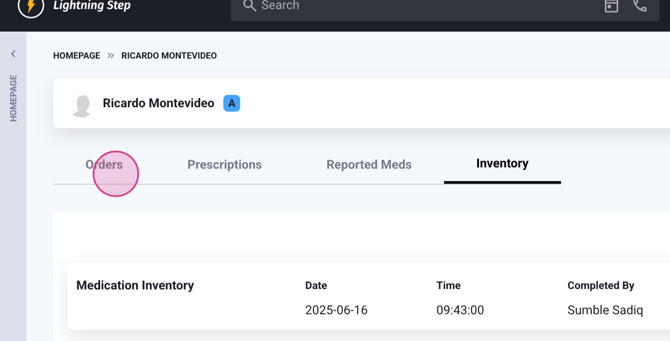
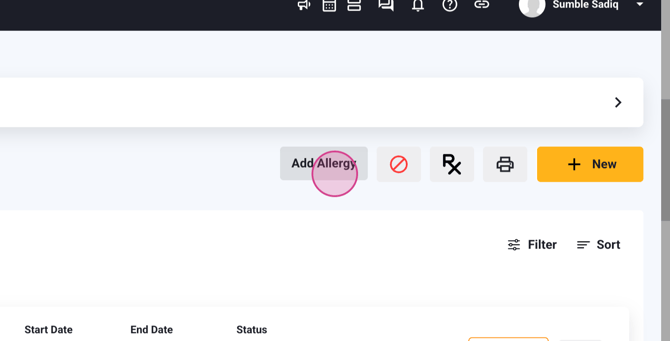
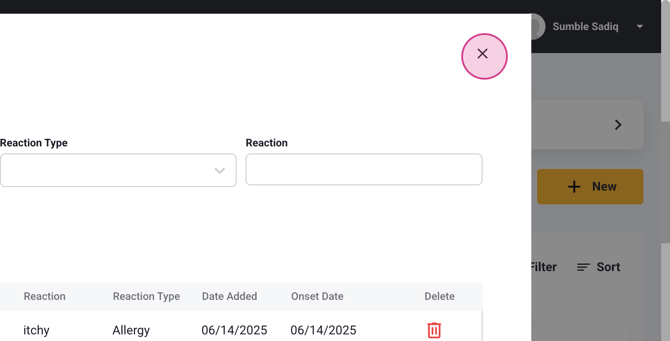
Step 5: We've also added a new tab for Allergies. Here's where you'll manage your client's allergies.
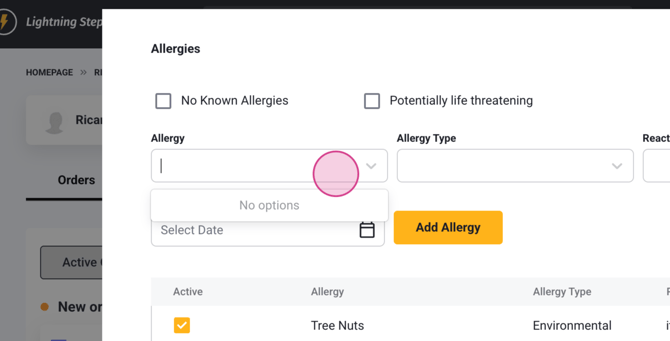
You're able to search for an allergy, and the system will return results from a national

database of allergies.
Step 6: We've added a new button that provides easy access to all ways to initiate a new order. You can create a new order, new prescription, reported medication, a protocol, or non-medication order. When creating an order, you'll see a new ordering screen where you can specify a consistent dose or a taper. If you want the dose
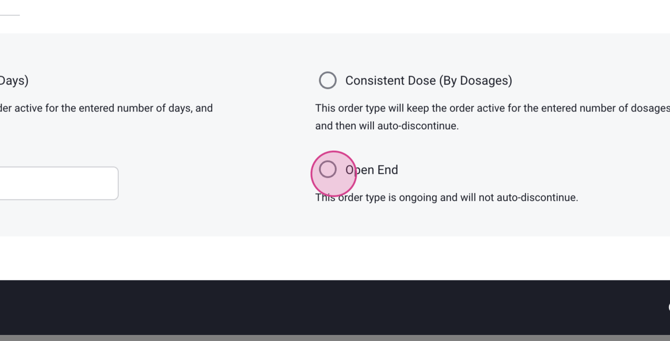
to be open-ended, select that
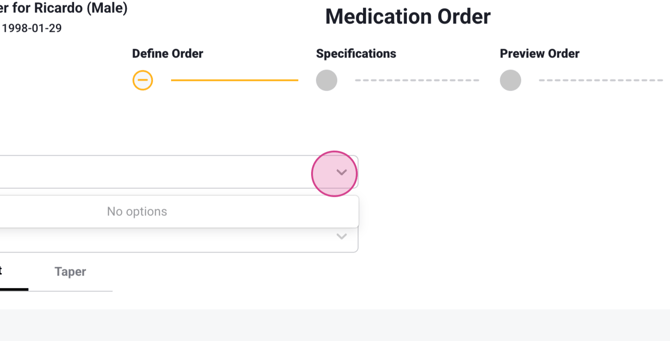
option. As you start searching, you'll receive a contraindication alert.
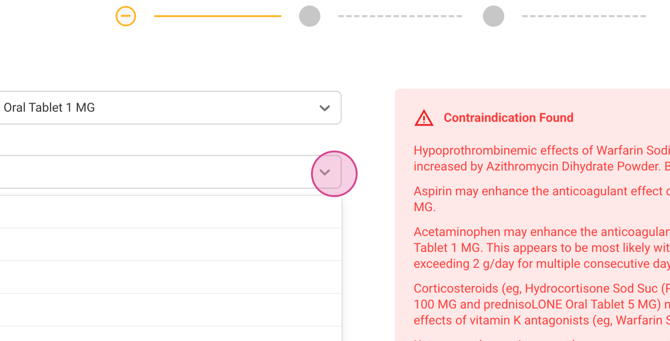
Step 7: On the next screen, fill out the necessary information
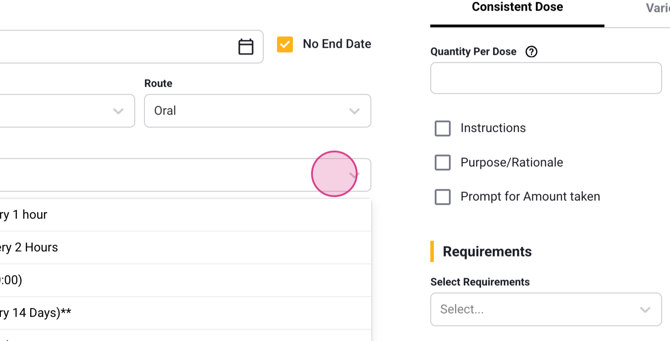
to complete the order. This includes the start date, dose form, route frequency, quantity information,
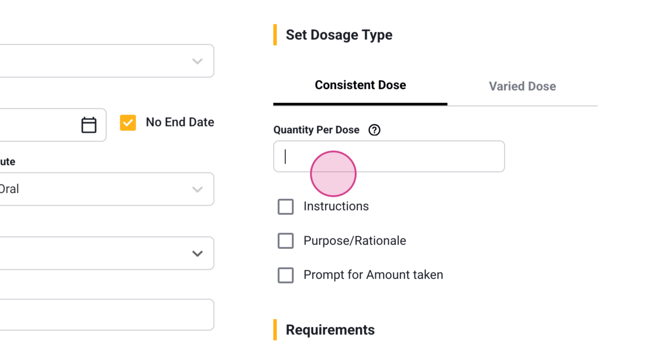
and the number of pills to be taken.
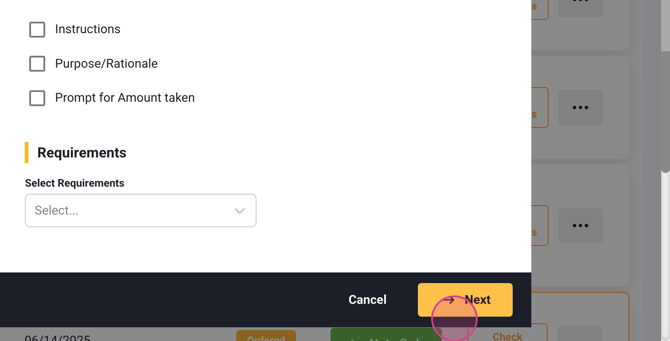
Once you've filled out the order
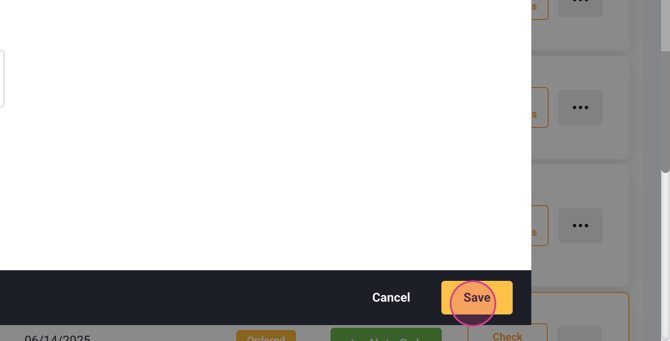
screen, save it. From within the med order, you can create a prescription or save and close. If your facility doesn't require prescriptions, you won't see this pop-up.

If you choose to create a prescription, it will take you to a new electronic prescription.
Step 8: From the Orders menu, you'll see all orders requiring an action. We use labels here to indicate if something is a PRN protocol. An exclamation point indicates a controlled substance. You
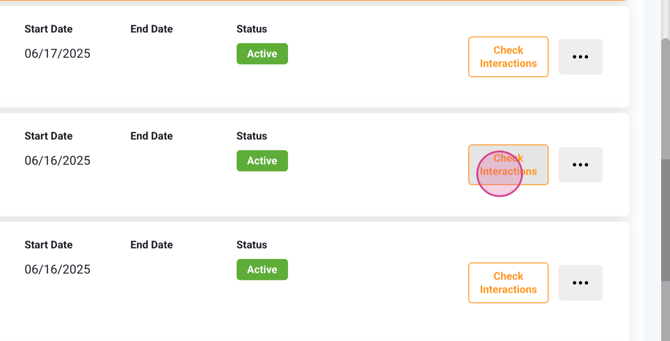
can also perform an interaction check on
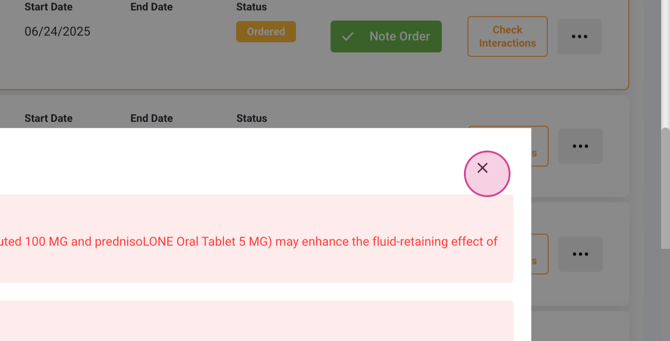
any of the orders.
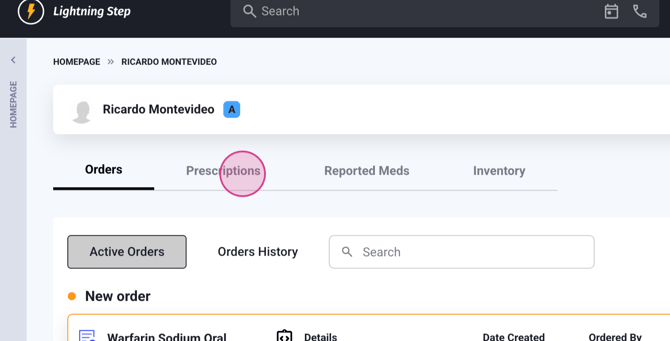
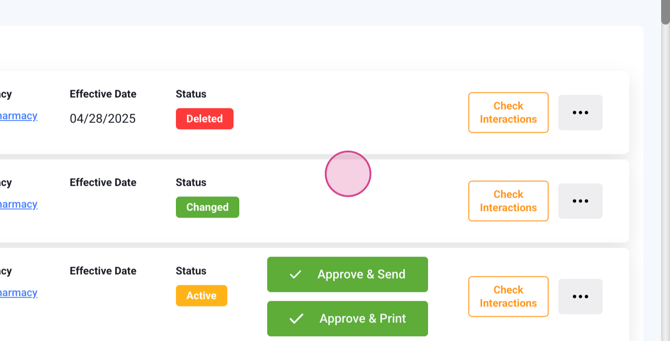
Step 9: In the Prescriptions tab, manage your client prescriptions. You can send any of these off to the pharmacy. Those awaiting approval are marked as pending. You'll also see the updated statuses from the pharmacy for each prescription. You
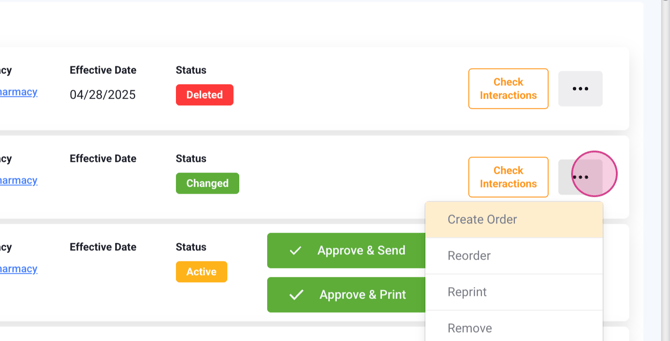
can perform actions like creating an order, reordering, printing, removing, or canceling from the prescription.
Step 10: The Reported Meds tab contains all of your client's self-reported meds.
This is a high-level overview of the initial release of the new meds management experience. If you're interested in enabling this on your site, please reach out to us. We'll continue to roll out additional enhancements throughout the year.
