
Step 1: Request to Enable the Merge Charges Unit Override Feature
This feature needs to be activated by Lightning Step staff. If you're interested, contact Lightning Step support or your customer success manager. You can access this feature from both the financial dashboard and the account profile.
Step 2: Access the Financial Dashboard
In the navigation menu, click on Financial.
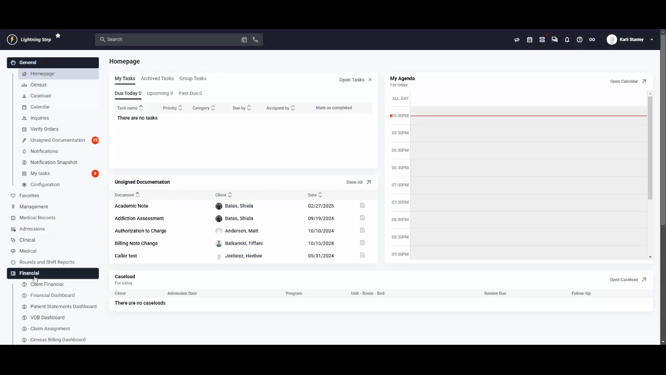
Next, click on Financial Dashboard.
Step 3: Select the Claims Queue
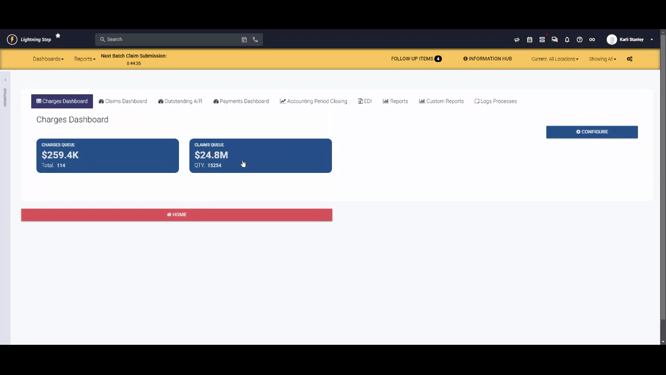
Step 4: Enable User Setting for Merge Charges
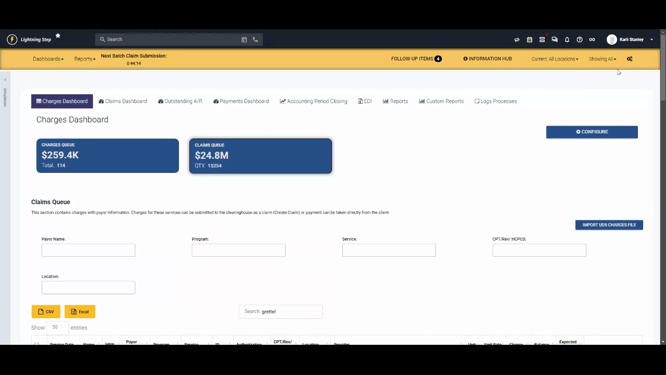
Before proceeding, ensure that the user setting for merge charges is enabled. To check this, click on the Gear Icon in the upper right hand corner.
Ensure that the checkbox for Show Merge Charges is selected. If it's not, select the checkbox.
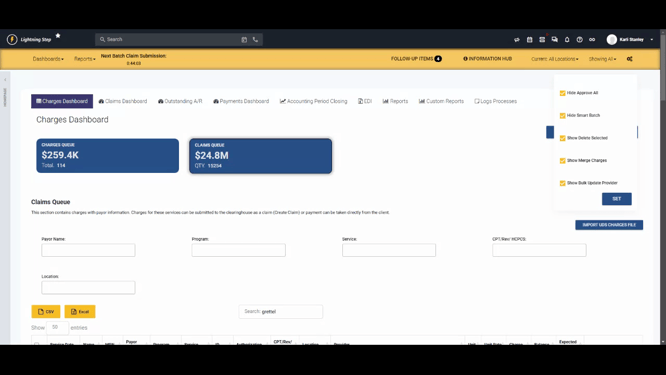
Then, click on Set.
Step 5: Select Charges to Merge
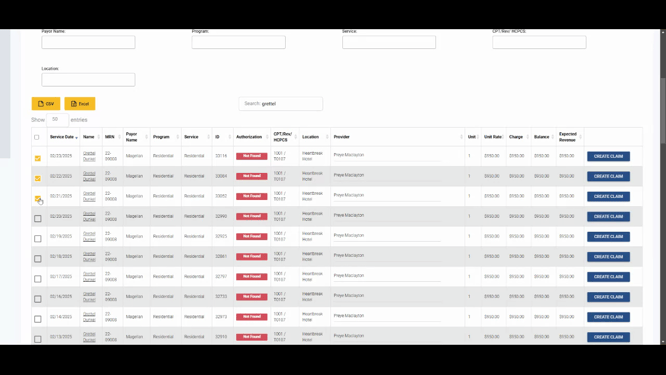
In the claims queue, select the charges you wish to merge. These charges must have the same client, program, service, payer, and location.
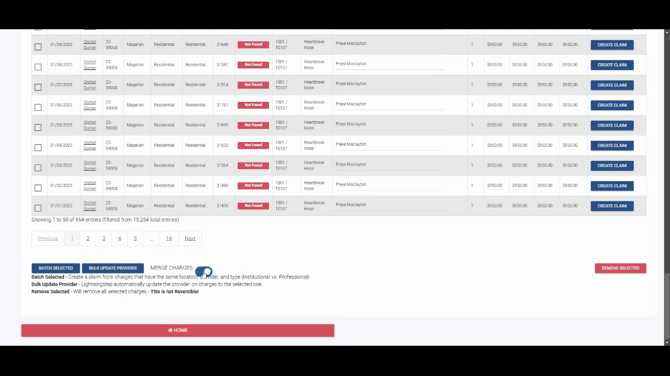
At the bottom of the charges or the claims queue, enable the Merge Charges toggle.
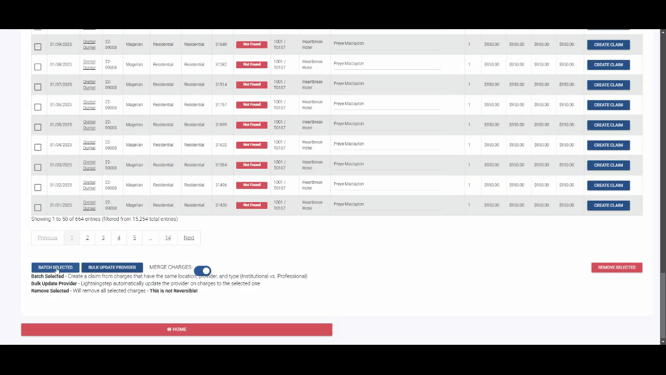
Then, click on Batch Selected.
Step 6: Confirm Merge Charges
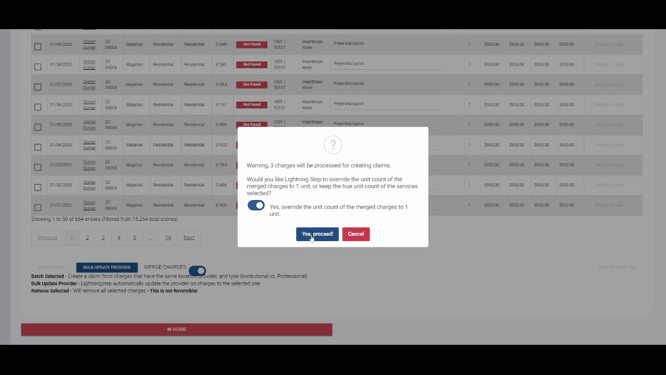
A pop-up will appear, indicating that the selected charges will be processed for creating claims. It will ask if you'd like Lightning to override the unit count of merge charges to one unit or keep the true unit count of the services selected. If you want to override the unit count to one, select the toggle for Yes, Override the Unit Count of Merge Charges to One Unit, then click on Proceed.
Step 7: Review the Claim
The claim is created for the selected charges. The start date and the end date will still be within the date range for the charges selected. However, the line item will only have one unit, even though the charge total would add up to all three units added together.
Step 8: Access the Account Profile
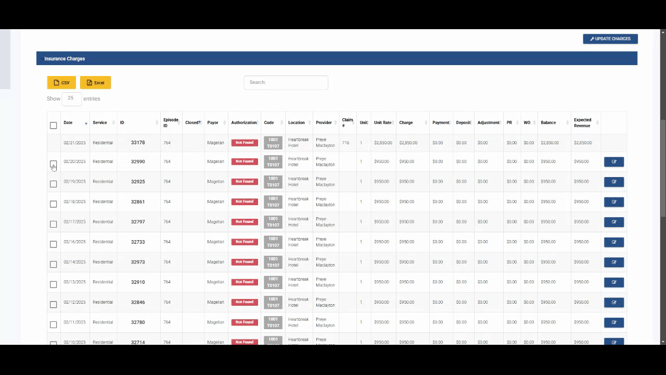
Step 9: Review the Merged Charges
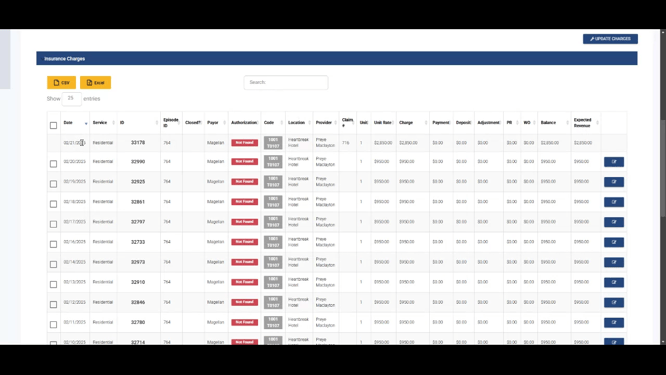
In the account profile, you can see how the charge reflects once the merge has happened. The unit rate will be one and the unit rate will total up for all of the selected units.
Step 10: Enable Merge Charges in Account Profile
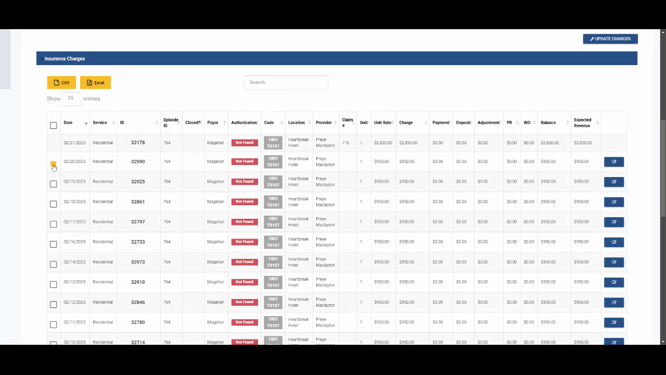
To use this feature in the account profile, select the charges you want to merge.
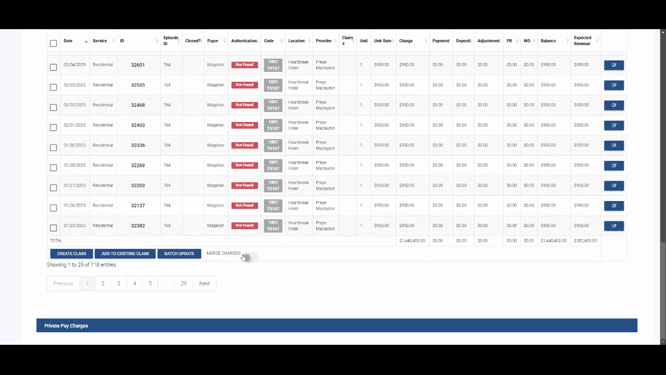
Then, enable Merge Charges and click on Create Claim.
Step 11: Confirm Merge Charges in Account Profile
The same pop-up will appear within the account profile. In this example, we'll opt not to override the unit count to show the difference. The claim will be created.
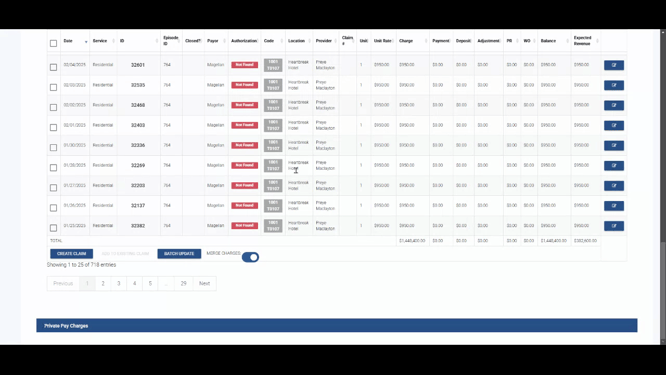
The date of service will span the date range of all selected. The charges will be merged into a single line item, but this claim will have three units instead of one.
That's it! You've now learned how to use the merge charges unit override feature in Lightning Step. Thank you, and have a great day.
