
The Lightning Step Academy is an ever-growing library. It already houses valuable documentation for both new and experienced team members, helping everyone stay informed and efficient.
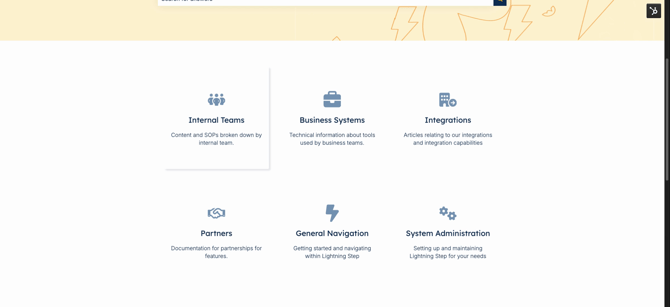
Step 1: Access the Academy. The landing page displays the logo on the top left, a central search bar, and categories organized underneath.
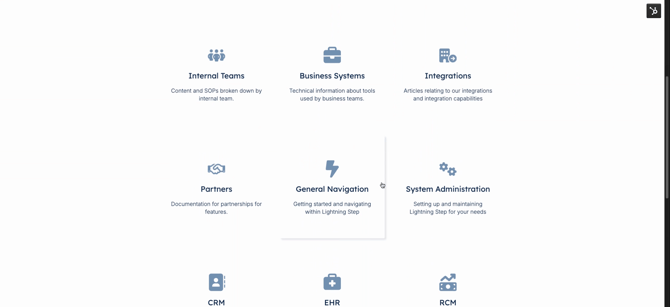
Step 2: Review the available categories. You'll see major groupings for Internal Teams, Business Systems, Integrations, Partnerships, General Navigation, and Administration. Each category focuses on a different area of the company’s platform or operations.
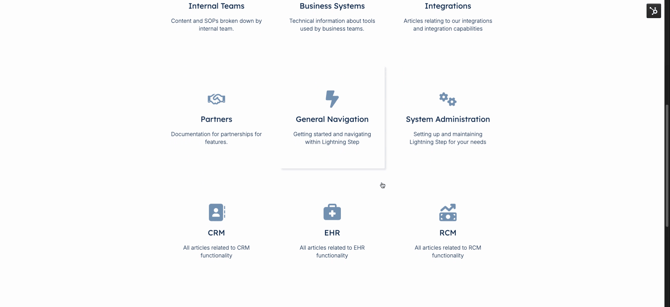
Step 3: Click a category to explore its contents. For example, Internal Teams holds SOPs for different departments, while Business Systems contains documentation for tools used across the business. Integrations, Partnerships, General Navigation, and Administration each address their specific focus areas in depth.
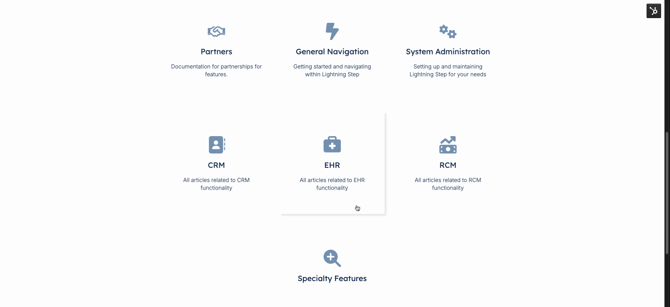
Step 4: Dive into product and platform documentation. Sections like CRM, EHR, RCM, and Specialty Features give you direct access to detailed guides for CRM workflows, clinical features, revenue cycle management, and innovative offerings.
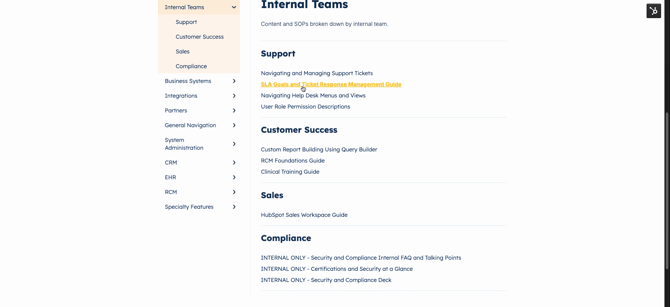
Step 5: Once inside a main category, browse subcategories related to specific teams, functions, or topics. Categories like Internal Teams showcase divisions such as Support, Success, Sales, and Compliance—but more subcategories may appear as documentation expands.
Step 6: Use the navigation tree on the left to quickly jump into the subcategory you need, such as Support. Select the article you're looking for; the navigation tree remains visible for fast switching between topics.
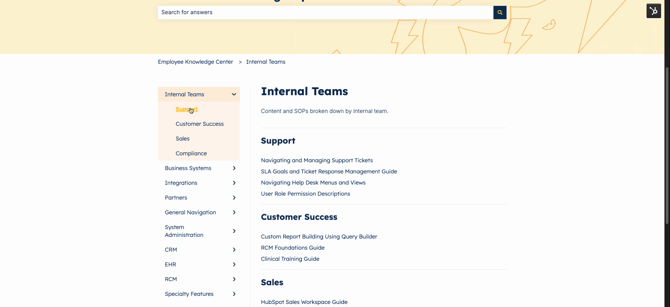
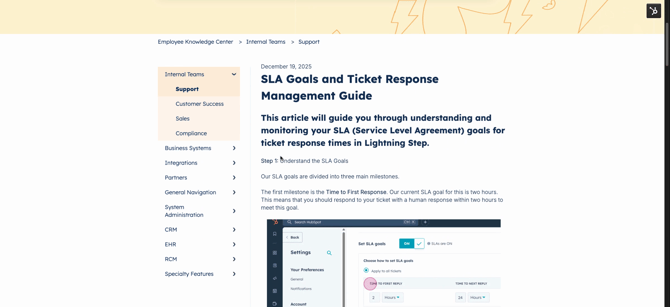
Step 7: Follow the breadcrumb trail at the top of each article to track where you are and easily move back up to broader categories.
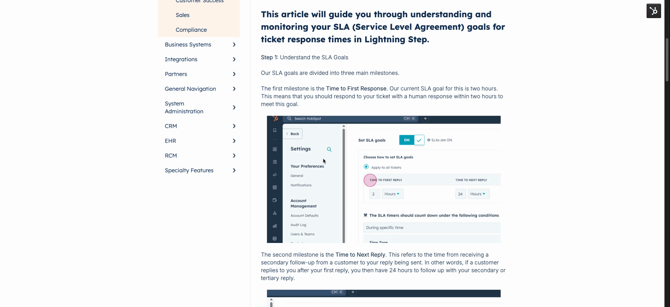
Step 8: Open any article to review its contents. At the top, you'll find the article title, then the subtitle, and finally the article body. Articles often include step-by-step guides with screenshots and may even feature embedded videos for extra clarity.
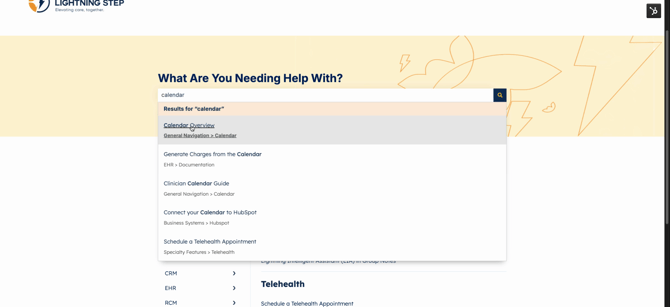
Step 9: If you're not sure where to find what you need, type keywords into the search bar at the top. The Knowledge Base uses advanced tagging and metadata to surface helpful results—even if your exact words aren’t in the titles.
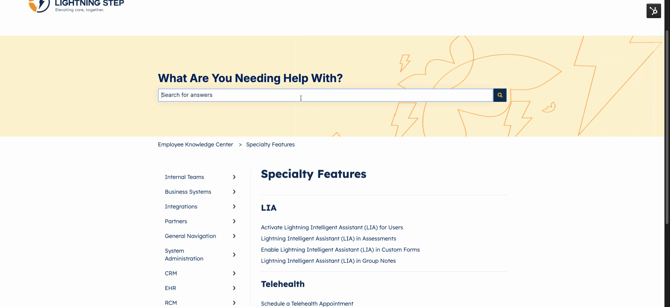
Step 10: Scan your search results. Each result lists the article’s category and subcategory, allowing you to spot the most relevant information quickly. Click a search result to jump right to the article.
Step 11: Eligible users can create new articles or request content for the academy. For training on article creation or to submit a request, use the support link in the upper right corner.
With the Lightning Step Academy Knowledge Base, finding procedural details and product documentation is quick and intuitive. Refer to the written guides for step-by-step instructions, and contact the enablement team via support for additional help or questions.
