
Step 1:
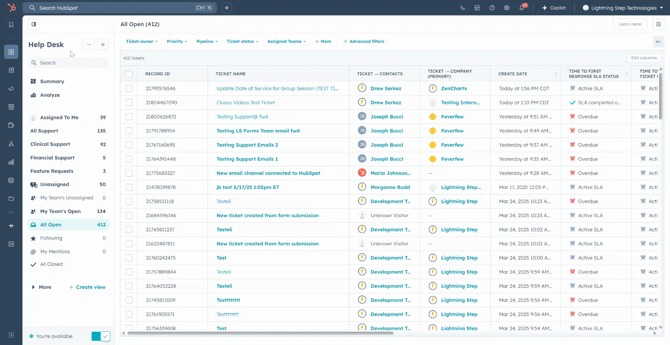
Focus on the left-hand menus in the Help Desk. Each of them has a specific meaning and function.
Step 2:
Your default landing page should be the "All Open tickets". The highlighted option indicates your current menu location.
Step 3:
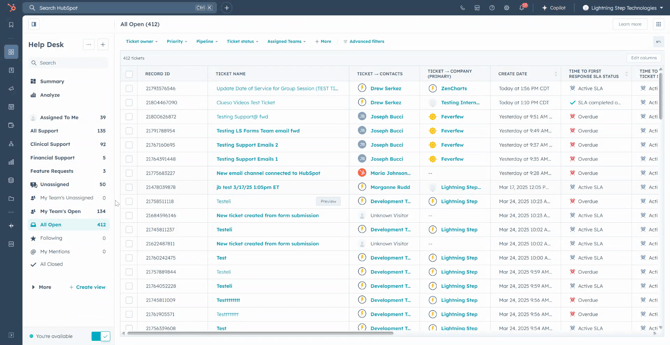
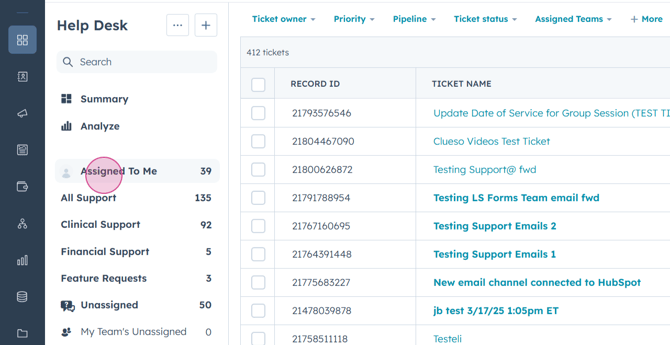
Start from the top and work your way down. The first menu is "Assigned to me".
Step 4:
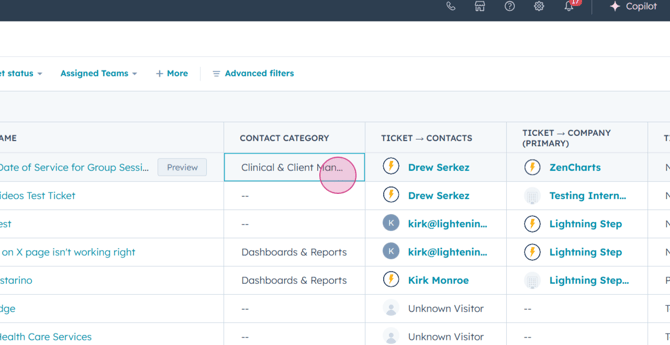
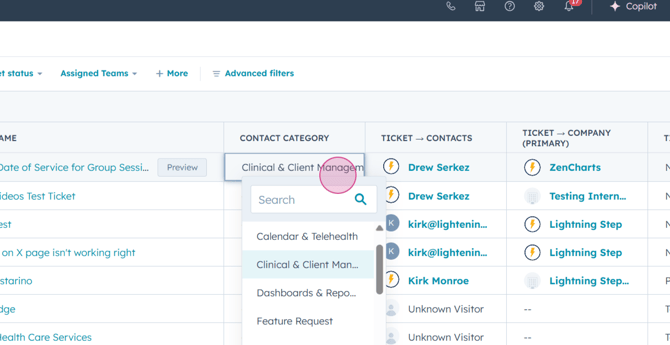
This menu holds every ticket assigned to you. When selected, you'll see a list of all your tickets on the right-hand side with various columns such as Record ID, ticket name, Contact category, and more.
Step 5:
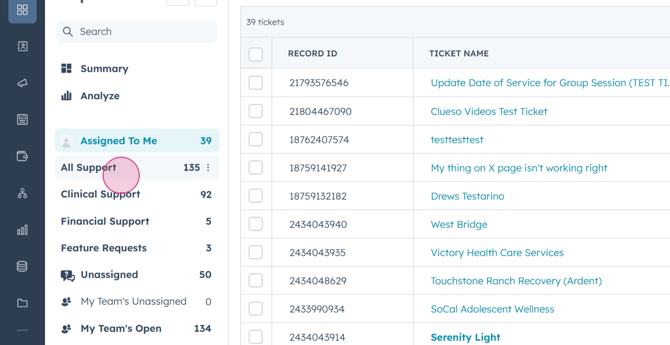
Next, explore the "All Support" menu. It contains a list of every open support ticket, regardless of team or assignment.
Step 6:
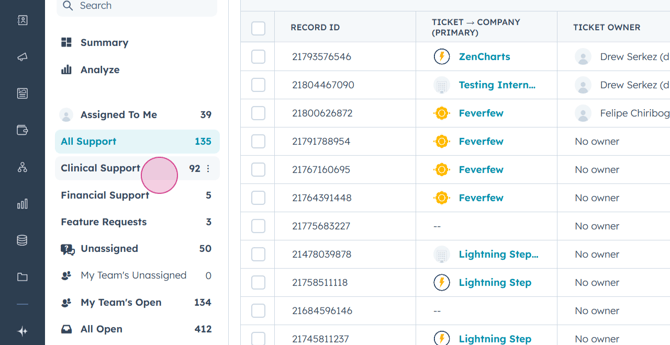
The "Clinical Support" menu includes all tickets with a contact subcode set to a clinical workflow. It's essentially the Clinical team's bucket of tickets.
Step 7:
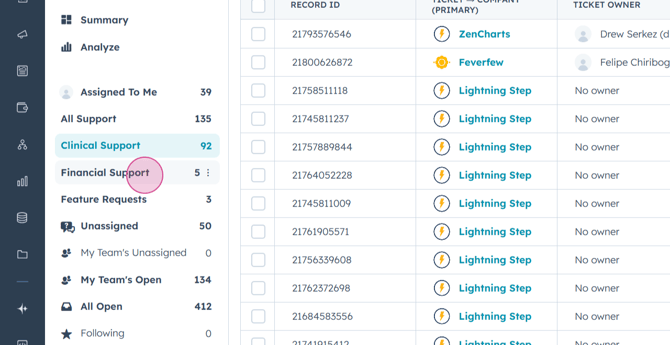
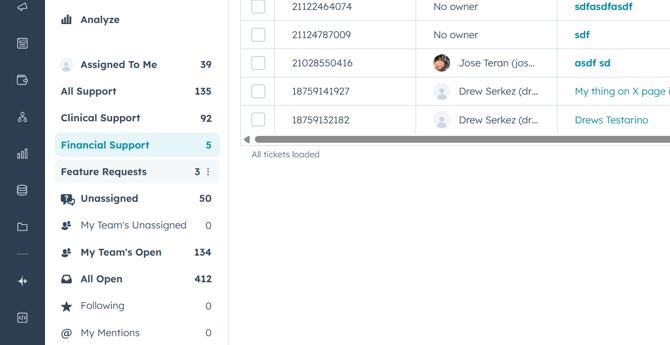
"Financial Support" contains all open Financial team tickets assigned a contact subcode for financial workflow.
Step 8:
"Feature requests" includes all tickets submitted with a feature request contact code classification. These are for record keeping purposes only at this time.
Step 9:
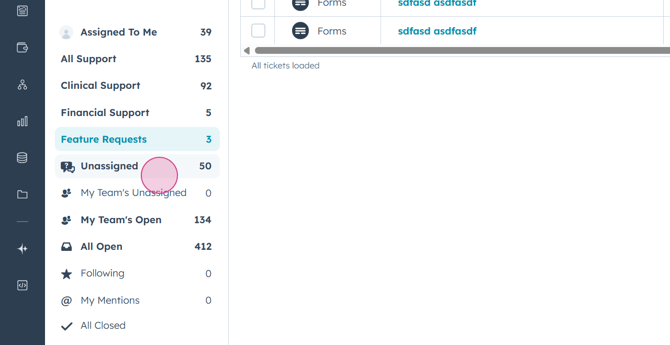
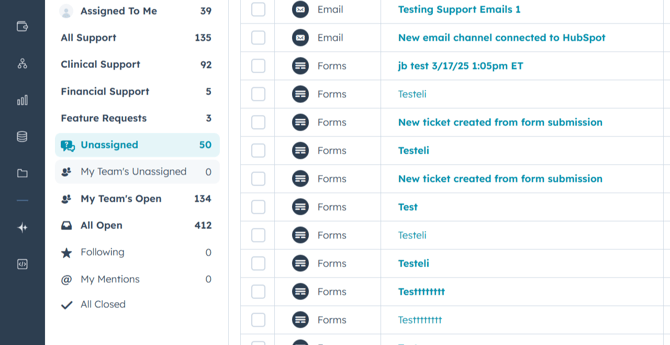
"Unassigned tickets" show any tickets that haven't been assigned yet, primarily email-driven tickets prior to the application of our form Ticket Submission Workflow.
Step 10:
"Your team's unassigned tickets" display the unassigned tickets for the clinical or financial team that you're part of.
Step 11:
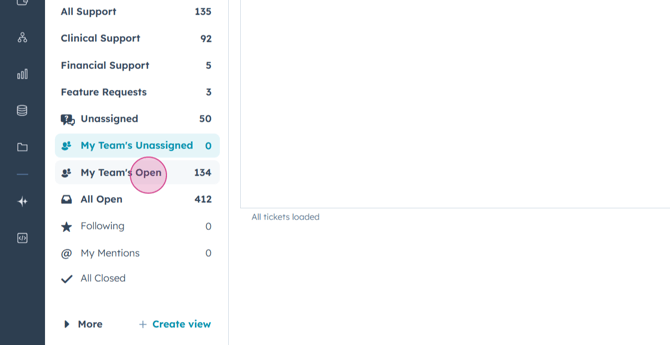
"My teams open tickets" show all open tickets for all teams you're assigned to if assigned more than one team.
Step 12:
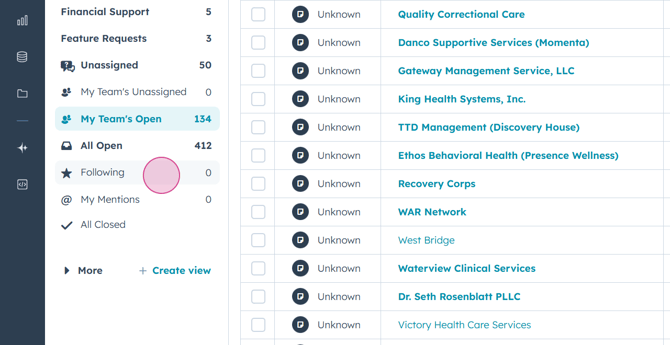
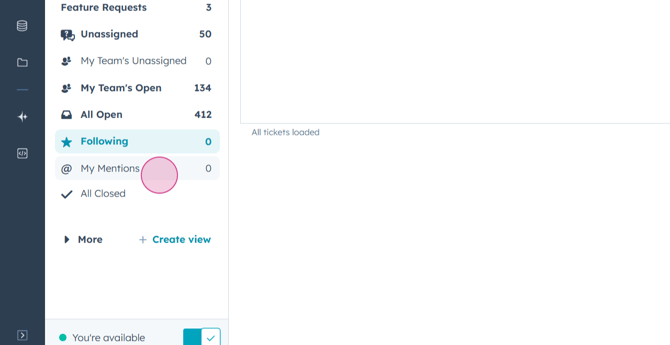
"Following" and "Mentions" are tickets you've set yourself as a follower for or where you've been mentioned through your direct contact. They will show in this feed.
Step 13:
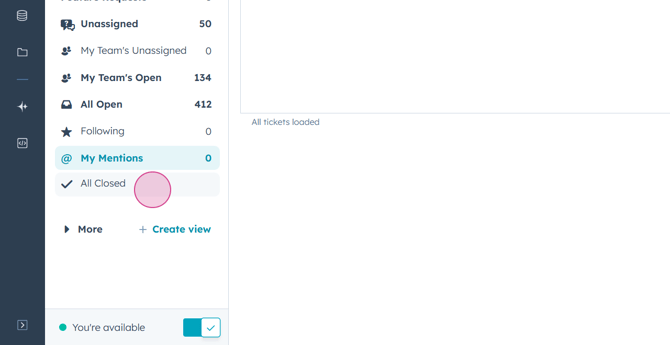
Finally, "All closed tickets" shows every ticket with a closed status.
By understanding these menus and views, you'll navigate the Help Desk more efficiently.
