
Step 1: Open your web browser and type in the URL app.HubSpot.com login. This will redirect you to the login page.
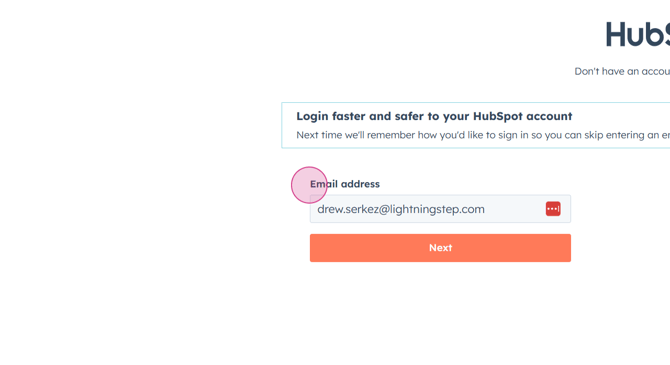
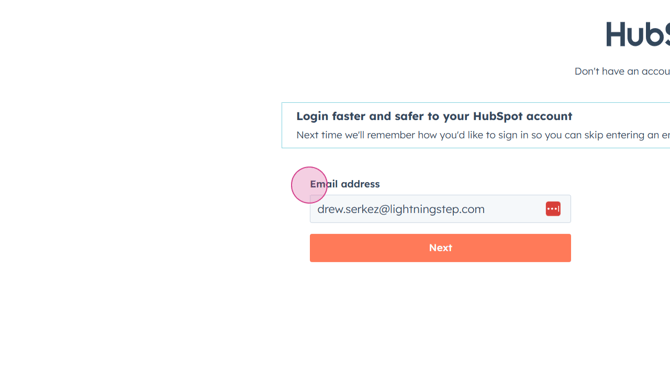
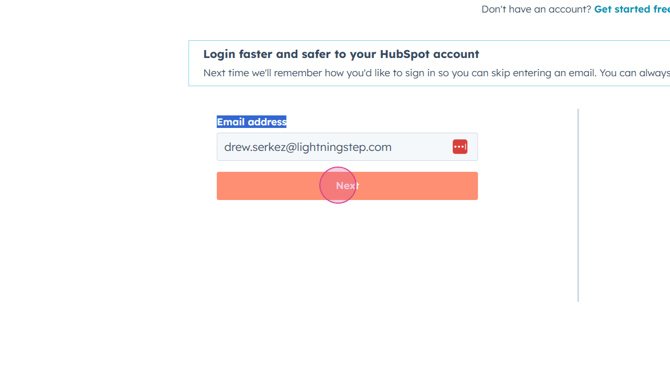
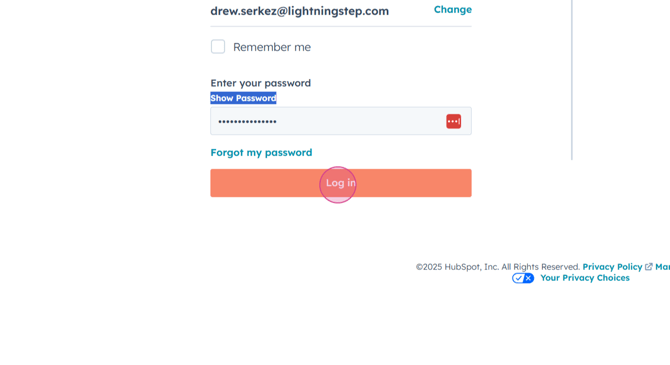
Step 2: Enter your company email address and hit the Next button.
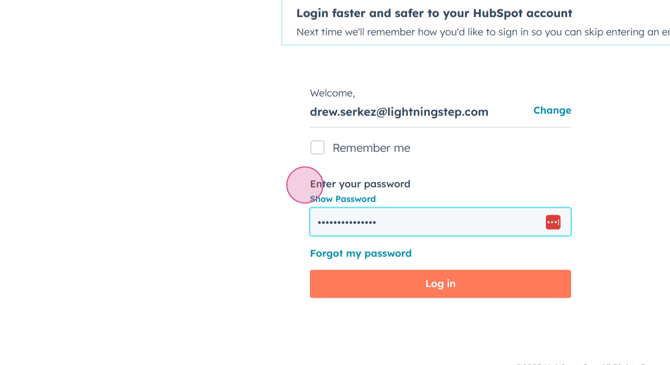
Step 3: Input your password and click on the login button.
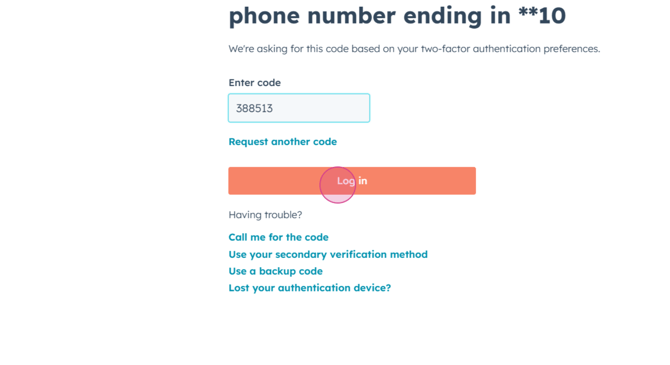
Step 4: You'll be asked to enter a Two Factor Authentication code. After entering the code, hit the login key.
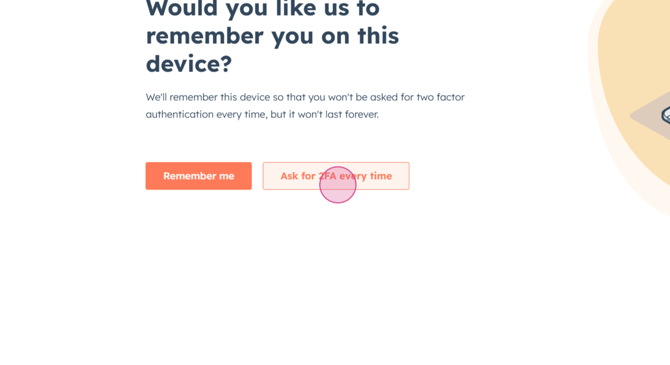
Step 5: Choose whether you want to be remembered or asked for Two Factor Authentication every time. We recommend selecting Ask for Two Factor Authentication every time.
You'll then be redirected to your HubSpot account. The first time you log in, you might land on a different page. That's okay. We'll show you how to set your default landing page.
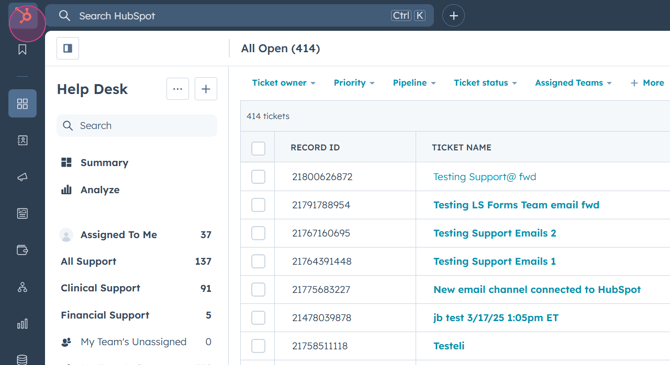
Step 6: Familiarize yourself with the basic menu options. The sprocket icon in the upper left acts as your home icon. The left-hand menu includes options for bookmarks, Workspaces, CRM Marketing Information, Content, Information Commerce, Information Automations, Reporting, Data Management, and the Library.
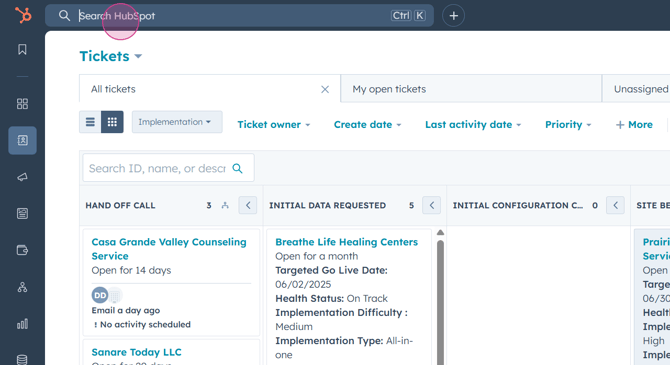
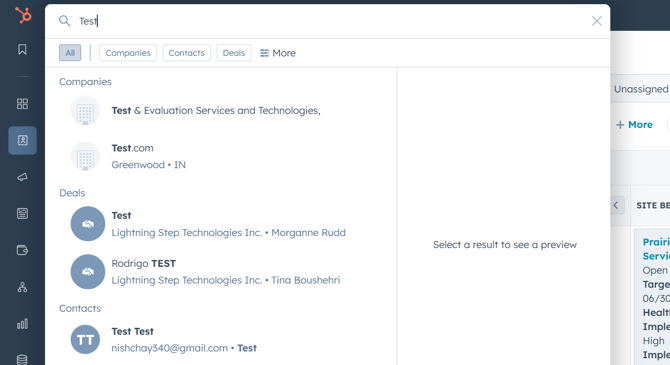
Step 7: Use the search bar at the top of HubSpot to enter Company information or ticket information.
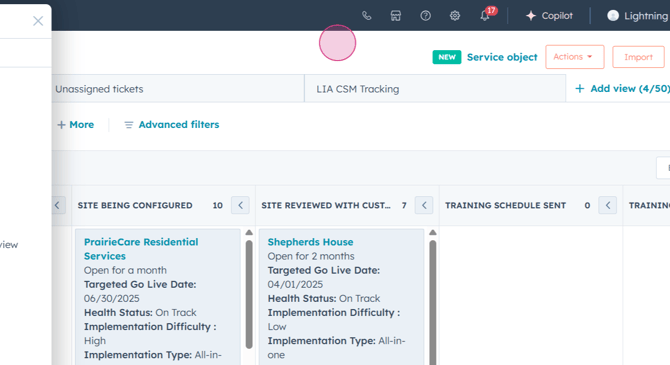
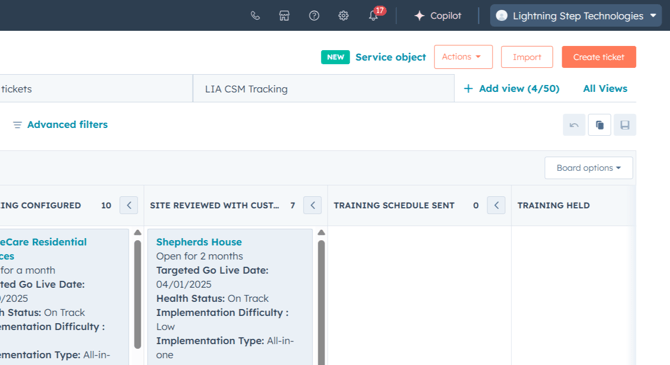
Step 8: Check out the upper right-hand information menu. Here, you'll find the menu icon to log out and set your profile preferences, a copilot option, your notification icon, and some settings icons for calling out on your homepage.
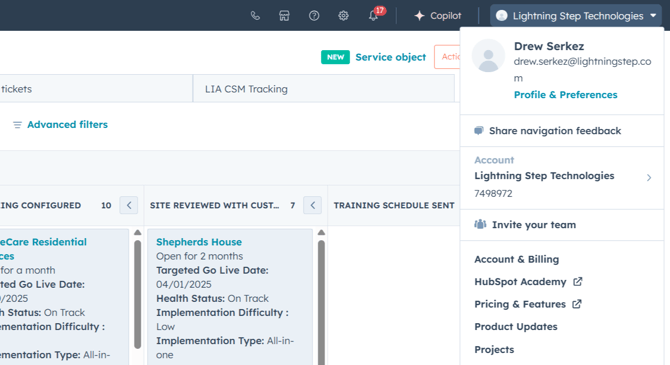
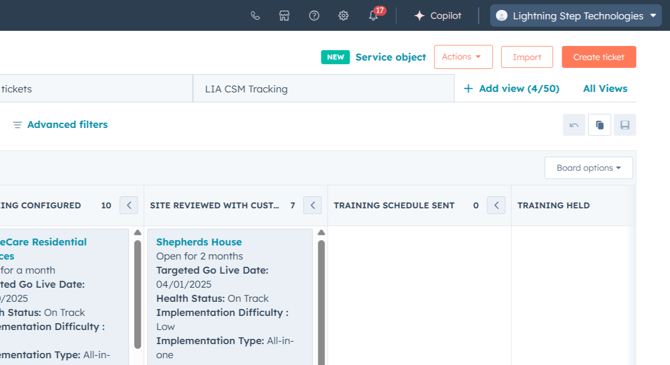
Step 9: To set your default landing page to our help desk, click the Lightning Step Technologies button in the upper right-hand side.
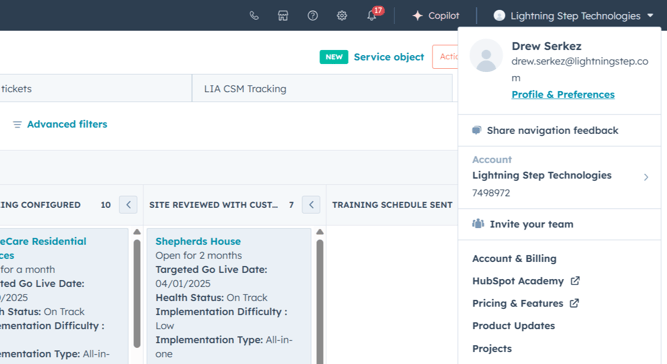
Step 10: Click on the option for your profile and preferences.
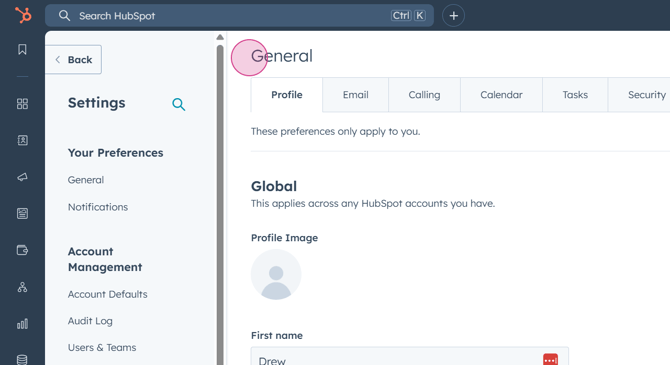
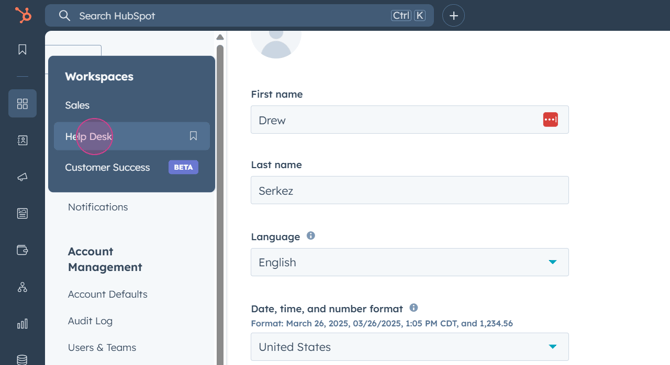
Step 11: You'll be directed to your General Profile settings. Scroll down until you see a drop-down for defaults.
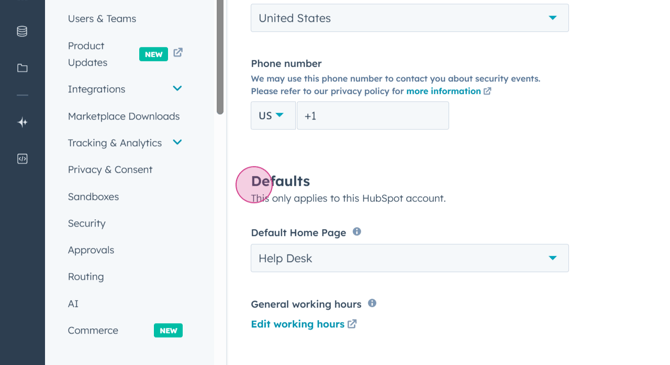
Step 12: From this dropdown, select the Help Desk option.
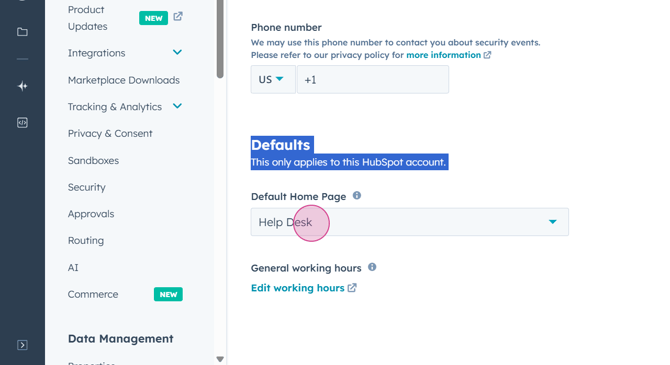
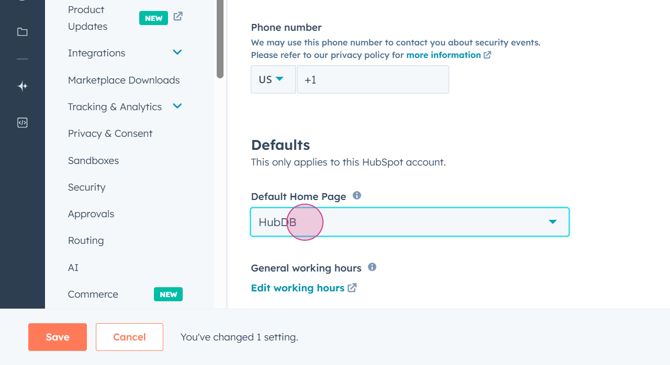
Step 13: After choosing a new option, you'll be prompted to save to apply those changes.
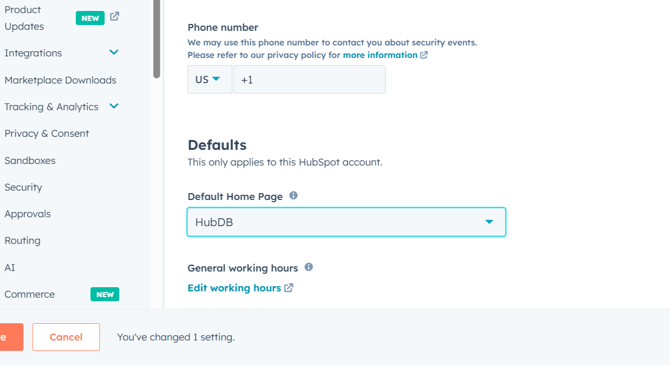
On your next login, you'll land on your Help Desk homepage.
Thanks for following along!
