
Overview
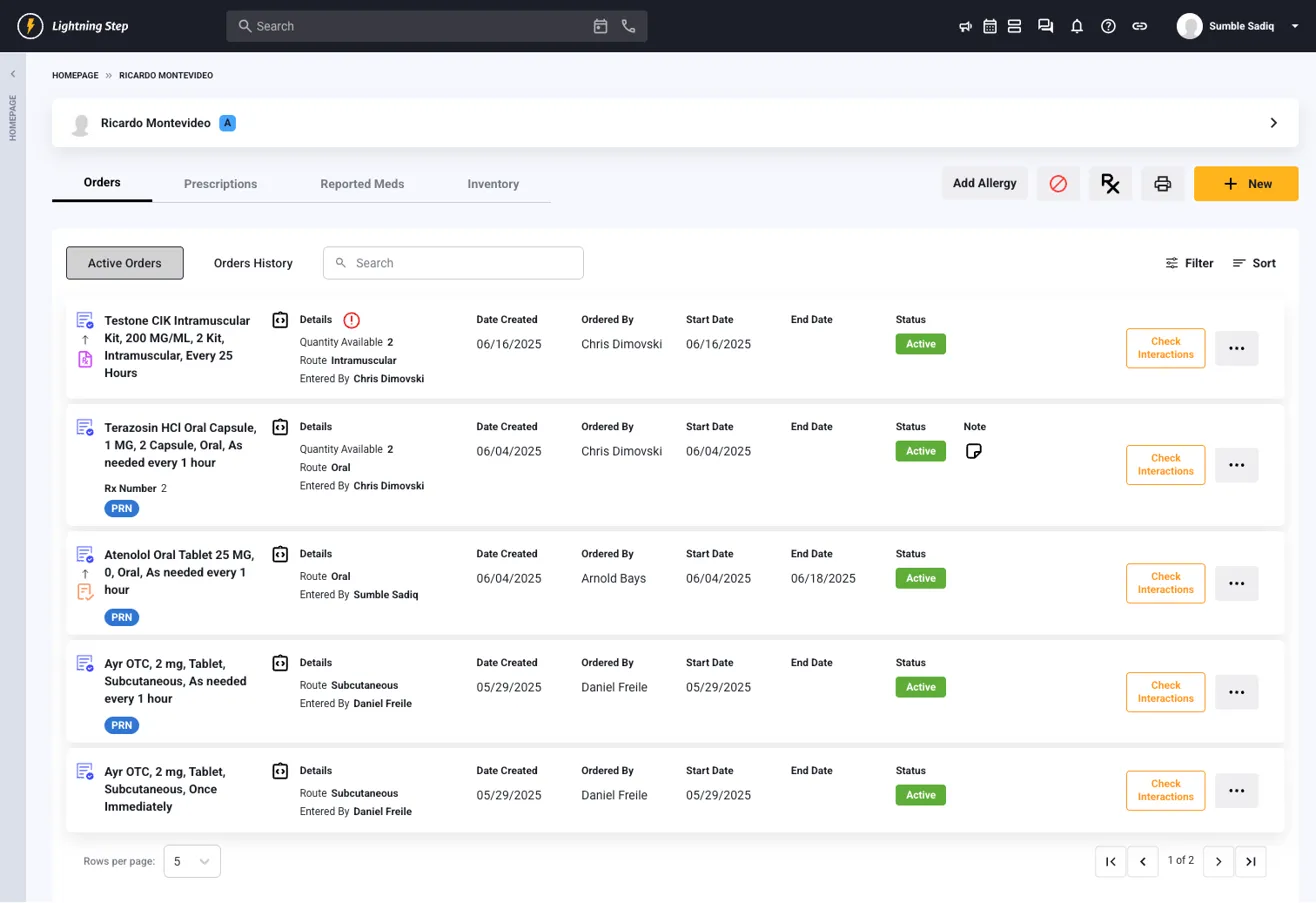
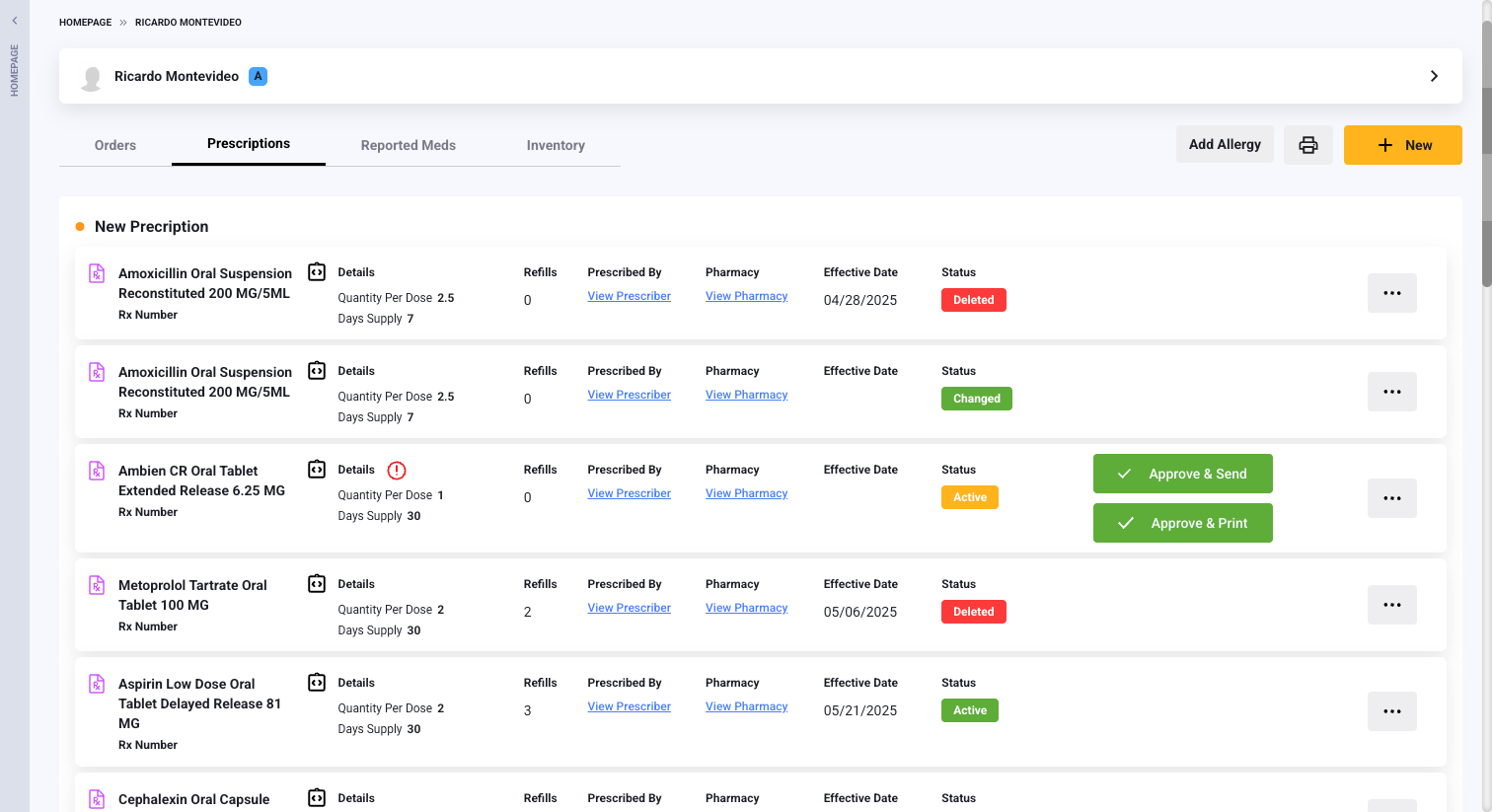
The new medication management system consolidates all medication-related functions into one comprehensive platform. You can now manage Orders, Prescriptions, Reported Medications, and Inventory from a single landing page, providing a complete overview of all client medications.
Getting Started
Accessing the Medication Management System
- Navigate to your client's profile
- Click on the Medication Management tab from the left navigation menu
- You'll see four main tabs:
- Orders - Active & history medication orders. Shows med/non-med orders
- Prescriptions - Create & manage prescriptions
- Reported Meds - Document external medications
- Inventory - Track medication inventory
Key Features at a Glance
- Consolidated View: See all medication information in one place with key details about the medication summarized in a list view.
- Status Indicators: Easily identify the current state of the medication/prescription with the color-coded status labels for each medication list type.
- Safety Checks: Real-time contraindication warnings and drug interaction alerts
- Controlled Substance Management: Special handling for controlled substances that are protected by user permissions for electronic prescriptions
- Workflow improvement: Create a prescription directly from a medication order or vice versa to reduce manual efforts or possible duplication
Managing Allergies
Before prescribing any medications, it's important to review and manage client allergies.
Adding New Allergies
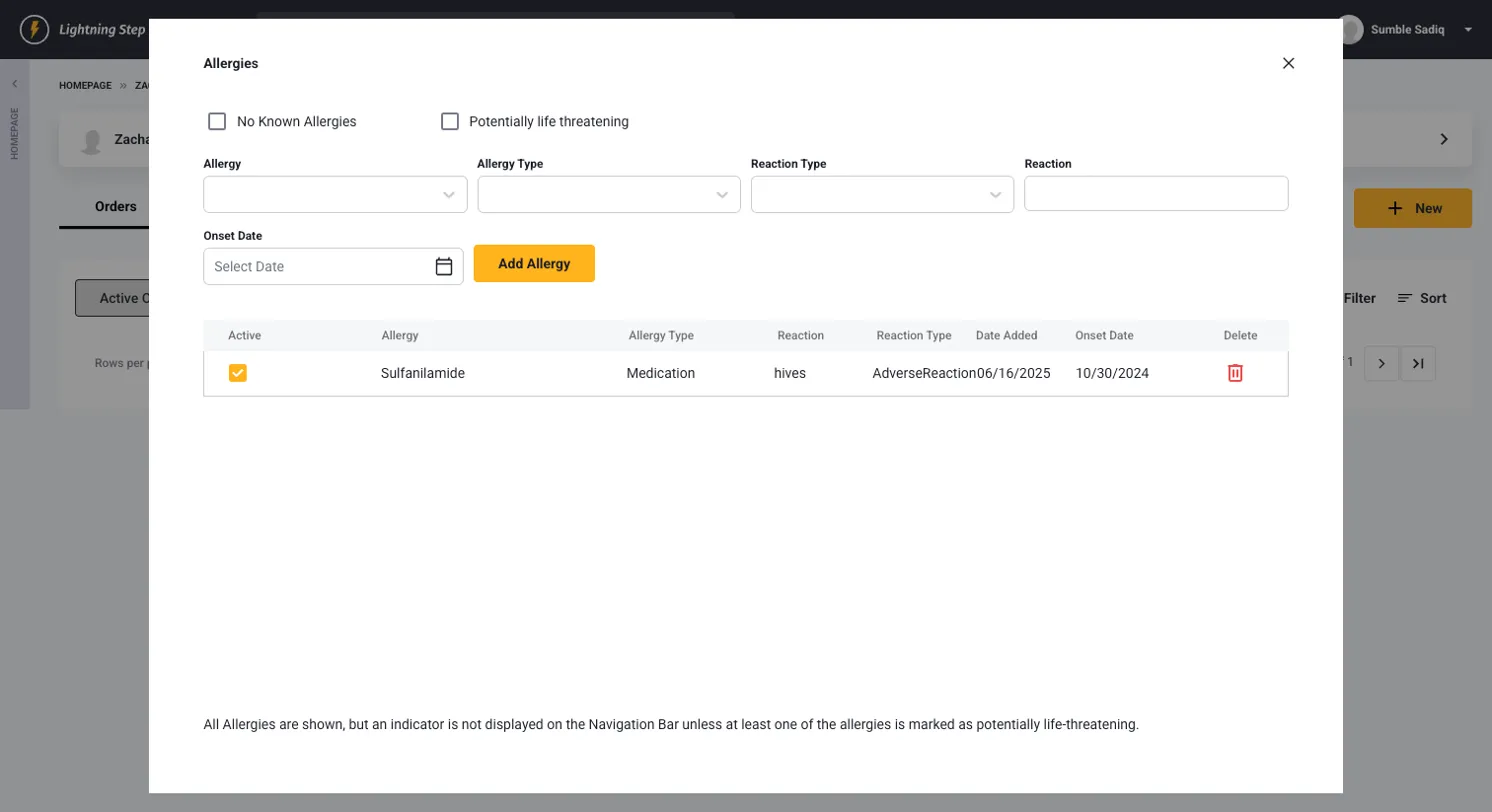
- Click the "Add Allergy" button in the top toolbar
- In the Allergies modal, you can:
- Check "No Known Allergies" if applicable
- Check "Potentially life threatening" for severe allergies
- Fill in the allergy details:
- Allergy: Name of the allergen
- Allergy Type: Category of allergy
- Reaction Type: Type of reaction
- Reaction: Specific reaction details
- Onset Date: When the allergy was first identified
- Click "Add Allergy" to save
- Manage existing allergies from the same modal
- Active/Inactive Toggle: Use the toggle to activate or deactivate allergies
- Delete Allergies: Click the trash icon to remove allergies
Creating Medication Orders
Medication orders are used for medication administration management and can also be sent as an electronic prescription to a pharmacy if required. Stand alone medication orders are also allowed.
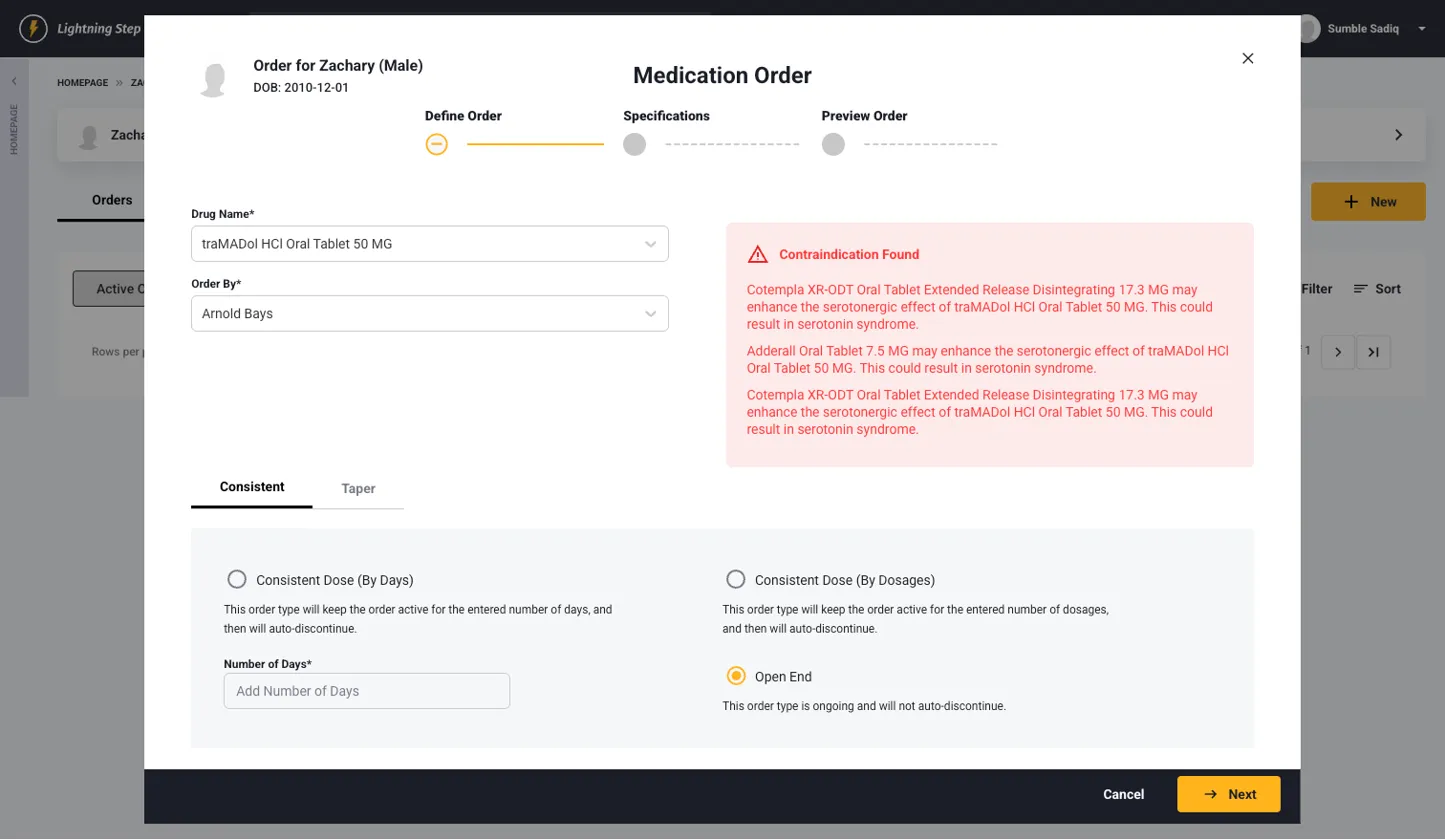
Step 1: Define Order
- Click the "New" button and select "Medication Order"
- Select Drug: Start searching for the name of your drug and the database will provide matches (with doses available) based on characters typed.
- Order By: Select the ordering clinician
- Contraindication Alerts: Review any warnings that appear in the red alert box
- Choose your Order Type:
- Consistent:
- By Days: Order stays active for specified number of days
- By Dosages: Order stays active for specified number of doses
- Taper: For medications requiring gradual dose reduction
- Open End: Ongoing order with no automatic discontinuation
- Consistent:
- Click "Next"
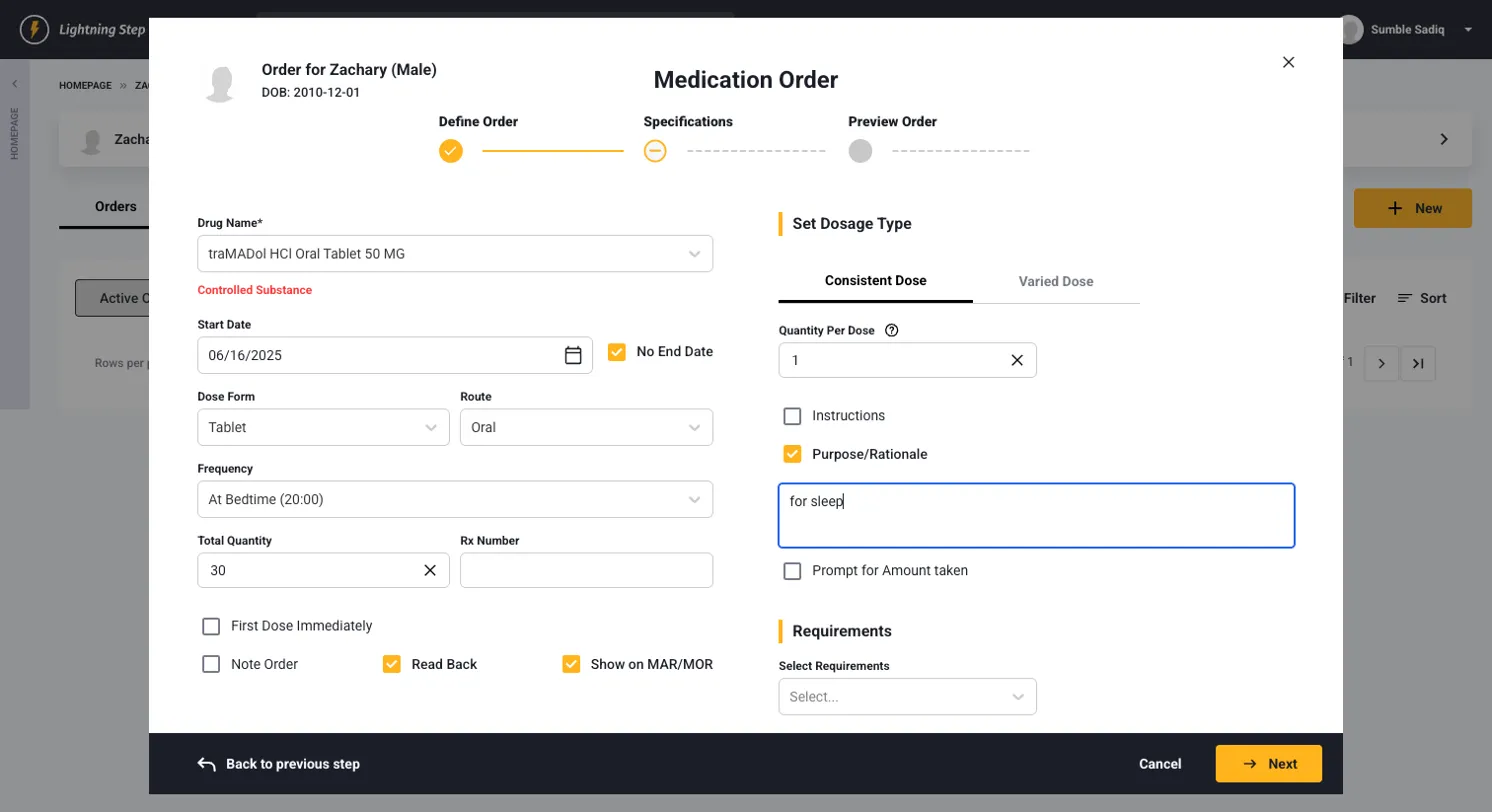
Step 2: Specifications
- Start Date: Set when the medication should begin
- Dose Form & Route: Select tablet, capsule, injection, etc. This will autopopulate based on drug selection.
- Frequency: This will come from frequency configuration in clinical/medical configuration
- Total Quantity: Enter total amount to be dispensed
- Rx Number: Add prescription number if applicable
- Additional Options:
- First Dose Immediately: Check if first dose should be given right away
- Note Order: Requires clinical notation
- Read Back: Requires read-back verification
- Show on MAR/MOR: Display on Medication Administration Record
- Dosage Settings:
- Consistent Dose or Varied Dose tabs
- Quantity Per Dose: Amount per administration
- Purpose/Rationale: Clinical reason for medication
- Instructions: Special administration instructions
- Requirements: Select any special requirements
- Click "Next"
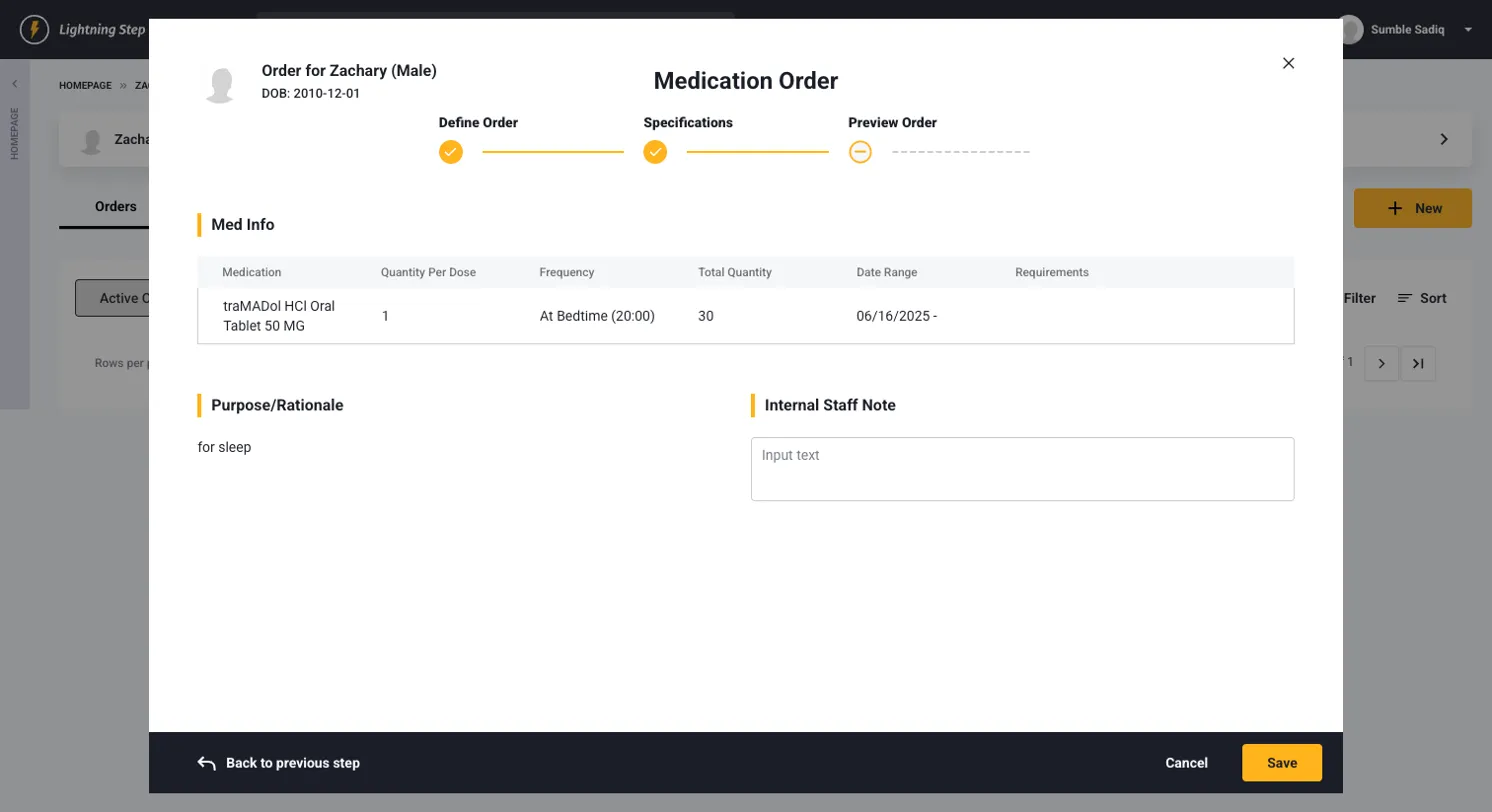
Step 3: Preview Order
- Review the Med Info summary table
- Add Internal Staff Note if needed
- Click "Save"
Converting to Prescription
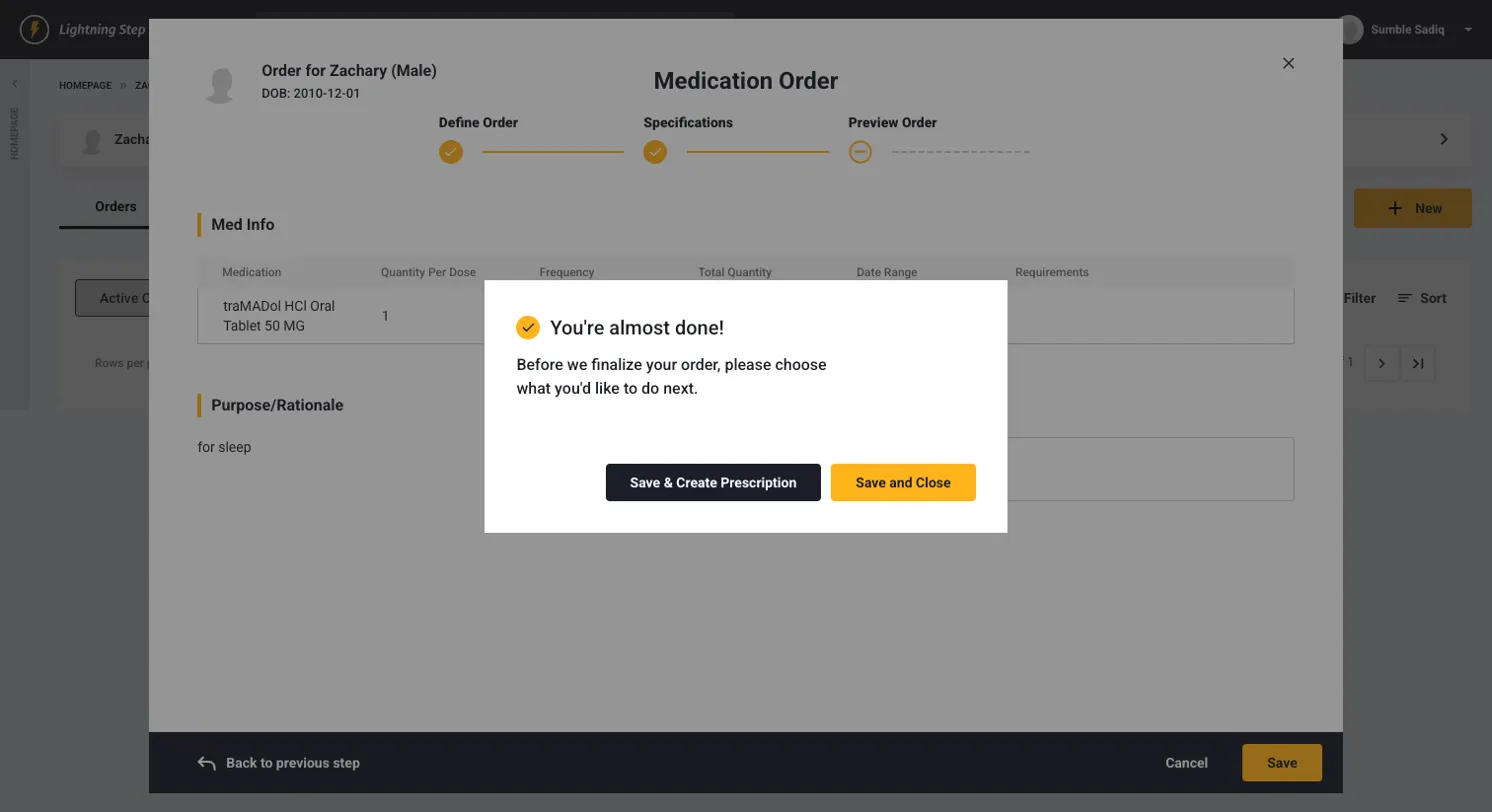
After saving a medication order, you'll see the "You're almost done!" modal:
- "Save & Create Prescription": Immediately convert to a prescription
- "Save and Close": Save the order for later
Please note: this is only applicable if needing to send prescriptions electronically. This pop up is controlled by user permissions, so if prescriptions are not applicable then this pop up would be skipped.
Creating Prescriptions
Prescriptions can be created in two ways: converted from medication orders or created independently.
Creating Standalone Prescriptions
- Click "New" and select "e-Prescription"
- Follow the 3-step process:
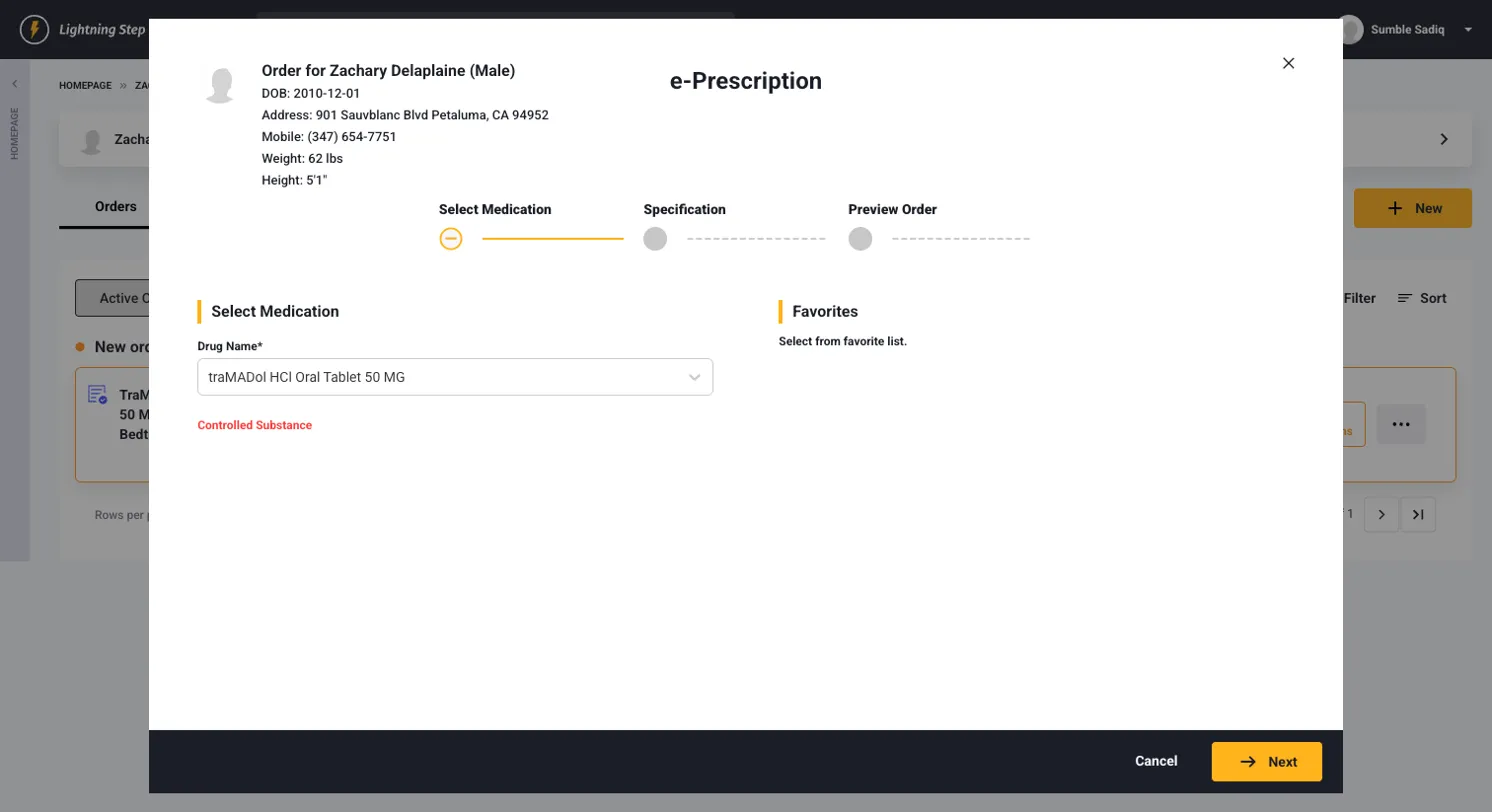
Step 1: Select Medication
- Drug Name: Choose medication from national database
- Favorites: Clinician have the ability to mark frequently prescribed prescriptions as "favorites." This is a list the clinician can build and choose to kickstart the prescription details.
- Click "Next"
Step 2: Specification
Med Info Section:
- Drug Name: Pre-filled or selected medication
- Quantity Per Dose: Amount per administration
- Dose Form & Route: Will autopopulate from drug selection
- Frequency: Dosing schedule
- Effective Date: When prescription becomes active
- Dispense: Total quantity to dispense
- Refills: Number of refills allowed
- Days Supply: How long the medication should last
Pharmacy Section:
- Select Pharmacy: Choose from client's pharmacies
- Options:
- Instructions: Special patient instructions
- Pharmacy Note: Notes for the pharmacist
- No substitution: Prevent generic substitution
- Urgent: Mark as urgent/stat order
Safety Alerts: Review any contraindication warnings Click "Next"
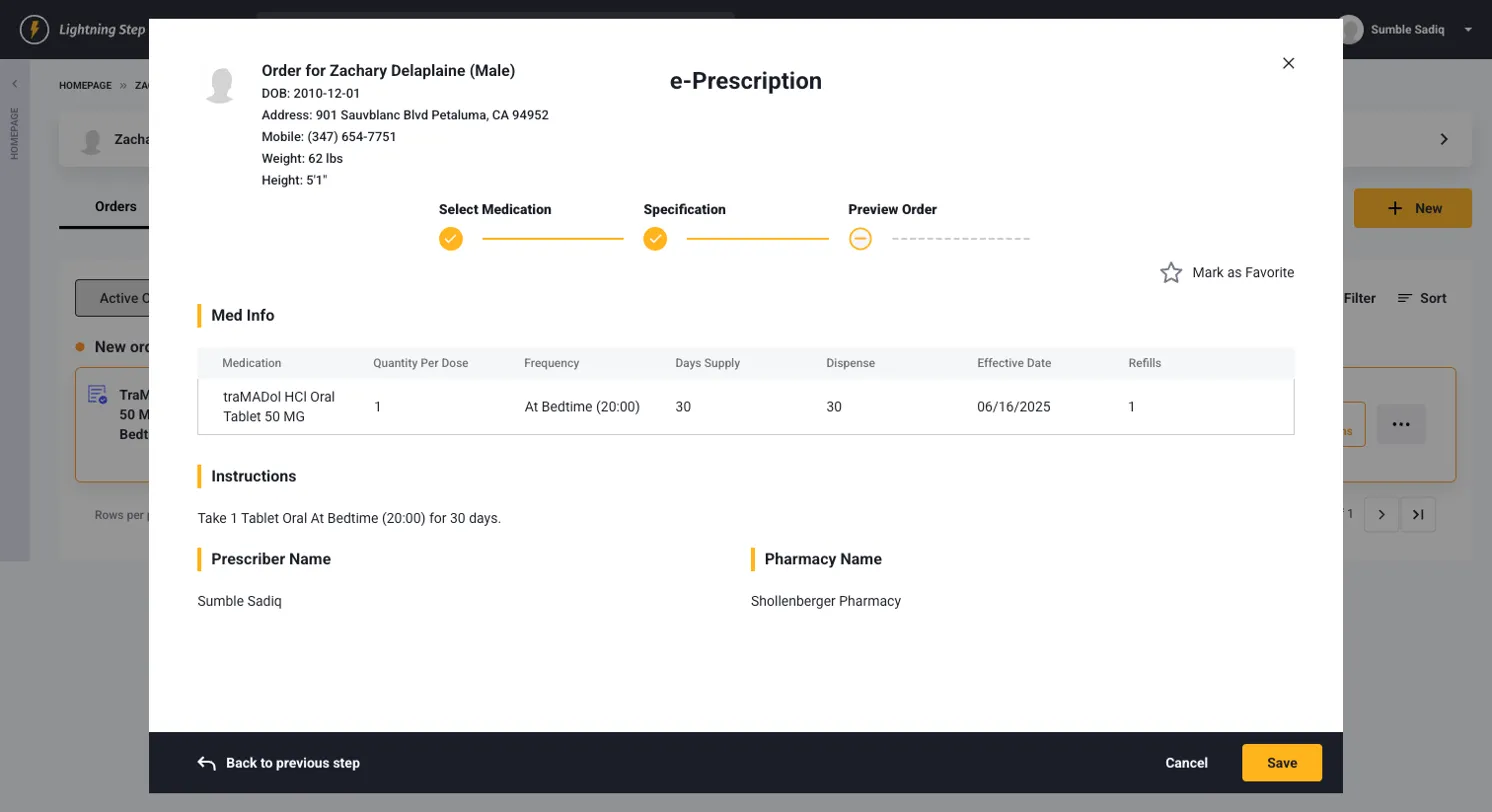
Step 3: Preview Order
- Review Med Info summary
- Verify Instructions (e.g., "Take 1 Tablet Oral At Bedtime (20:00) for 30 days")
- Confirm Prescriber Name and Pharmacy Name
- Click "Save"
Managing Prescriptions
In the Prescriptions tab, you can:
- View All Prescriptions: See complete prescription history
- Approve & Send: Send prescriptions to pharmacy
- Approve & Print: Print prescriptions for manual handling
- Quick actions: Manage prescription actions from the list view. Can delete or edit prescriptions before sent to pharmacy. Once it was sent to the pharmacy you can send the pharmacy a cancellation request, create a reorder, or remove the prescription.
Controlled Substances
Controlled substances require additional security measures.
Prescribing Controlled Substances
When approving controlled substance prescriptions:
- Click "Approve & Send" or "Approve & Print"
- The "Controlled Substance - Ready to Sign" modal appears
- Review Details:
- Patient information
- Medication and schedule
- Prescription details (sig, dispense amount, days supply)
- Security Requirements:
- Check "Ready to Sign"
- Enter your PIN
- Enter Two-Factor Authentication code from DUO Mobile Application
- Click "Approve and Send"
Important: You must have proper role permissions and complete TFA (Two-Factor Authentication) to prescribe controlled substanc
Managing Client Pharmacies
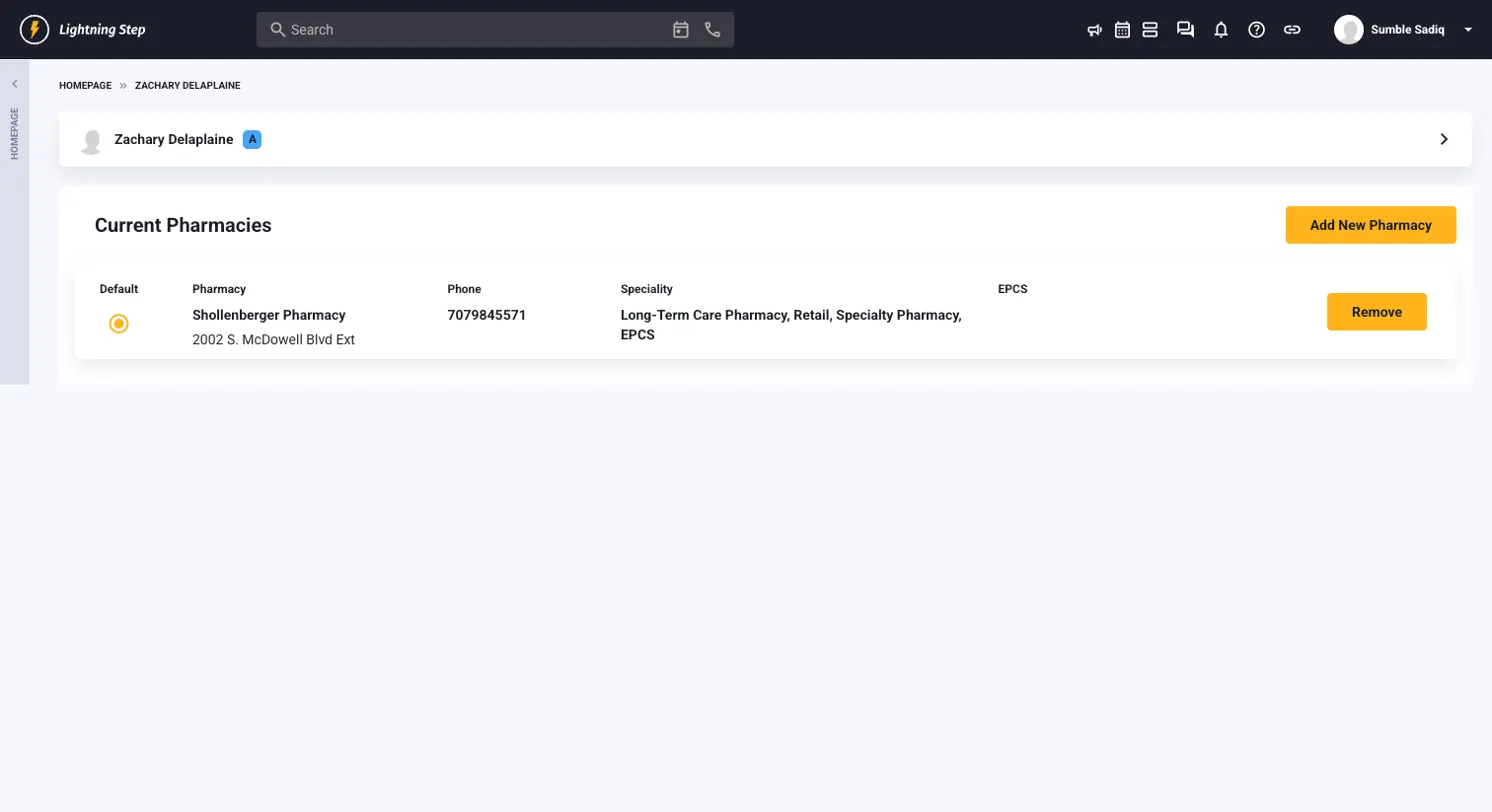
Viewing Current Pharmacies
- Navigate to the client's Pharmacies tab from the left navigation menu of client profile
- View previously created pharmacies or add a new pharmacy
Adding New Pharmacies
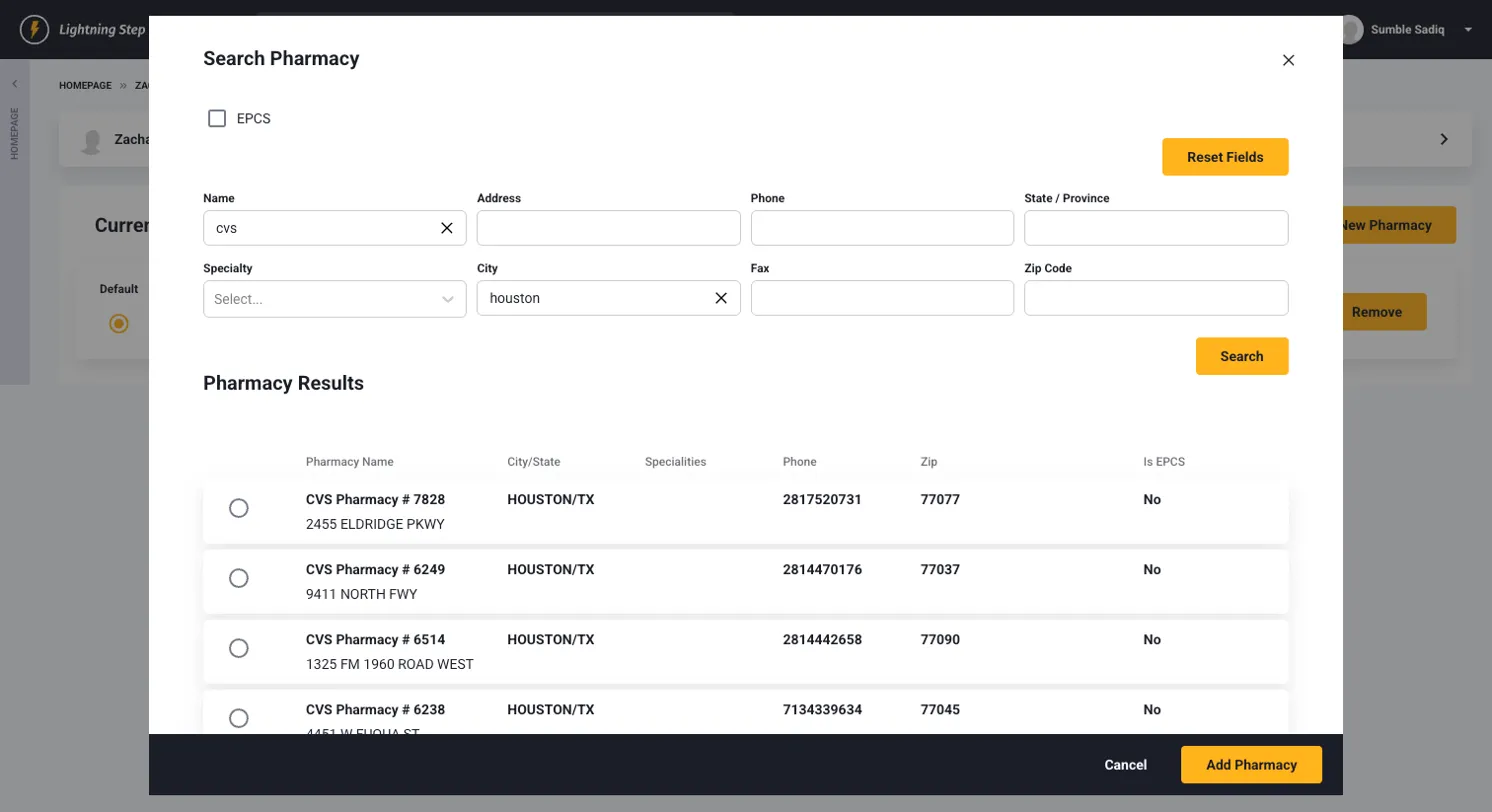
- Click "Add New Pharmacy"
- In the Search Pharmacy modal:
- Search Fields: Use the text fields to narrow down the pharmacy search or specifications such as "Speciality Filter" or "EPCS" checkbox.
- Click "Search"
Managing Existing Pharmacies
- Set Default: Click the radio button next to preferred pharmacy. This is the pharmacy that will be auto-selected when creating a new prescription for the client.
- Remove Pharmacy: Click "Remove" button
- Multiple Pharmacies: Clients can have multiple pharmacies for different needs
Reported Medications
Document medications that patients take from external sources.
Adding Reported Medications
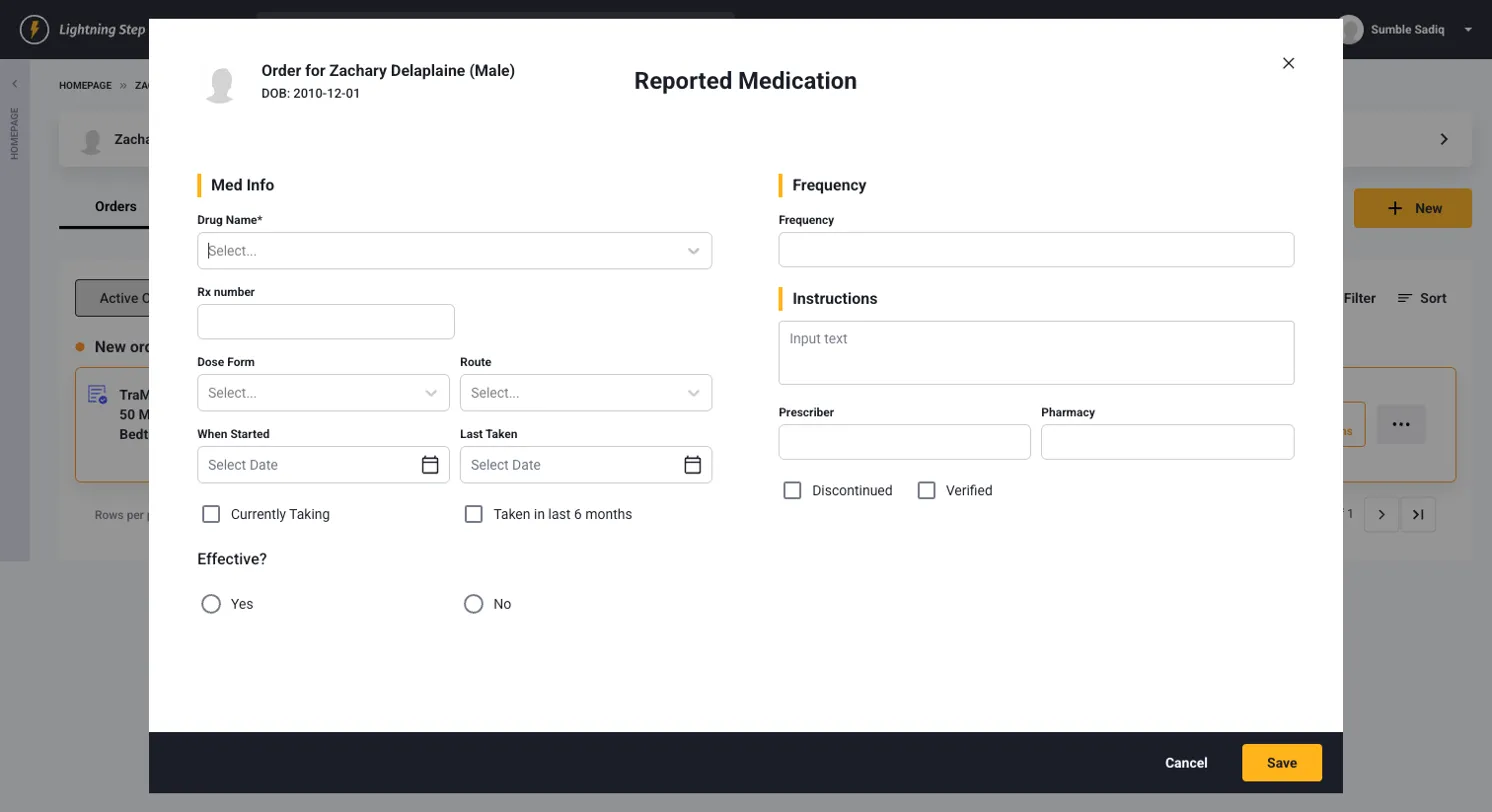
- Click "New" and select "Reported Medication"
- Med Info:
- Drug Name: Select from dropdown
- Rx Number: If available
- Dose Form & Route: How medication is taken
- When Started & Last Taken: Timeline information
- Status: Check "Currently Taking" or "Taken in last 6 months"
- Additional Information:
- Frequency: How often taken
- Instructions: Patient instructions
- Prescriber & Pharmacy: External provider information
- Status Options: Mark as Discontinued or Verified
- Effectiveness: Rate as Yes/No
- Click "Save"
Why Report External Medications
- Complete Medical History: Full picture of patient's medications
- Drug Interaction Checking: Identify conflicts with prescribed medications
- Clinical Decision Making: Better treatment planning
- Safety Monitoring: Prevent adverse reactions
Non-Medication Orders
Order non-pharmaceutical items like tests, procedures, or equipment.
Creating Non-Med Orders
- Click "New" and select "Non-Med Order"
- Order Details:
- Order by: Select ordering clinician
- Start Date & End Date: Timeline for order
- No End Date: Check for ongoing orders
- Order Specifications:
- Non-Medication Order: Enter item (e.g., "Ultrasound", "Physical Therapy")
- Frequency: How often needed
- Instruction: Specific instructions
- Purpose/Rationale: Clinical reason
- Options:
- Note Order: Requires notation
- Read Back: Requires verification
- Show on MAR/MOR: Include in medication records
- Requirements: Select special requirements
- Click "Save"
Order Management
Active Orders Tab
View and manage all active medication orders:
- Order Details: Medication name, dose, route, frequency
- Status Tracking: Ordered, Active, Completed, Discontinued
- Order Actions:
- Note Order: Add clinical notes (green button)
- Check Interactions: Review drug interactions (orange button)
- Order Information: Date created, ordered by, start/end dates
Workflow Indicators
- Special Icons: Orders converted to prescriptions show unique indicators
This is an example of a med order that was created as a prescription. The visual indicators will help to reduce possible duplicates.

- "New Order" visualization: Recent orders highlighted with orange borders to bring attention that an order is awaiting to be noted

- Action Required: Green buttons indicate actions needed (Note Order from Orders list or Approve Send/Print from Prescriptions list)
Safety Features
Drug-Drug & Drug-Allergy Interaction Checking
- Real-Time Alerts: Contraindications appear immediately during ordering
- Check Interactions Button: Available on all medication entries for user to always view interactions even from medications already created or prescribed.
- Cross-Reference: Checks against all client medications
Tips for Efficient Use
Workflow Optimization
- Start with Allergies: Always review/update allergies first
- Add Pharmacy: If using prescriptions, add the client pharmacy first so that it will populate into the prescription screen right away
- Use Favorites: Save frequently prescribed medications and pharmacies
- Order-to-Prescription Flow: Convert a prescription directly from within an order to save time
- Prescription Effective Date: Use an effective date in the future for pharmacy to fill prescription on a later date.
- Regular Interaction Checks: Periodically review all medications for interactions
Troubleshooting
- Controlled Substance Issues: Ensure proper role permissions and TFA setup. Please contact Lightning Step support to verify if your clinician is licensed to send controlled substances.
Summary
The new medication management system provides a comprehensive solution for:
- Centralized Management: All medication functions in one location
- Enhanced Safety: Real-time interaction checking and contraindication alerts
- Flexible Workflows: Support for various prescribing scenarios
- Complete Documentation: Thorough tracking of all medication-related activities
- Improved Efficiency: Streamlined processes from order to prescription, prescription to order, and reported med to order/prescription
This integrated approach ensures better patient safety, improved clinical decision-making, and more efficient medication management workflows.
