
How to Use Bulk Actions
Step 1: Open the Outstanding AR Dashboard.
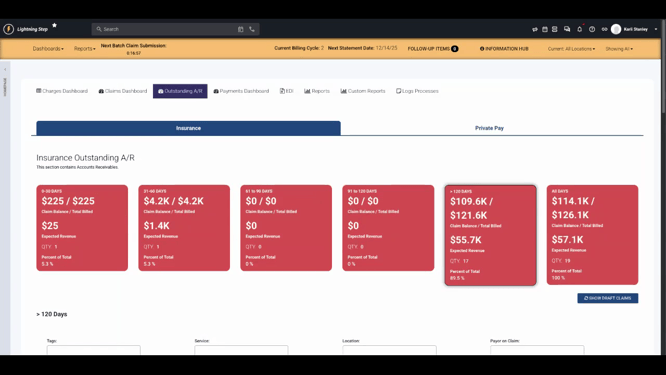
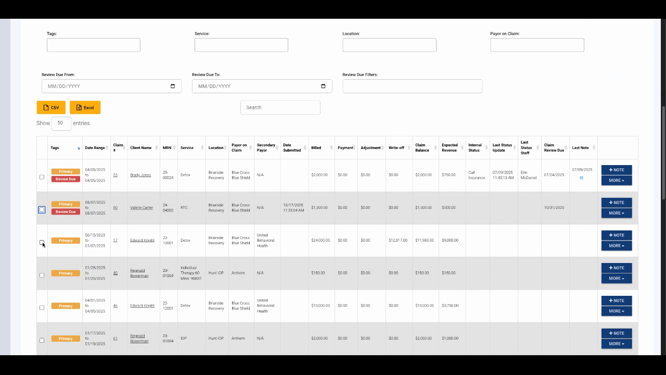
Step 2: Select the records you want to update. These can span different clients, payers, or locations.
Step 3: Click Bulk Actions to see available actions.
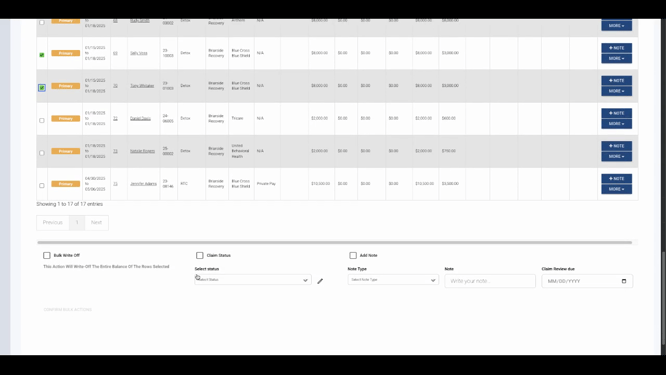
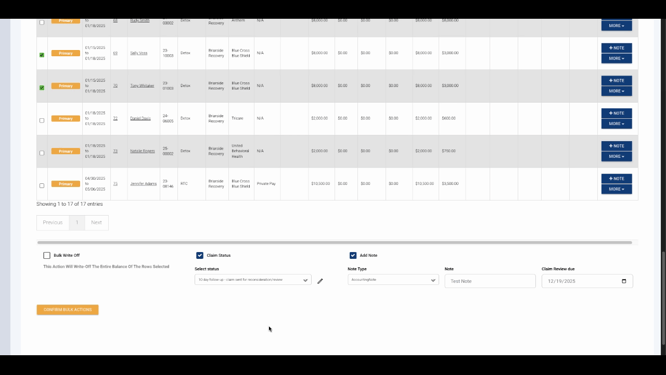
Step 4: Check the boxes for the bulk actions you want to apply. For example, update the status and add a note.
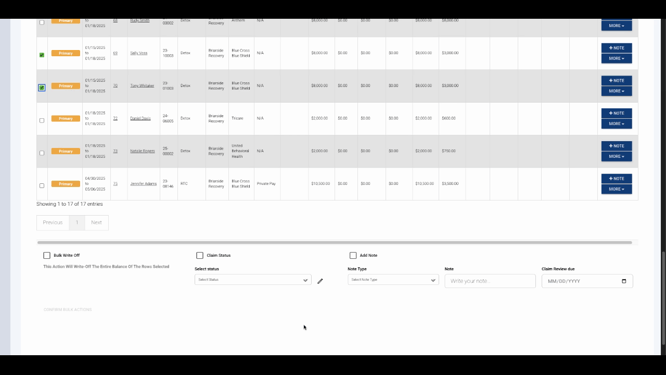
Step 5: Choose the Internal Status you want to set.
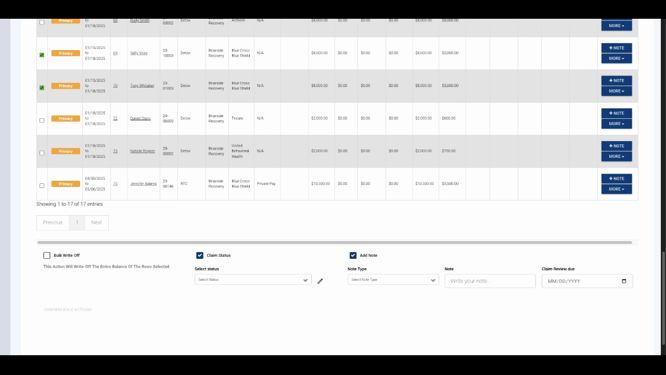
Step 6: Select the Note Type from the dropdown.
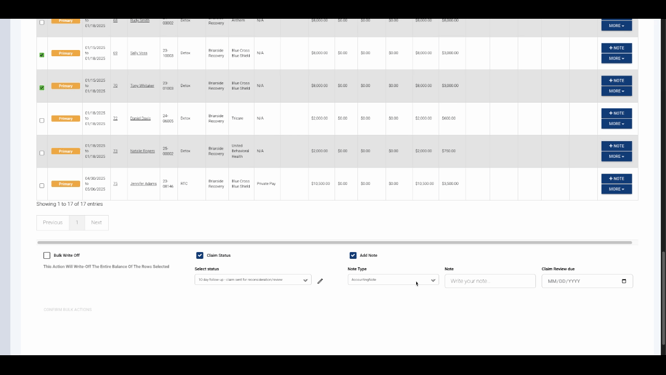
Step 7: Enter the Note you want to add.
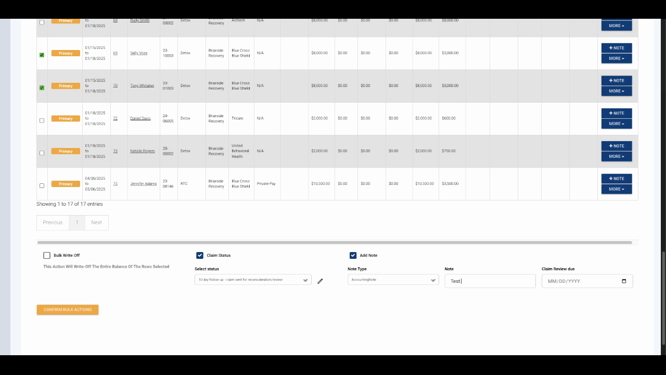
Step 8: Set the Claim Review Due Date if needed.
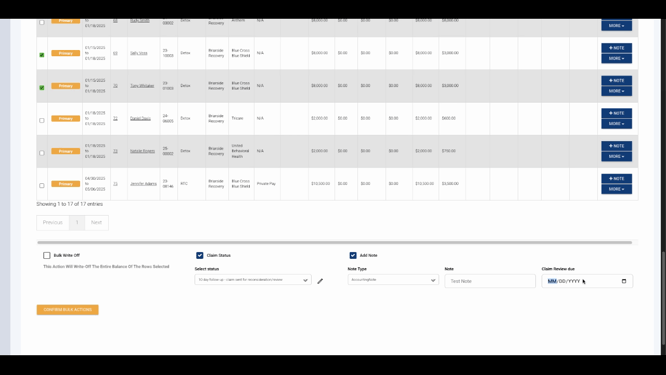
Step 9: Click Confirm Bulk Actions.
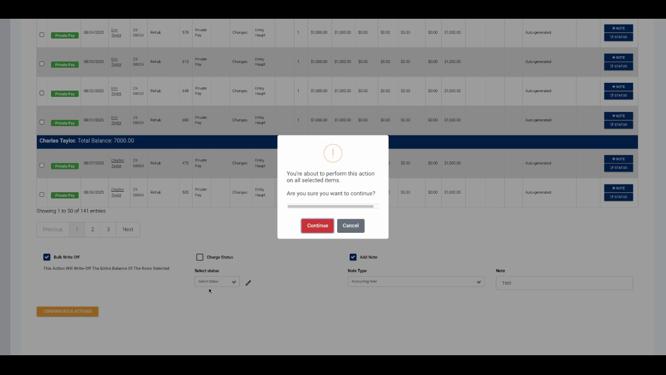
Step 10: A confirmation message appears. Review it, then click Continue.
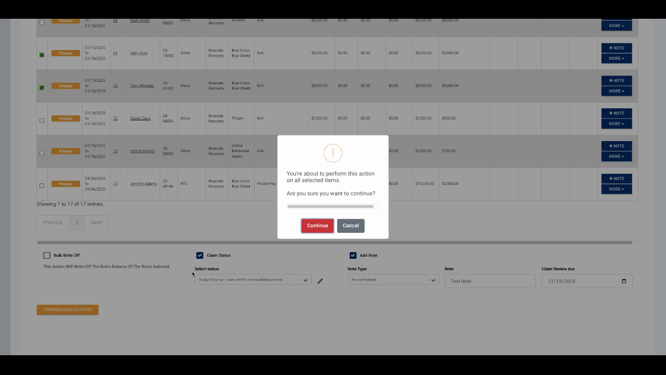
Once finished, you’ll see the internal status updated, your note added, and the next review date populated for all selected records.
Bulk Actions in the Private Pay Tab
You can use the same bulk actions in the Private Pay tab for tasks like writing off a client’s full balance.
Step 1: Group the records by Client to see all outstanding charges for one client.
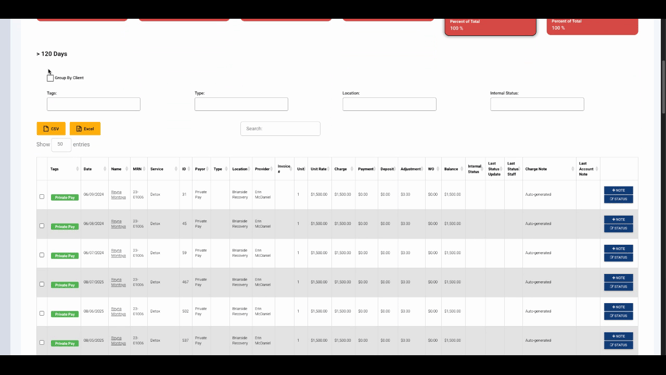
Step 2: Check the boxes for each of the client’s charges.
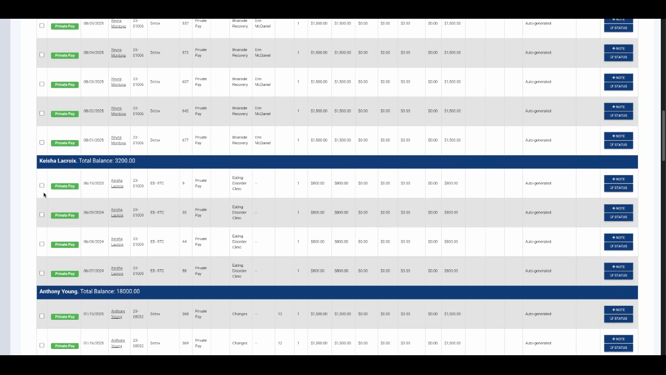
Step 3: Scroll down and select Bulk Write Off and Add Note.
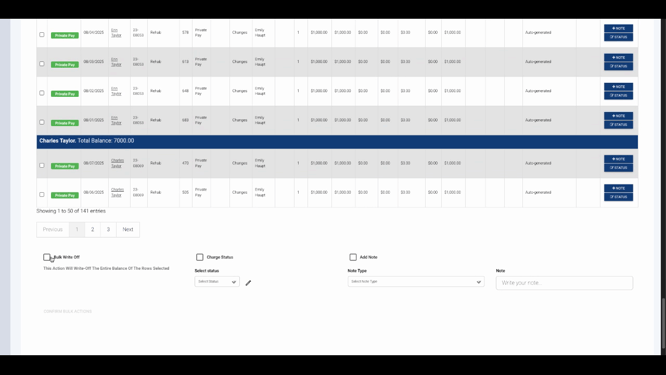
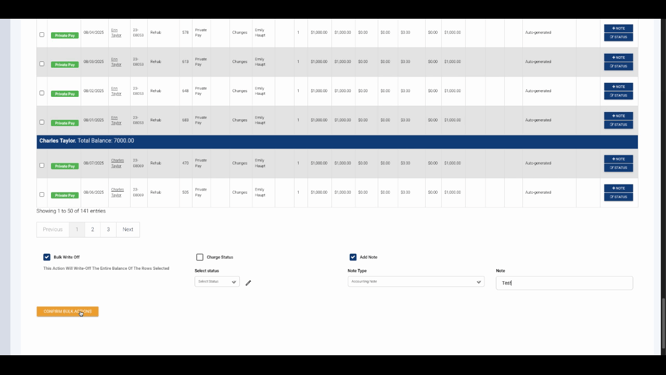
Step 4: Choose a Note Type and add your Note.
Step 5: Click Confirm Bulk Actions.
Step 6: Review the confirmation message, then click Continue to finalize.
After confirming, the charges disappear from the outstanding AR list. The full amount is written off on the client’s account, and charges are automatically allocated.
Conclusion
Bulk actions in LightningStep’s Outstanding AR Dashboard help you efficiently manage multiple claims or charges, whether updating statuses, adding notes, or writing off balances. This feature keeps your workflows organized and reduces manual effort. For more information, refer to your internal documentation or contact support.
