
Navigation
Step 1: From the Home screen, select Financial.

Step 2: Click Financial Dashboard, then select Outstanding AR.

Step 3: Explore the two main tabs: Insurance and Private Pay.
-
Insurance tracks all insurance claims and related AR.
-
Private Pay monitors unpaid balances from clients or subscribers.
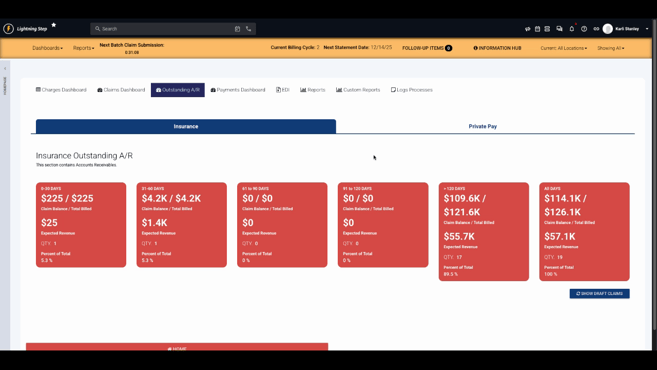
Insurance
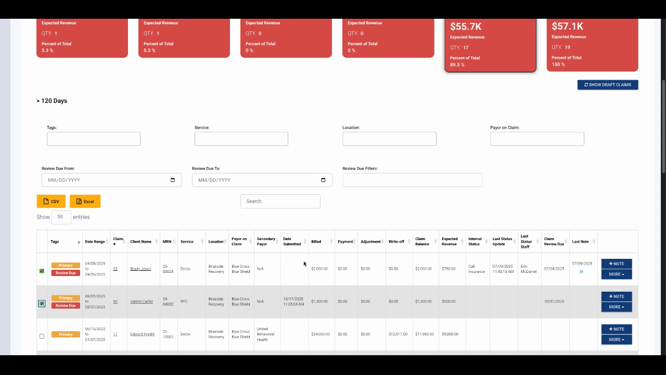
Step 1: Review AR aging buckets, grouped in 30-day increments (0–30, 31–60, etc.) up to 120+ days, plus an “All Open AR” view. Buckets display at-a-glance breakdowns to highlight older, harder-to-collect balances.
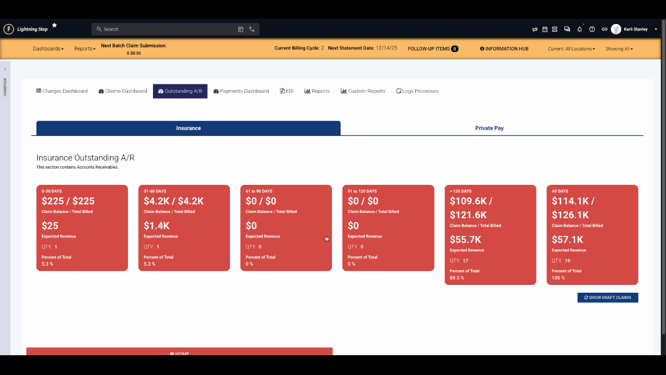
Step 2: When claims reach the 31–60 day bucket, start working them.
-
Contact payers
-
Check status on payer websites
-
Coordinate with your posting team
Aging is calculated from the date of claim submission. Focus efforts on older buckets for better collection chances.
Step 3: Filter within each bucket to drill down on specific records and criteria.
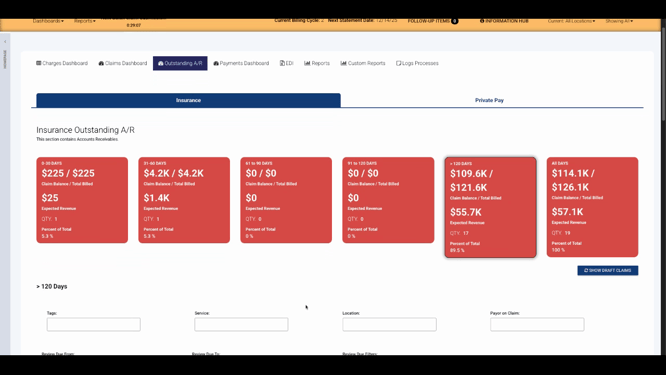
Step 4: Review individual records to see billed amounts, outstanding balances, internal statuses, and the Review Due Date.

Step 5: Use the Review Due Date to flag records needing attention. Once the date arrives or passes, the record receives a “review due” tag—ideal for filtering and building a focused work list.
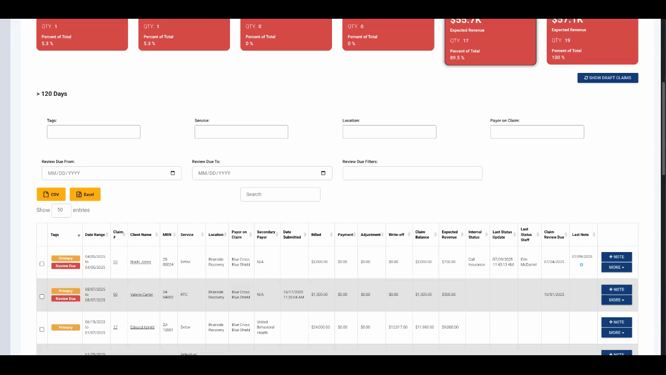
Step 6: Add notes, update internal status, or use the “More” menu to edit expected collection and claim status from the record’s pop-up screen.

Step 7: Select records using the checkbox for bulk actions. (Bulk functionality is covered in separate training materials.)

Private Pay
Step 1: Switch to the Private Pay tab for patient-responsibility AR. The layout matches the Insurance section.
Step 2: Group charges by Client to easily review total outstanding balances for individual clients—no need to leave the dashboard or export data.
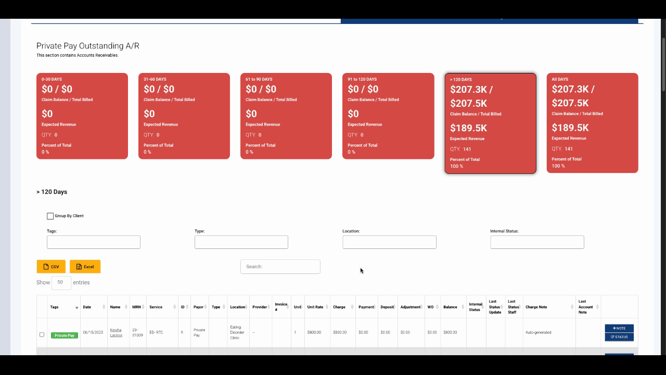
Step 3: Add notes or update status for individual charges, or use bulk actions as needed.
Conclusion
The Outstanding AR dashboard streamlines AR tracking by organizing balances into actionable buckets and providing flexible filters. Use review dates and grouping tools to prioritize follow-ups and accelerate collections. For more details, refer to your internal documentation or contact the support team.
