
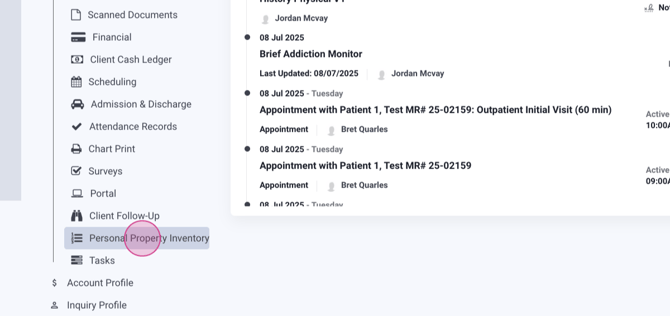
Step 1: Navigate to the client profile. Here, you'll find the Personal Property Inventory.

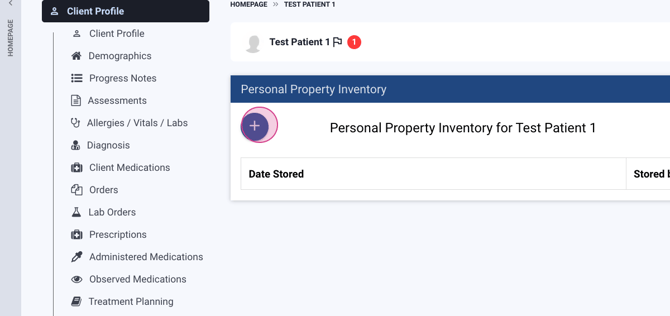
Step 2: Click the plus button to add a new item to the inventory.

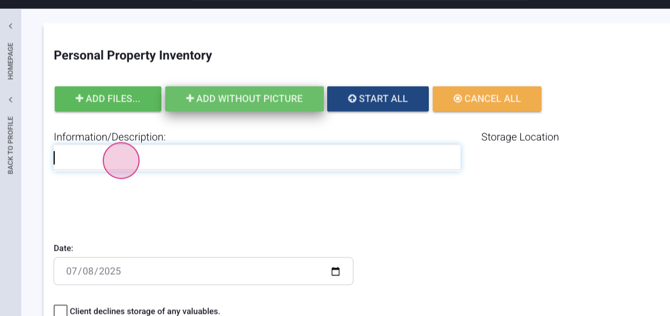
Step 3: Fill in the item's information and description in the Add without picture section.
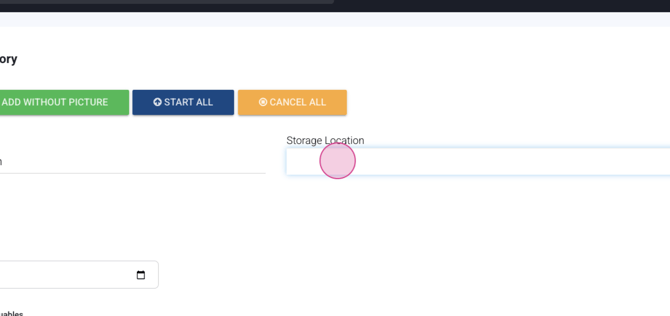
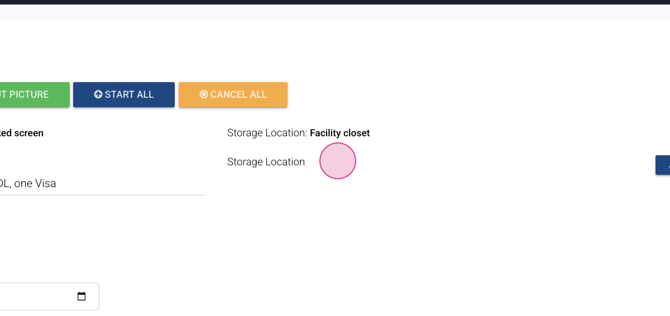
Step 4: Specify the storage location of the item.
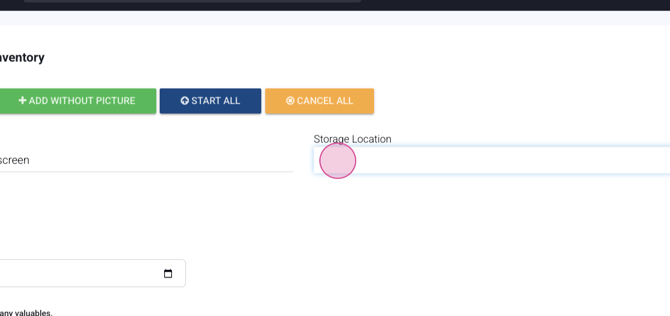
Note: The storage location options can be configured in the meta config.
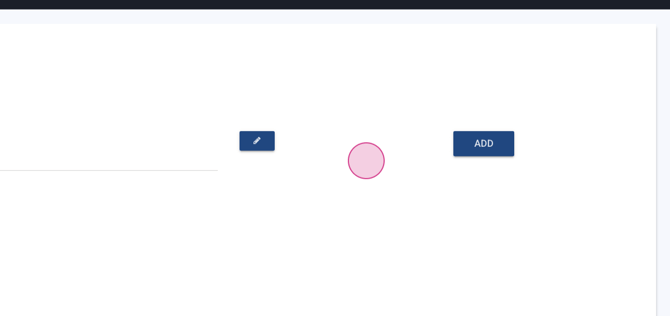
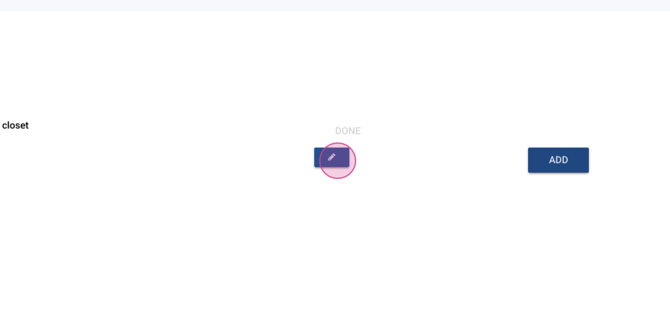
Step 5: Click Add to save the item to the inventory.
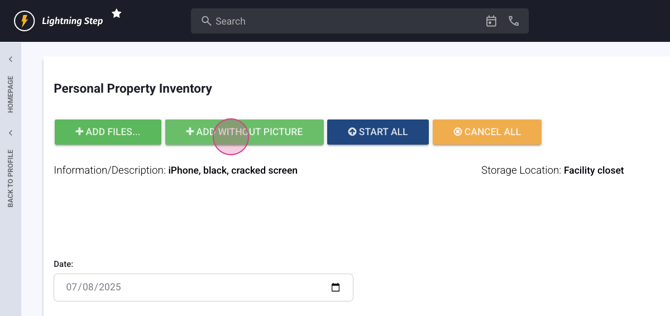
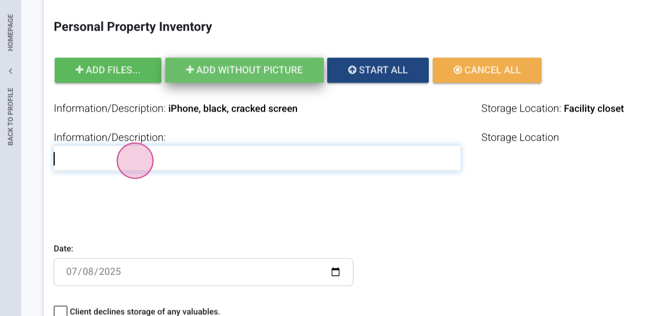
Repeat Steps 2 to 5 for each item you want to add to the inventory.


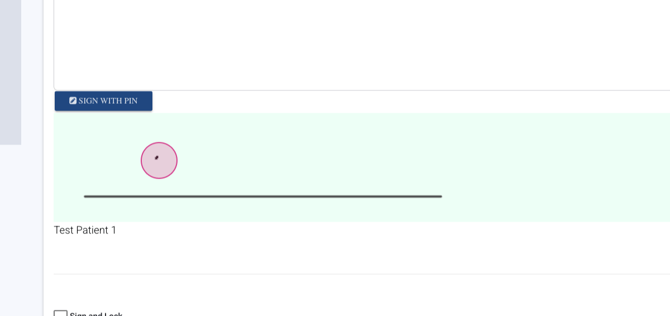
Step 6: If necessary, provide any additional information about the item. The patient can sign with a pen or use the sign option.
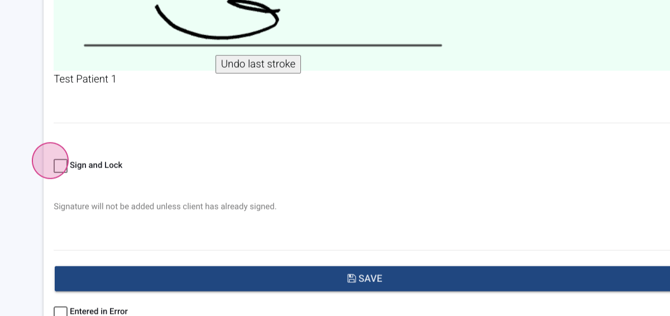
Step 7: Click sign lock to secure the signature.
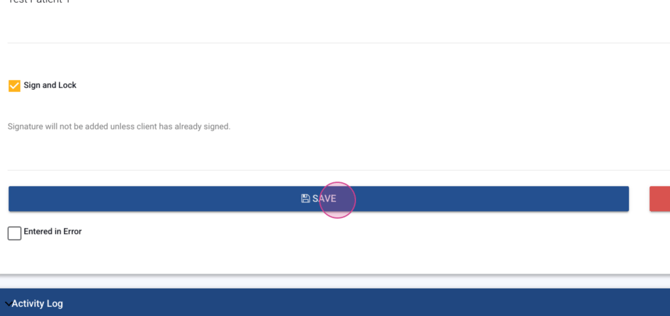
Step 8: Click save. You'll then see the date the item was stored.
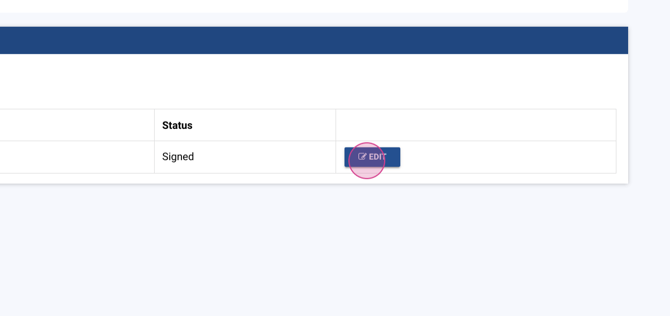
Step 9: When the patient is discharged, document the return of all items. You can check them out during the stay, clone this, and add additional items. The staff and patient signatures will be visible.
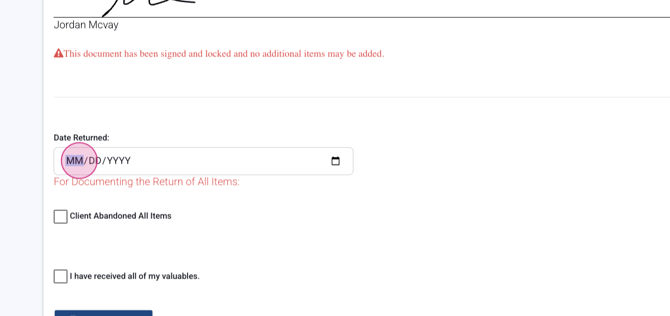
Step 10: Enter the date the items were returned.
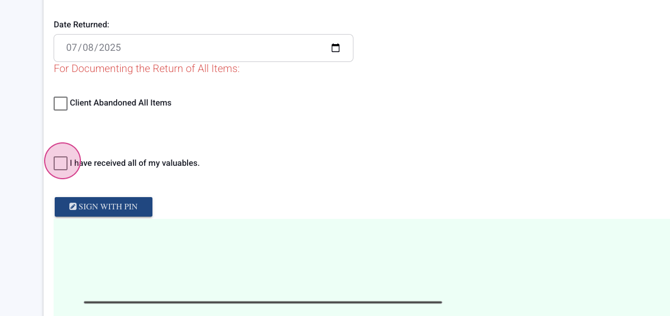
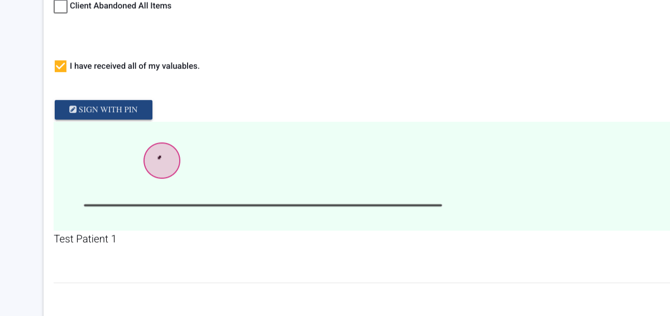
Step 11: Have the patient sign to confirm they've received all their valuables. Click sign and lock to secure the signature.

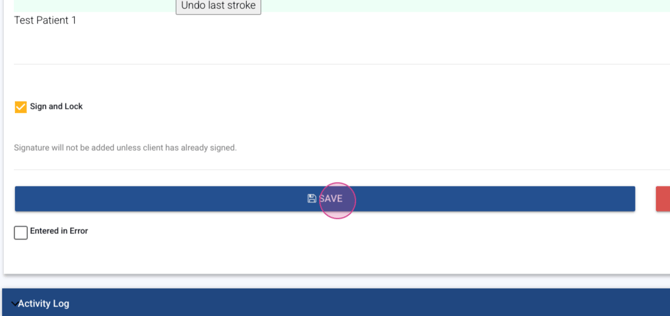
Once this is done, you'll see that the items are marked as returned and the patient has completed their personal property inventory.
