
Step 1: Confirm your user role has permission to view the KPI Dashboard. Go to Configurations > System Configuration > Roles.
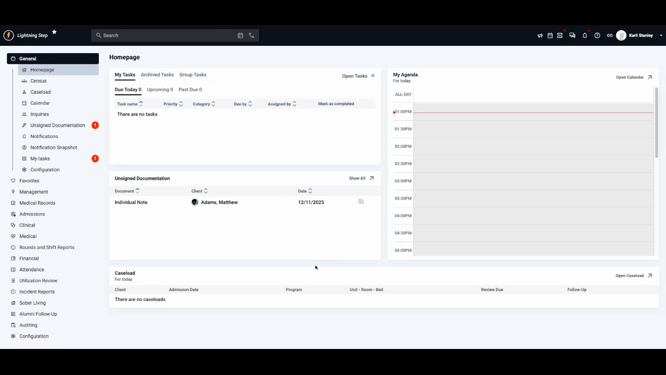
Step 2: Locate the role that needs access. Click Edit.
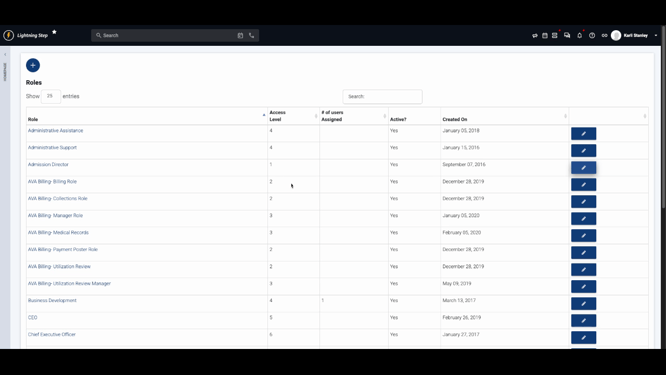
Step 3: Expand the Financial Permissions section. Find KPI Dashboard and check the box for View. Click Save.
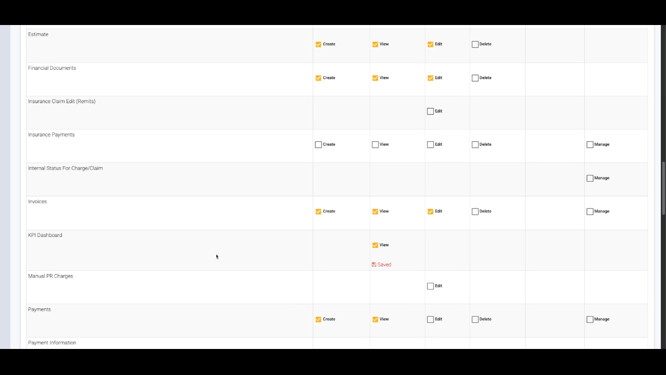
Step 4: From the home screen, select Financial > KPI Dashboard to open the dashboard.

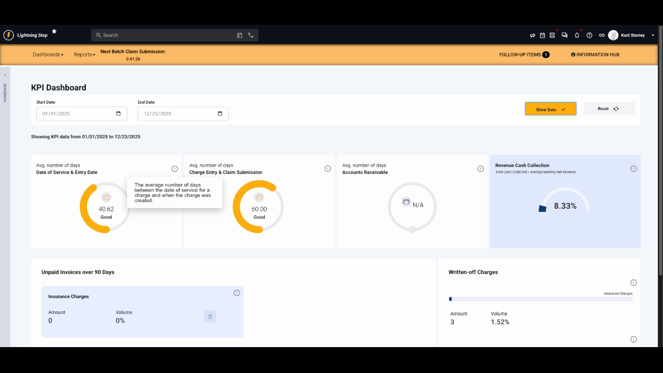
Step 5: Use the date range selector to view KPIs for a specific month, quarter, year, or a custom date span.
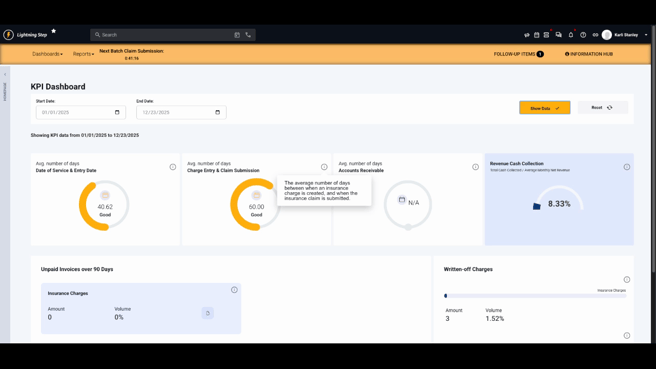
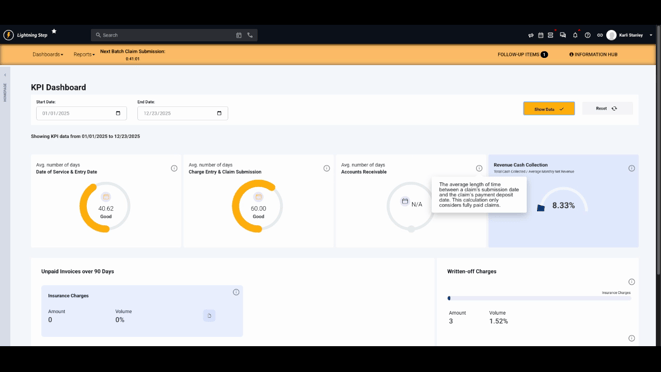
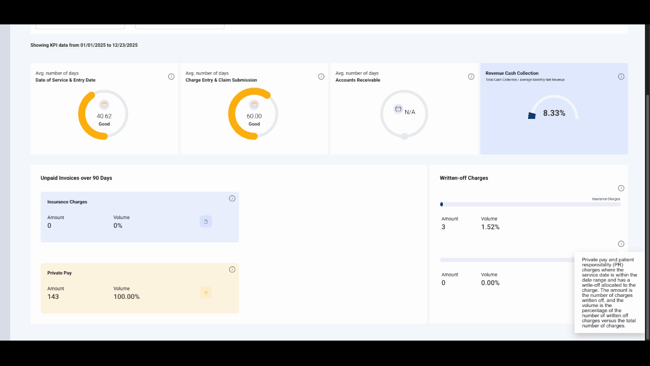
Step 6: Review the six KPI cards. Each card includes a tooltip explaining how its value is calculated.

-
Average Days from Date of Service to Entry Date: See the average number of days between when a service happens and when it’s entered into the system.
-
Average Days from Charge Entry to Claim Submission: See how long it takes, on average, to submit insurance claims after charges are created.
-
Average Days in Accounts Receivable: Track the time between claim submission and payment deposit for fully paid claims.
-
Revenue Cash Collection %: Monitor the percentage of payments (insurance and private pay) collected against the total billed amount.

-
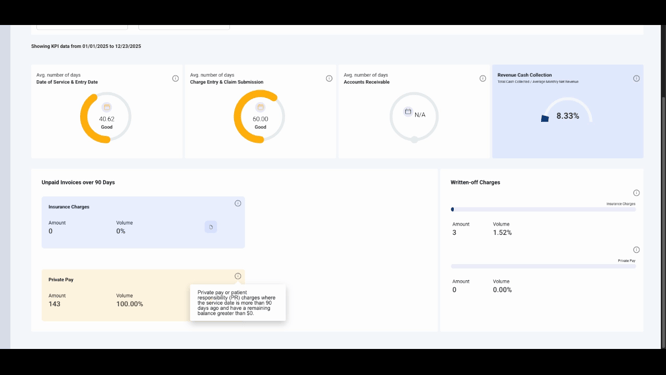
Unpaid Invoices Over 90 Days: - For insurance, this shows claims over 90 days old with outstanding balances (does not use the date range selector). - For private pay, this includes patient responsibility charges over 90 days old with balances (also not date-range dependent).
-
Written-off Charges: - Insurance: Shows written-off charges within the selected date range, displaying both the count and the percentage of total charges.
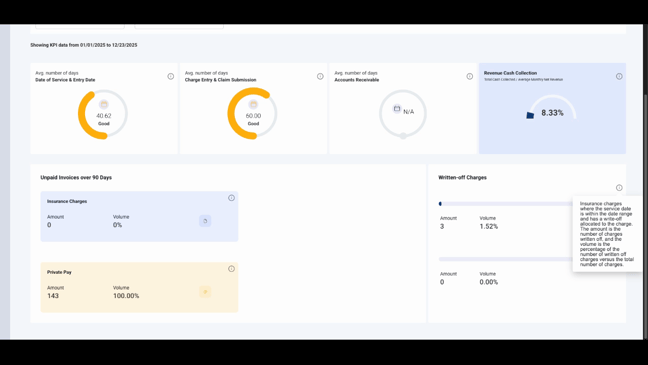
- Private Pay: Shows written-off private pay charges within the date range, with the amount and percentage compared to all private pay charges.
That covers each KPI card and how to evaluate them on the dashboard.
