
Step 1: Open the Conditional Review Documents Menu On the left side of your screen, select Conditional Review Documents.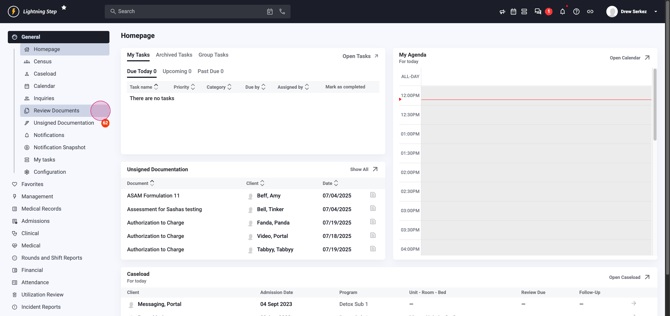 This opens the Review Documents table, which is visible only when documents are pending your review.
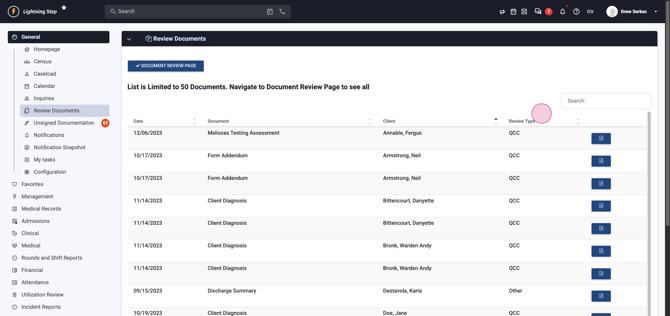
Step 2: View and Sort Documents Awaiting Review The Review Documents table lists up to the 50 most recent documents needing attention. Sort these by date,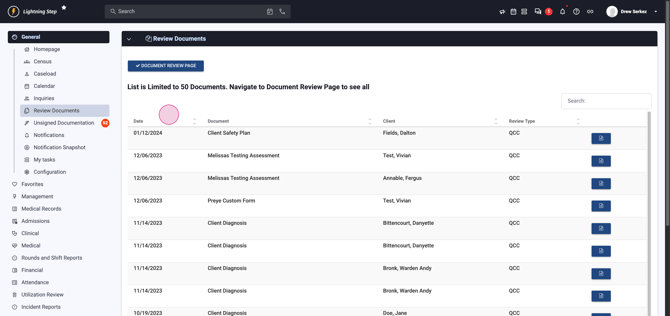 document type,
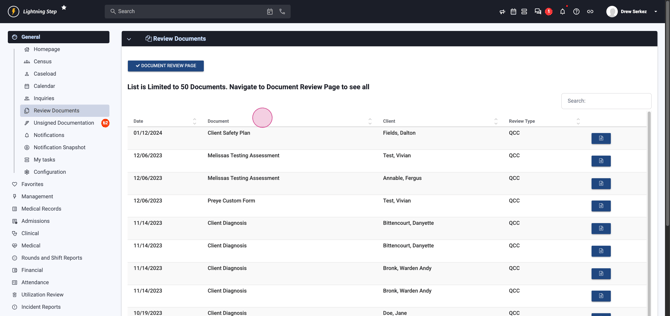 client name,
 or review type.
 Each document row shows a blue button
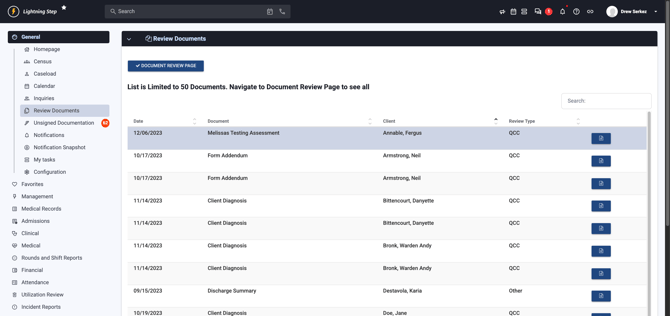 that leads to its review form.
Step 3: Access All Pending Review Documents If your queue exceeds 50 items, click Document Review page at the table's top left.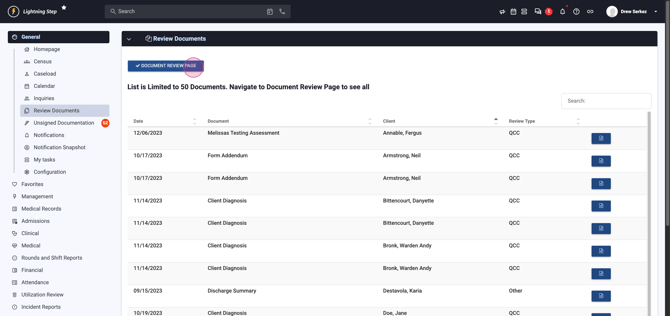 You'll see your full document list for review.
Step 4: Filter and Search for Documents On the document review page, filter by specific options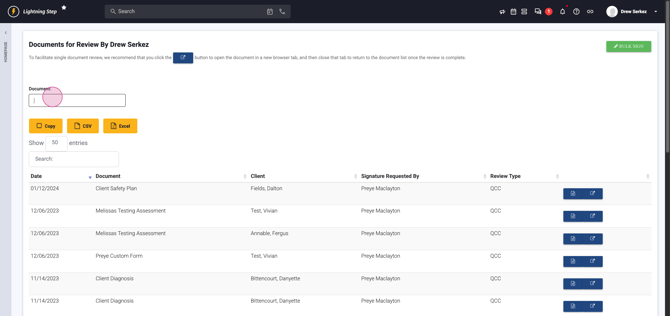 or document names.
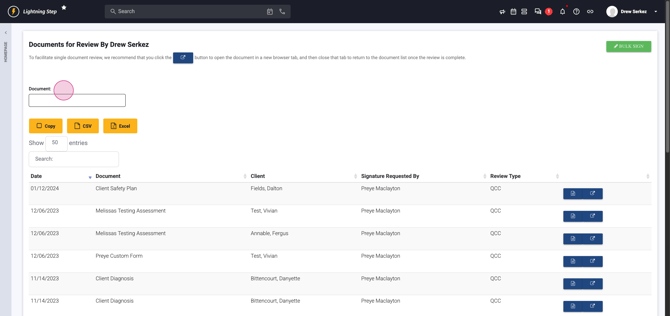 Use the search bar
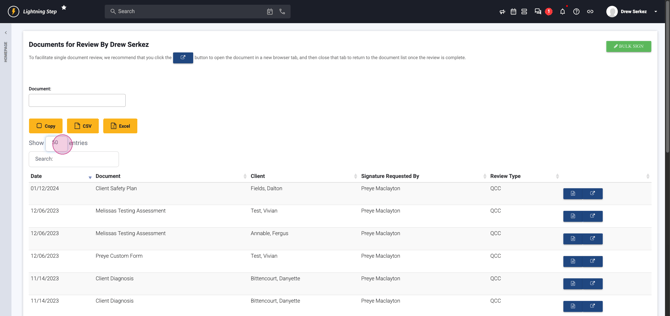
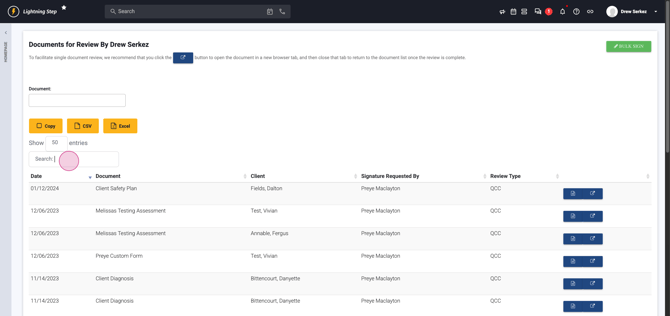 to locate particular documents or team members. Adjust the number of displayed entries using the dropdown menu.
 The list also shows who requested the signature.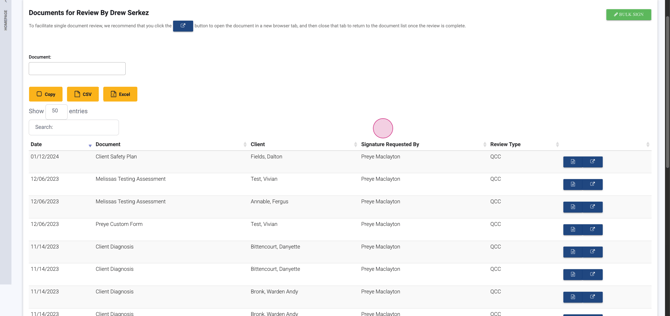
Step 5: Open Documents for Review Each entry includes two action buttons: the left button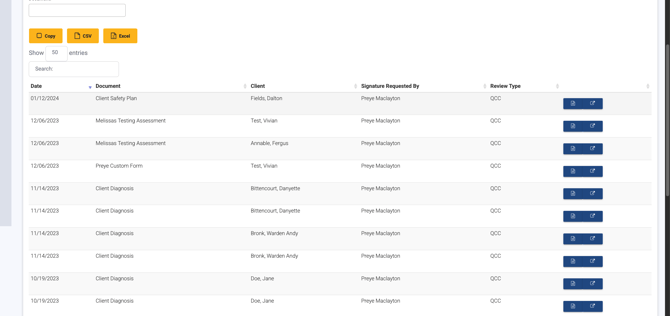 takes you directly to review, while the right one
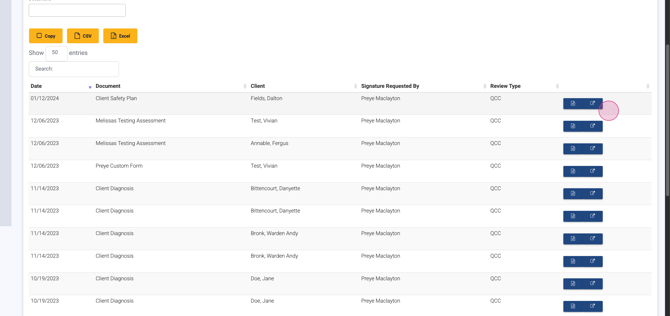 opens the review page in a new tab. For uninterrupted workflow, open documents in a new tab.
Step 6: Begin the Review Process When ready to review, locate the Sign option at the document's bottom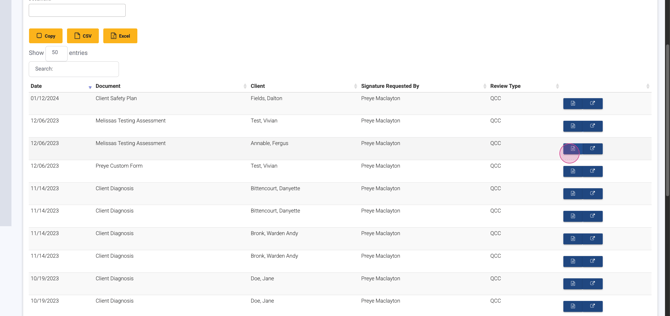 . Here, the QCC approval table appears
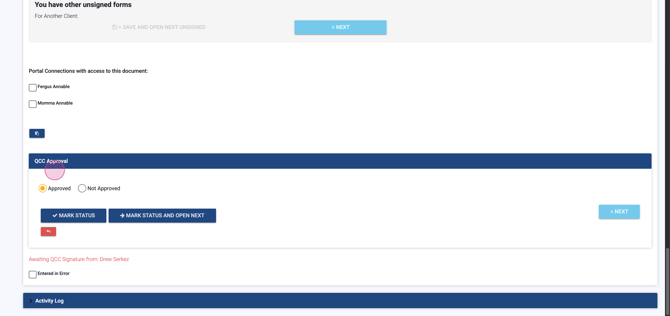 with options to Approve or Disapprove.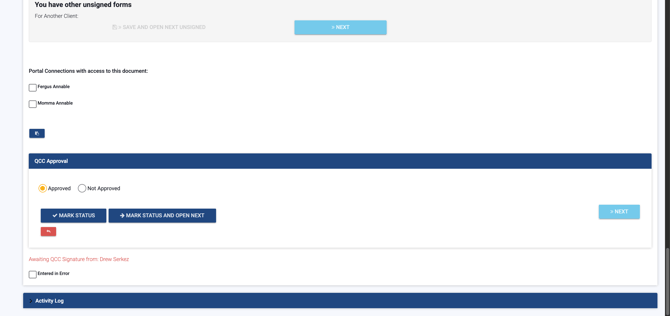
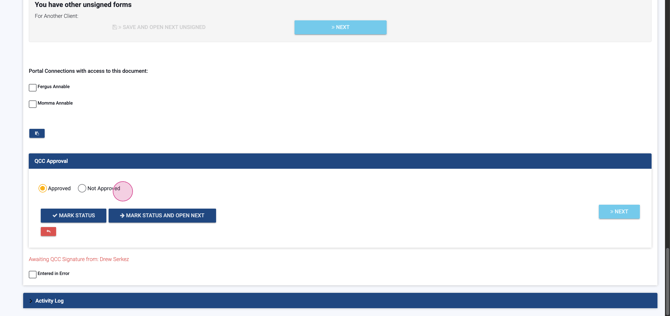
Step 7: Choose Approval Options Approve using Mark Status to apply your signature and stay on the page.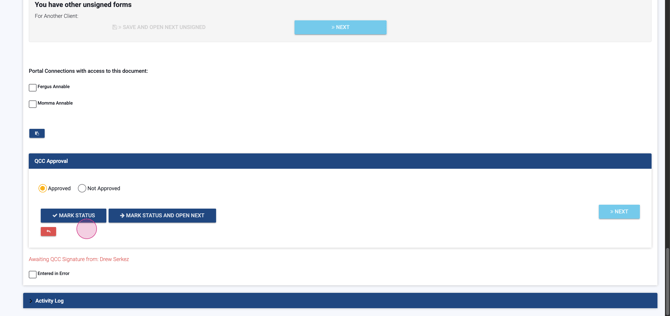 Choose Mark Status and Open Next to sign and proceed to the next document.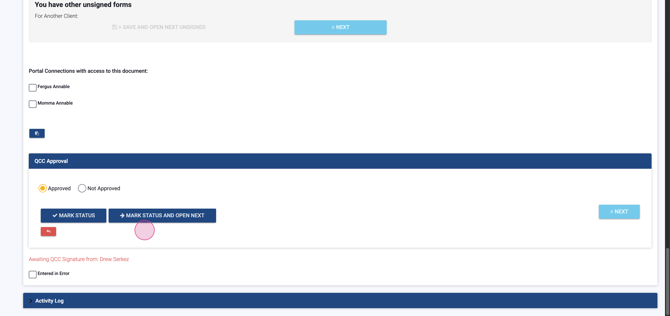
Step 8: Complete and Continue Reviews After selecting an approval action, you're redirected to the review form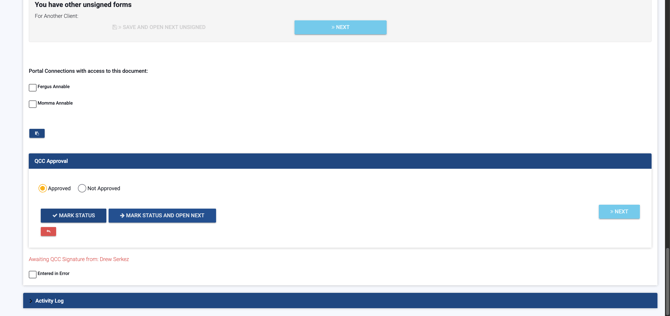 . Scroll down to approve or disapprove the document again.
Step 9: Provide Feedback for Disapprovals If disapproving, supply a reason in the prompt.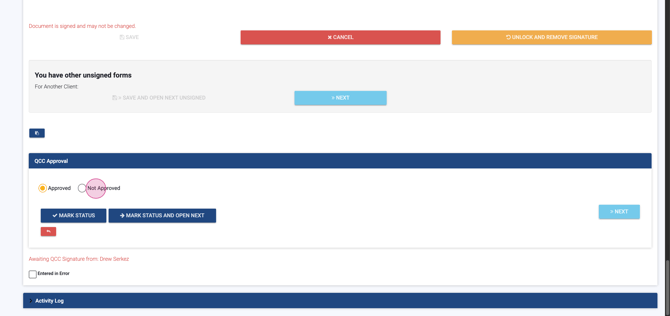 Marking a document as not approved or using Mark Status and Open Next removes the submitter's signature and sends a notification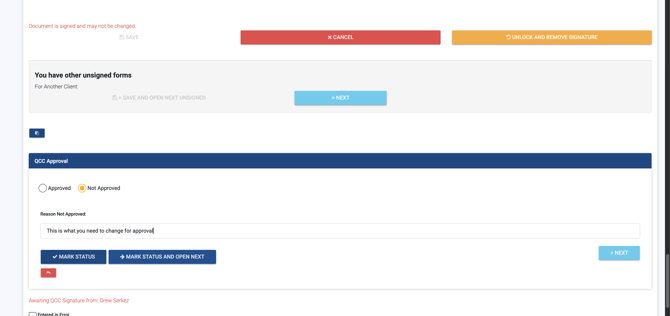
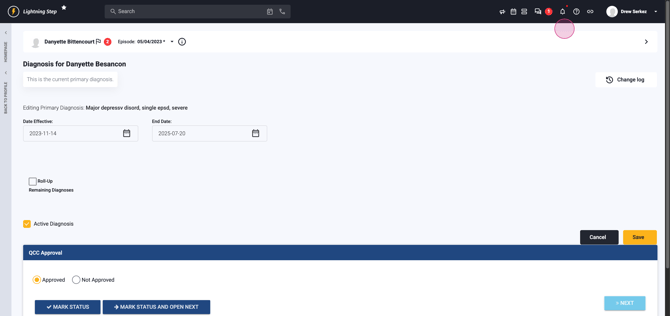
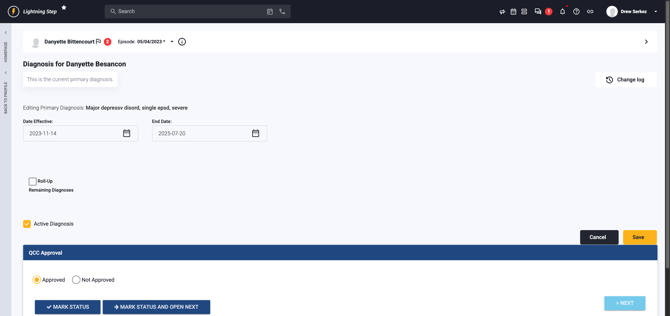 with your feedback. The document can then be updated, re-signed, and resubmitted.
Step 10: Navigate Between Documents Click the baby blue Next button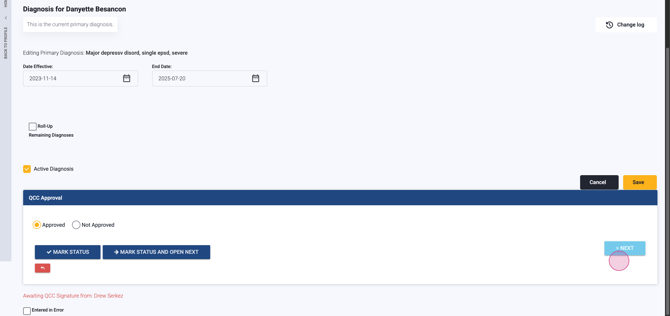 to move to the next document without applying a signature.
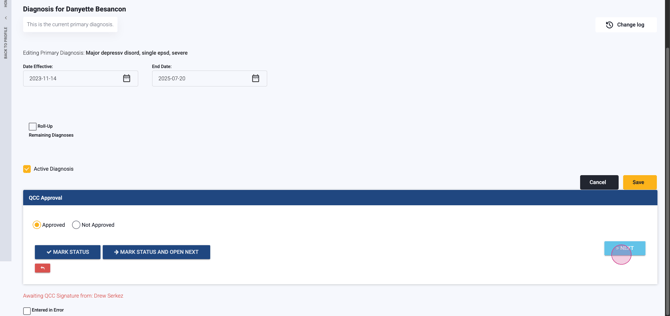 To return to your list, tap the red arrow icon.
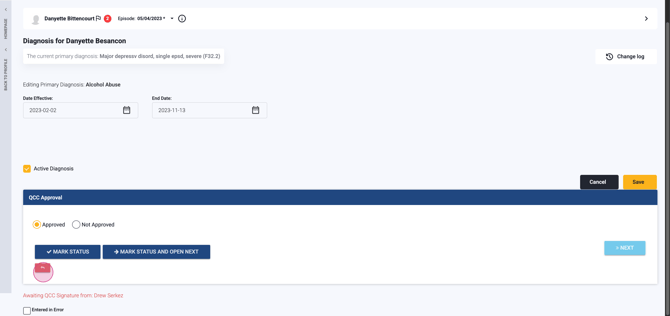
Step 11: Wrap Up and Return to Home After reviewing and signing all documents, your list is empty. Click the lightning bolt icon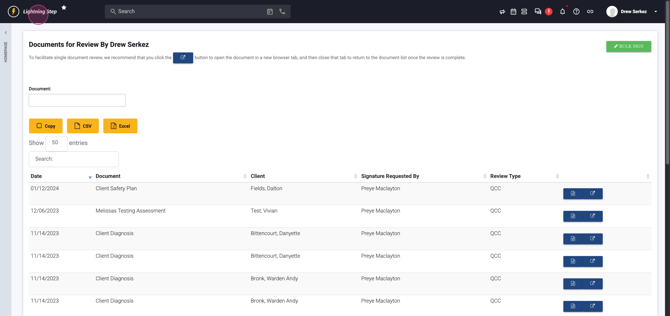 to return to your homepage. When no documents are left for review, the Review Documents menu disappears.
You’ve now completed the QCC review process efficiently and effectively.
