
Partner Roles
-
Lightning Step: EHR/EMR vendor overseeing holistic implementation and coordinating the process
-
Revolv3: Facilitates the customer's onboarding process
-
Nuvei: Provides the underlying payment processing engine (does not interact directly with clients)
Payment Onboarding Process
Follow these steps to complete your Lightning Step Payment Solutions onboarding.
Step 0: Get a Signed Contract
Sales should be including LS Payments in the contract for all new business. You are responsible for confirming whether LS Payments was included for your customer. If it was not included in the original contract, or if you are working an expansion, complete the following:
-
Create a new Deal in Hubspot and link it to the company record
-
Create a new Quote from that Deal
-
Line Item = Lightning Step Payments Processing
-
The Line Item will specify the per transaction (%) that we collect
-
There are no upfront fees or other costs
-
-
Lightning Step COO will approve the your new Quote
-
Once approved, deliver the quote to your customer
-
Once customer signs, Lightning Step CEO will countersign
-
You can now proceed with the onboarding steps below
Step 1: Review the Onboarding Guide with Your Customer
Review this onboarding guide with your customer to align expectations early in the implementation process. It is a customer-facing version of these same onboarding steps, and will prepare them to submit their application.
Step 2: Introduce Customer to Revolv3
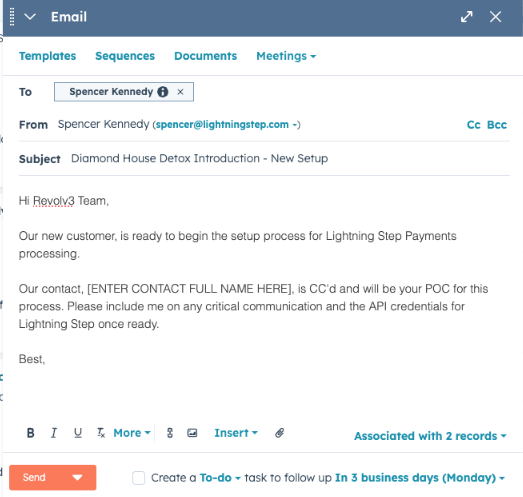
Send an email to applications@revolv3.com introducing your customer and initiating the onboarding process. After this point, Revolv3 will take the lead for a bit.
-
From your customer's Hubspot company record, send an email to:
-
Cc: [your customer contact who will own the Revolv3 onboarding]
-
Use the "Revolv3 New Customer Setup" template
-
Specify the customer's name in the subject line
-
Add your customer contact's name in the body of the email
Step 3: Revolv3 Initiates the Application Process
Revolv3 assists your customer through the application process with Nuvei. Each onboarding step typically takes a few days.
-
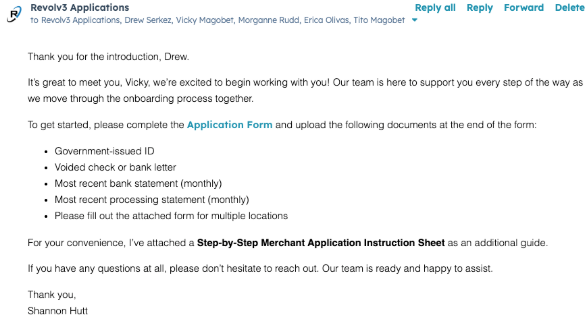
Revolv3 will respond to your introduction email (example below)
-
Revolv3 will provide your customer with an application link & instructions
-
Once submitted, Revolv3 typically reviews applications within 2-3 business days
-
-
Reference this full Application Guide to know what your customer will experience and help prepare them
-
Note: While Revolv3 is the primary contact for questions at this stage, you (Lightning Step) are responsible for overall success. Advocate for your customer by checking in with them and raising concerns to Revolv3 if there are delays or unanswered questions. Similarly, be responsive to Revolv3 and ensure your customer is engaged throughout this process.
Step 4.1: Enable 'On/Off Config' in Lightning Step
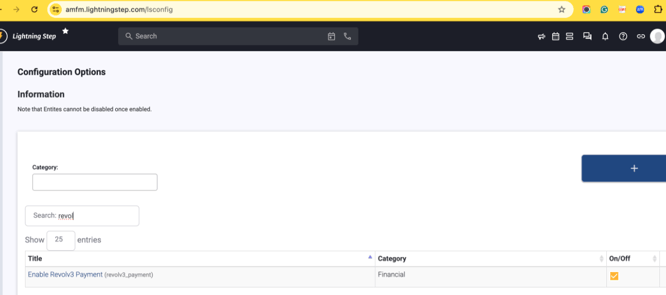
Before proceeding with API setup, enable Revolv3 Payments in LS Configs.
-
In the customer's Lightning Step server, navigate to System Configuration > Config Options > Configuration Switches
-
Use Ctrl+F to search for "Enable Revolv3 Payment"
-
Turn this toggle ON
Step 4.2: Application Approval and API Setup
As soon as your customer's application is approved, Revolv3 will send you (Lightning Step) the information needed to configure the Revolv3 API in Lightning Step.
-
Obtain the API credentials from Revolv3 via email
-
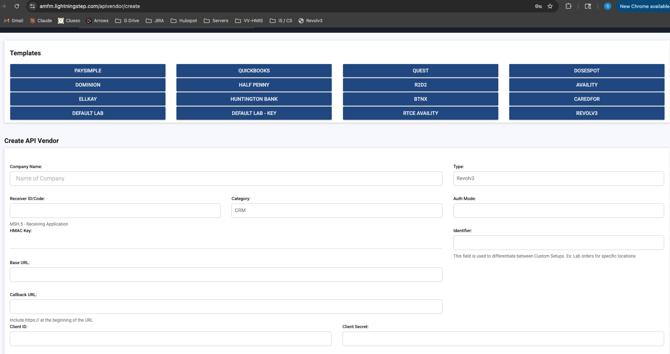
In the customer's Lightning Step server, navigate to Developer > API Vendor > Click the + in the top-left corner > and select the Revolv3 tile from the list of Templates
-
Enter the Client ID and Client Secret
-
Mark the API as "active" and "production ready"
-
Click "save" and the API is now enabled!
Next, you need to "turn on" the API in each of your customer's locations.
-
Navigate to System Configurations > Locations
-
Complete the following steps in each location
-
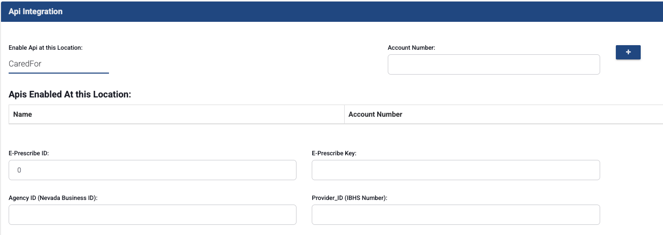
Open a location
-
Scroll toward the bottom of the screen and find the "APIs enabled at this location" section
-
Select "Revolv3" from the list of available APIs
-
Click the + to add the API to this location
-
Click "save" and move on to the next location
-
Step 5: Test Transactions
As the Lightning Step rep, you should now perform a test transaction to validate the connection. Report issues immediately to the Revolv3 team to avoid delays.
-
Access a test client in the customer's production server.
-
Navigate to their Account Profile
-
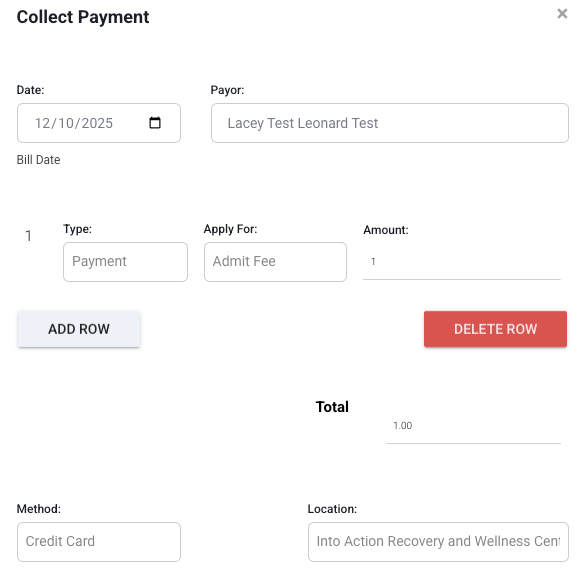
Select "+ Create Payment"
-
Select the Payor and enter a payment amount of $1.00
-
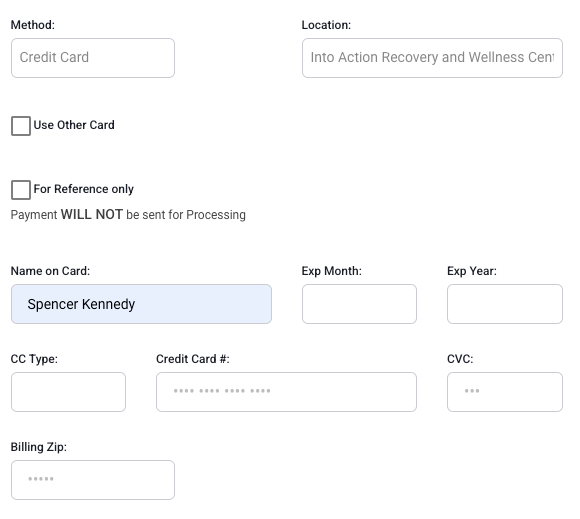
Enter "REAL" credit card information. This is required for the test to be successful.
-
As of 12/10/26 we do not have an alternative to this.
-
You can refund the payment afterwards, so you are not losing the $1.00.
-
-
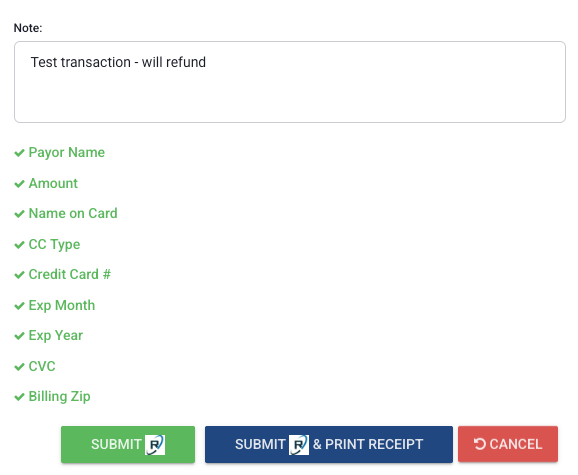
Validate all fields are correct & enter an option note to specify this is a Test. Then click "Submit".
-
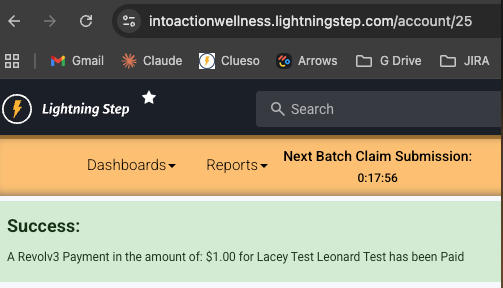
Confirm the transaction was successful.
-
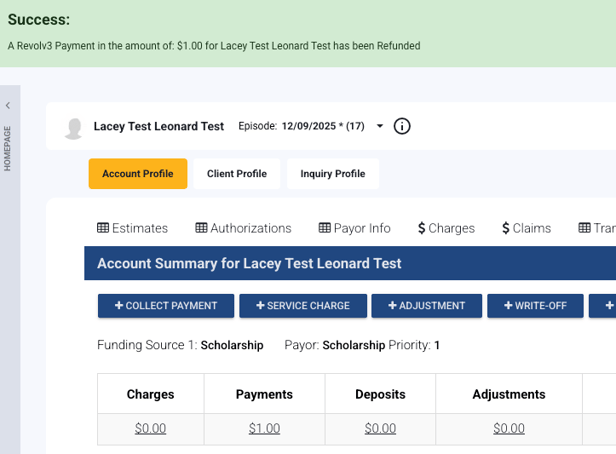
Notify the Revolv3 team of your successful payment. Once they confirm receipt, you can now refund the payment back to yourself. On the same LS screen, click "Refund" and post a refund against the test payment you created. You will then see a similar screen as before.
-
If you receive any errors during the testing process:
-
Double check the LS Config, API Vendor, and Location settings you configured.
-
If issues persist, post to #Product and include the server and error message.
-
If issues persist, notify Revolv3 of the issue and what steps we've already tried.
-
The most common issue so far is that Revolv3 provided incorrect API credentials.
-
Step 6: Account Provisioning and Training
After the application is approved, Revolv3 will reach out to your customer to provide access to their Nuvei portal. This portal is where customers can run transaction reports, manage other portal users, and perform general day-to-day tasks related to payment processing.
-
Revolv3 will help your customer log into Control Panel (Nuvei's portal)
-
Revolv3 will provide basic training and orient your customer to the portal
-
Revolv3 will supply documentation & help guides on how to use Control Panel
Step 7: Go-Live
Once you have completed successful tests and Revolv3 has educated the customer in their Nuvei portal, your customer is ready to collect live credit card payments via Lightning Step!
For ongoing support, please remember that your customer should contact:
-
Lightning Step: for EHR/EMR or general relationship questions
-
Revolv3: for questions or troubleshooting related to payment processing specifically
Step 8: Workflow Guides & Resources
Lightning Step is now responsible for education the customer on all payments related workflows within their Lightning Step server.
-
Educate the customer on these workflows during Financial Training
-
Direct your customer to the training videos available in Elevio
-
Note: You can also use these to educate yourself on our best practice workflows before training!
-
Frequently Asked Questions (FAQ)
These are FAQs provided directly by Revolv3. Refer to these to assist your customer, and remember you can always direct your customer to contact Revolv3 for any payment processing questions you cannot answer.
My test transaction didn't work, what is wrong?
-
Check the LS Config, API Vendor, and Location settings first.
-
"Failed to connect with PaySimple" - this error means the Revolv3 LS Config is not enabled.
-
"Failed to create customer" - this likely means the API Vendor credentials are incorrect.
-
"Failed to create payment" - as of 12/10/26 we are still troubleshooting this error.
-
You must use a real credit card for the test to work correctly.
Why do we need SSNs and IDs?
Banks and Nuvei require this information for Know Your Customer (KYC) and Anti-Money Laundering (AML) regulations. It's industry standard.
Do we need multiple applications?
Yes, if there are several legal entities or EINs.
Can the merchant use a personal bank account?
No. The settlement account must match the business legal name for underwriting compliance.
How long does approval take?
Usually 24–72 business hours after all documents are submitted.
Can merchants have a single login for multiple locations?
Yes, if managed under one legal entity. Otherwise, Revolv3 will coordinate with Nuvei.
Why does Revolv3, not Nuvei, send next-step instructions?
To simplify communications, ensuring merchants receive clear, relevant information.
What if ownership percentages don’t add up to 100%?
Underwriting requires clarification—all shareholders must be listed.
What if there's no processing history?
That's fine. Nuvei will review the business model and projections.
Is a physical business address required?
Yes. P.O. Boxes aren’t accepted.
Can I upload documents using my phone?
It's best to use scanned PDFs. Poor quality photos may be rejected.
Who sends portal login credentials?
Nuvei sends credentials directly to signors. Revolv3 confirms the setup with the merchant.
Who do merchants contact if stuck during the application?
Revolv3 is the point of contact. Lightning Step is kept informed throughout.
