
Step 1: Verify that the user for whom you're scheduling a Telehealth appointment has Telehealth permissions enabled. To do this, navigate to the calendar and proceed as if you were scheduling a Telehealth appointment.
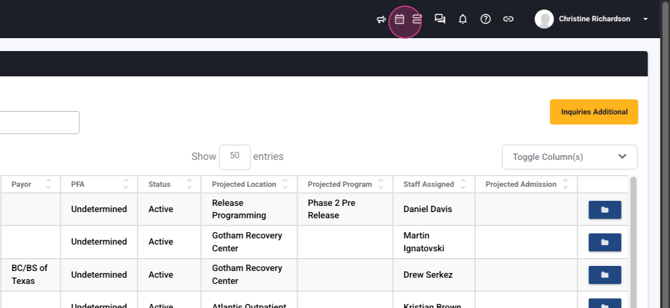
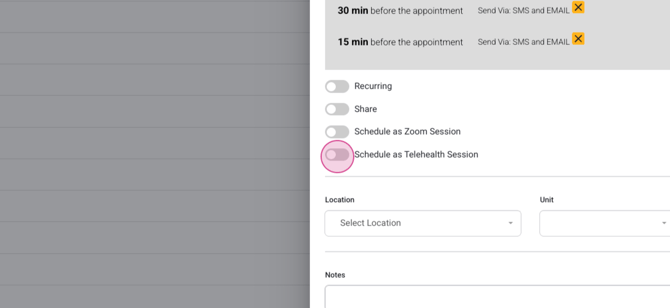
Step 2: Once you're in the appointment, look for the option to schedule as a Telehealth session.

This confirms that the user has the necessary setup. If this option isn't available, refer to our content on configuring Telehealth for assistance.
Step 3: To schedule the Telehealth appointment, select whether it's an individual session or a group session at the top. For this example, we're scheduling an individual session, so select appointment.
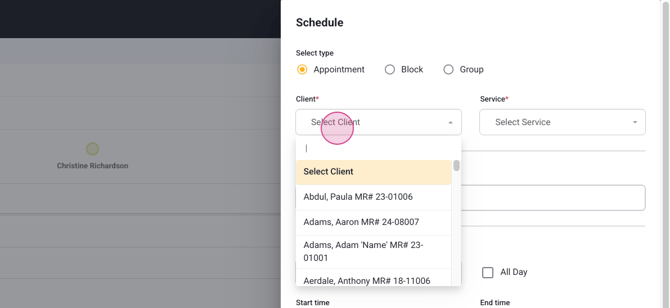
Step 4: Choose the client, the service, the date, and the time. You also have the option to set reminders.
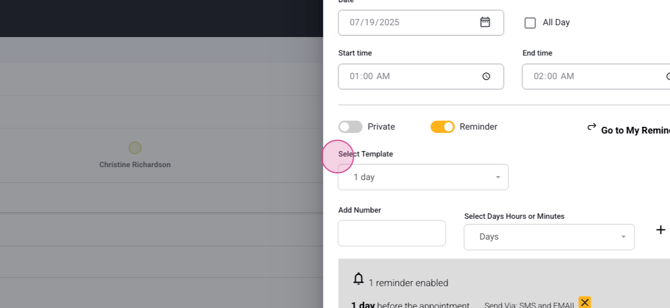
Then, choose the template.
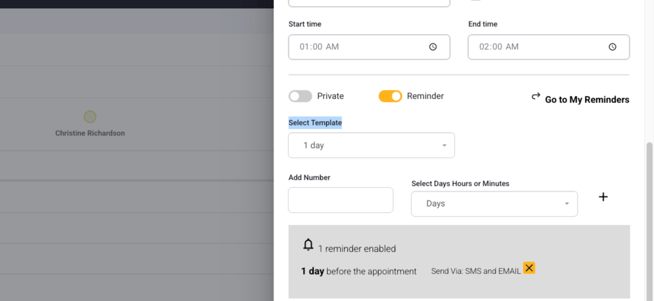
For instance, if you select a 30-minute and a 15-minute reminder, the client will receive a text and an email.
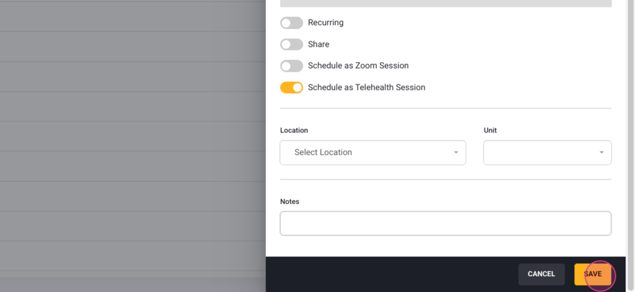
Step 5: Don't forget to select schedule the Telehealth appointment
Click Save.
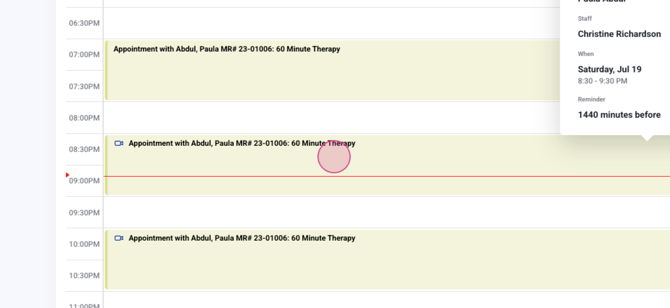
Now, on the calendar, you'll see a camera icon next to the appointment, indicating it's a Telehealth appointment. Non-Telehealth appointments won't have this icon.
Step 6: When you click into a Telehealth appointment, you'll see options to start the session, send the Telehealth meeting link, or resend the Telehealth link to the email on file.
And that's it! You've successfully scheduled a Telehealth appointment.
