
Step 1: Open User Administration Navigate to your name menu in the upper right corner. Select User Administration.
Step 2: Find the Relevant User Use the search bar to locate the user whose documentation requires QCC review. Select their profile.
Step 3: Require QCC Documentation Review Scroll down and check Documentation requires QCC sign off.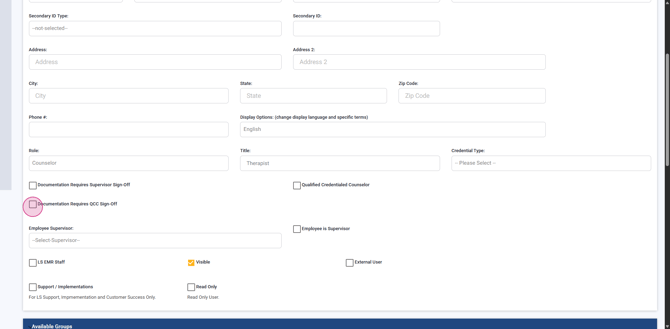
Step 4: Configure QCC Settings Once you check the box, click Configure QCC Settings to open assignment options.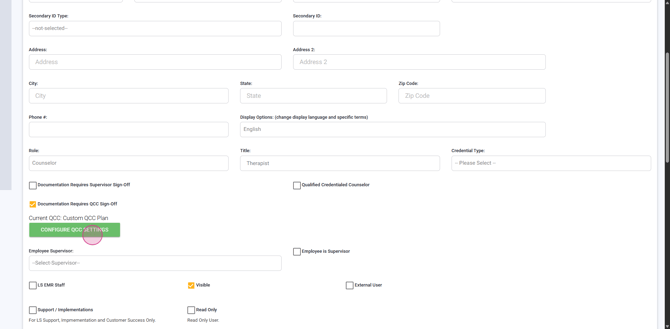
Step 5: Assign a Designated QCC In the new window, open the Designated QCC dropdown. Choose the correct QCC from the list of credentialed counselors.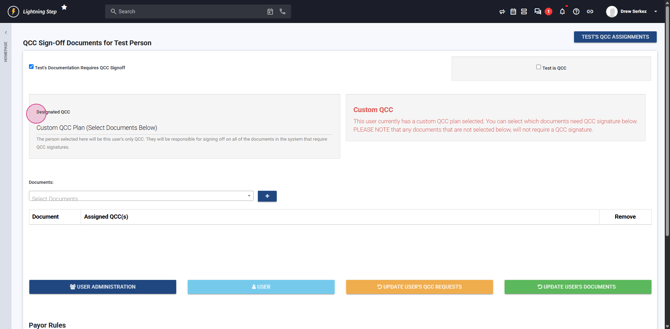
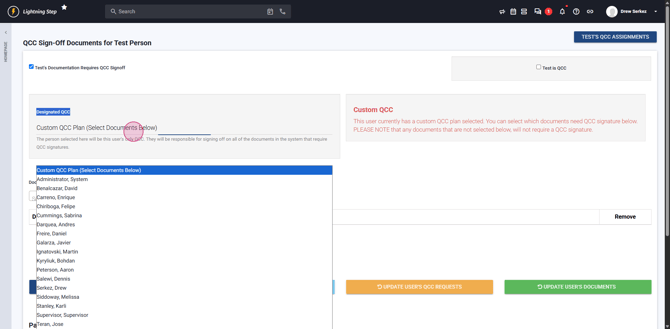
Step 6: Set QCC Start Date Enter a start date for QCC review responsibilities. Backdate if necessary to capture earlier documents.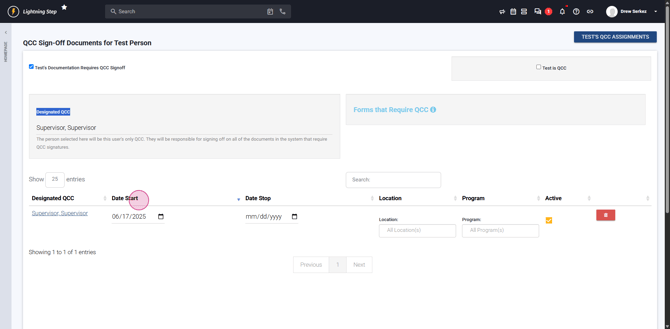
Step 7: Assign by Location and Program (Optional) If QCC review should be limited by location or program, use the Location and Program selectors to specify details.
Step 8: Update QCC Review Requests (Optional)
- Click the yellow Update User's QCC Request button to queue documents for review if the user has been added as a QCC elsewhere. - Use the green Update User's Documents button to apply QCC review to past documents, especially if you backdated the start date.
(After these actions, the system processes the request in the background. It may take up to 10 minutes to complete.)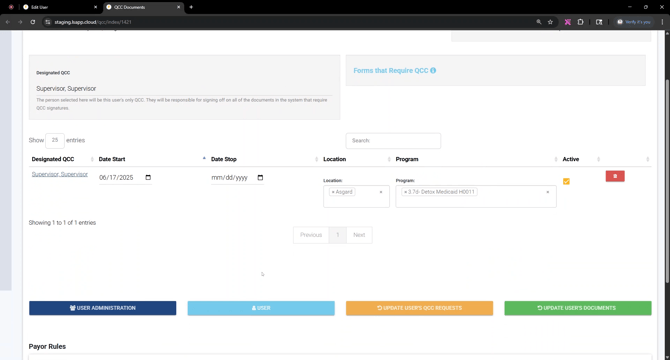
You've now set up documentation review by a Qualified Credential Counselor!
