
Step 1: From the navigation menu, select Configuration.
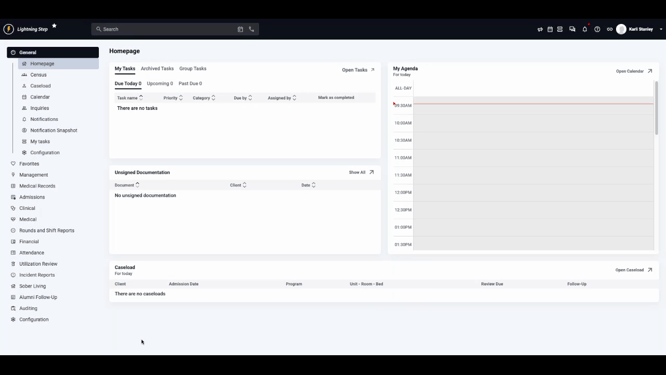
Step 2: Click Billing Configurations.
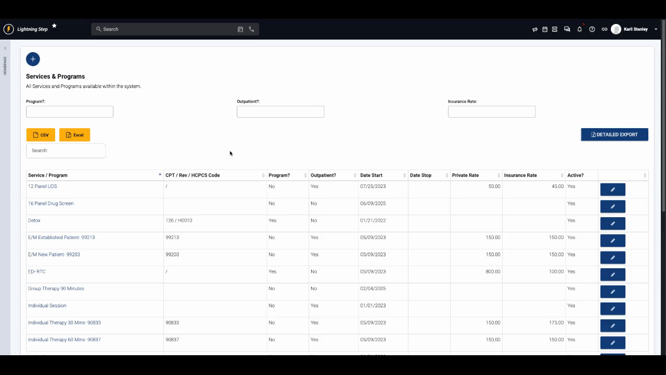
Step 3: Choose Services and Programs to view existing services and programs.
Step 4: Click the plus sign (+) to add a new service or program.
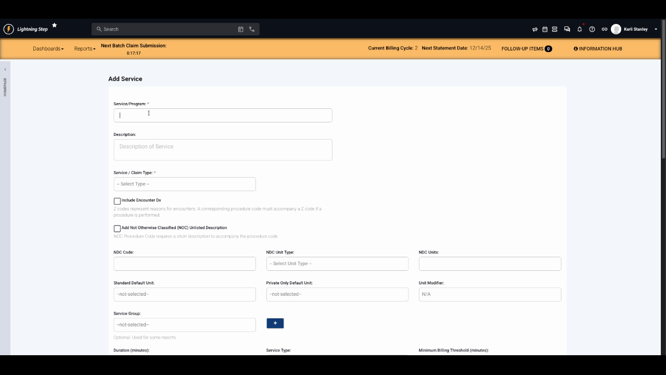
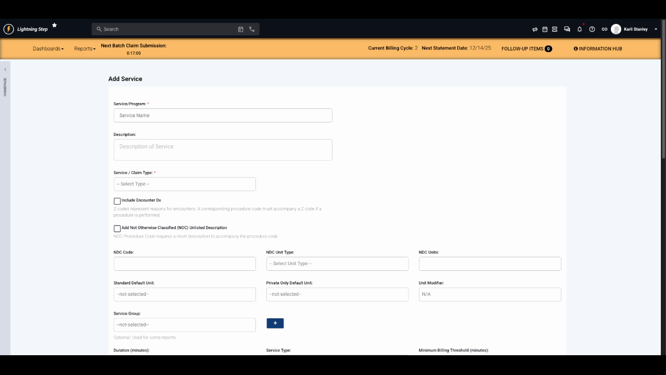
Step 5: Enter the service or program name and add a description if you want.
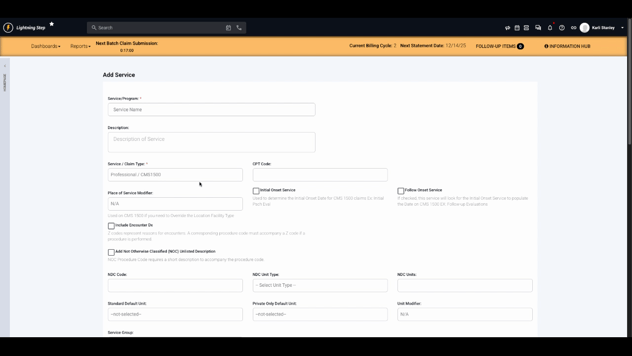
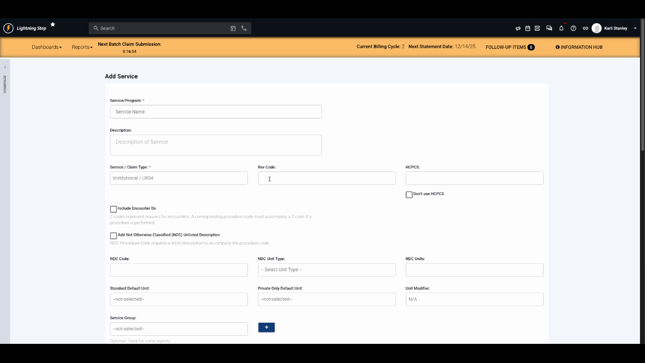
Step 6: Select the service claim type — choose Professional or Institutional.
-
If you pick Professional, enter the CPT billing code.
-
If you choose Institutional, add the Revenue code or HCPCS code.
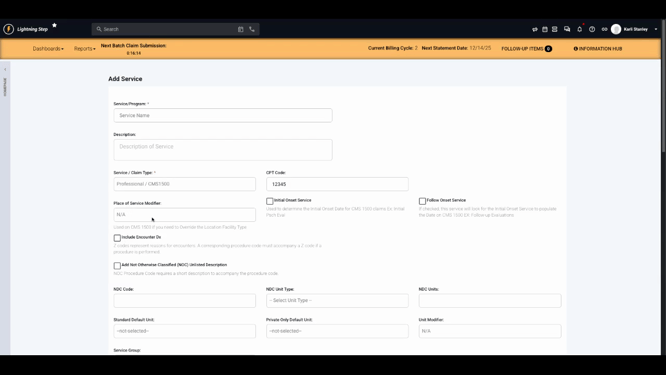
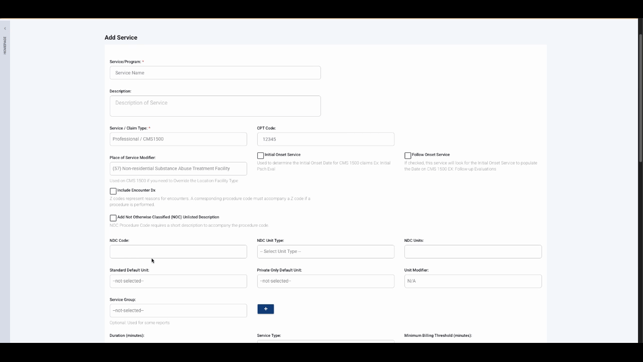
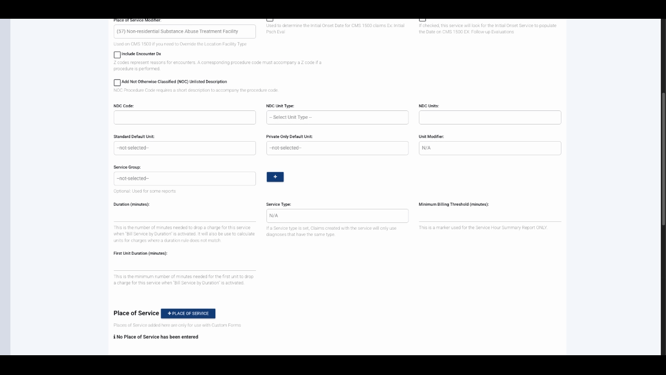
Step 7: Set a Place of service modifier if necessary.
-
Optionally, decide whether the service is for initial or follow-up onset.
-
Optionally, include encounter diagnoses or an unlisted description for unclassified codes.
-
Enter NDC information if the service requires it.
Step 8: Choose a default unit for billing — select Per diem for daily billing, or Per service for billing each time the service is provided.
-
Default unit will coordinate with the unit modifier: days for per diem and units for per service.
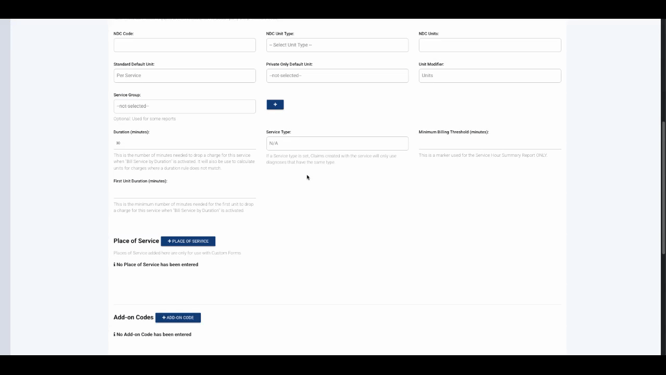
Step 9: Set the duration in minutes for services billed by time, and optionally set a minimum billing threshold for the first unit.
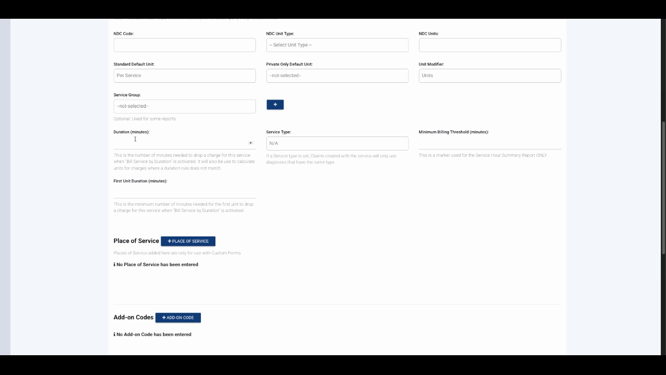
Step 10: Select the service type to control which diagnoses appear on claims (e.g., select mental health to only include mental health diagnoses). Leave as N/A or "All" if not needed.
-
You can add a Place of service field for providers to select when filling out forms.
-
You may also add add-on codes, which are detailed in separate documentation.
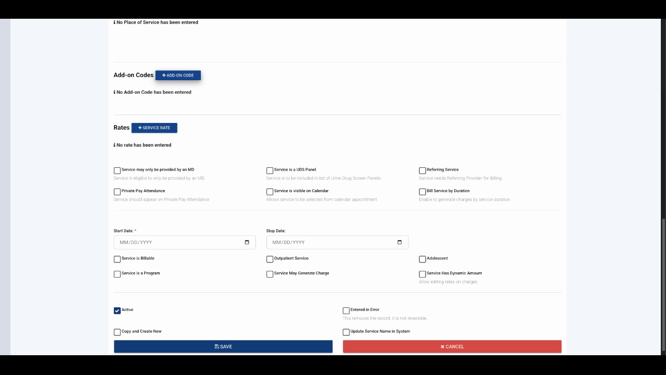
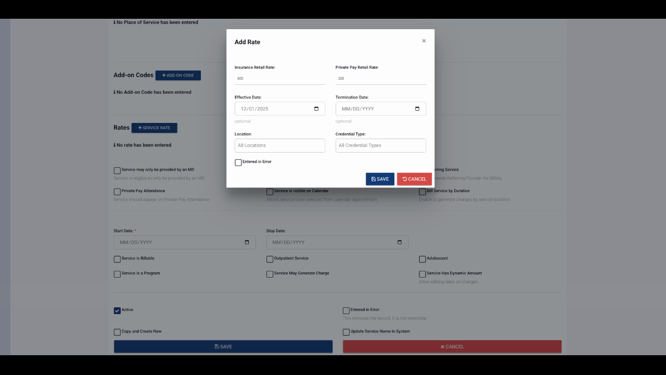
Step 11: Click Service Rate (+) to enter insurance and private pay rates. Set effective dates, and specify if rates are location or credential specific. Save the rate entry once finished.
-
If updating existing rates, use effective dating and make a new entry to preserve previous charges.
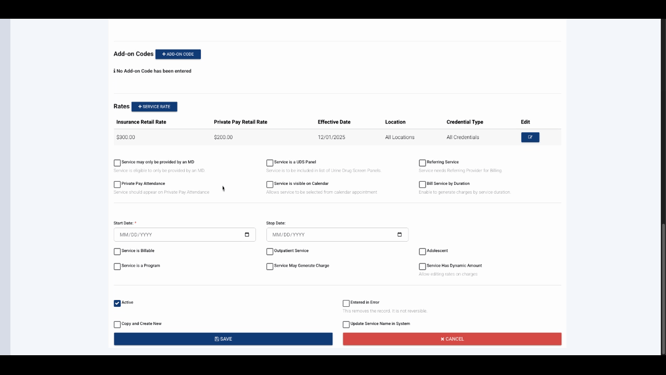
Step 12: Explore additional service options, like:
-
Restricting service to MDs only
-
Including service in UDS panels
-
Requiring a referring provider
-
Making service visible or hidden on the calendar
-
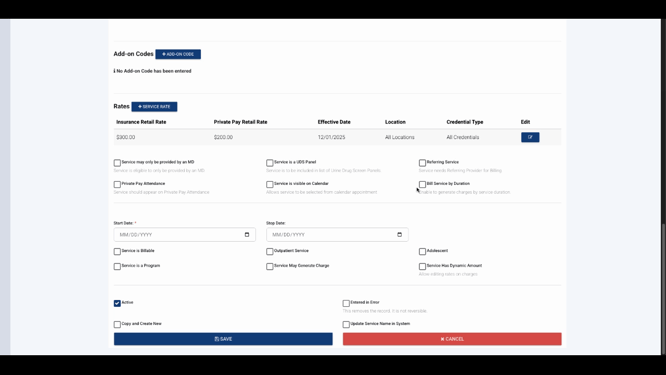
Enabling Bill by Duration if service is billed based on length of time (you must check the box to activate this feature)
Step 13: Set start and stop dates for when the service becomes available.
-
Mark if the service is billable and if it may generate a charge. Both boxes must be checked for client or insurance billing.
-
Identify if the service is outpatient-only for adolescents, or if it has dynamic amounts (for rate editing at charge time).
-
The “service is a program” option offers further configurability covered in separate guides.
Step 14: Click Save to complete the setup.

That’s it! Your new service or program is now configured in LightningStep. For more details, check your internal documentation or get in touch with the support team—help is always available.
