
Step 1: Navigate to the User Menu.
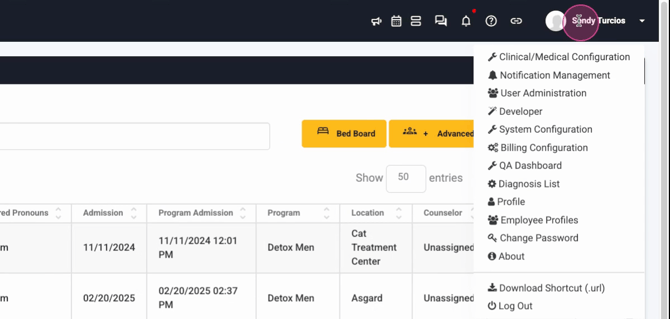
Step 2: Proceed to Billing Configurations.
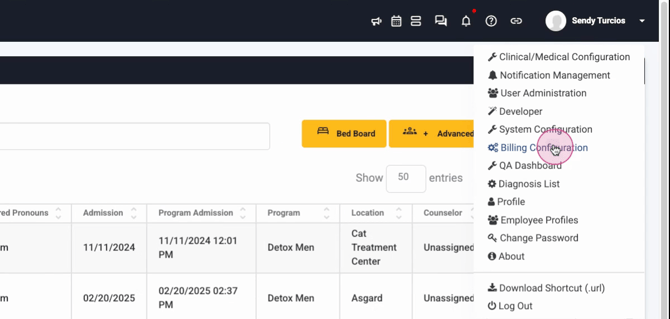
Step 3: Enter the Billing Documents section.
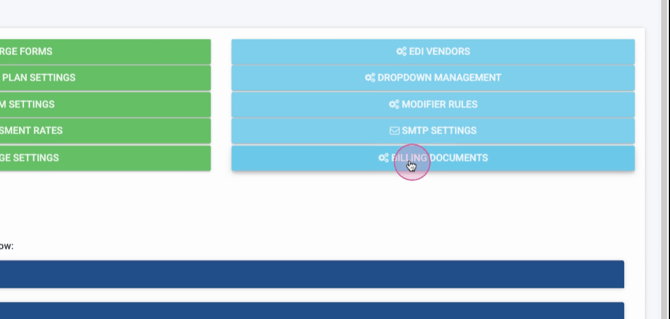
Here, you'll find all the default settings for your invoices for each location.
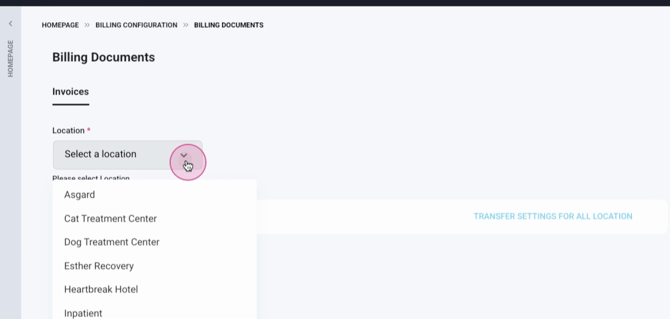
Step 4: Select a location.
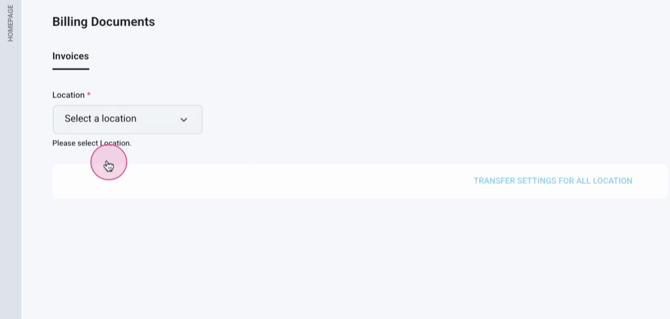
After selecting a location, you'll see a preview of how the invoice will look. Scroll down to find the automatic invoice sending section.
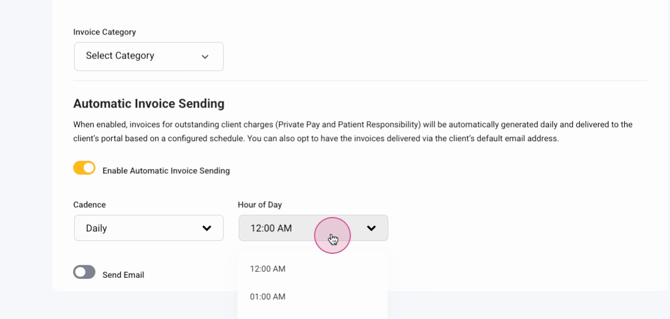
Step 5: Enable automatic invoice sending.
When this feature is enabled, invoices for outstanding client charges, including private pay and patient responsibility, are generated daily and delivered to the client's portal based on a configured schedule.
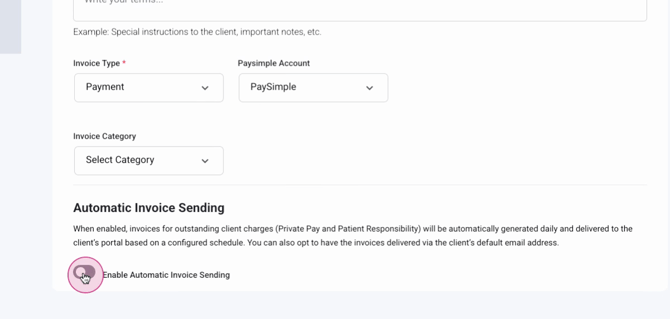
Step 6: Set up the schedule.
On this schedule, select the cadence,
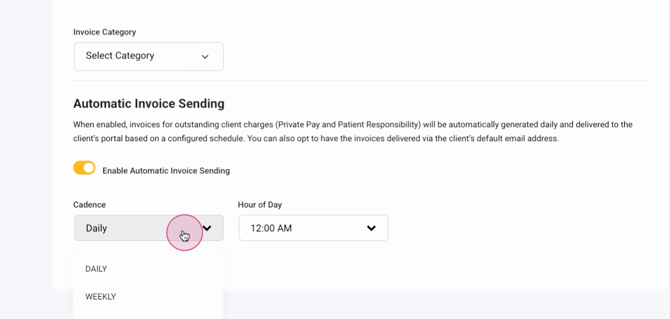
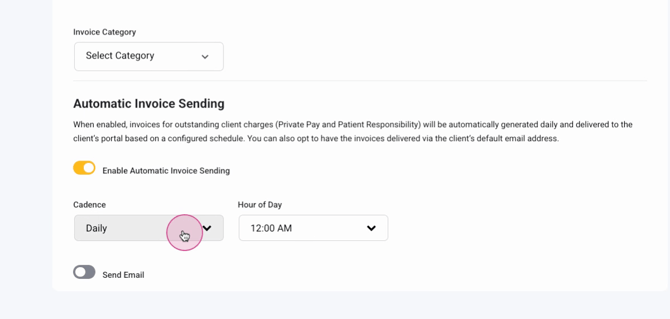
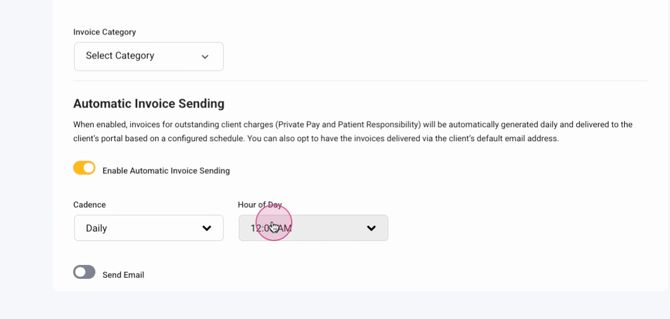
and the time of day.
Step 7: Decide whether to send the patient an email notification or not.
And that's it! You've now set up automatic invoicing in Lightning Step.
