
Set Up Statement Defaults
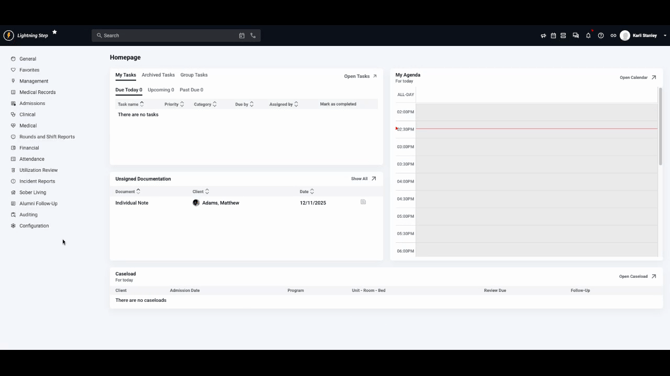
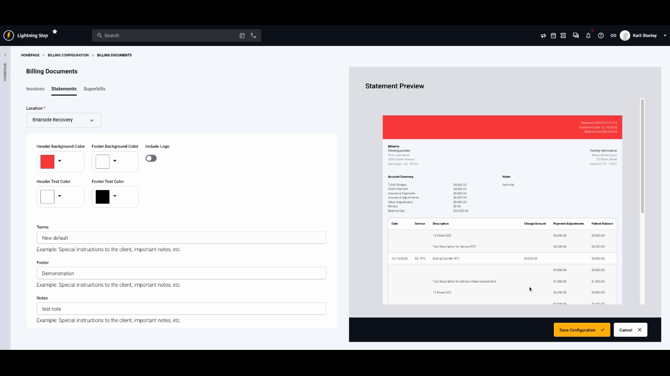
Step 1: Go to Configuration > Billing, then select Configuration and Billing Documents.
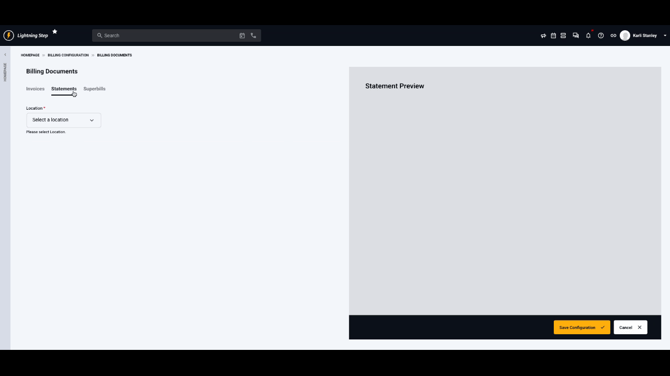
Step 2: Click the Statements tab.
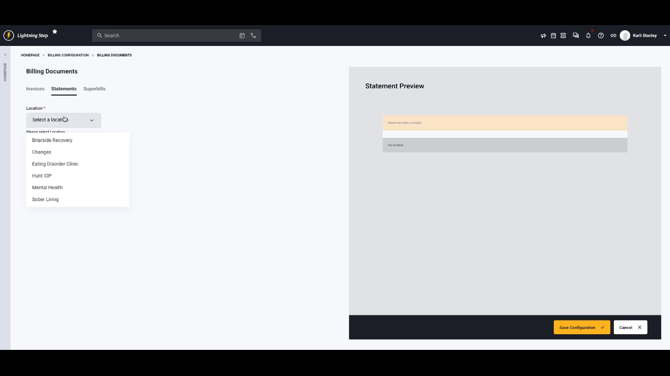
Step 3: Choose your Location.
Step 4: Preview the statement and adjust the defaults. Change the background or text color, customize the header/footer, set default terms, update footer notes, and decide whether to include the location’s logo.
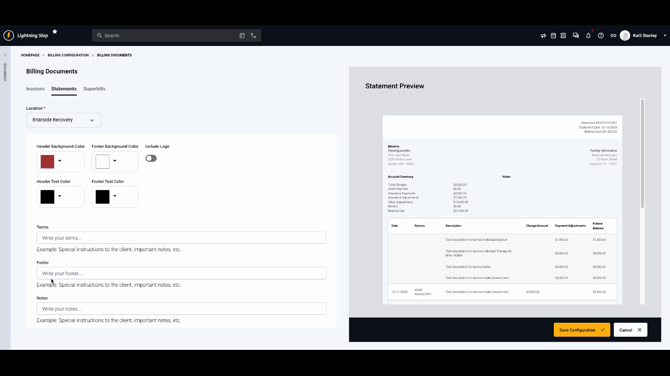
Review your changes in the live preview.
Step 5: Click Save Configuration to apply your selections.
Create and Send a Statement to a Client
Step 1: From the Account Profile, select the Statements tab.
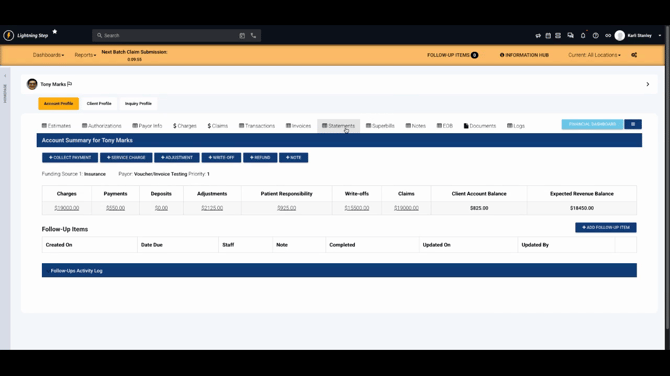
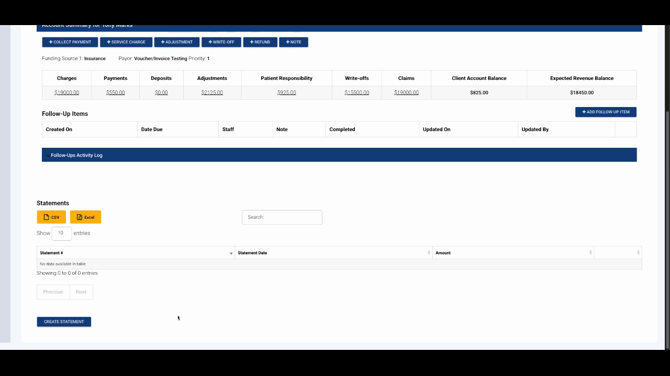
Step 2: Click Create Statement.
Step 3: Pick the date range for the statement and confirm the correct location.
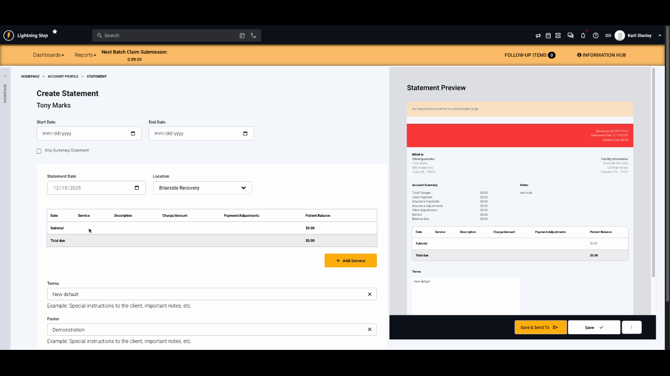
Step 4: Remove or edit individual records as needed. Update the terms, footer, or statement notes for this individual document.
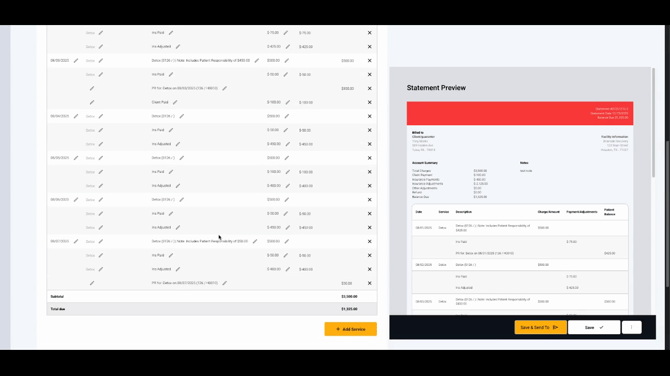
Step 5: Review the statement preview. Check the summary and the itemized details.
Step 6: Click Save to finalize the statement. The option menu becomes available.
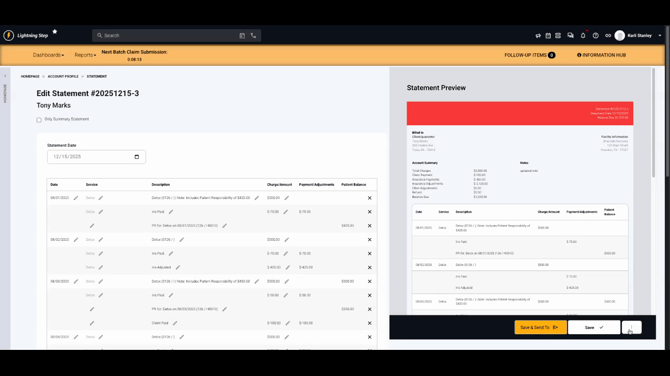
Step 7: Use the option menu to download the statement, collect payment from the statement, or delete it. Keep in mind: collecting a payment from the statement doesn’t reduce the statement balance like it does with invoices.
Step 8: To send the statement, select Send to Client Portal. You can include an email notification so the client gets alerted.
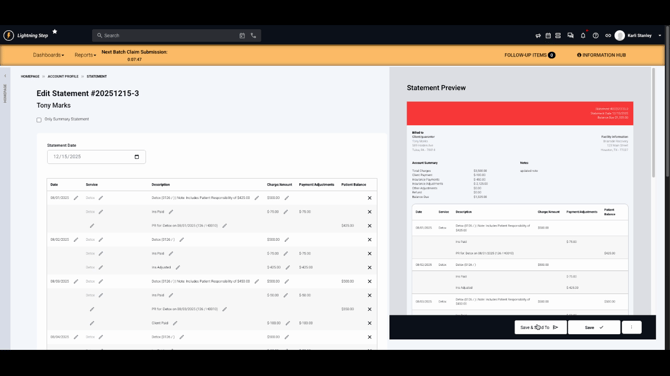
Step 9: If the client prefers, send a summary-only statement, check the box for Only Summary Statement. This shows just the summary to the client while letting you see the records that make up the totals.
Lightning Step statements make it easy for clients to see their account history, while giving your team flexible customization. For more details, check your internal documentation or contact support with questions.
