
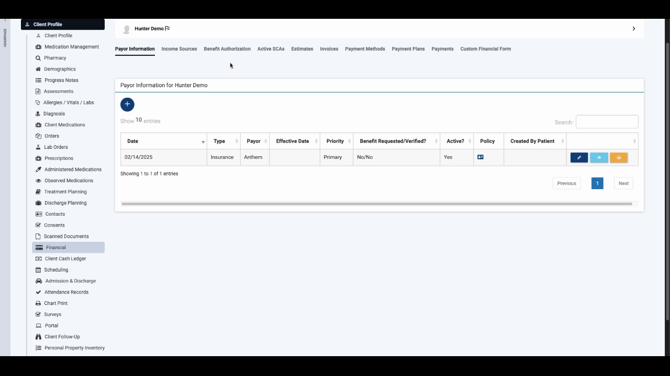
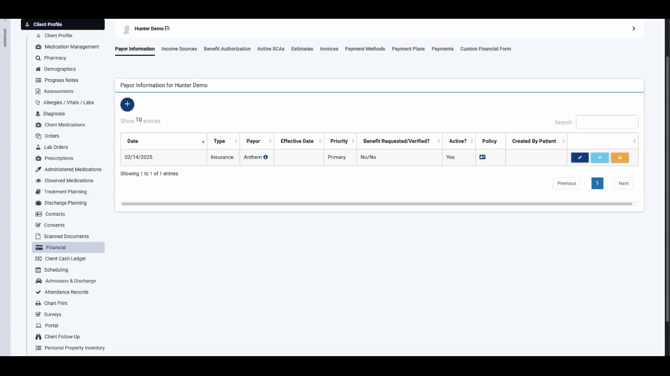
Step 1: Enter the client’s profile and select Financial from the side menu.

Step 2: Click Benefit Authorization.
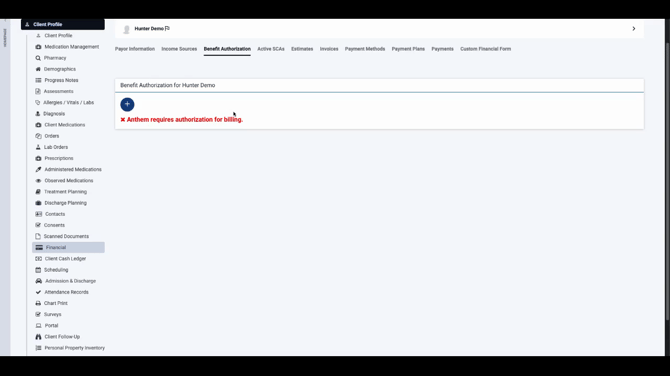
Step 3: Look for a red warning if the payer requires authorization—this indicates it's needed for billing.
Step 4: Click the plus button to create a new authorization.
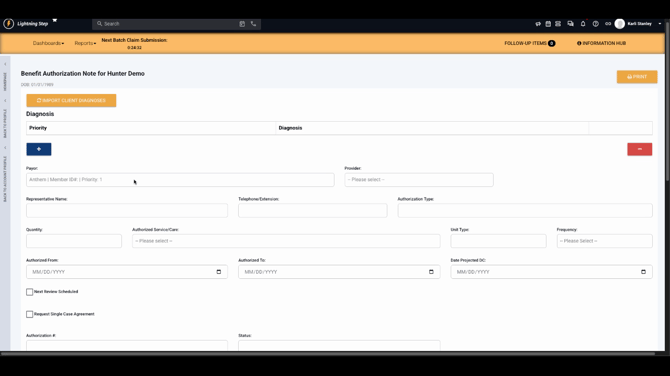
Step 5: On the Benefit Authorization Note screen, select the correct payer for this authorization.
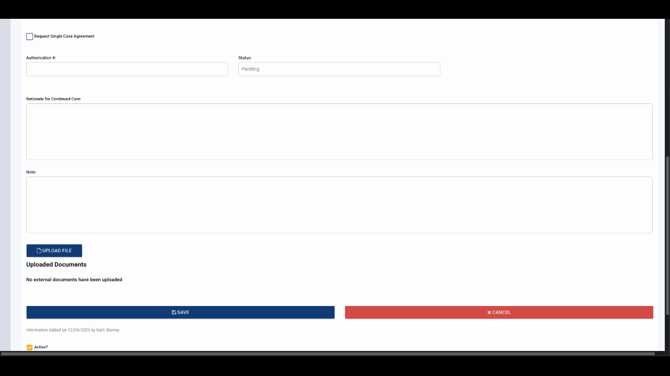
Step 6: Fill in details received from or requested of the payer, including Service and Unit Type. When we fill in the Quantity, the system will auto-populate the and Authorized Dates.
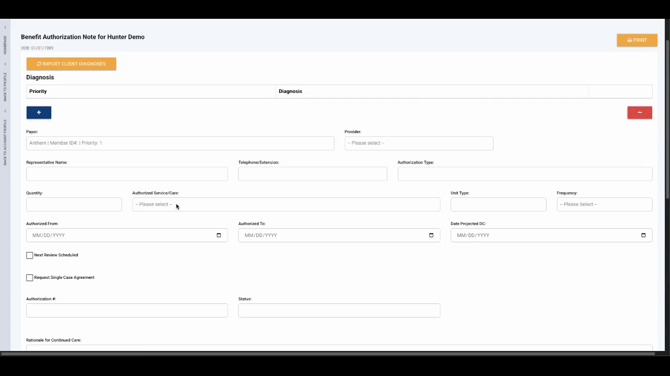
Step 7: Set the Status—since you’re requesting authorization, set it to Pending.
Step 8: Add any notes about your contact with the payer, then Save the record.
Step 9: Return to the Benefit Authorization tab to view your entry. You’ll see the authorization listed with a Pending status for the payer.
Submitting prior authorizations in Lightning Step helps you stay organized and ensures all necessary documentation is on file. For further details, check your internal documentation or contact your support team if you have questions.
