
Step-by-Step: How to Submit a Secondary Claim
Step 1: Open the client account.
You’ll need to start by viewing the client’s profile. Make sure that both a primary and secondary insurance policy are listed on their account.
Step 2: Review the claim details.
Click into a relevant claim for this client. Confirm that:
-
A payment has been received from the primary insurance.
-
There’s a remaining patient responsibility amount.

Step 3: Click the Create Secondary Claim button.
If all criteria are met, the Create Secondary Claim button appears. Click it to continue.
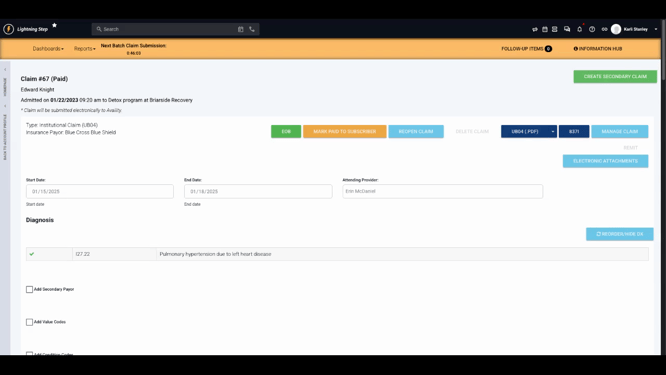
Step 4: Review the pop-up confirmation.
A pop-up message explains that LightningStep will remove any patient responsibility charges resulting from the primary payment so you don’t accidentally bill the client. Click Continue to proceed.
Step 5: Complete the secondary claim screen.
After confirming, the system loads a new edit claim screen labeled as a secondary claim.

Most fields are locked since most payers require the secondary claim to match the primary. Review the details at the top left to confirm you're editing a secondary claim.
Step 6: Review adjudication and balances.
Check the adjudication information on each line. This shows the remaining balance per service line based on the primary payer’s allocation.
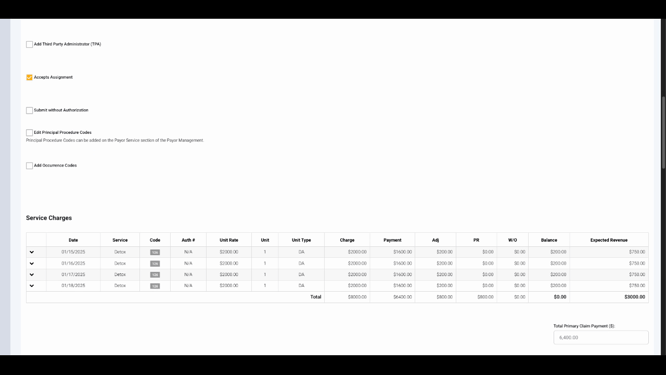
If you spot any errors, delete the secondary claim and edit the primary insurance payment first. This keeps all records accurate.
Step 7: Save and submit.
Once you’re sure all details are correct, click Save and Submit to send the secondary claim.
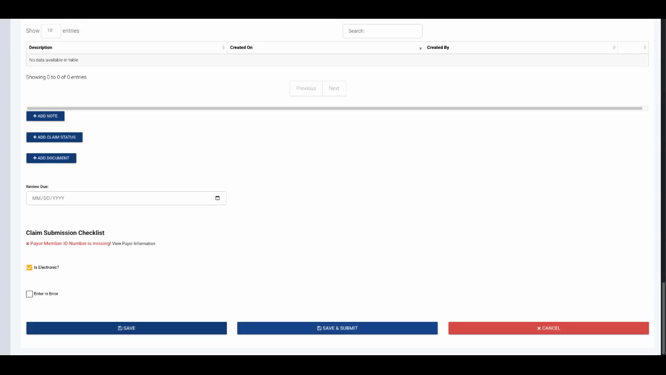
LightningStep’s validation helps prevent mistakes and streamlines your workflow for secondary claims. If you need deeper details, check your internal documentation or reach out to support for help.
