
Configure Default Superbill Settings
Step 1: Go to Configuration > Billing Configuration > Billing Documents.
Step 2: Click the Superbills tab.
Step 3: Select the desired location from the options.
Step 4: Adjust the background and text color for the header and footer. Choose to include your logo in the upper left corner, and set default text for notes, terms, and footers. Changes update in real time in the preview panel.
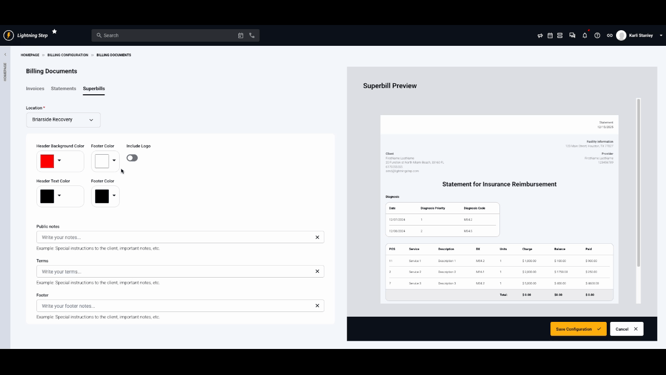
Step 5: Click Save Configuration when you’re finished.
Generate a Superbill for a Client
Step 1: Open the client’s account profile.
Step 2: Select the Superbills tab.
Step 3: Click Add Superbill.
Step 4: Choose the location, then select the start date and end date for the services covered.
Step 5: Click Generate.
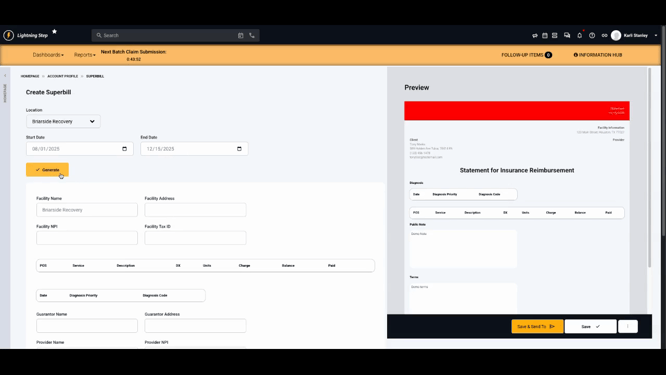
The system fills in facility information from the chosen location. All client services within the selected dates appear, along with service descriptions, diagnoses, units, charges, balances, and amounts paid. Diagnoses active during the service period are included.
Step 6: Enter guarantor information if needed.
Step 7: Pick the rendering or attending provider for the services.
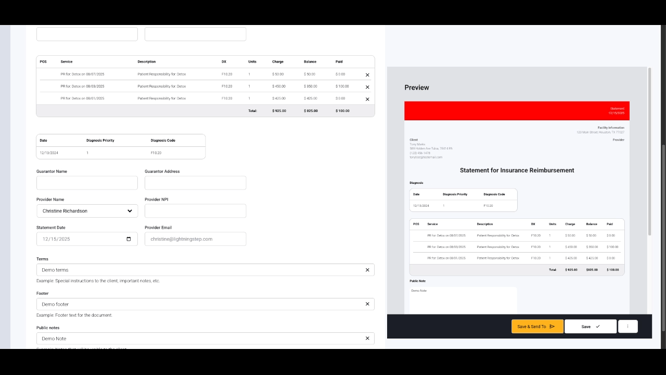
Step 8: Set the statement date.
Step 9: Edit terms, footer, and public notes for this Superbill if needed.
Step 10: When finished, save, delete, download, or send the Superbill by email or client portal.
When sending by email, the client receives a link to view and download the document. If sent through the portal, the client also receives an email notification and can access the Superbill by logging in.
Clients Generating Super Bills from the Portal
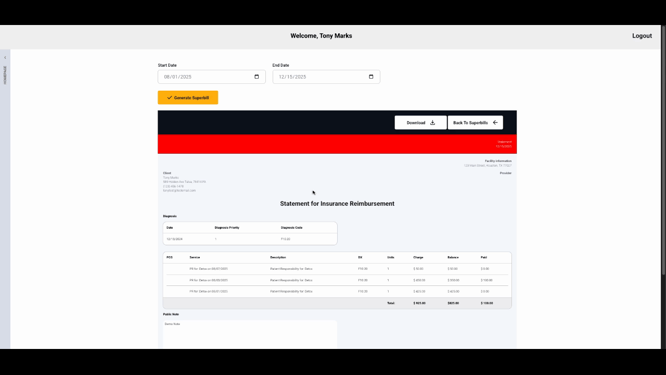
Step 1: After logging in, clients click Billing > Superbills.
Step 2: Click Generate Superbill.
Step 3: Select the start date and end date.
Step 4: Click Generate Superbill.
Step 5: Download the generated document.
Superbills streamline invoicing for both staff and clients. For more details, see your internal documentation or reach out to the support team with any questions.
