
Step 1: Enable Telehealth and Lightning Step
To begin, you need to enable Telehealth by Lightning Step on the back end. If you're in the implementation phase, contact your implementation specialist. If you're in the post-implementation phase, get in touch with support or your Customer Success manager.
Step 2: Assign User Level Permissions
After enabling Telehealth, it's time to assign user level permissions.
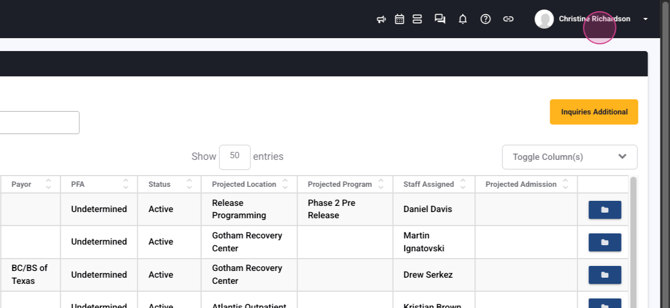
Start by navigating to the top right hand side of the screen and clicking on your name.
Step 3: Select User Admin
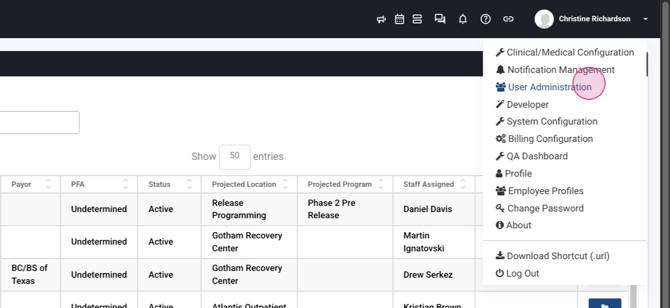
Next, select User Admin.
Step 4: Choose the User
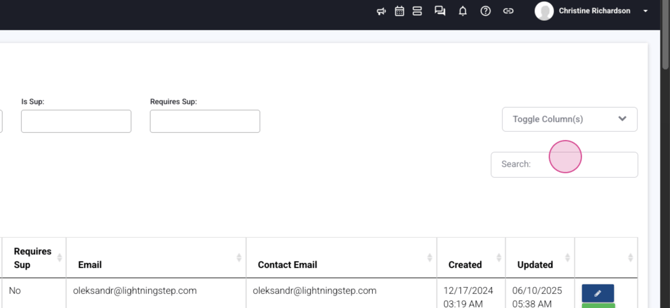
Now, choose the user you want to enable.
Step 5: Scroll to Individual User Privileges
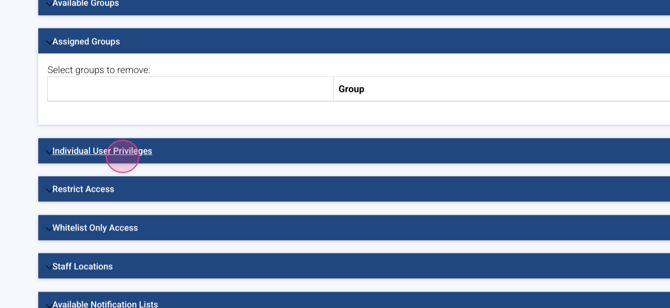
Scroll down to Individual user privileges.
Step 6: Check the Box for Schedule
Next, check the box for Schedule.
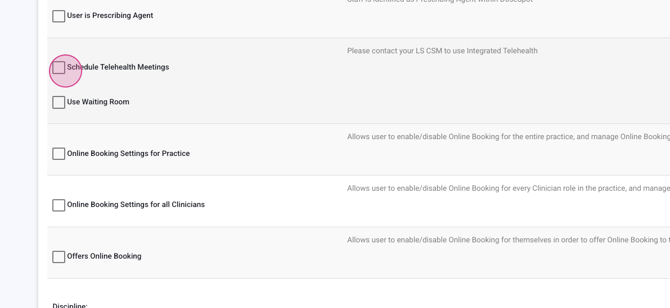
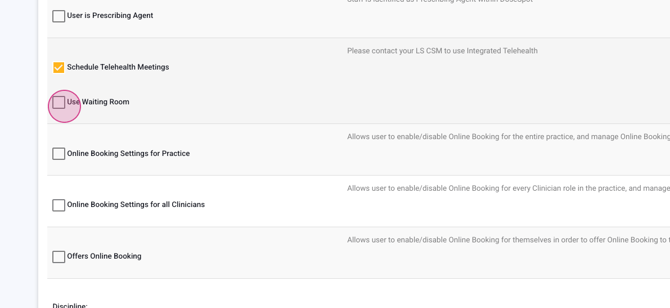
Step 7: Enable Telehealth Meetings and Waiting Room
Enable Telehealth meetings and use Waiting Room.
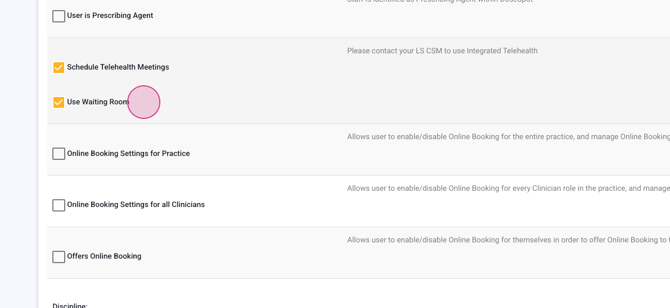
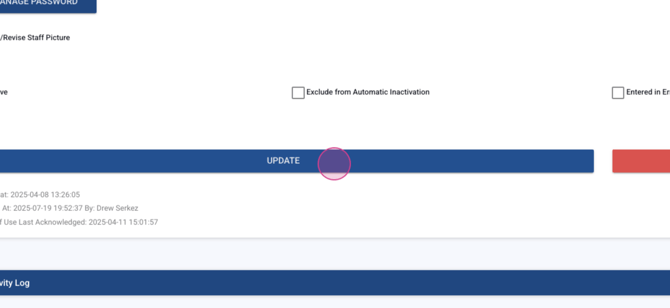
Step 8: Update
Finally, scroll down and select Update.
By following these steps, you'll successfully set up Telehealth by Lightning Step.
