
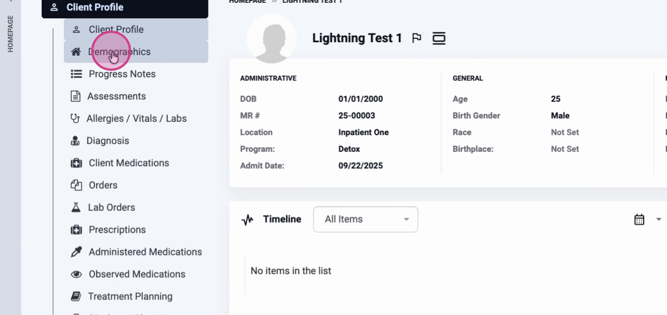
Step 1: Go to either the Inquiry profile or the Client profile.
Step 2: Click the Demographics tab to open the demographic record.
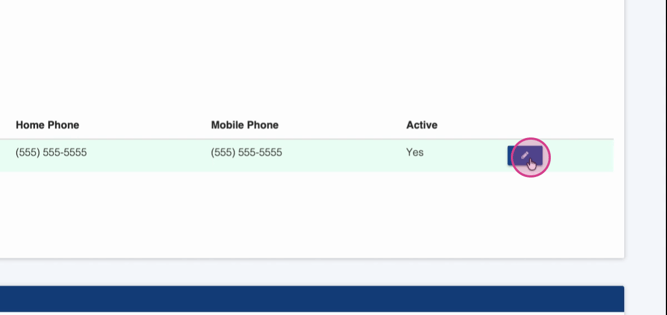
Step 3: Select the edit pencil icon to start editing demographic details.
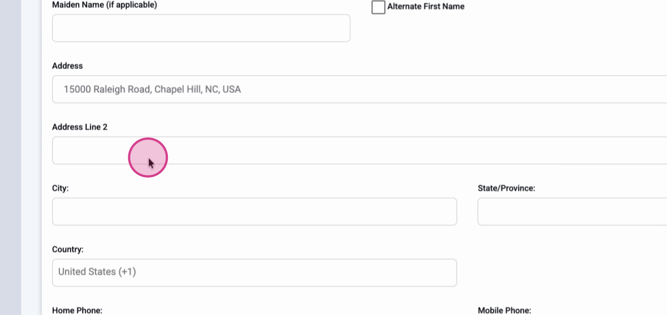
Step 4: Update or add new information, such as address, email, or phone number. The address field uses geolocation to automatically capture city, state, and county.
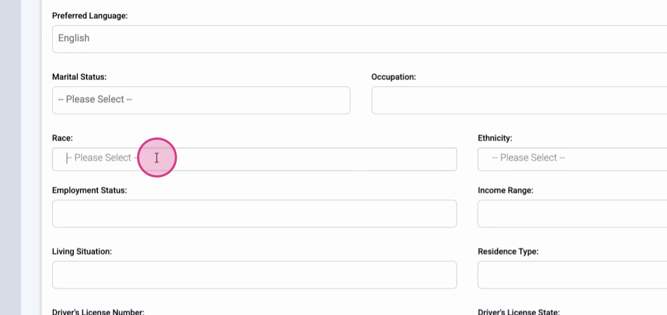
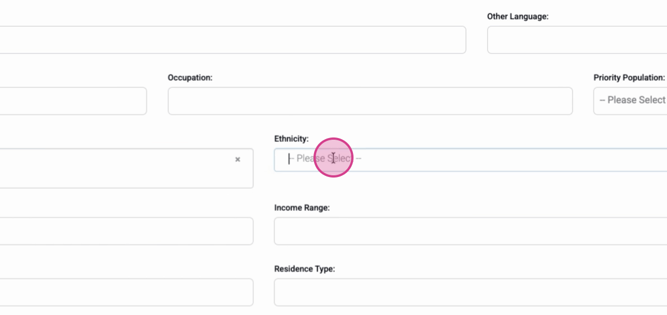
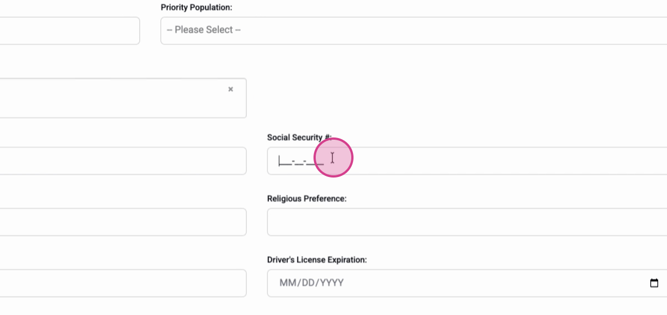
Step 5: Add other important details like race, ethnicity, social security number, date of birth, gender, and more.
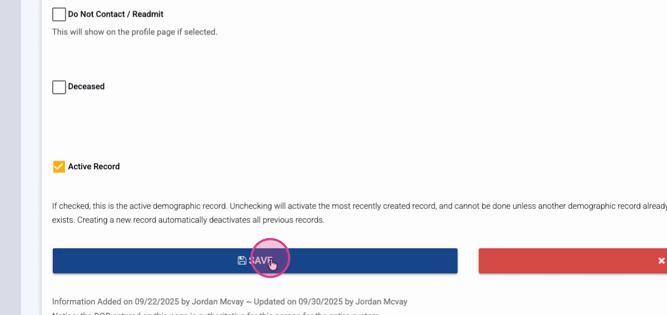
Step 6: Click Save to keep your changes. Updates will reflect on both the Inquiry and Client profiles, ensuring consistency throughout the client's chart.
Accurate demographic information—like address, valid email, phone number, and date of birth—is critical for powering features like the medication management module in Lightning Step. Keeping this data up-to-date supports smooth operations and quality care.
