
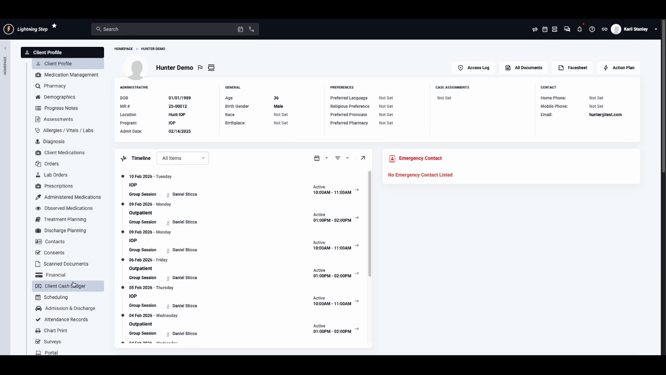
Step 1: In the client’s profile, select Financial from the side menu.
Step 2: Click Benefit Authorization to view current authorization records.
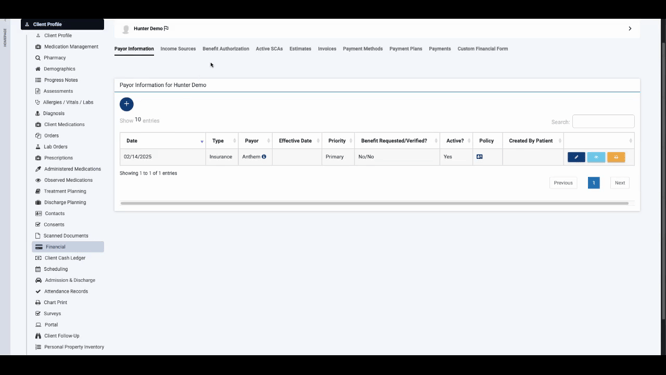
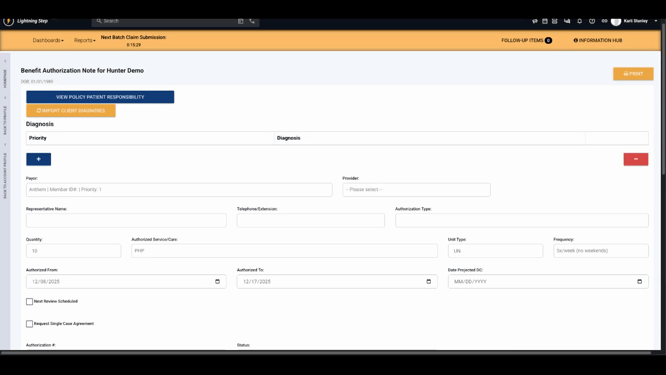
Step 3: Locate the authorization with a Pending status that needs updating. Click the Edit (Pencil) icon.

Step 4: Make changes to the quantity and dates if the payer approved fewer units or modified details.
Step 5: Enter the new authorization number in the designated field.
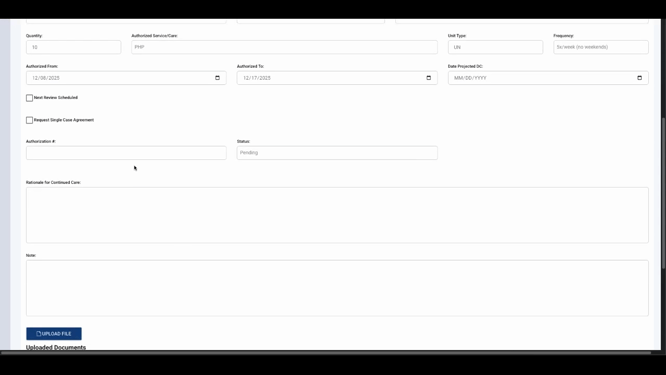
Step 6: Change the status to Approved to reflect the payer’s decision.
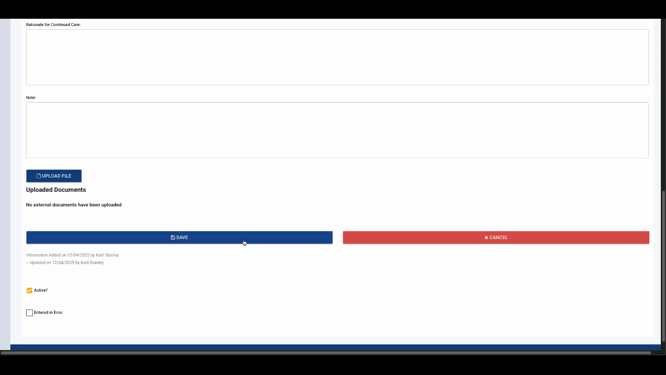
Step 7: Add relevant notes about the conversation or decision, then select Save to update the record.
Staying current with authorization status makes your workflow smoother and reduces errors. For more details, check your internal documentation or contact the support team if you have questions.
