
Step 1: Navigate to the client’s profile.
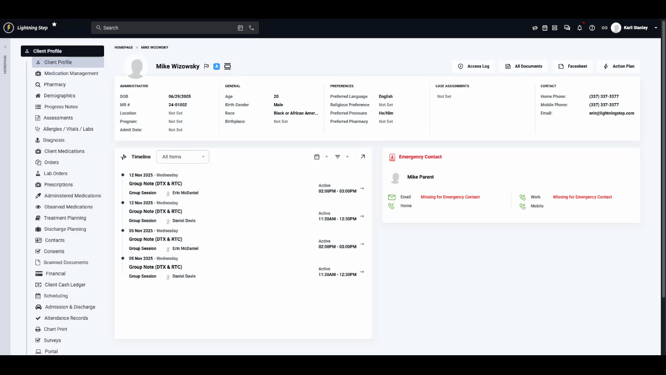
Step 2: Click on Financial.
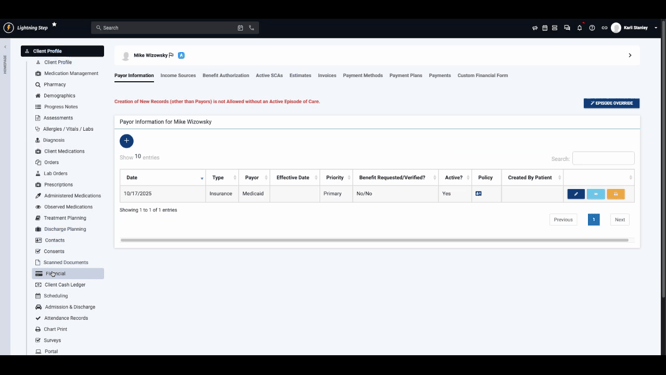
Step 3: Click the Edit button next to the client’s primary payer.
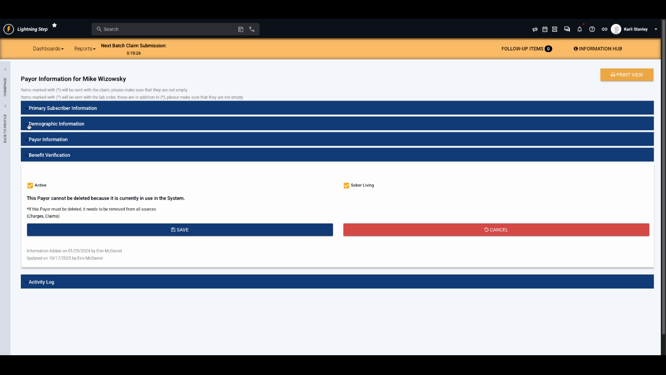
Step 4: In the Payer Edit screen, expand the Demographics tab.
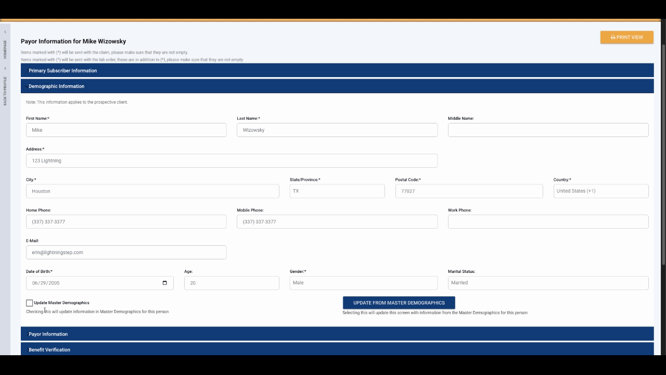
Step 5: Edit any necessary fields in the Demographics section. These may include address, phone number, or other personal details.
Step 6: At the bottom of the Demographics tab, select the Update Master Demographics checkbox if you want your changes to update the client’s master demographic record.
Step 7: Click Save on the payer record.
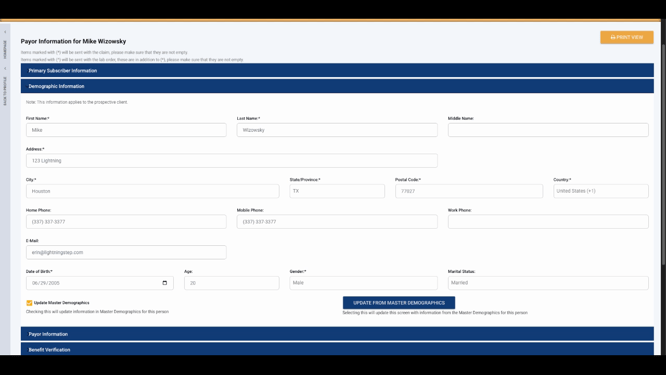
Your edits will now update the master demographic record for the client.
Step 8:
Alternatively, to populate the fields with the most recent demographic information from the master record, click Update from Master Demographics.
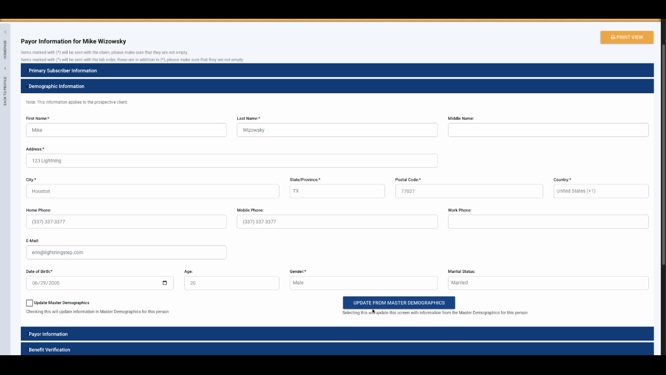
This action pulls the latest data into the payer’s demographic fields in case you need to refresh.
Updating master demographics from the payer record ensures your client information stays accurate and consistent throughout treatment. For detailed documentation or further questions, don’t hesitate to contact your support team.
