
Step 1: Open the name menu in the main navigation.
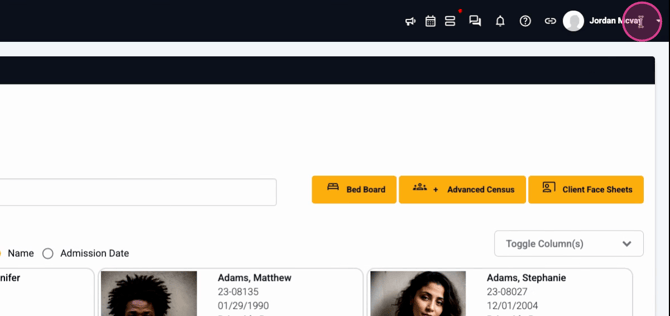
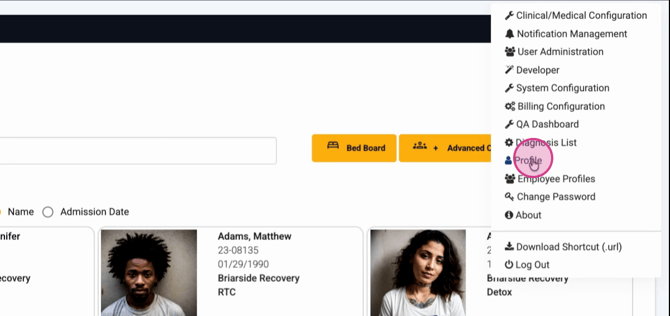
Step 2: Click Profile to access your profile settings.
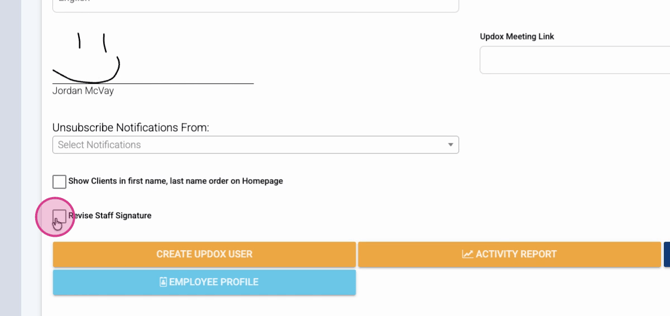
Step 3: Set your signature and revise your staff signature.
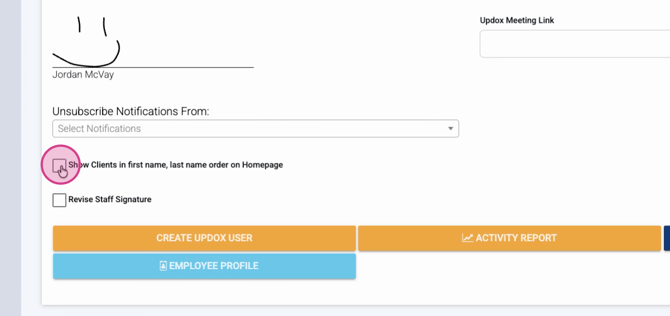
Step 4: Choose if clients display by first name, last name order on your homepage.
Step 5: Unsubscribe from any unwanted notifications.
Step 6: Add additional details such as your mobile phone number.
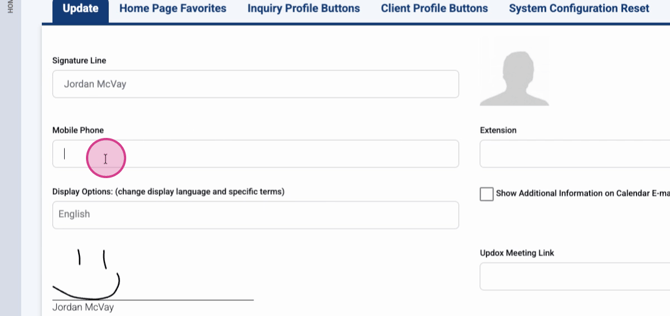
Step 7: Select your homepage favorites for quick navigation.
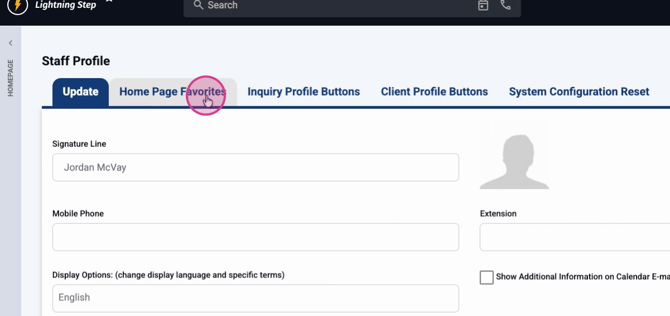
Step 8: Rearrange your client profile buttons and inquiry profile buttons to suit your workflow.
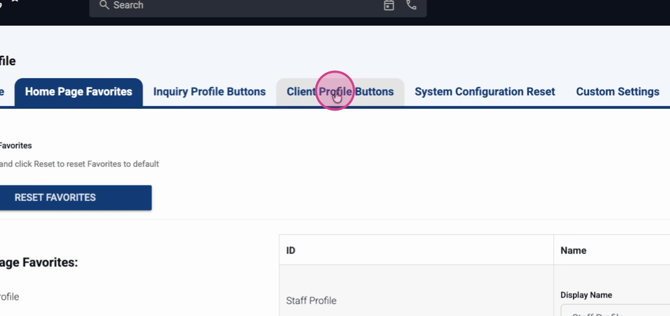
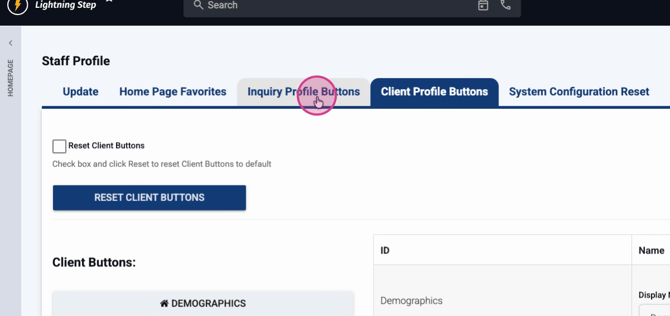
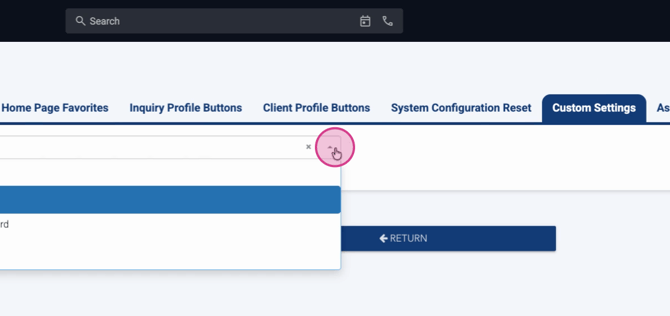
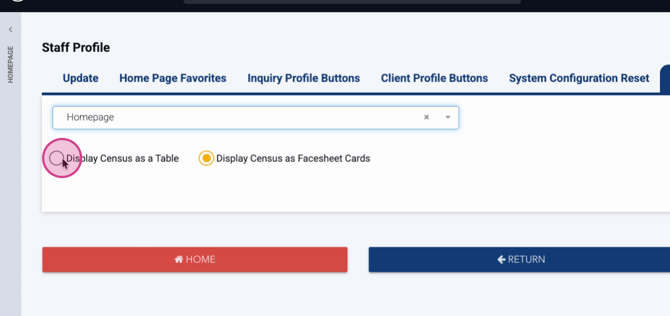
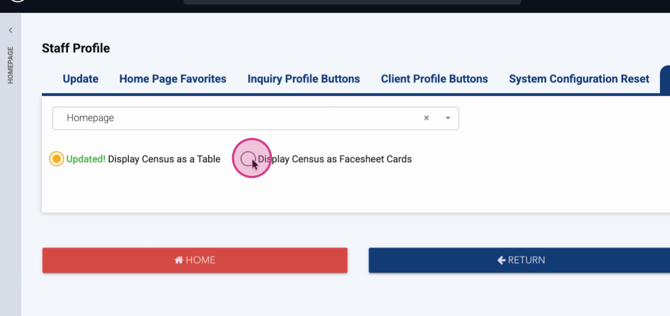
Step 9: Adjust custom settings for how your homepage is displayed, such as choosing between a table view or face sheet cards.
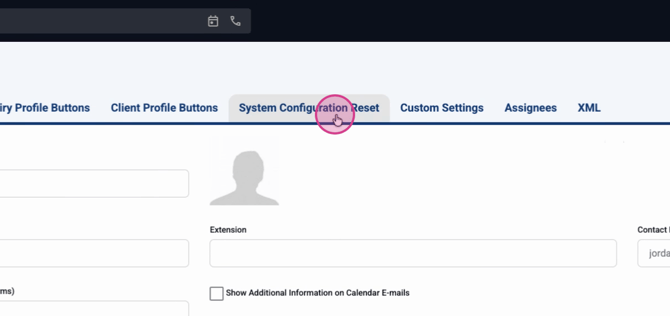
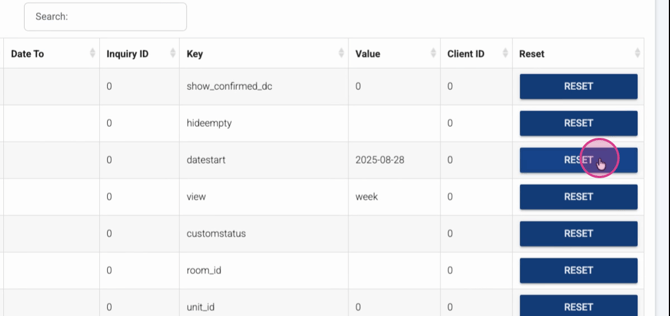
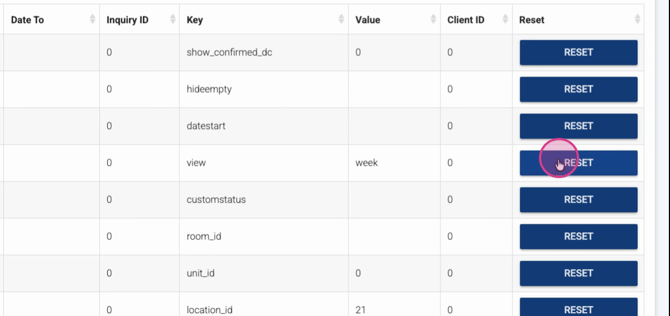
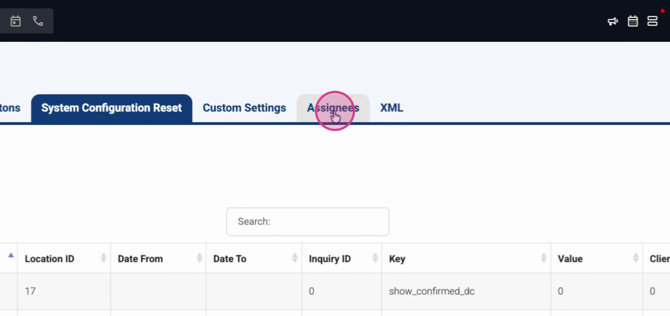
Step 10: If needed, use system configuration reset to restore default settings in areas you visit most often. This can help resolve any performance issues.
Step 11: View your assignees, and export to Excel for better visibility.
A well-set-up profile keeps your workspace efficient and tailored to your needs. Explore these settings anytime to fine-tune your experience!
