Not every field in Lightning Step can be changed this way, and some users might not have the required permissions. Always check with your super user or system administrator before making changes.
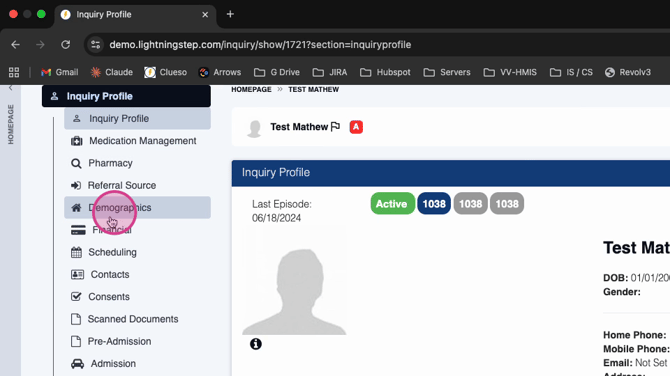
Step 1: Open a test patient’s profile and navigate to the section of interest, for example, Demographics.
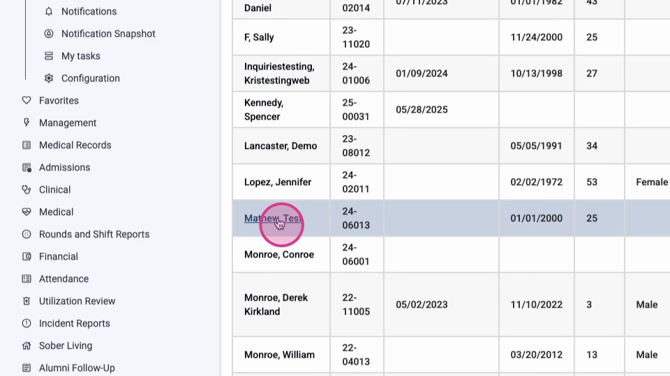
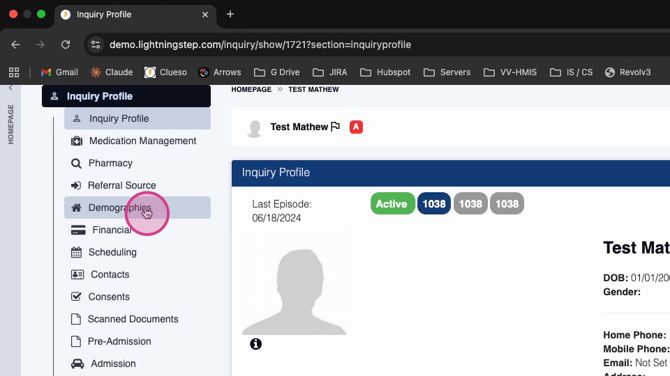
Step 2: Locate and view the specific field you want to edit, for example, Preferred Pronouns. Note the current options.

Step 3: Go to System Configuration and select Meta Config.
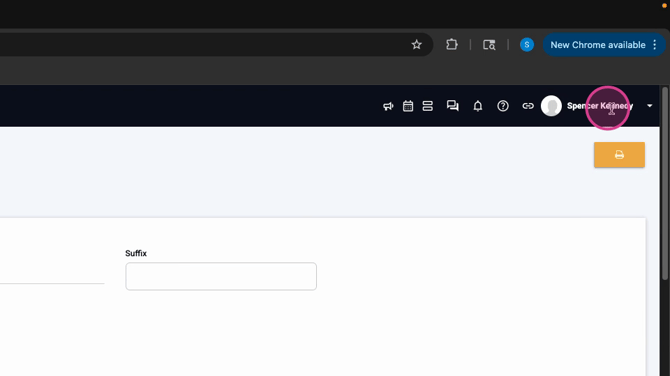
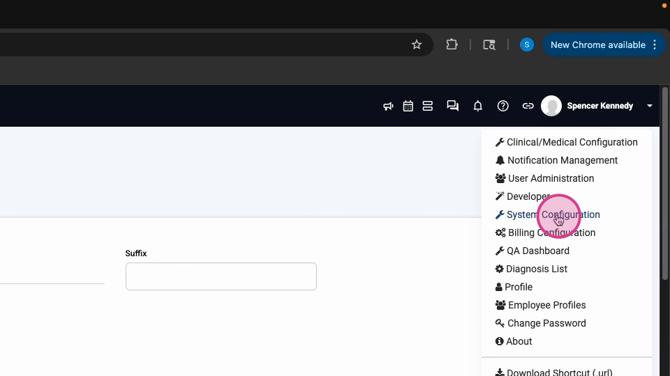
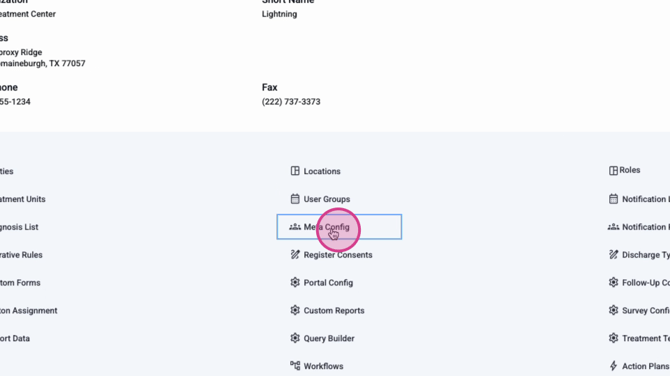
Step 4: Use the search bar to find the specific dropdown, such as “pronouns” or “preferred pronouns.”
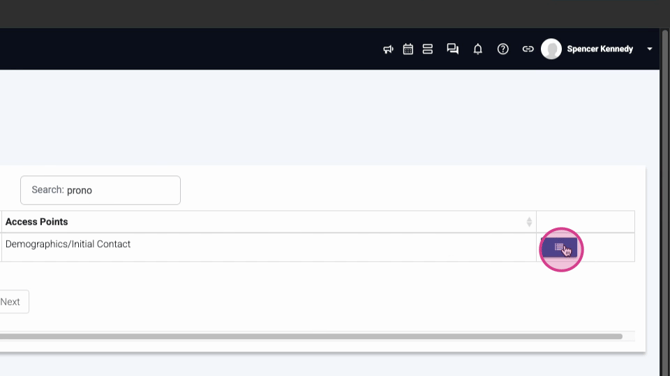
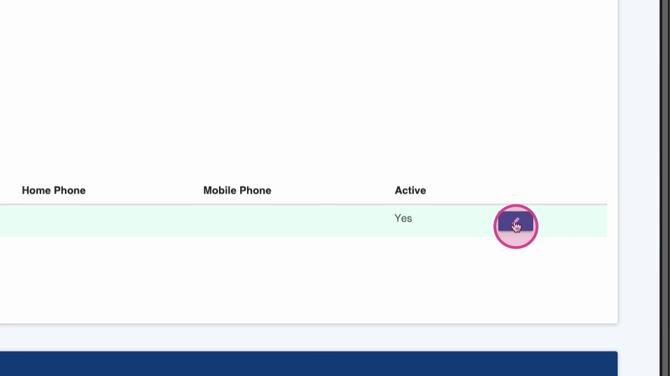
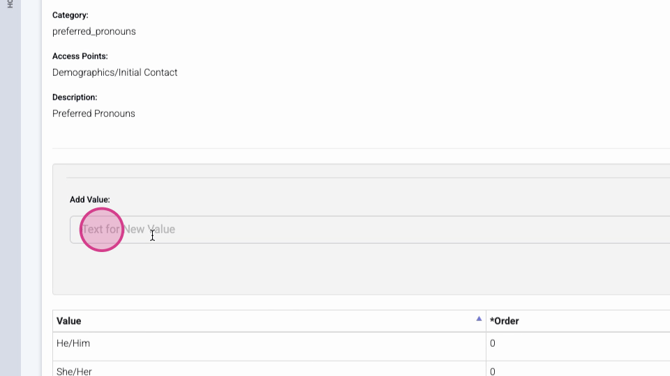
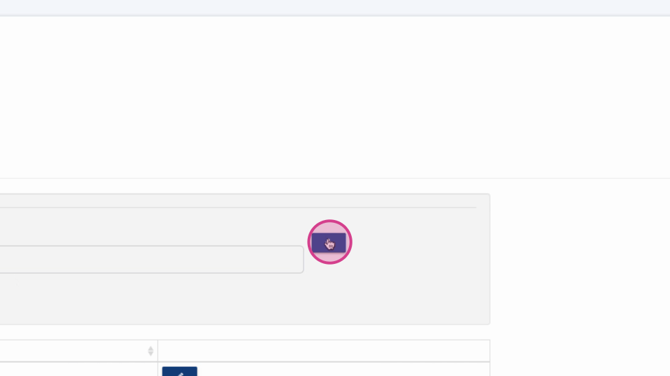
Step 5: Click the edit pencil to change an existing value, or type a new value above the list and hit the plus sign to add it.
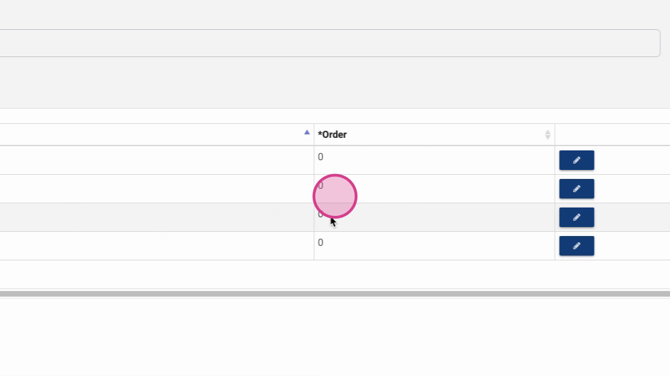
Step 6: Adjust the order of the options using the Order field to set the default sequence you want users to see.
Step 7: Exit out of the configuration and return to a test account’s demographics to confirm your changes. The updated options will now appear in the dropdown.