
Step 1: Click the Utilization Review tab on the home screen.
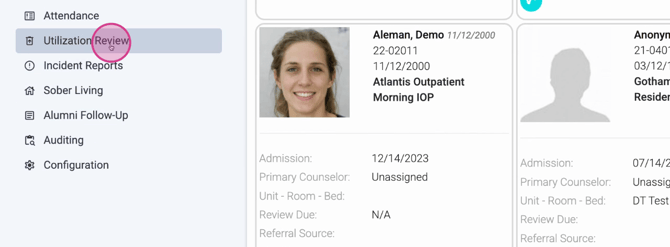
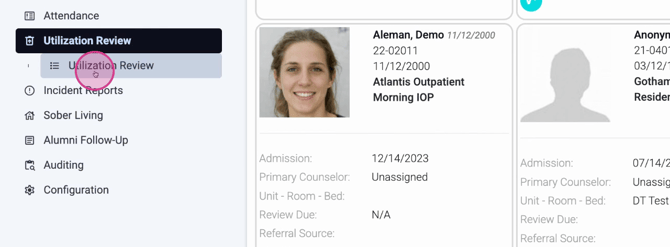
Step 2: Open the Utilization Review section to begin working with client data.
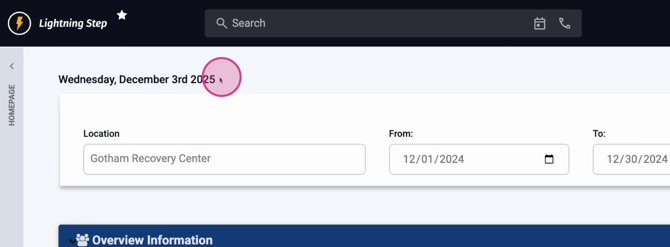
Step 3: The dashboard defaults to today’s date. Adjust as needed.
Step 4: Select a location. If you oversee multiple, choose All to view records from every site.
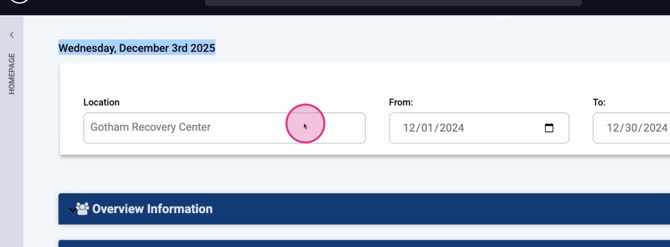
Step 5: To focus on a single location or review everything, pick from the dropdown.
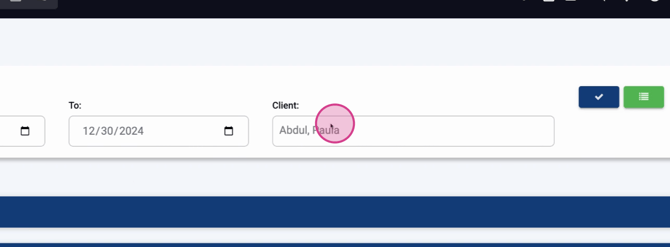
Step 6: Define a date range. Use this to limit your search to certain periods—review a client’s activity for a month, a year, or their entire history.
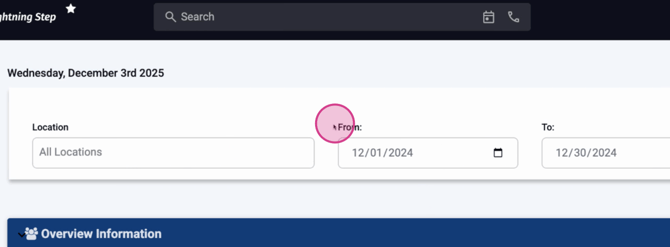
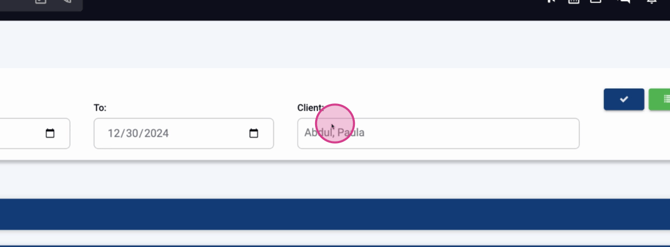
Step 7: Select a client to pull their records. If looking for a specific person, use search.
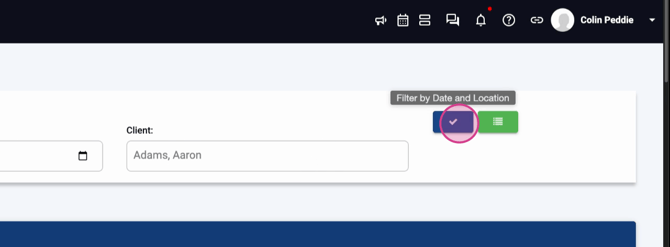
Step 8: Click the check mark to confirm your selection and refresh the page. Client data for your date range and location loads now.
Step 9: Review totals like Benefits Requested and Census for all clients, or continue focusing on your selected client.
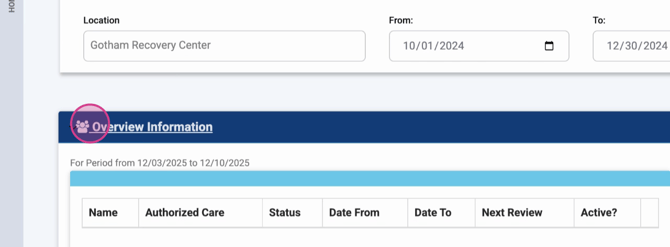
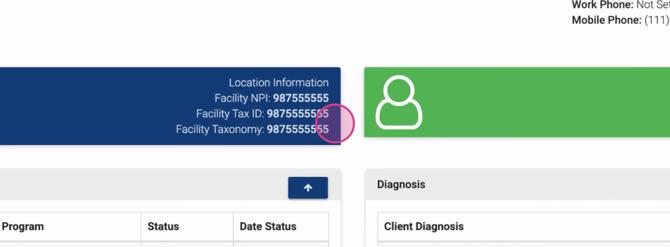
Step 10: View client details, including DOB, emergency contacts, facility info, and provider data, all in one section.
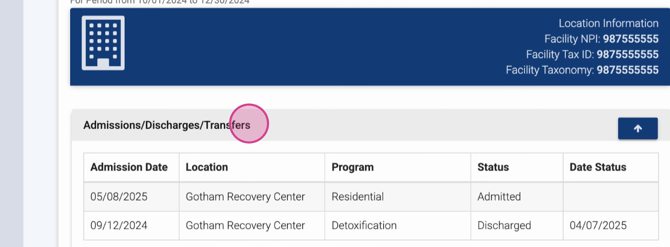
Step 11: Scroll for a complete client journey—admissions, transfers, and discharge records.
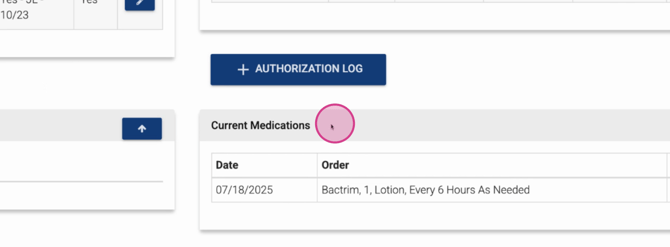
Step 12: Check diagnosis, payers, and insurance authorizations. See when reviews are due and view current medications.
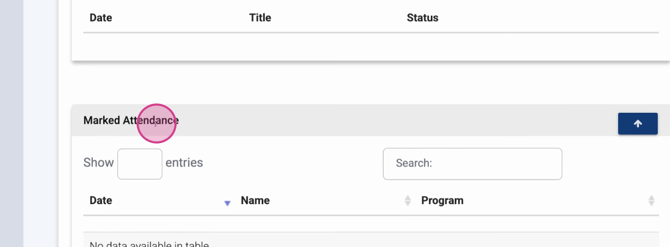
Step 13: The attendance section tracks both general and group attendance so you can monitor participation.
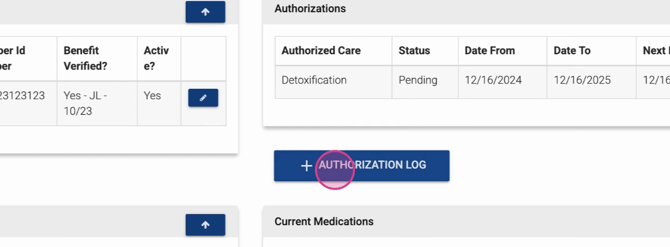
Step 14: Access the authorization log directly from the dashboard. Create benefit authorizations here and assign team follow-ups.
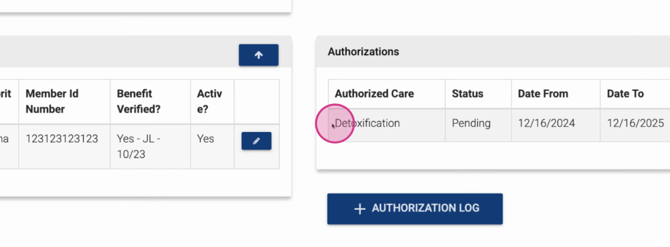
Step 15: Save your changes. Newly updated authorizations appear in the list immediately.
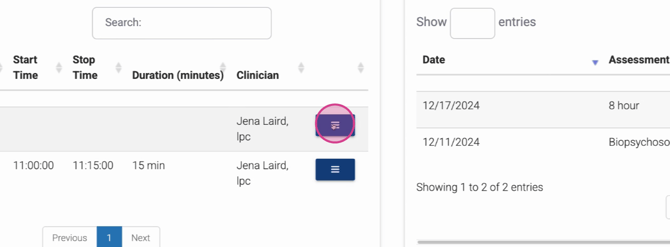
Step 16: Browse all progress notes for a full record of client care. Use date filters to find specific entries. Click the three-bar icon to preview notes.
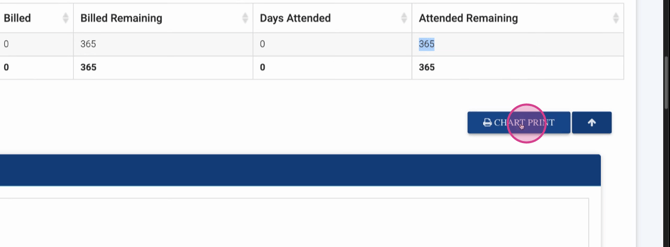
Step 17: Review authorization totals. Track the status, type (units or days), total authorized, billed, and remaining, along with days attended and days left.
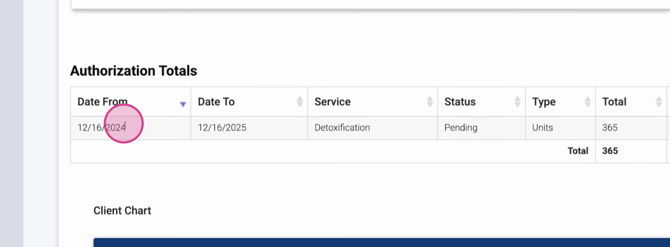
Step 18: Find all notes broken out by type and any additional chart items you might need. Use the Chart Print button to print selected sections or the entire chart.
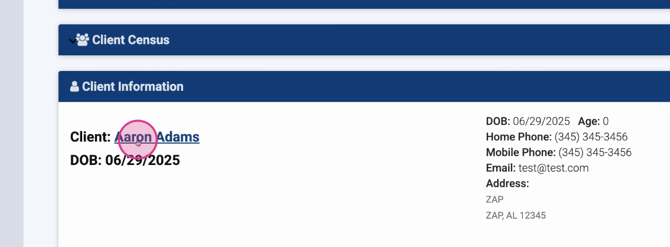
Step 19: For more details, click the client’s name—it’s a hyperlink that takes you straight to their full chart.
The Utilization Review Dashboard centralizes everything you need for audits, authorizations, and documentation review. Quickly narrow down your focus by client, date, or location, and keep all critical client data at your fingertips.
