
Step 1: Navigate to the utilization review feature on the left-hand side of your screen.
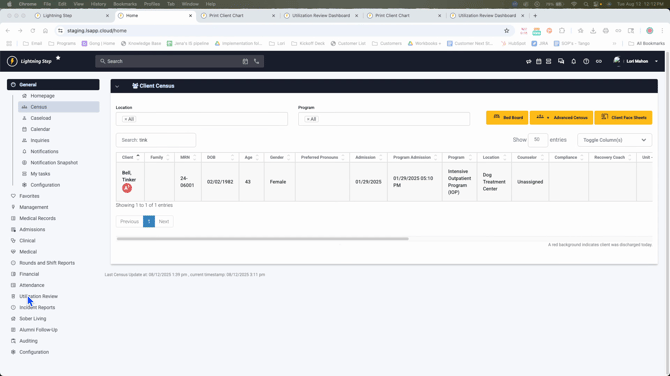
Step 2: Click on the utilization review feature.
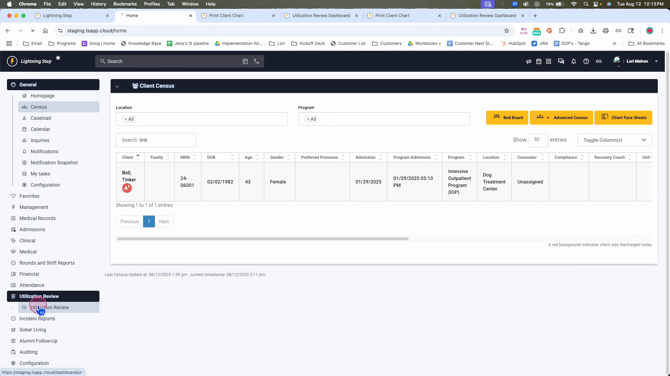
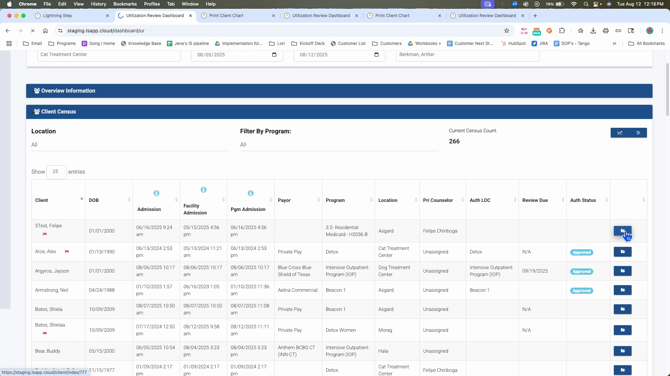
Step 3: Familiarize yourself with the client census view. This view allows you to maintain all your clients. Pay special attention to the last three columns which indicate the AUTH for the level of care, the need for another review, and the status of the AUTH.
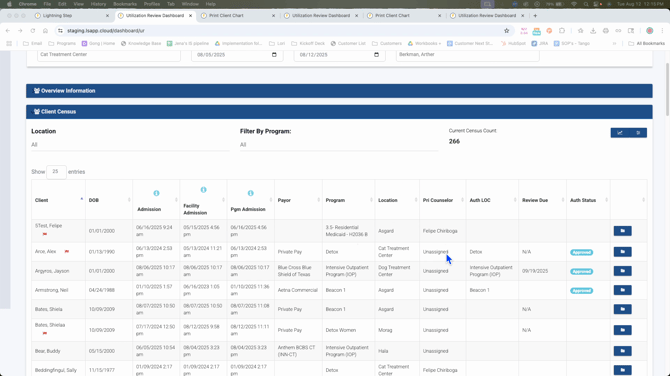
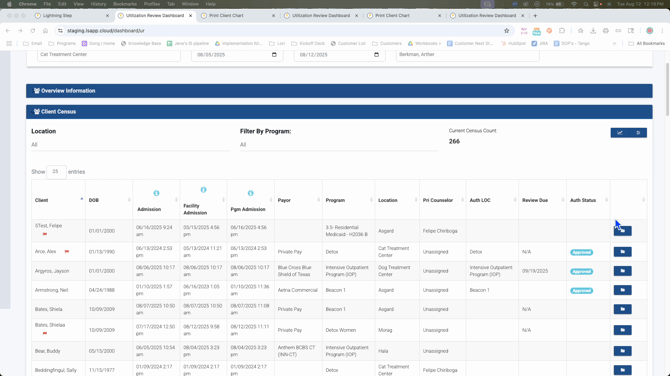
Step 4: Click on the folder icon if you need to access a client's folder.
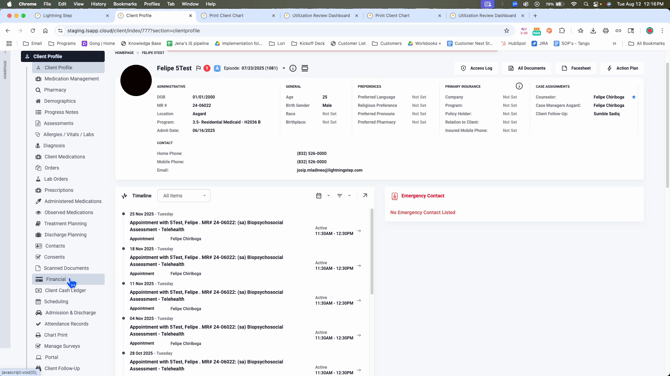
Step 5: Under the financial section, you can add an auth or a payer if they're missing.
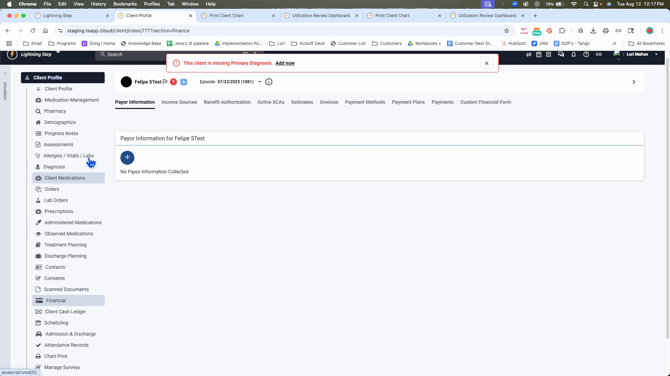
Step 6: Click on the lightning bolt to return to the utilization review.
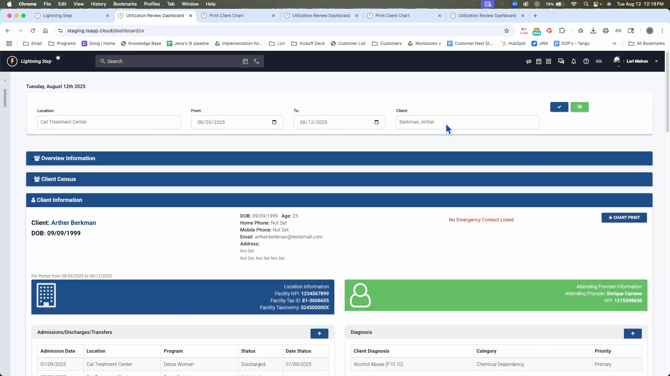
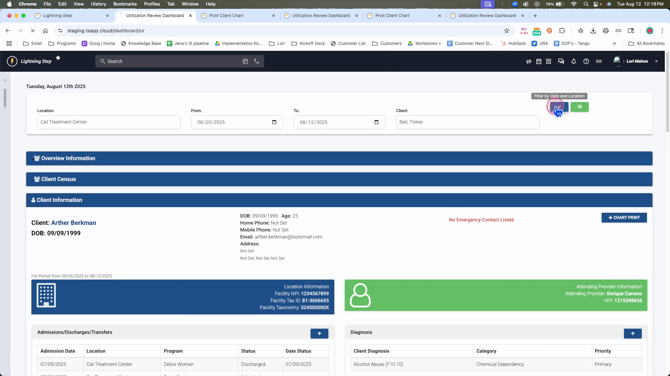
Step 7: In the client information section, specify the location, the date range, and the client's name. Click on the plus icon to add them.
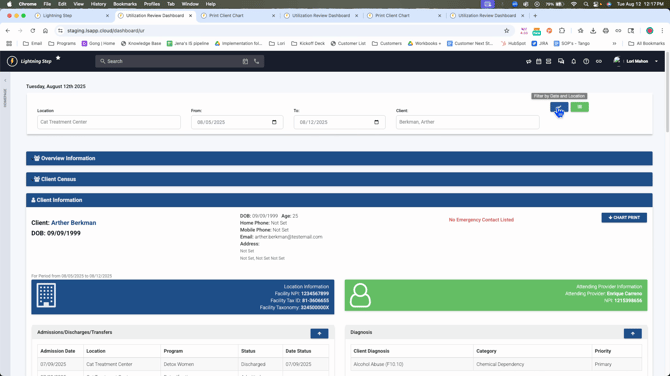
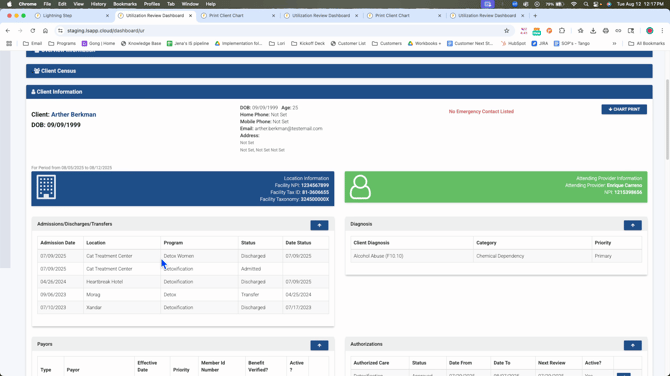
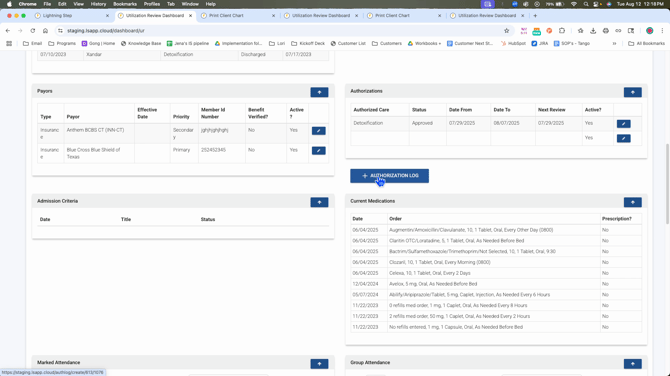
Step 8: Enter the authorization you get from the insurance directly from this page by clicking the relevant button.
Step 9: To add a new client, click on their name and hit the plus icon.
Step 10: Scroll down to the bottom and click on chart print to open up everything for the client.
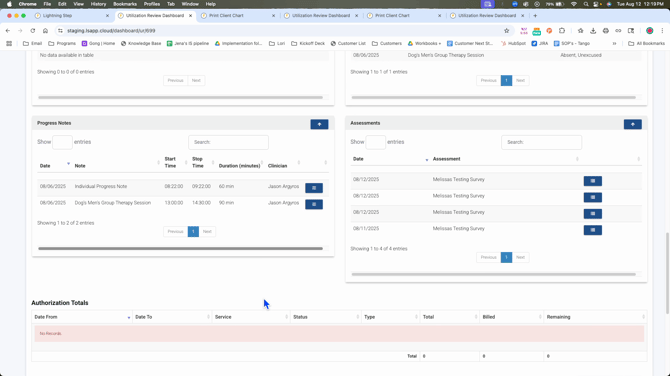
Step 11: Set the date range for the information you want to look for.
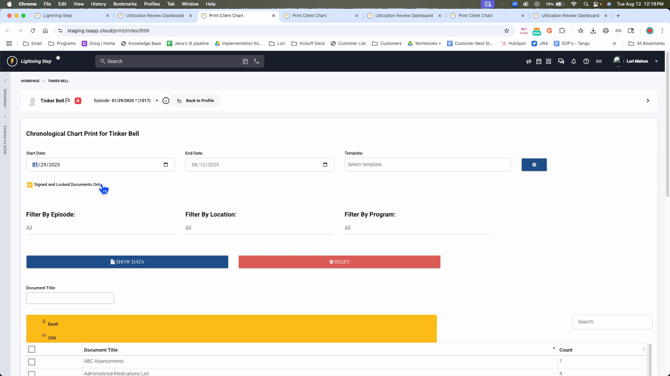
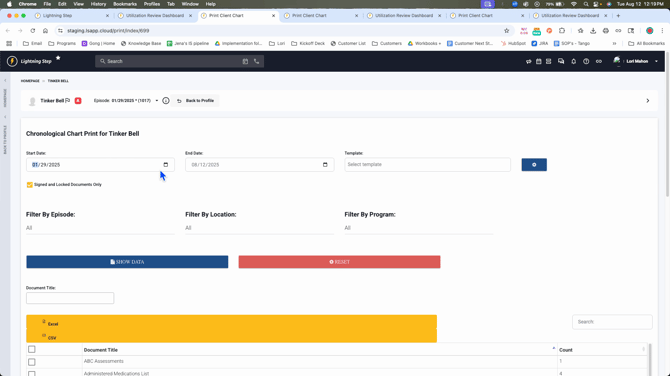
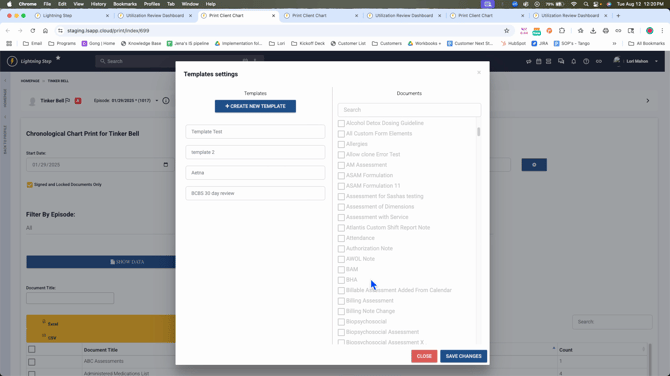
Step 12: Use the gear icon to create or edit templates for notes.
Step 13: Filter the information by episode, location, or program and click on show data.
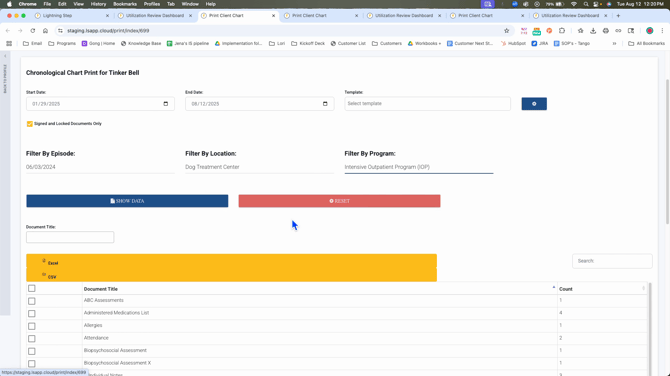
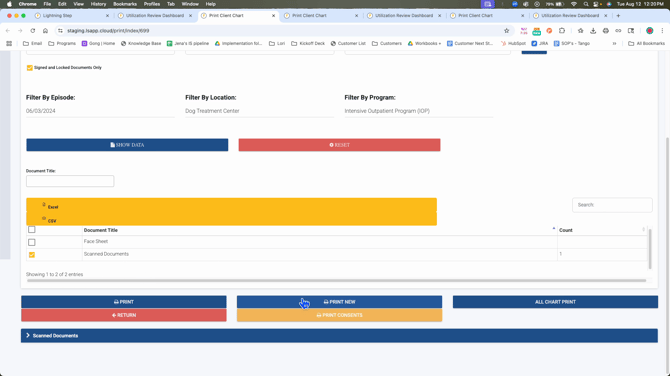
Step 14: Use the print new option to preview a document before sending it off.
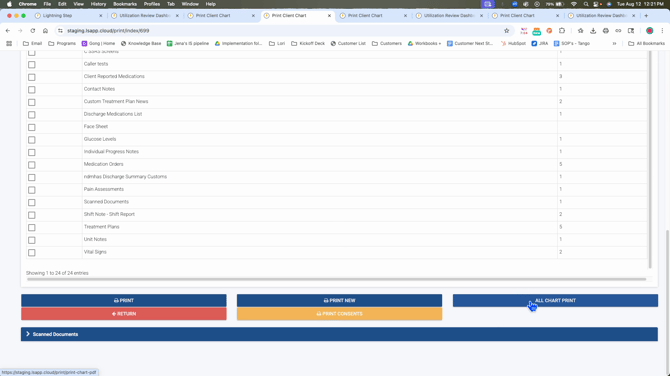
Step 15: Choose the all chart print option to print all documents or select specific ones.
Step 16: Print consents and any scanned documents from this section.
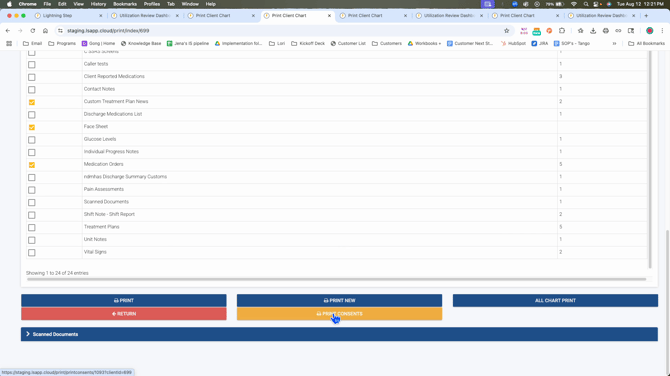
Remember, only send signed and locked documents to the insurance. This concludes the tutorial on how to navigate the utilization review feature for authorization and printing documents.
