
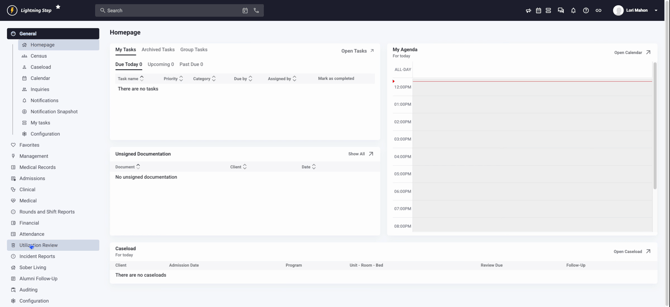
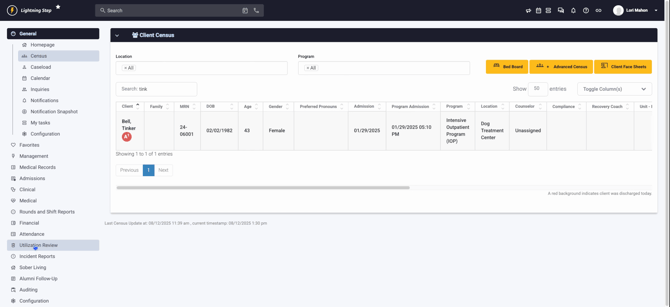
Step 1: Navigate to the Utilization Review option on the left-hand side of your screen.
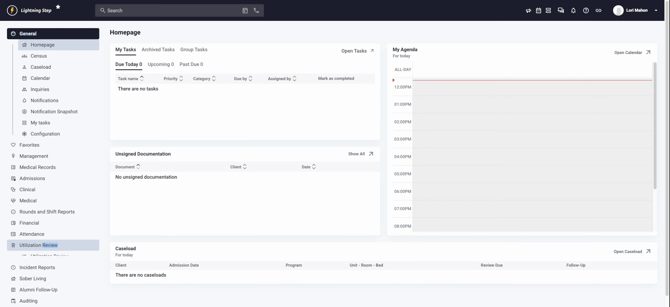
Click Utilization Review again to enter the review section.
Step 2: Select Client Census from the menu. This section requires your close attention.
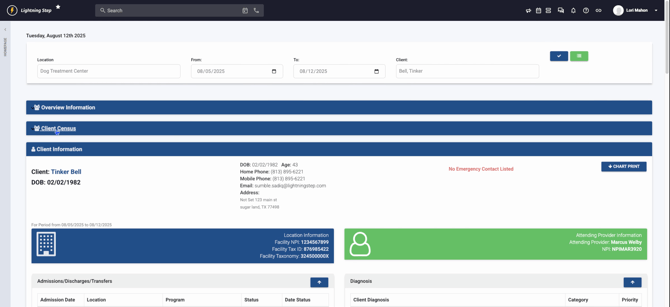
Ensure all information in the client census is fully completed across all columns, similar to the example shown.
Step 3: Verify the Payer information. Note that private pay clients or those on scholarships will not appear here, as they do not require authorizations.
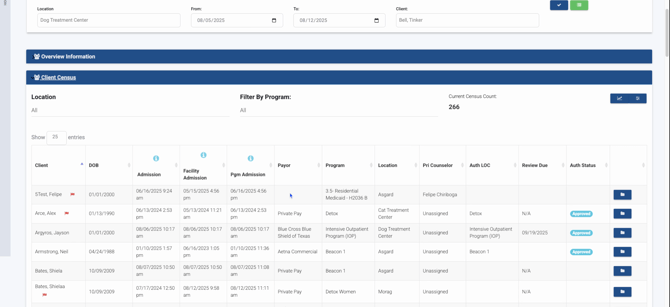
If a client's payer information is missing, navigate back to add the necessary details.
Step 4: Focus on the last three columns, which should include the level of care authorization, the review status, and the authorization status. Each entry should be complete and approved.
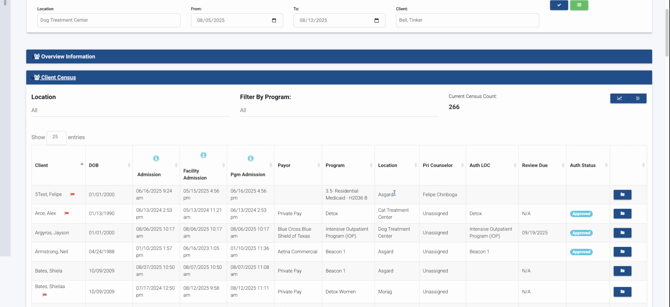
Step 5: Use filters to sort by location or program to manage specific entries more efficiently. This will help you see only the relevant client entries that need attention.
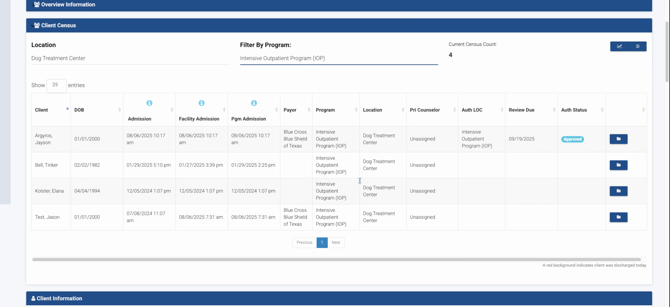
After filtering, you'll find entries that have been approved and identify which ones still need work.
Step 6: Review each client's detailed information, including their date of birth, admission dates, facility, program, payer, program location, and assigned counselor.
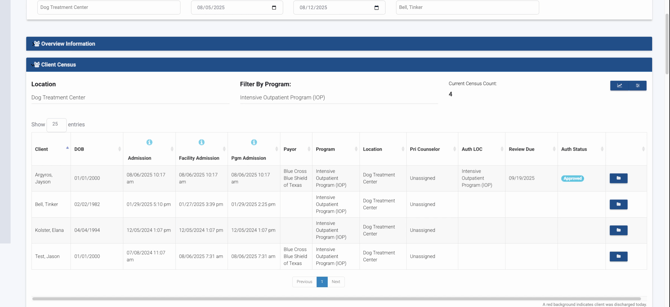
This information is essential for managing each client's documentation and ensuring compliance with insurance requirements.
Step 7: Understand that the only difference between facility and program admission is that the program admission date updates to the transfer date when a transfer occurs. These two dates will always match.
Step 8: Remember that only insurances, not private payer scholarships, will appear here since they require authorization.
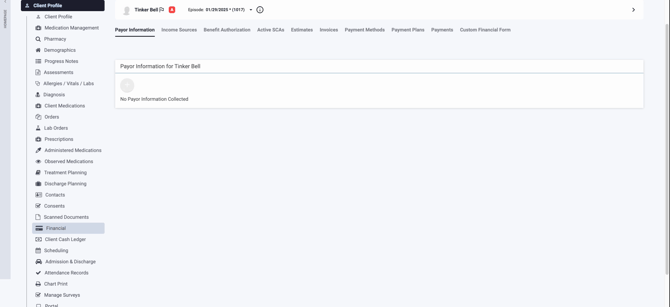
Step 9: If you're missing information, click on the folder icon on the right to access the chart where you can enter the necessary information.
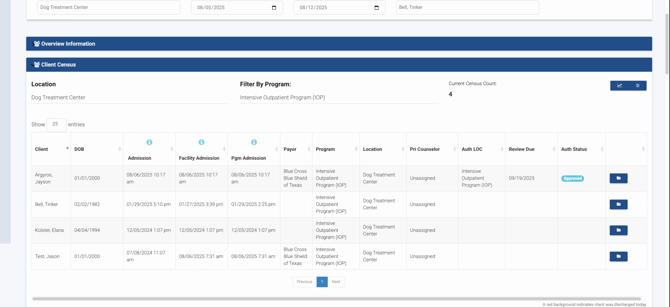
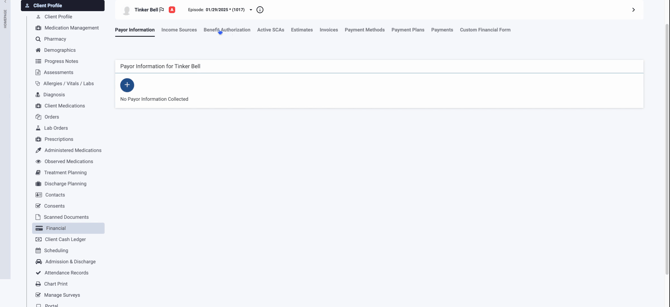
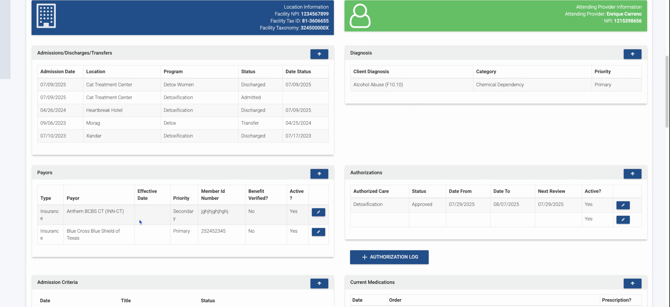
Step 10: Upon clicking the folder icon, you will be directed to the chart of the client, for instance, Tinkerbell. This allows you to view and manage their financial and payer information.
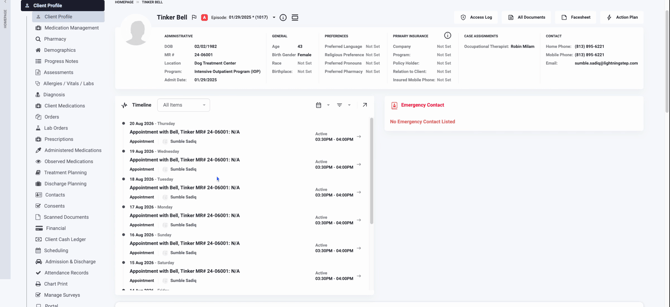
Step 11: If the payer information is missing, click the plus sign to add all necessary payer details.
Step 12: To navigate back, click the lightning bolt icon to return to the utilization review section.

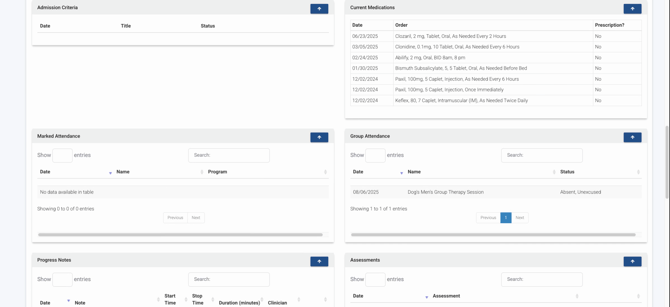
Step 13: In the utilization review, you can view details about Tinkerbell’s admissions, discharges, transfers, diagnosis pairs, authorizations, current medications, attendance, progress notes, assessments, and authorization totals.
Step 14: If you need to add an authorization, simply click into the authorization section without navigating elsewhere.
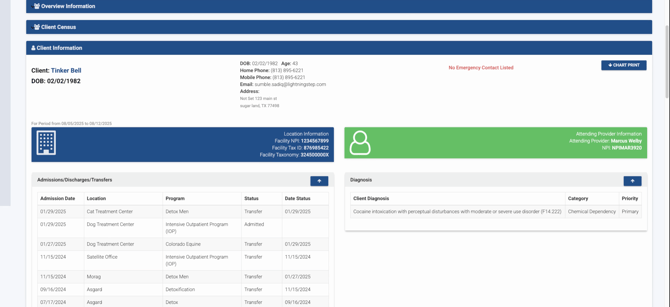
Step 15: To print the chart, navigate back up and click on the chart print option.
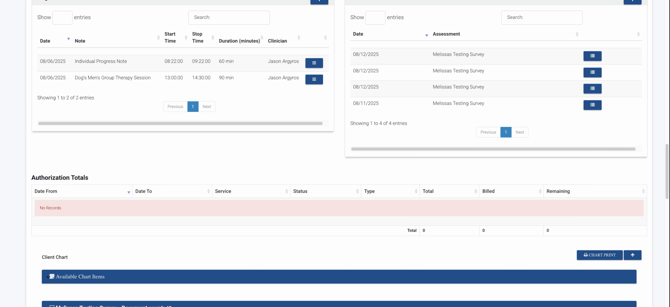
Step 16: For financial details, mistakenly referred to as the financial dashboard, click into the client financial section through the lightning bolt icon.
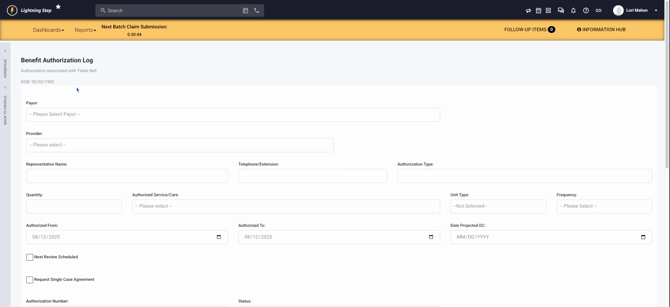
Step 17: Start by navigating to the client profile to begin the loading process.
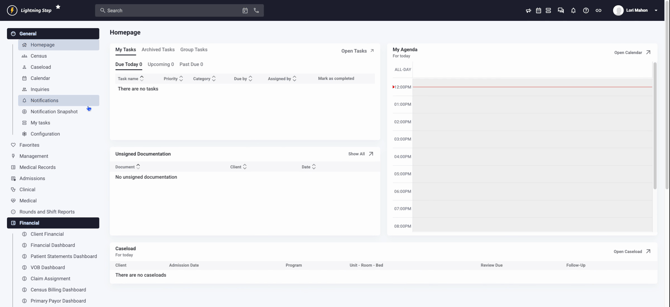
Step 18: Once loaded, select the Financial option.
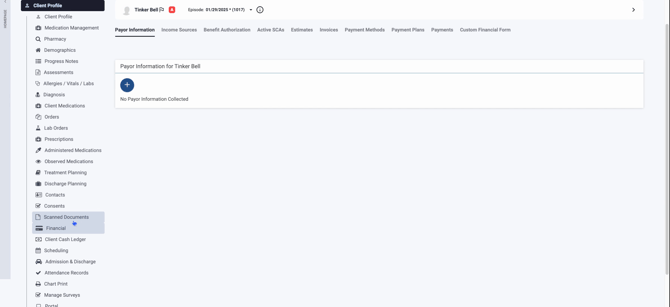
Step 19: Proceed to select Benefit Authorization.
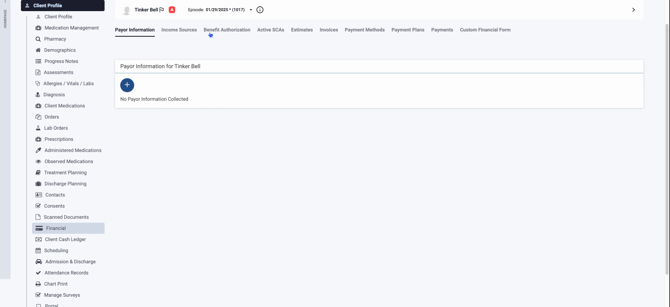
Step 20: Click on Authorization. This action will direct you to a familiar screen.
Step 21: Return to the Utilization section to manage authorizations directly from this interface.
Step 22: Scroll down to Chart Print and choose this option.
Step 23: Set your desired Date Range and filter the results by episode, either a previous one or a current episode.
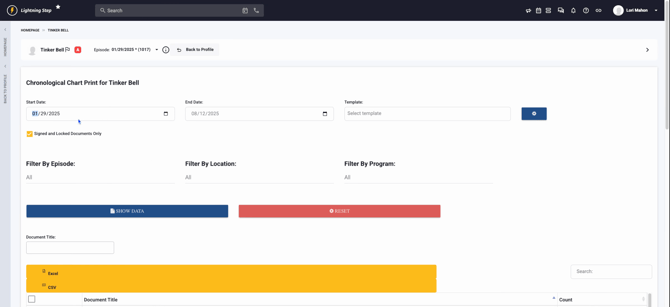
Step 24: Further refine your search by selecting the Location filter to narrow down the data.
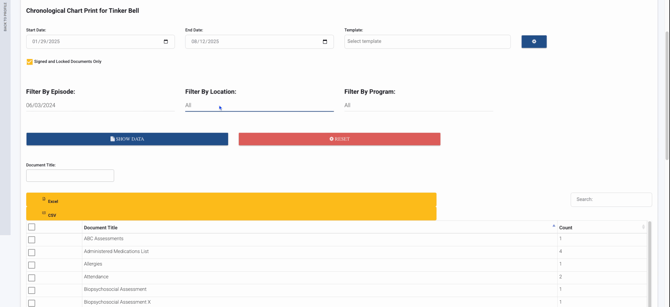
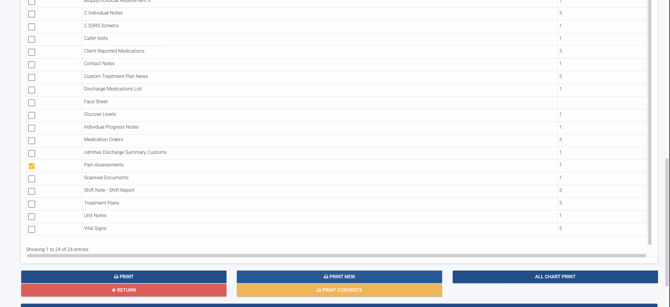
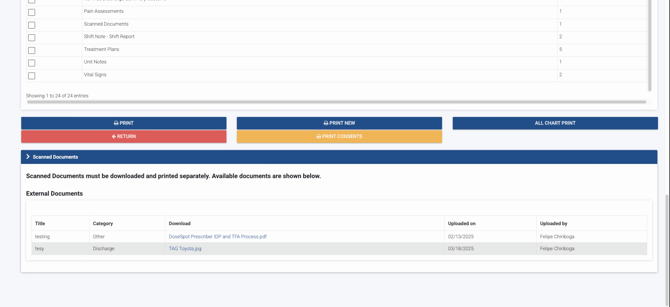
Step 25: In the pain assessment section, decide whether to print the assessment immediately or access all related information. Here, you can also print all chart information or specific consents directly.
Step 26: Discuss the use of templates for documentation tailored to specific levels of care, such as Intensive Outpatient Programs (IOP) or for particular payers like Tricare, which requires specific biopsychosocial information.
Step 27: Utilize the Gear Icon to create and manage templates that include only the necessary documentation for a specific level of care or payer requirements.
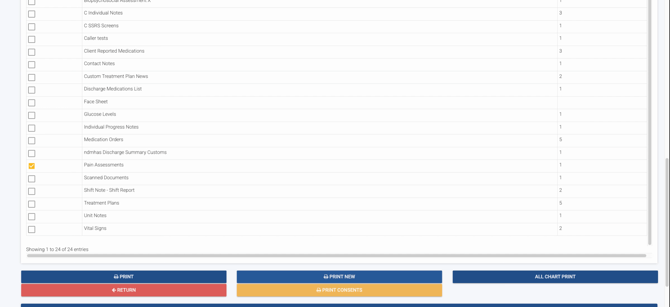
Step 28: To start creating or editing a template, click on the gear icon. Here, you have the option to either create a new template or edit an existing one.
Step 29: If you choose to create a new template, select the documents you wish to include in the template.
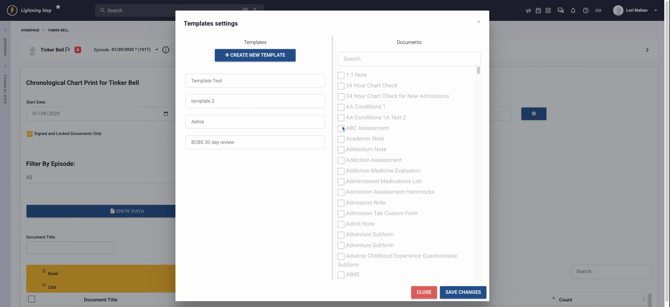
Step 30: Alternatively, select an existing template to edit. After making the necessary changes, save your updates to finalize the edits.
Step 31: Navigate to the template you're working with, for instance, template number two, to view the data. The data you previously selected for the template will populate in the forms specified within that template.
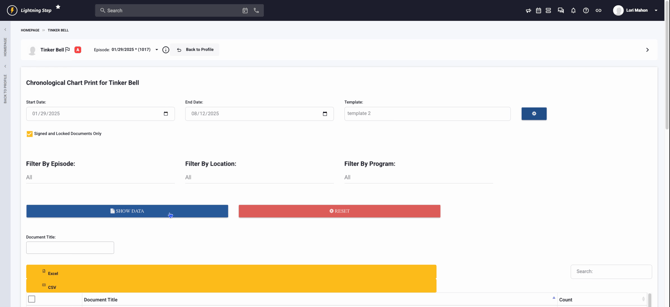
Step 32: From here, you have the option to print the populated forms to a PDF or upload them directly to the payer. If required, you can also fax these documents.
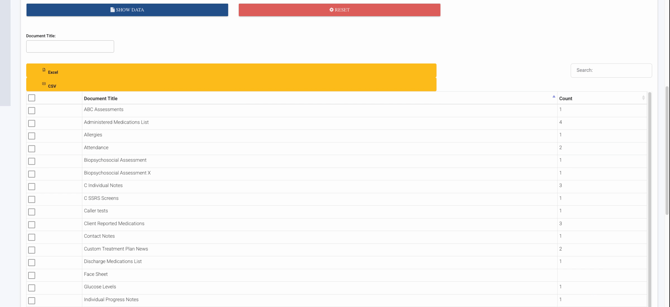
Step 33: Utilize the template features to filter documentation by episodes of care. Any scanned documents related to these episodes will also be displayed.
Step 34: Ensure you have the payer added in the patient’s chart to facilitate proper billing. This is crucial as it affects the entire billing process.
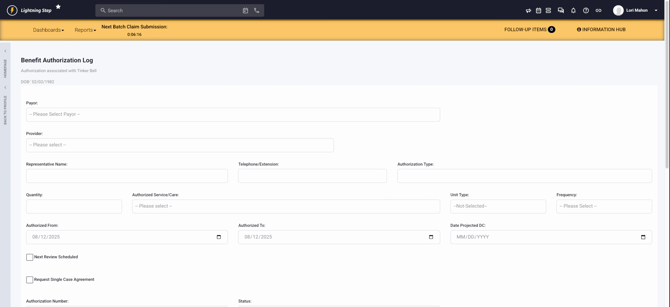
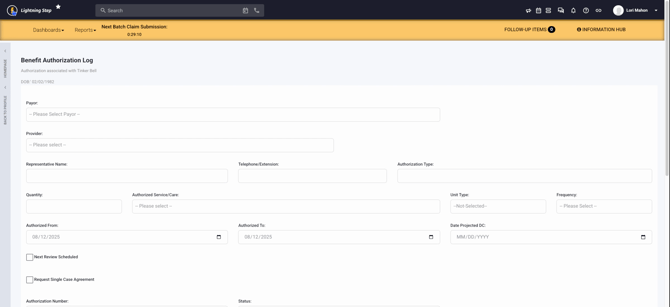
Step 35: You may choose a specific provider and include the representative’s name and phone number who authorized the care, if applicable. Ensure the authorization type is correctly set up under your services and programs.
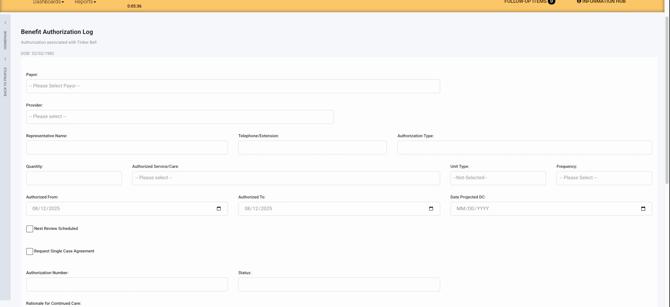
By following these steps, you'll efficiently manage templates and ensure all necessary information is correctly populated and authorized for billing and care documentation.
Step 36: Review the current authorization frequency, which is set to three times a day, three times a week, excluding weekends. Note the authorization period starts from 8:12 on the start date and continues until the end date.
Step 37: Assess the projected discharge date based on the current authorization status. If the authorization is still under review and you've already checked it, proceed to schedule a follow-up review.
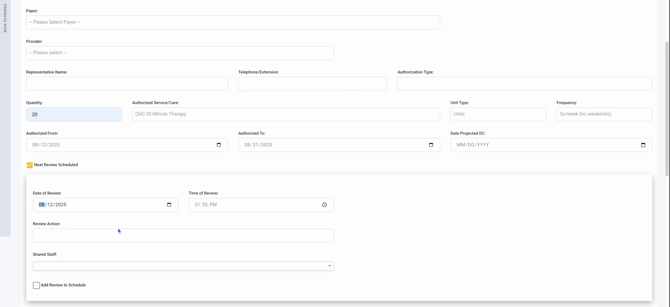
Step 38: Check the Next review scheduled box to set a future date and time for the next review. Enter the desired date and time.
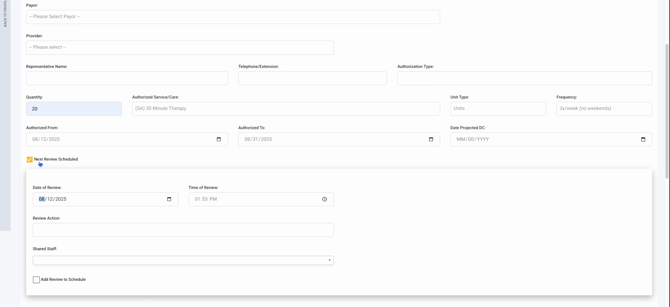
Step 39: If there's any review action you'd like to share with staff, do so in this step. Ensure you add the review to the schedule, so it appears on your calendar.
Step 40: If dealing with a single case agreement, mark it accordingly. Otherwise, enter the authorization number and status, whether pending or approved. Add any other necessary notes.
Step 41: Click on utilization review to return to the main interface, referred to as "Tinkerbell" in this context.
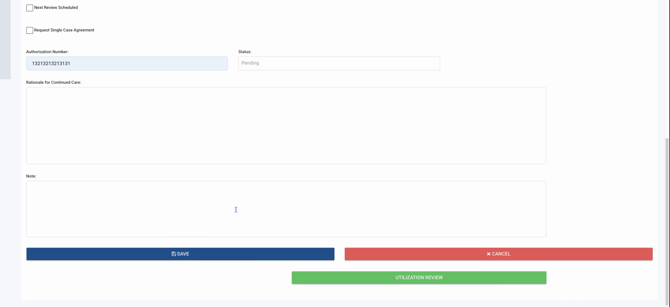
Step 42: If you need to check on another client, select the desired client and hit the
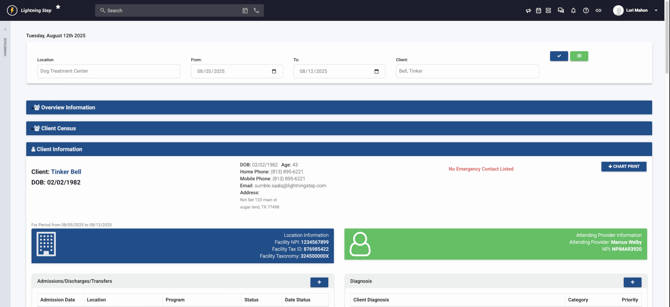
plus button to switch to their information.
Step 43: You can then proceed to add an authorization for the new client directly from this interface.
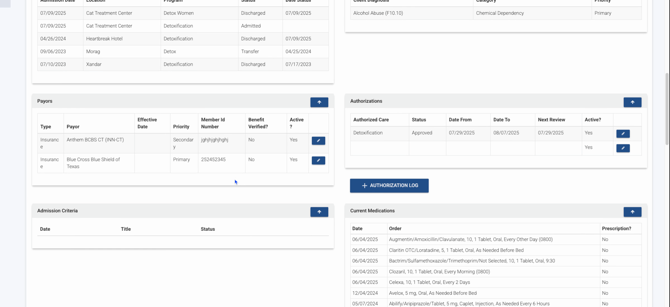
Step 44: If no payers are visible, go into the client's chart to add the payer to ensure seamless integration with billing.
This tutorial guides you through using the utilization review feature to manage authorizations and documentation for insurance billing.
