
Step 1:
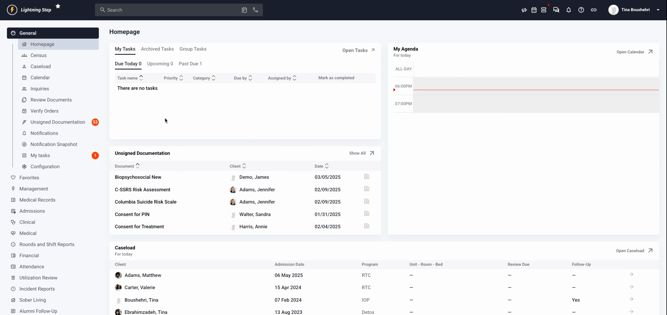
From your general homepage in Lightning Step, you'll be able to clearly see your caseload.
Step 2:
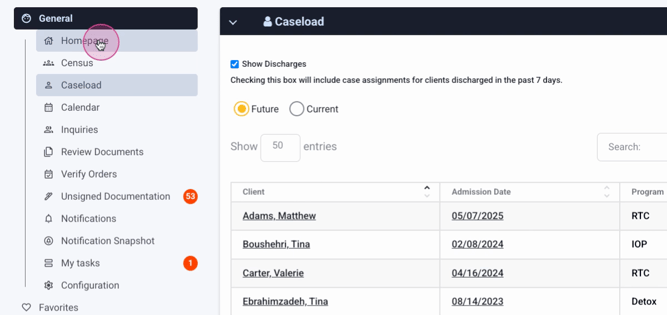
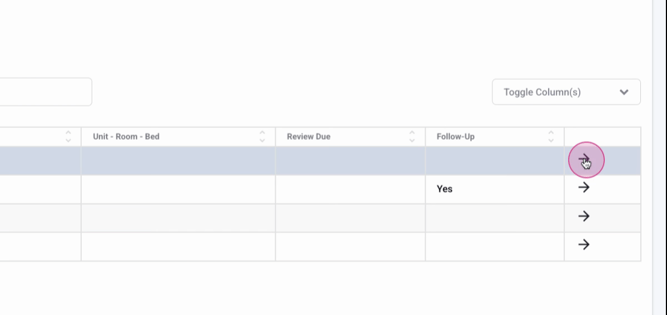
On the left-hand side of your homepage, you'll find a menu. This menu includes your tasks, calendar and agenda, and unsigned documentation. The unsigned documentation refers to documents initiated by you that haven't been signed, saved, and locked yet. Below these, you'll find the cases assigned to you. Each case displays the client's name, admission date, current program, unit, room, bed (if applicable), review due (if applicable), and any necessary follow-ups. You're able to access a client's chart directly from this view.
Step 3:
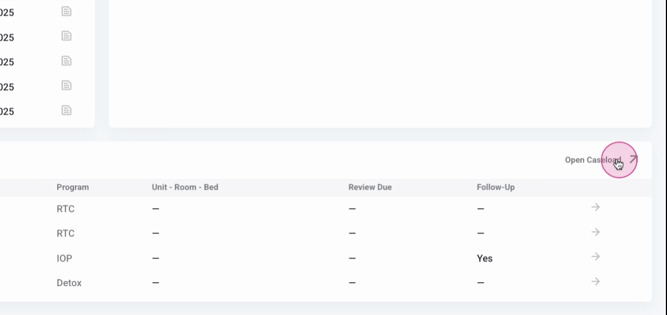
Alternatively, select Open Caseload to visualize your cases in a different format.
Step 4:
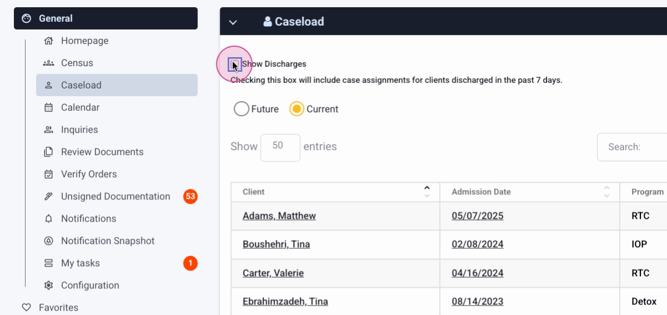
If needed, you're able to view any discharges from the past seven days.
Step 5:
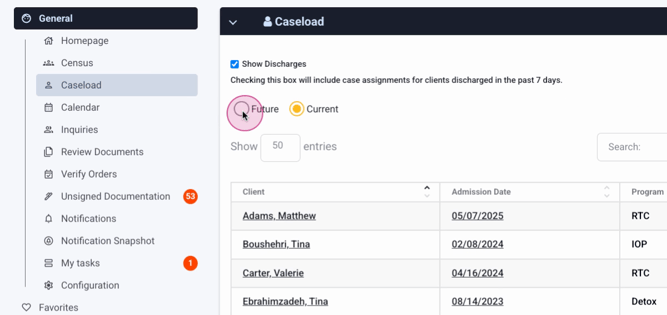
You can also check any future case assignments. If your clinical director has assigned you any future cases for pending admissions or incoming clients, you'll be able to see and visualize these assignments.
Step 6:
You have two main ways to visualize your caseload. The first is directly from the homepage at the bottom of the screen.
Step 7:
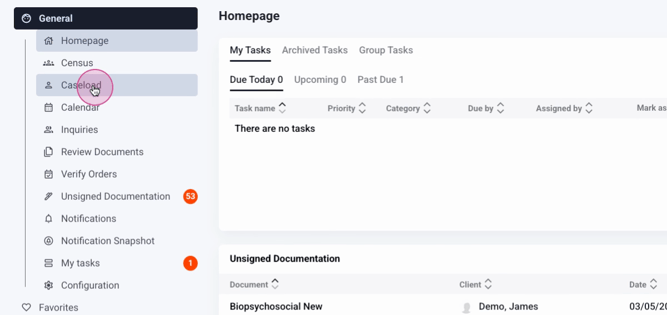
The second way is by selecting Caseload from the left-hand menu. This will populate a list in that section.
Step 8:
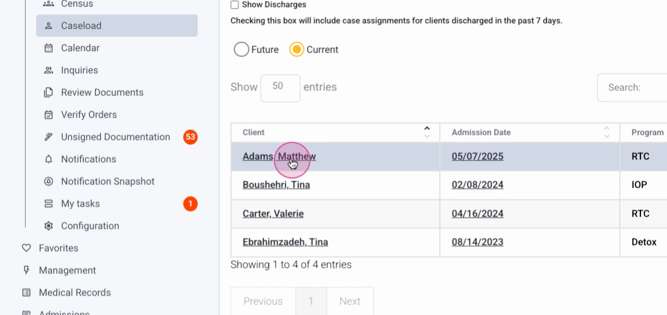
Both methods allow you to directly access a client's chart.
Step 9:
Any case assignments will be displayed in the client's chart under Case assignments along with the assigned clinician.
For any further queries, please contact Lightning Step Support or your Customer Success Manager.
