
Step 1: Go to Admissions
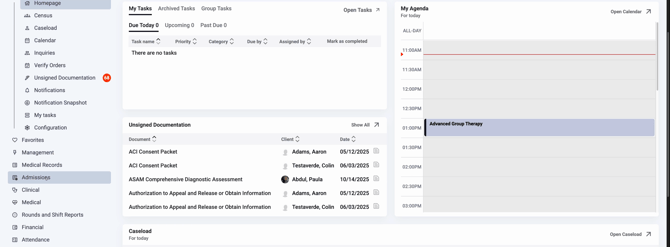
On the Lightning Step home page, scroll down to the Admissions tab.
Step 2: Open Web Inquiries
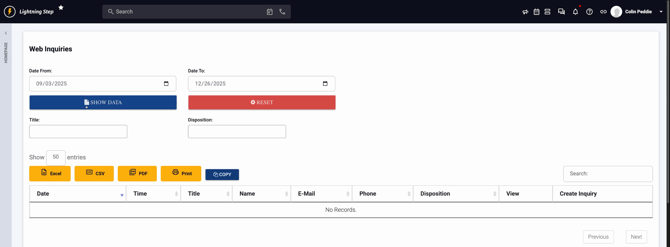
Click Web inquiries to enter the main inquiry dashboard.

Step 3: Set Your Date Range
Adjust the date filters by selecting your desired start and end dates for the inquiry list.
Step 4: Filter by Inquiry Title
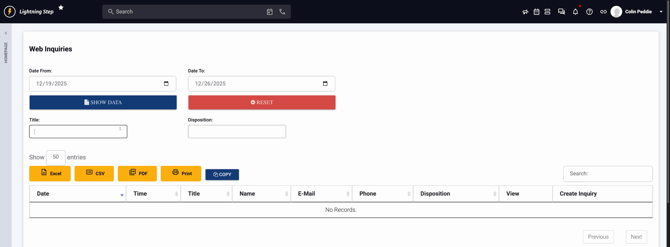
If you want to look for specific inquiries, use the title filter to narrow your list.
Step 5: Filter by Disposition
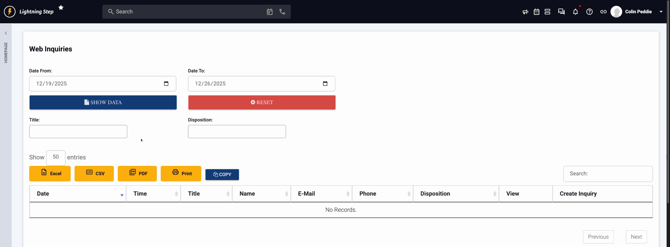
To further refine results, open the Disposition filter. This helps focus on inquiries based on their current status.
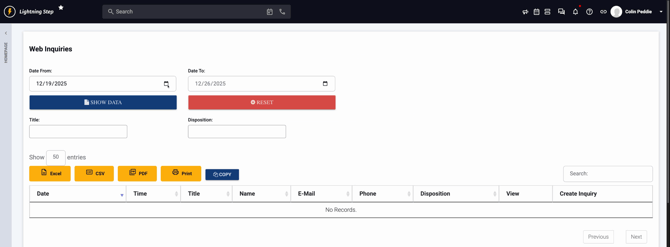
Refine further if needed by choosing a specific disposition value.
Step 6: Display Your Results
After setting filters, click Show Data. Scroll down to review your filtered web inquiries.
Step 7: Review or Export Data
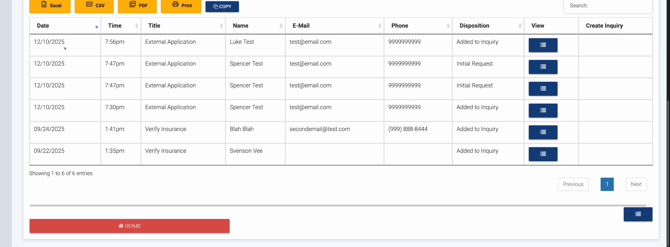
See the date, time, inquiry title, client’s name, email, phone number, and current disposition for each entry. Export results to Excel, PDF, or print as needed.
Step 8: Understand Dispositions and Status
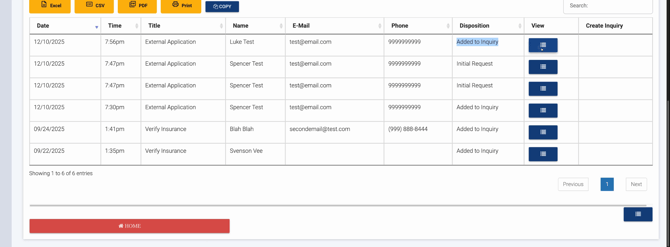
"Disposition" shows each inquiry’s status—for example, "Added to Inquiry" signals it’s an initial request that needs follow-up.
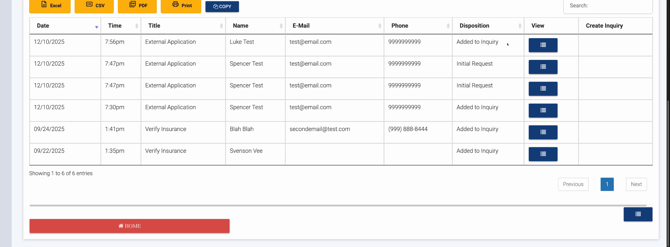
Review each type to track next steps and completed actions.
Several options ensure you can instantly see priorities.
Step 9: Learn What Triggers Web Inquiries
A web inquiry is automatically created when someone fills out your website’s Contact Us form. Lightning Step connects directly to your website, so new inquiries flow into your dashboard instantly. Your team then sees exactly who to reach out to next.
Step 10: View Individual Web Inquiries
To see more details and take action, click into any specific web inquiry entry.
Here, learn more about the client and their needs and decide on follow-up steps.
Step 11: Create a New Inquiry Profile
If a web inquiry is active and you want to create an ongoing profile, use the Create Inquiry option.

When connected to your website, this brings over all client-provided info—just add any missing details like gender, birth date, or sex, then save. The full profile is now ready.
Step 12: Customize Web Inquiry Settings
You can adjust web inquiry fields, connect new data sources, or customize which fields flow in. Explore available settings to match your workflow.
Step 13: Manage Multi-Channel Contacts
Lightning Step connects with both your website and email systems. When clients submit online forms, details arrive in your inquiry dashboard, letting you track phone, email, and electronic outreach together.
For more detail, check with your internal documentation or contact support.
