
Introduction
The accounting period close feature must be enabled by Lightning Step staff. If you're interested in using it, contact your support team or customer success manager for assistance. Once enabled, you'll have access to the Accounting Period Closing dashboard to control when and which financial data is locked.
Steps
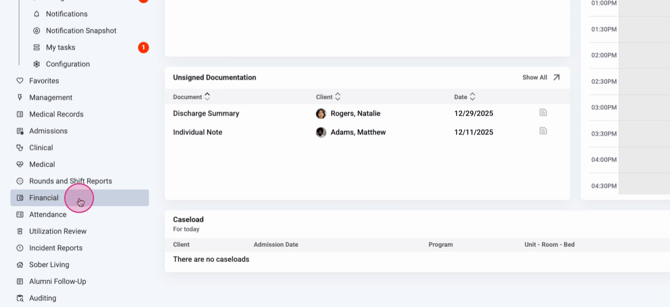
Step 1: From the Home page, click Financial.
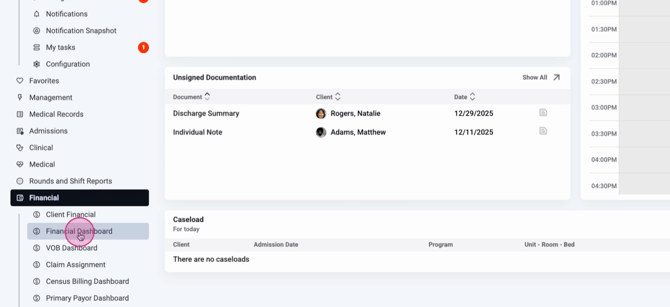
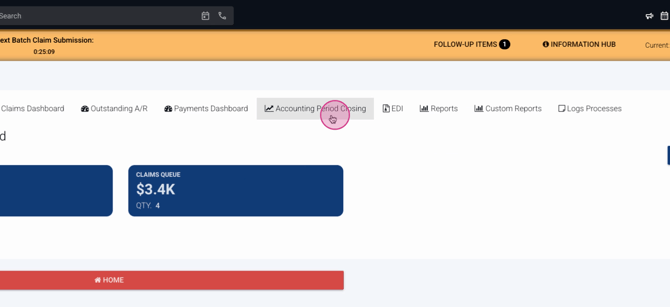
Step 2: Open the Financial Dashboard, and select Accounting Period Closing.
Step 3: View the Accounting Period Closing Dashboard. At the top, set your accounting period’s start and end dates. Adjust these as needed and click Update Accounting Period to load the records for that range.
Step 4: Review the tables in the dashboard:
-
The top table lists payment or deposit transactions with unapplied balances. Post all unapplied amounts before closing, as closed payments can't be edited or allocated.
-
The second table shows all adjustments, charges, payments, or write-offs not yet closed. This includes both new and previous unclosed records.
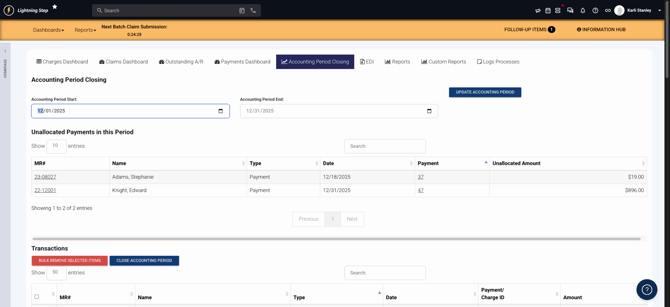
Step 5: If there are records you’re not ready to close, select their checkboxes and use Bulk Remove Selected Items. This keeps them out of the current period, but they’ll be available in future periods.
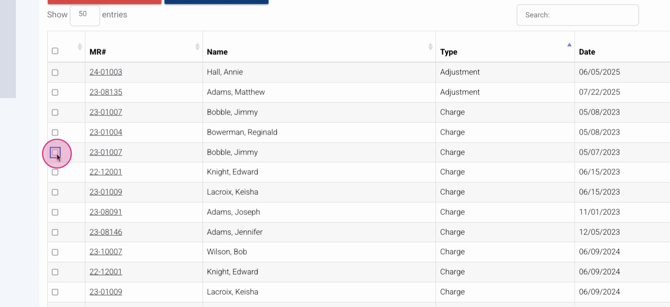
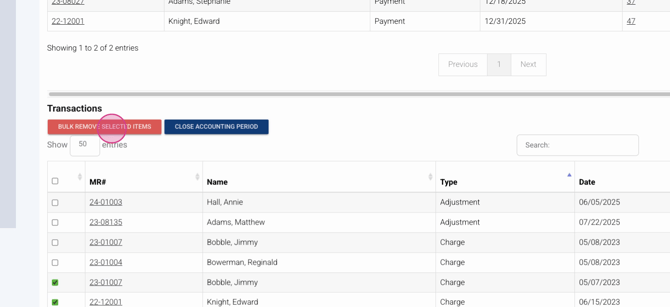
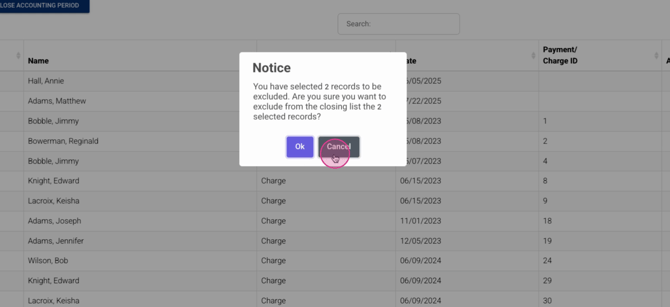
You’ll see a confirmation popup showing the number of items to be excluded. Click OK to confirm or Cancel to go back.
Step 6: Once all payments are posted and unwanted records are removed, click Close Accounting Period. All records within the period are now locked against edits.

Step 7: Closed records appear as closed across dashboards, reports, and the account profile—marked by the period ID so you can easily track which records belong to each accounting period.
Conclusion
Remember, closing an accounting period is permanent—there’s no undo. If you need changes, contact Lightning Step support for help. Review all records carefully before closing. For more details or specific questions, reference your internal documentation or reach out to the support team.
