
Getting Started: Confirm Integrations and Location
Step 1: Open any client profile.
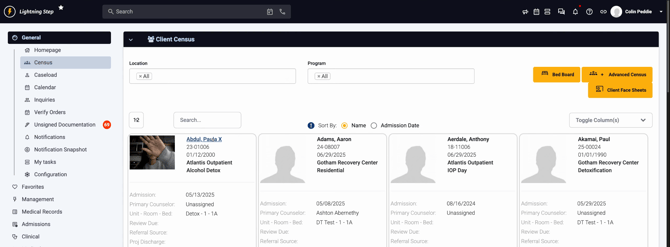
Step 2: Make sure the client’s admitted location has an active lab integration. Most customers use the same integration at all sites, but double-check if locations use different labs.
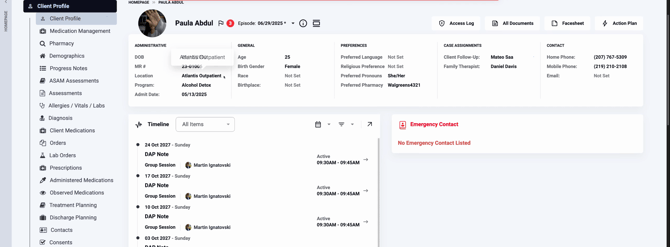
Step 3: Confirm the client’s admitted location by checking their info.
Creating a New Lab Order
Step 1: Scroll to the Lab Orders tab within the client’s profile.
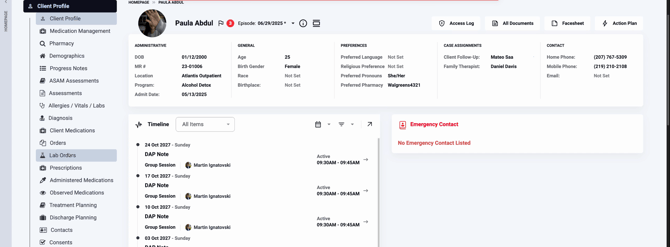
Step 2: Click the plus sign under the client’s name to start a new order.
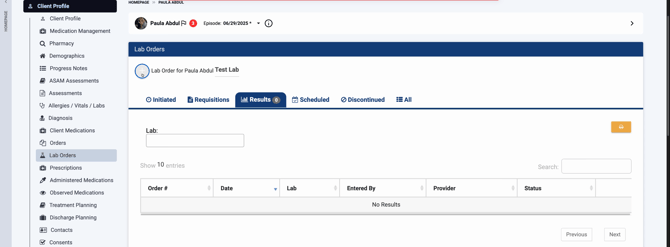
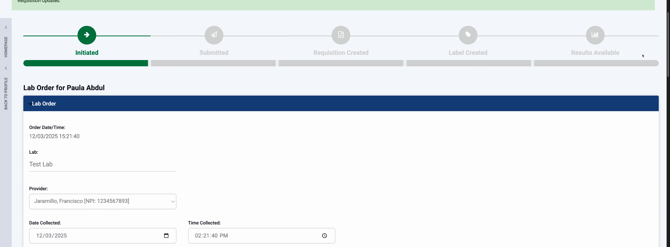
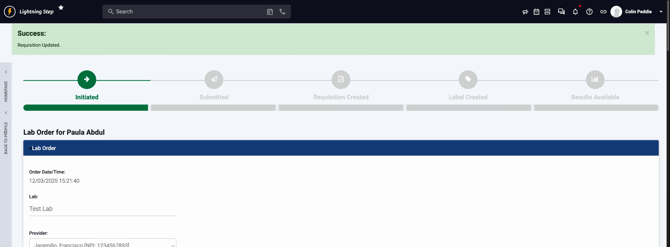
Step 3: You’ll land on the Lab Order page. Up top, a visual tracker shows the order’s progress through each phase.
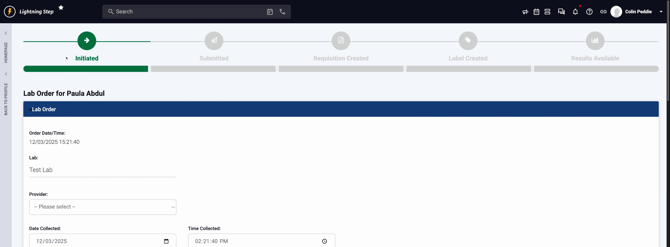
Step 4: Select a provider from the assigned list—this must be done before you can submit an order through the integration.
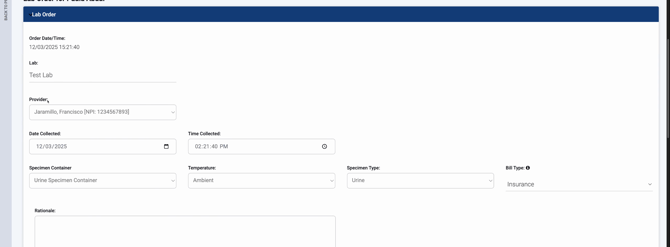
Step 5: Choose your provider from the available list.
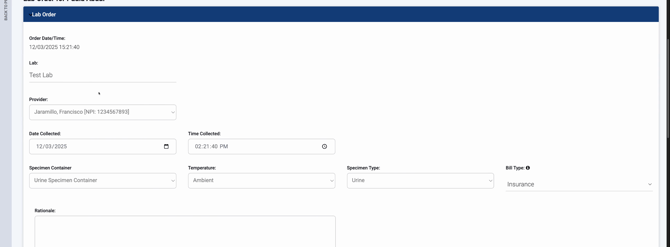
The provider appears ready once selected.
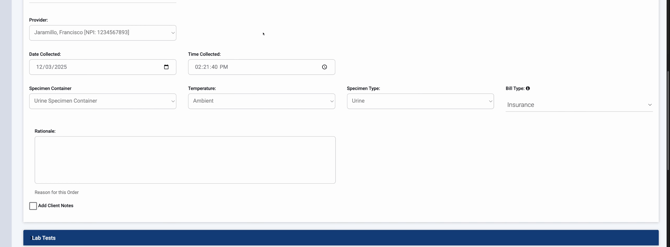
Step 6: The date and time auto-fill with today’s values.
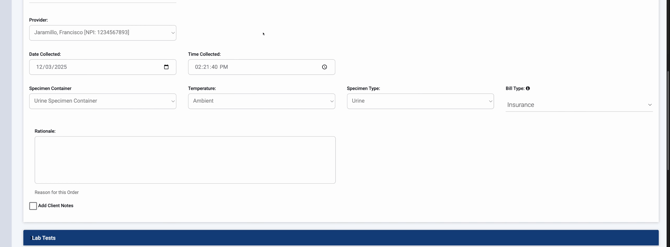
Step 7: To adjust the specimen container type, use the dropdown. Choose among options like urine, oral, or blood as needed.
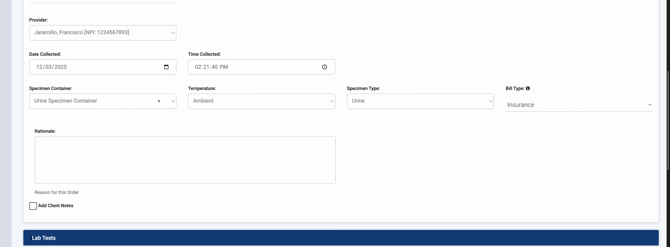
Completing Order Details and Selecting Tests
Step 1: Enter the specimen temperature.
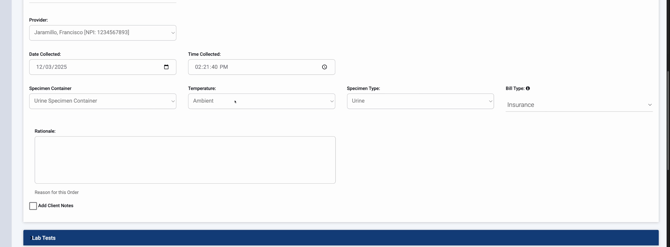
Step 2: Select the specimen type—make sure to correctly pick urine, blood, or oral fluid as appropriate for the collection.
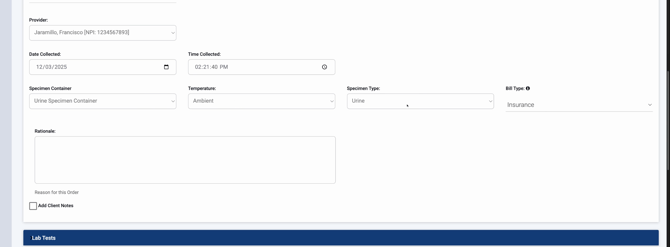
If it’s a swab, saliva, or similar, use the "Oral Fluid" option.
Step 3: For Bill Type, pick whether insurance is billed to the facility or the patient covers the cost.
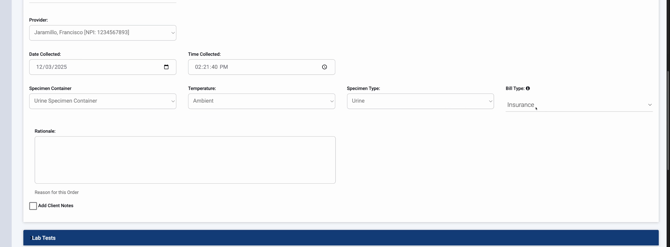
If you select the patient option, it means they’re responsible for the charges.
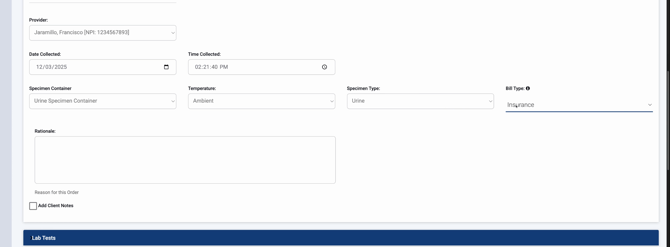
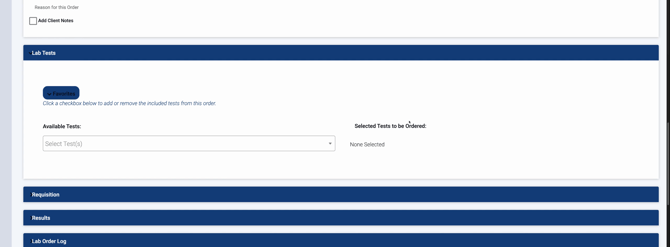
Step 4: Scroll to the Lab Tests section. Expand the test selection area.
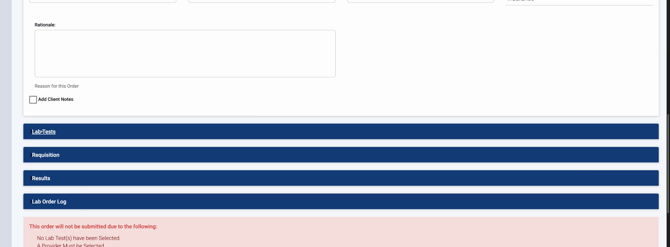
Step 5: In the available tests field, type a test order using pre-built integration codes.
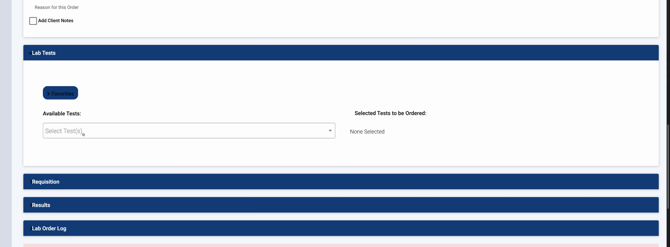
Select the correct code (for example, HC) as needed.
Pick the code from the search list.
When selected, the test moves to the "Selected Tests to be Ordered" area.
Step 6: For regularly used test groupings, open and pick from your favorites.
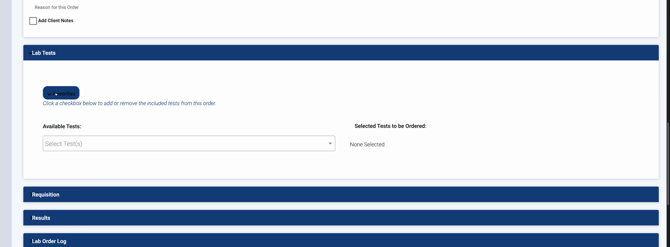
Click to add them; all tests in that group move together to the order.
Step 7: Review the right-side panel for all selected tests.
Finishing & Sending the Order
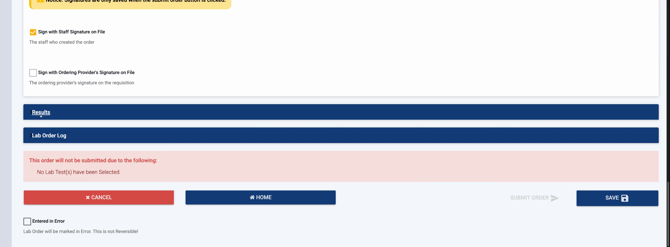
Step 1: Double-check your entries. Then, scroll down.
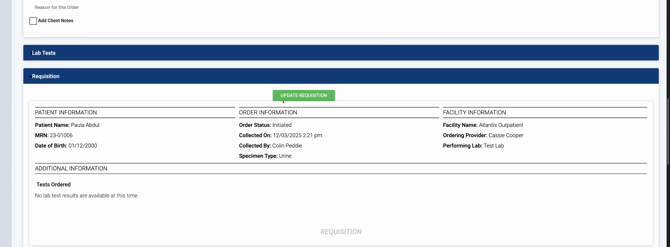
Step 2: If all details are correct, update the requisition:
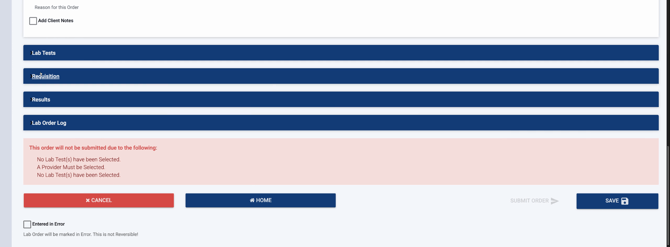
Go to this area, update as needed, and refresh to see "Tests Ordered" appear below.
Step 3: Sign your name using the staff signature on file.
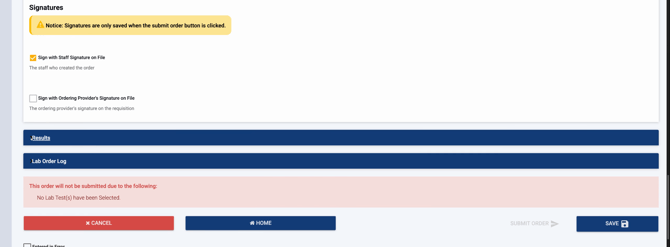
Step 4: Click Submit Order. After submitting, check the process stages at the top—they’ll update automatically from Initiated
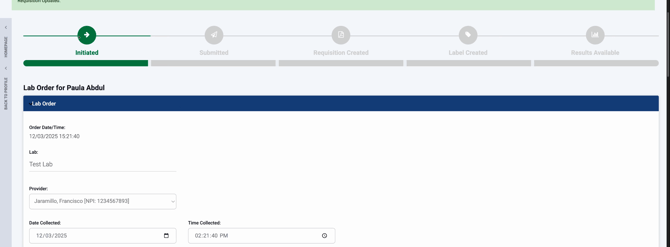
to Submitted
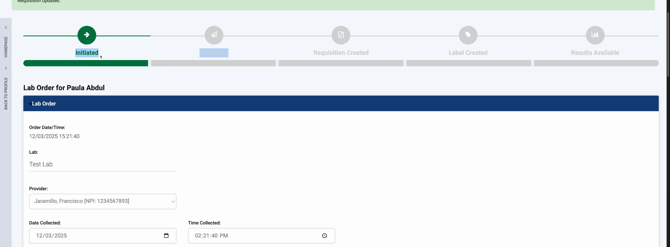
to Requisition
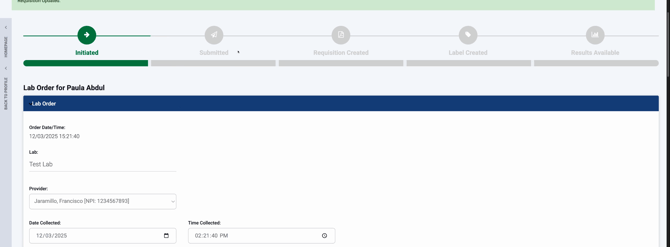
to Label Created
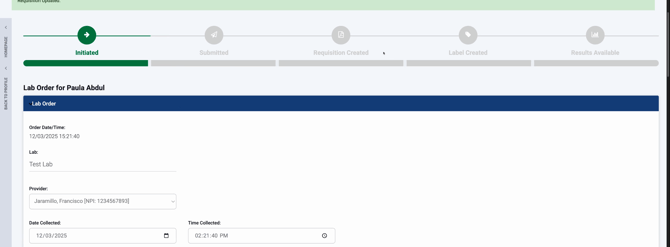
and stop there. When results return, "Results Available" appears.

Tracking Orders and Viewing Results
Step 1: To see the order’s status, check the "Lab Orders" section. Every order shows its current state—Initiated, Sent, or if results are available.
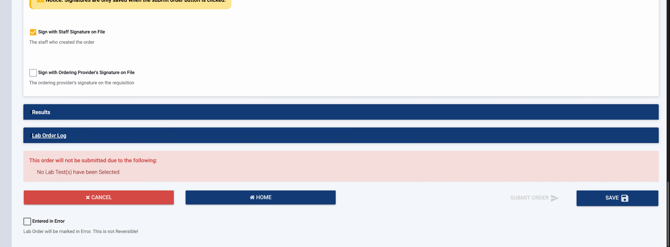
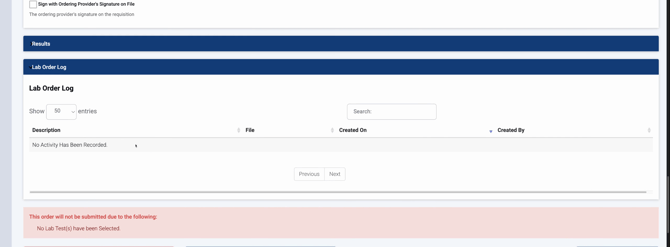
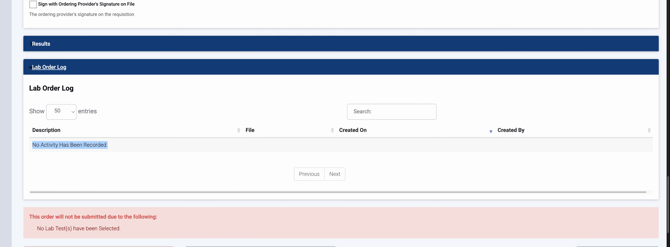
Step 2: For a history log, check the Order Log—view creation times and successful completions.
Step 3: Click into an order any time to see more details or results.
Step 4: For a shortcut, in the client profile, look at the Lab Order section. The initiated test shows up with its status and if results are available—they’ll display here.
Step 5: If a result is abnormal (like a high or failed result), you’ll see a quick indicator in the status column.
Step 6: Scroll right to click and view the full details for any result—see what was failed or passed, and any specifics.
Lab ordering in Lightning Step is streamlined, accurate, and easy to monitor. Double-check your selections for every order. For more info, consult your internal documentation or contact your support team.
