
Step 1: Go to the Financial Dashboard from the main menu.
Step 2: Select Payments Dashboard.
Step 3: Click the Unallocated Insurance Payment tab.
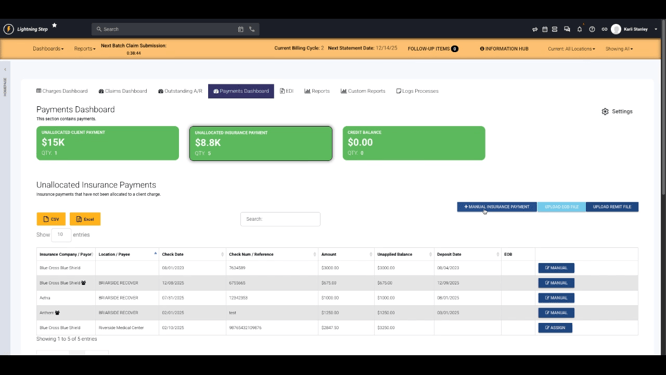
Step 4: Choose Manual Insurance Payment.
Step 5: Pick the payer from the dropdown menu.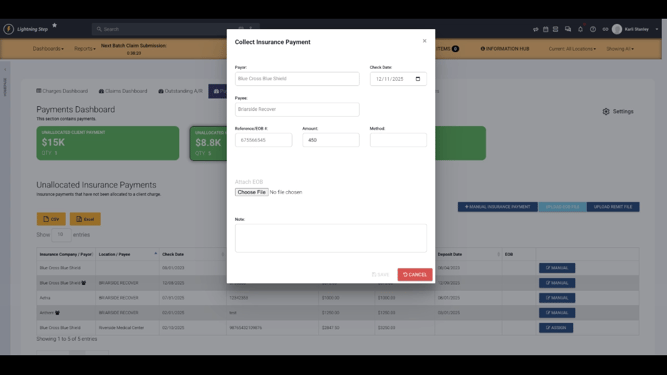
Step 6: Enter all payment details: check number, date, payee, reference number, amount, and payment method (check or card).
Step 7: If the payment was deposited directly into your bank account, mark it as reference only.
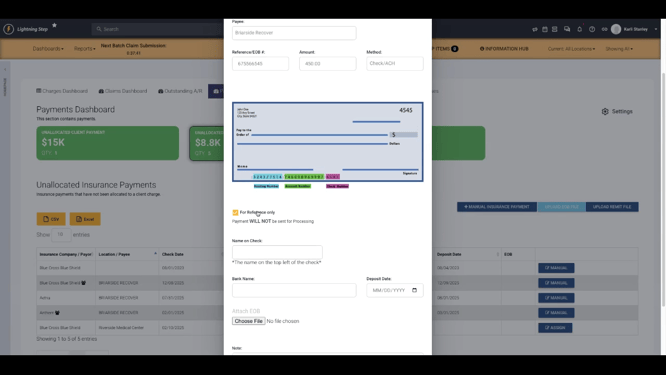
Step 8: If you work with a payment vendor and the payment wasn’t directly deposited, leave the reference box unchecked and enter the required payment info.
Step 9: Fill in the deposit date. This field is crucial for accurate reporting and easy lookups later.
Step 10: Attach a scanned copy of the EOB file if you have one.
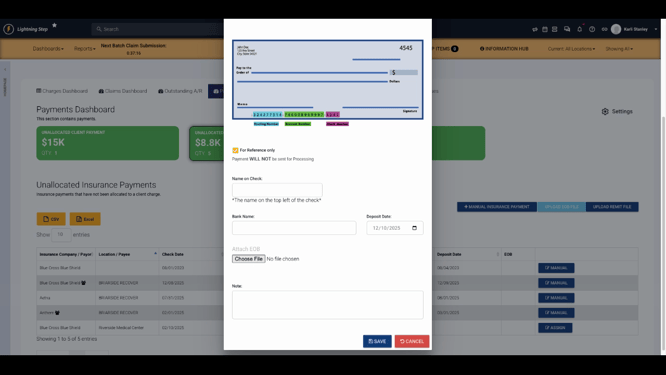
Step 11: Click Save. The screen will refresh and take you to the manual payment allocation screen.
Allocating manual payments is explained in a separate tutorial. For more information, refer to your internal documentation or reach out to the Lightning Step support team if you have questions.
Keeping your payment records up-to-date ensures proper allocation and smoother financial reporting.
