
Step 1: Open the Finance tab in the client profile.
Step 2: Select the Payer tab. Enter the client's payer details—insurance or private pay. Always add a private pay entry, even if the client has insurance. This ensures smooth billing if insurance lapses or there are coordination of benefit issues.
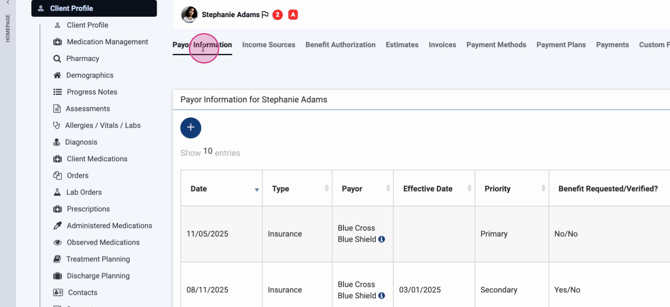
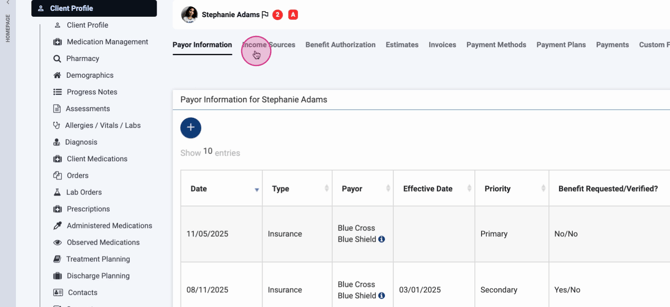
Step 3: Go to Income Sources if enabled. Document a client's income sources here if government reporting is required.
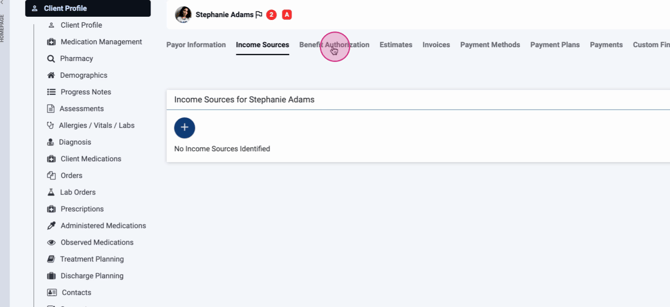
Step 4: Use the Benefit Authorization tab to enter authorization details for the client. These pull into claims, show up on the utilization review dashboard, and appear on the census for follow-up.
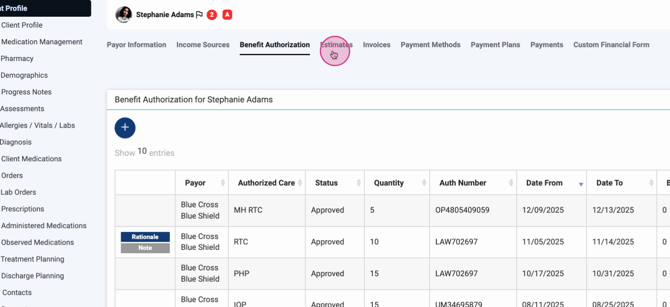
Step 5: If enabled, the Estimates tab lets you create cost estimates based on benefit info and send them to the client for review and electronic signature through the client portal.
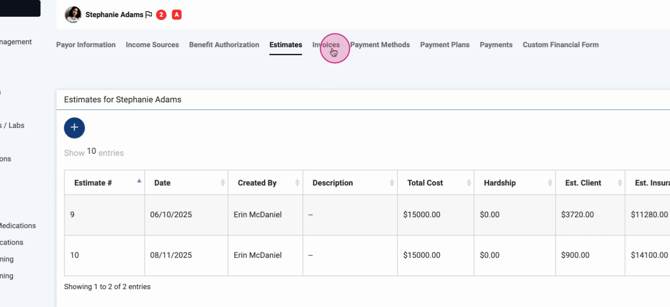
Step 6: Check the Invoices tab to view all created invoices for the client. You can also manually create new invoices here.
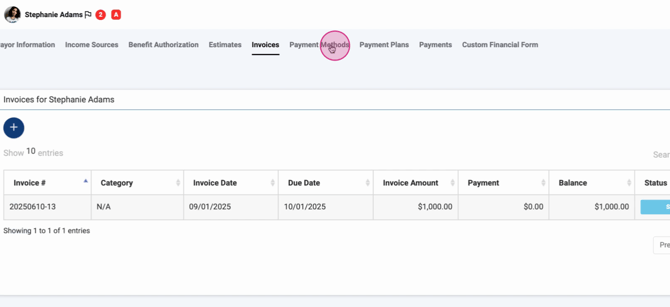
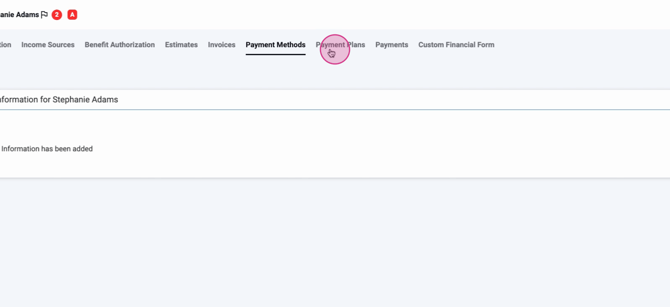
Step 7: In Payment Methods, store default payment methods like a credit card or checking account for the client.
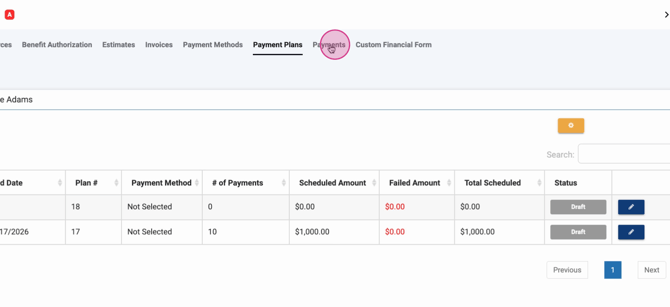
Step 8: Set up a Payment Plan to schedule recurring payments. The system will automatically charge the stored method on your set schedule.
Step 9: Review collected transactions or process a new payment in the Payments tab.
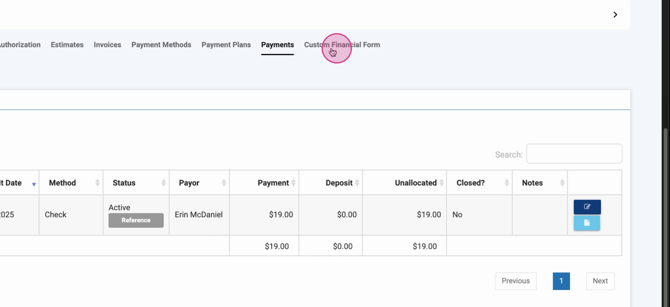
Step 10: If a Custom Financial Form tab is enabled, fill out or view specialized financial forms linked to this client.
The Financial tab brings all your client’s financial data together, streamlining billing, authorizations, invoicing, payments, and documentation. Reference your organization’s materials or reach out to support if you need more details or run into questions.
