
How Does Auto-Fill Contacts Work?
- The auto-fill function pulls information directly from an existing contact record in the client’s chart.
- This means that when a contact is selected from the auto-fill list, the system automatically:
- Populates the ROI fields with the contact’s stored information.
- Locks the contact fields, preventing manual edits.
- Disables the “Create Contact from ROI” option since the contact already exists.
Creating an ROI with Auto-Fill
- Navigate to the Consents Tab in the client’s chart.
- Initiate a New ROI Form.
- Select an Existing Contact from the auto-fill list.
- The system will automatically populate the contact fields with the saved information.
📌 Example: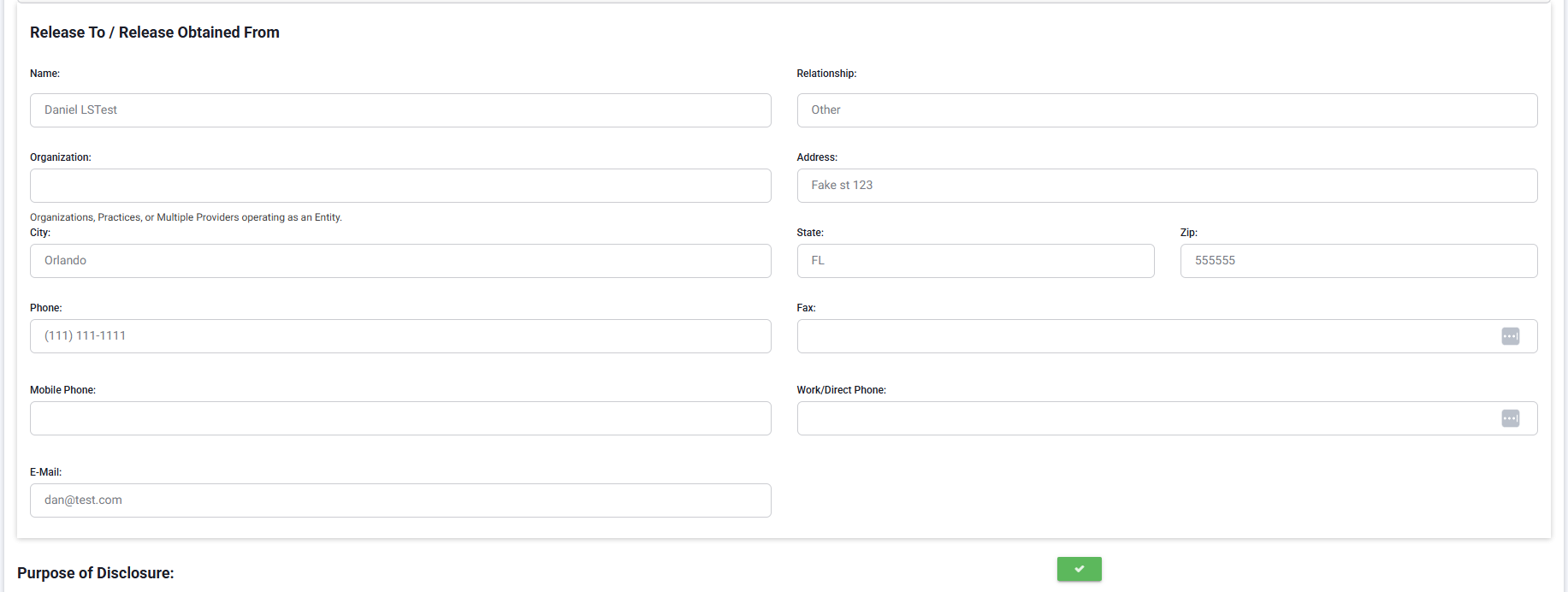
If an ROI is started and a contact is selected from the auto-fill list, all available contact details (name, phone number, email, etc.) will be pre-filled.
Creating an ROI from the Contacts List
- To create a new ROI directly from a contact, you can use the "Create ROI from Contact" button in the Contacts section.

- This allows you to generate an ROI form directly linked to that contact.
🚀 Quick Tip:
- If an ROI is started manually from the Consents tab, but you later want to add details from an existing contact, the auto-fill feature allows you to do this quickly.
Handling Incorrect Contact Selections
If a wrong contact is selected from the auto-fill list:
- Refresh the ROI form: This clears all contact information and allows you to start over without deleting the entire document.
- After refreshing, you can manually enter new contact details or select a different contact from the auto-fill list.
🔄 Steps to Refresh an ROI Form:
- Open the ROI form where incorrect information was selected.
- Click the refresh option (location depends on system setup).
- The contact fields will clear, allowing you to re-enter or re-select contact details.
Key Takeaways
✔ Auto-fill pulls data from an existing contact in the chart, locking fields to prevent changes.
✔ If using the "Create ROI from Contact" button, an ROI is generated directly from the contact.
✔ If an ROI is manually started from the Consents tab, auto-fill allows quick contact selection.
✔ Refreshing the ROI form clears pre-filled data, allowing a new contact to be entered.
