
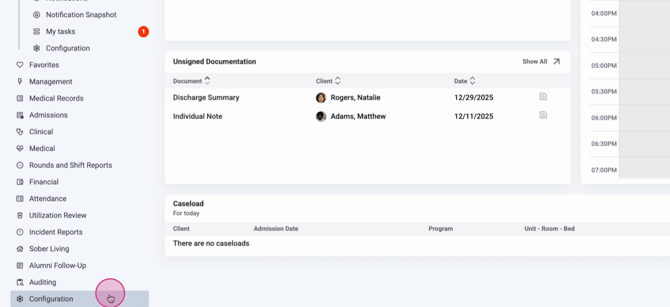
Step 1: From the main menu, go to Configuration.
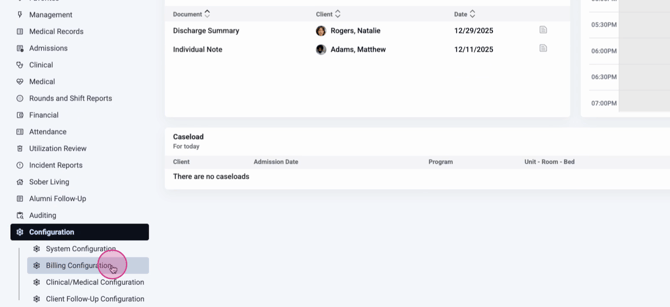
Step 2: Click Billing Configuration.
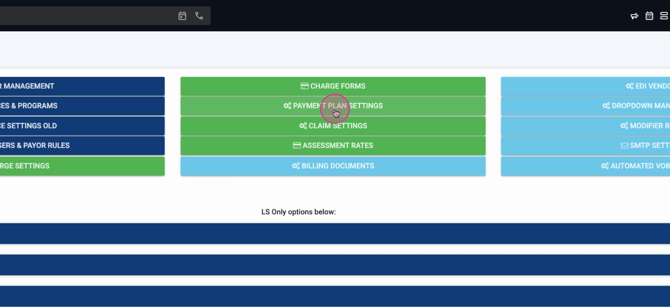
Step 3: Select Payment Plan Settings.
You’ll see the Payment Plan Defaults screen. Here, change the default texts and options that appear every time someone creates a new plan. Updates only impact future payment plans—plans that are already signed and locked stay unchanged.
Step 4: Edit the default payment plan text fields, including any wording your organization or legal department requires. Add organization or company names if needed.
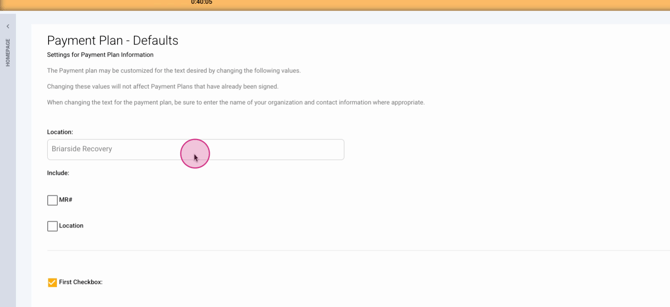
Step 5: Set up different defaults for each location by choosing the location from the dropdown menu.
Step 6: Check the boxes to include MRN number and location on the payment plan as needed.

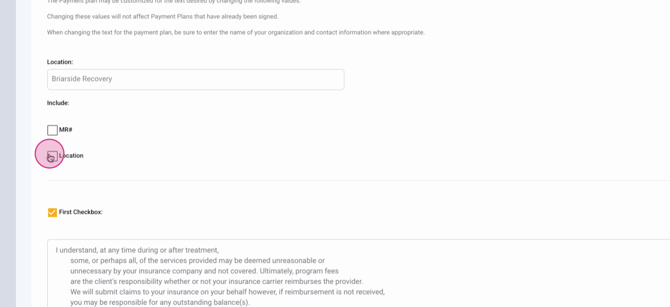
Step 7: Configure up to three client or inquiry consent checkboxes for terms and conditions. Edit the text fields with your chosen language. Update these based on your legal guidance.
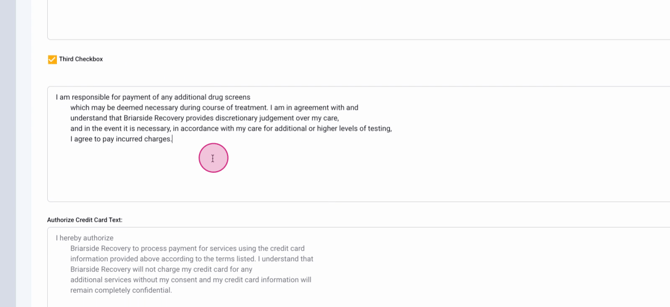
Step 8: Enter the authorized credit card text to explain client authorization for payments. Add similar text for ACH and check payments.
Step 9: Fill out the note field for any extra information clients should see before signing.
Step 10: Choose which payment methods to offer. Enable or disable options like Credit Card, Debit/HSA/FSA Card, ACH, or Check by selecting or clearing the checkboxes. Only enabled options will show up when new plans are created.
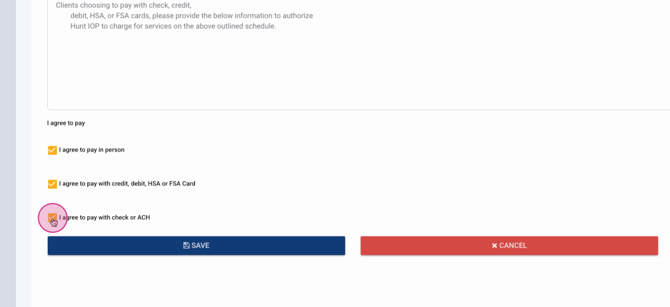

Step 11: When finished, click Save.
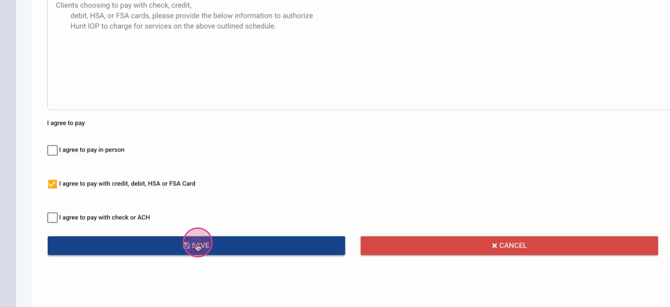
You’ll return to the Billing Configuration screen and see a confirmation that your settings are updated.
See Payment Plan Defaults in Action
When you create a new payment plan, you’ll see the fields and options set by your new defaults. Existing payment plans aren’t changed.
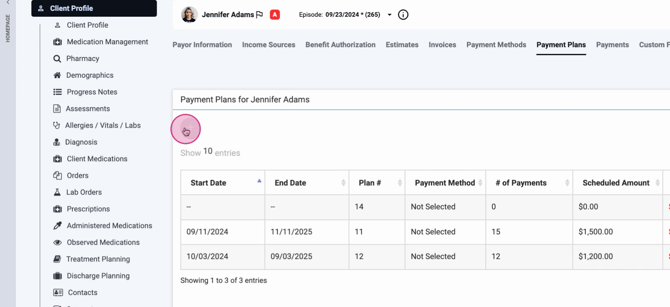
For example, viewing a client account and starting a new payment plan will show your current checkbox defaults and just the payment options you enabled.
Customizing payment plan defaults helps you streamline setup and enforce the right terms and options for your organization. Still have questions? Check the written documentation or contact the support team for help.
