
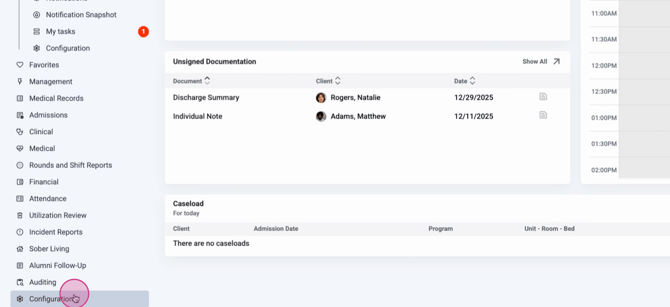
Step 1: Go to Configuration.
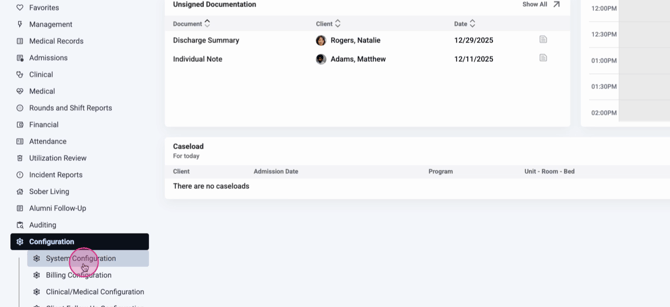
Step 2: Select System Configuration.
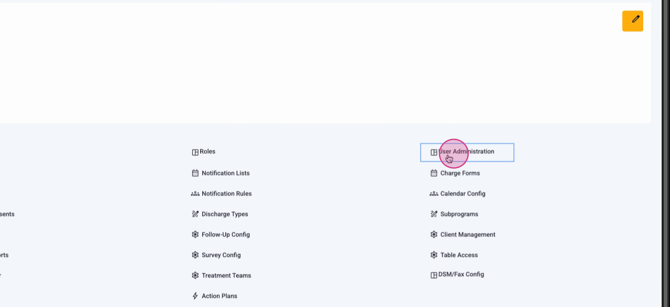
Step 3: Click User Administration.
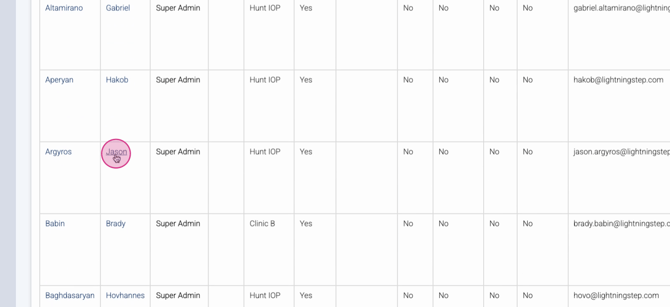
Step 4: Find and edit the user whose access you want to restrict.
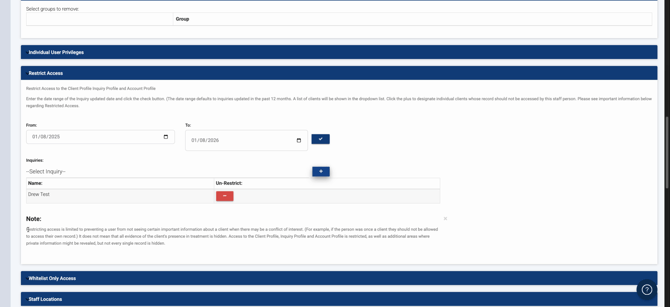
Step 5: Scroll to the Restrict Access section and expand it.
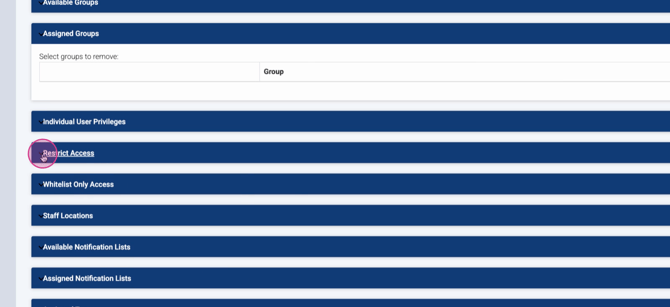
Step 6: Choose the date range when the inquiry or client attended or was entered into the system.
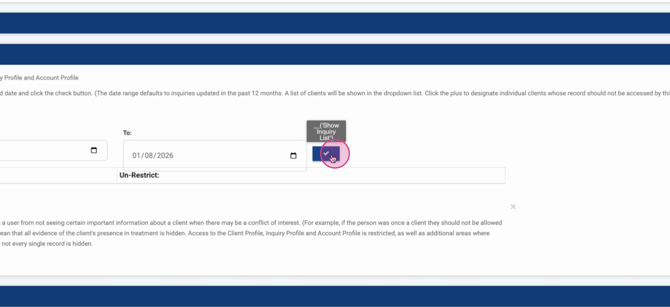
Step 7: Click the check box to activate restriction options.
Step 8: Select the relevant inquiry or client from the list.
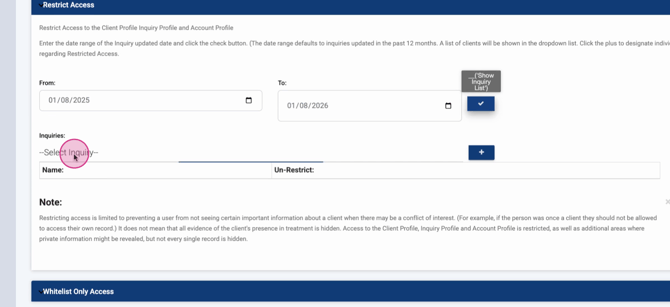
Step 9: Click the plus (+) sign to add them to the restricted list. You’ll see the client or inquiry name appear below. To undo a restriction, click the minus (-) button.
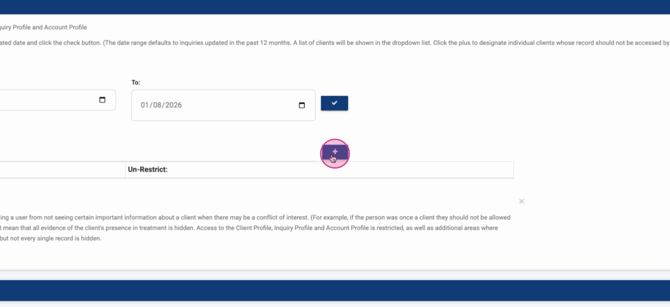
Step 10: Review additional notes about access restrictions. Remember, this blocks most private information but doesn’t hide all evidence of a client’s presence—some details may still show in limited areas.
Step 11: Click Update User to save your changes.
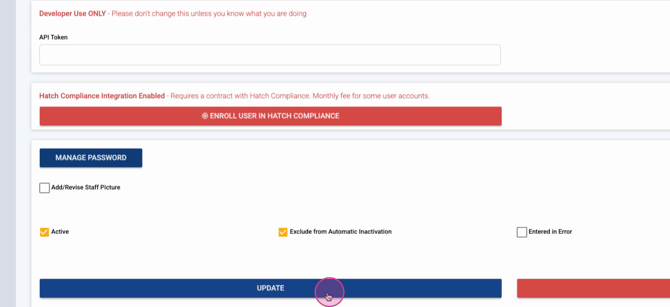
Once saved, the user’s access to that client’s account is restricted. Most private details are hidden, safeguarding sensitive client information. For more details, check your organization’s internal documentation or contact the support team with questions.
