
Step 1: Go to a client or inquiry profile.
Step 2: Click the Financial tab.
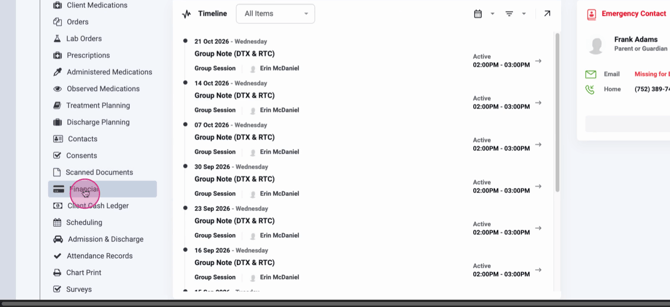
Step 3: Select Payment Methods to view any previously entered payment methods.
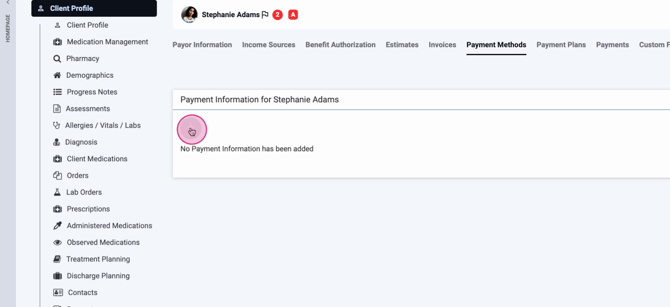
Step 4: Click the plus button to add a new payment method.
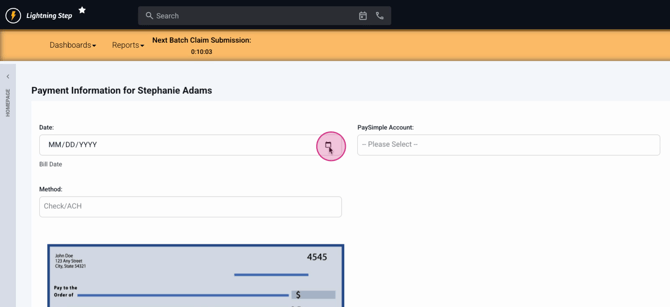
Step 5: Enter the date.
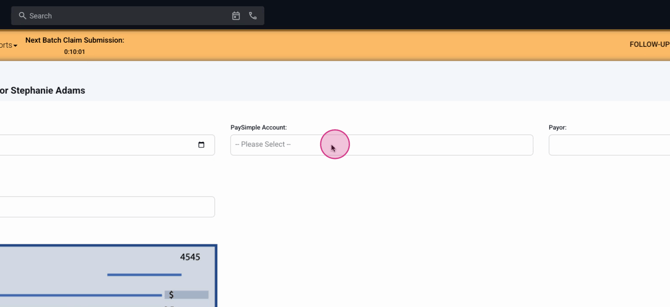
Step 6: Select the payment vendor account. This will determine which third party vendor account that payments made on this method will process to.
Step 7: Enter the payer and the method of payment.
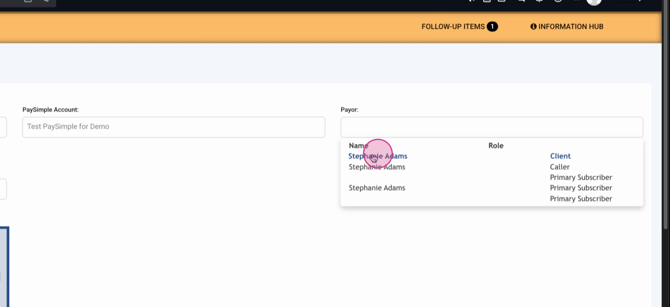
Step 8: Choose the payment type—credit card, check, or ACH. The fields shown will update based on your choice.
Step 9: Fill out all required fields for the selected payment method.
Step 10: Decide if this payment method should be the default for the account.
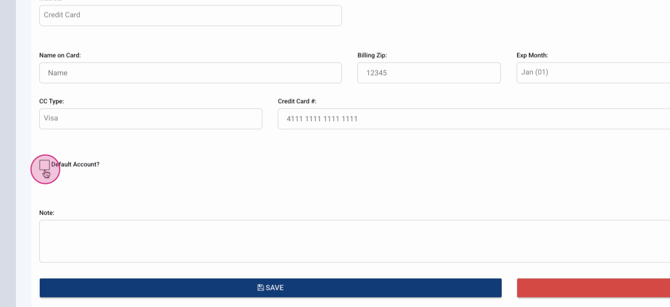
Step 11: Add a note about the payment method if needed.
Step 12: Click Save once all information is entered.
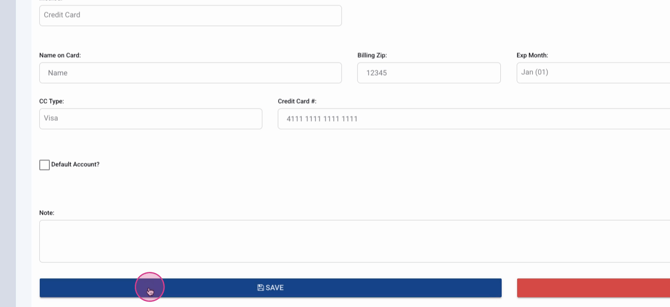
The saved payment method becomes accessible anywhere in Lightning Step where payments are collected. That includes client and inquiry profiles, invoices, client portals, and payment plans. You can always use an existing default payment method or store a new one as the default when entering payments.
For more details, check the internal documentation or contact the support team with any questions.
