
INTERNAL CONFIGURATION
-
Must have ai_transcription lsconfig enabled
- User must have telehealth enabled
Schedule a Telehealth Appointment with Lia Transcription
Step 1: Open your Calendar.
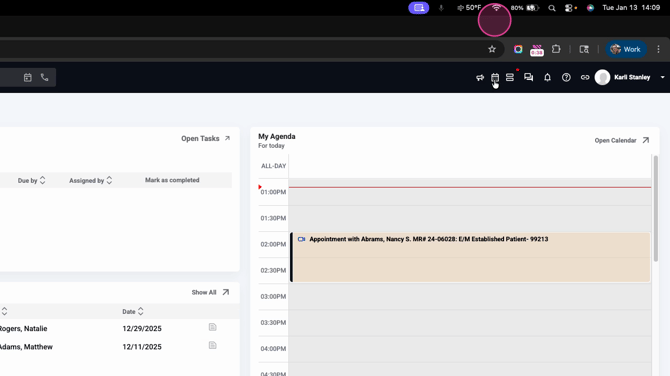
Step 2: Schedule a new telehealth appointment for your client.
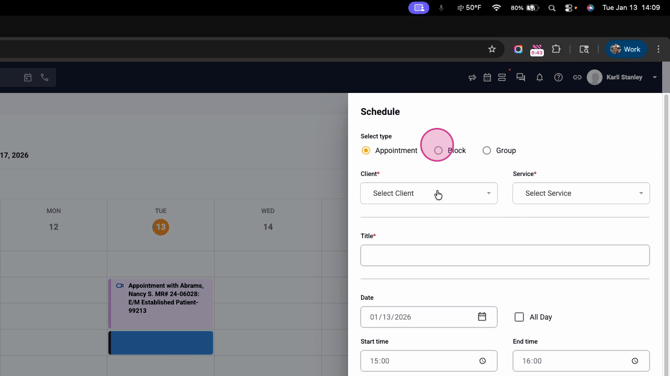
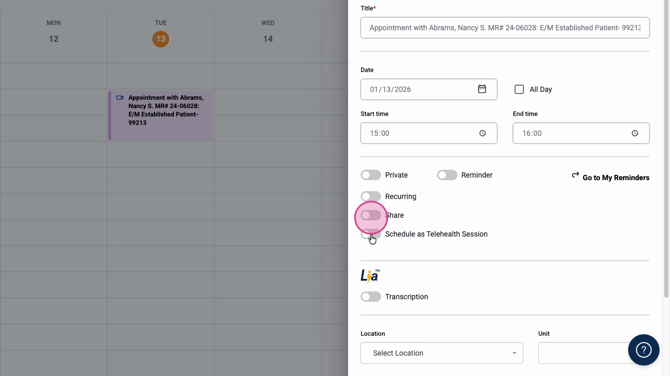
Step 3: Toggle on Schedule as Telehealth Session.
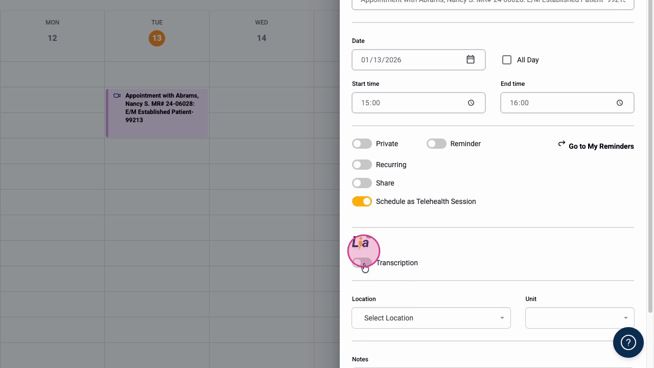
Step 4: Toggle on Lia transcription.
Step 5: Click Save to confirm your appointment.
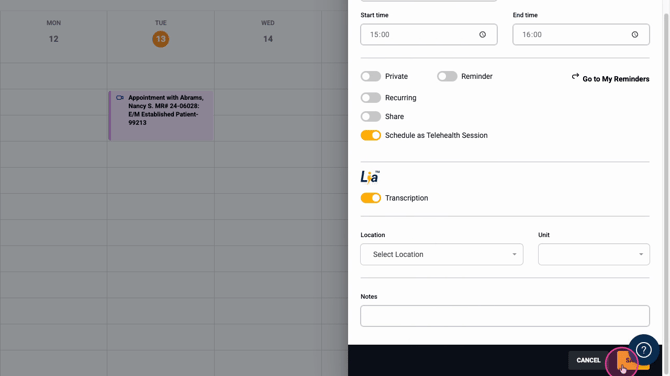
Start the Telehealth Session and Activate Transcription
Step 1: Select your appointment to open it.
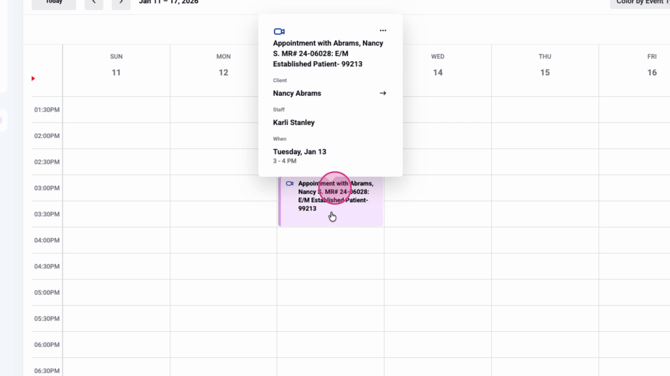
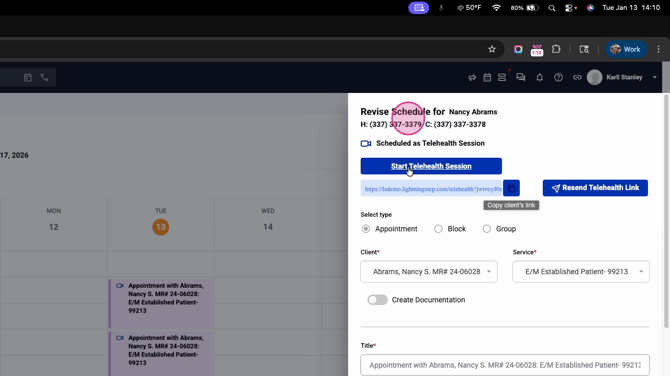
Step 2: Click Start Telehealth Session as the clinician. Make sure to allow browser permissions if prompted.
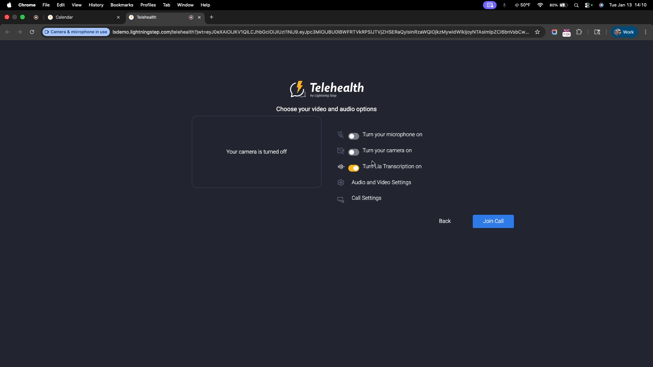
Step 3: Confirm that the Turn Lia Transcription On switch is enabled. This setting ensures transcription begins automatically when the session starts.
Step 4: When the client joins the session, then admit the client from the waiting room if the waiting room is enabled.
Step 5: Watch for the transcription icon—transcription begins automatically as soon as a participants enter the appointment.
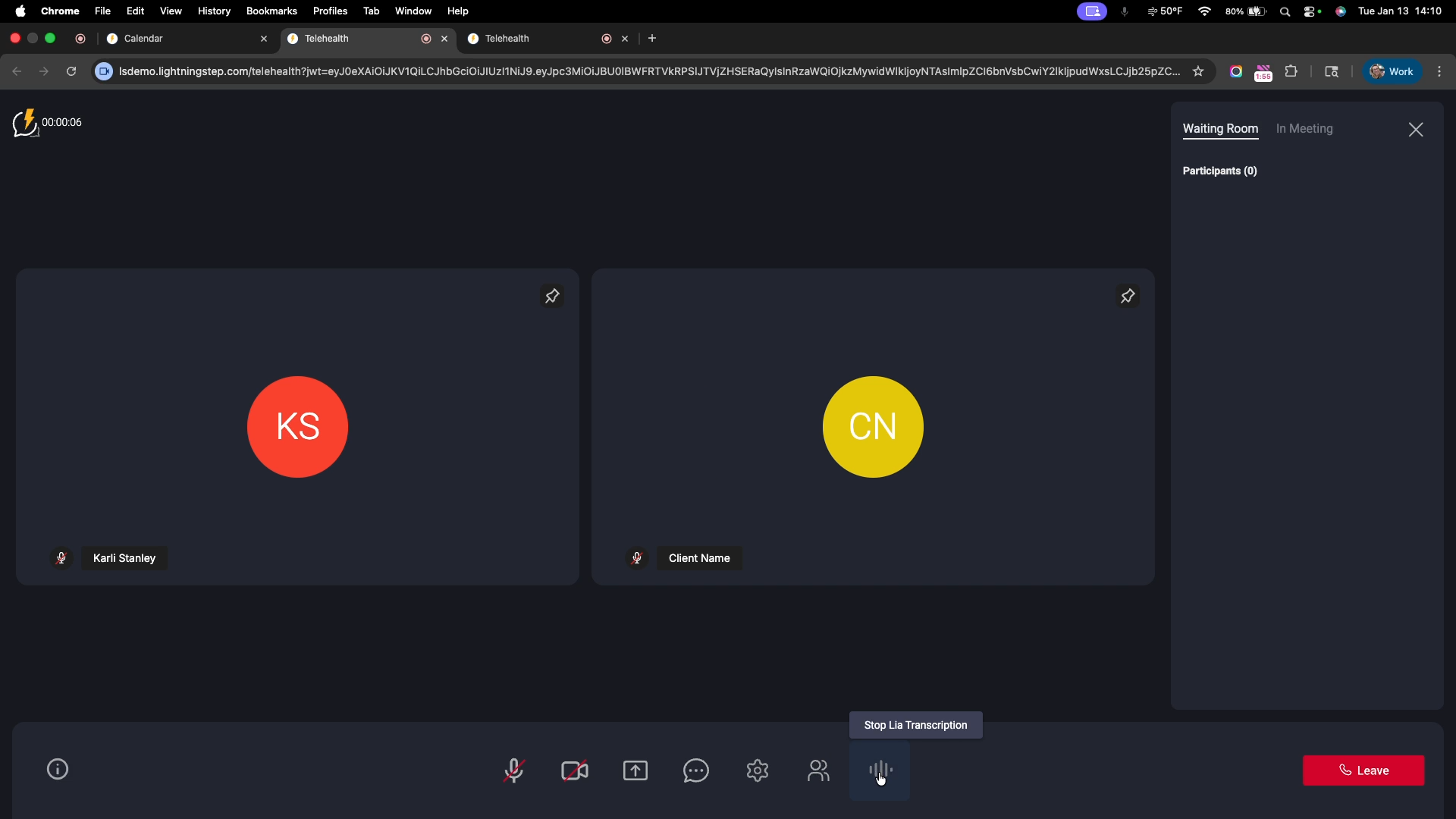
Step 6: To stop the Lia transcription before ending the session, hover over the transcription icon and click Stop Lia Transcription. Transcription also ends when you leave the meeting.
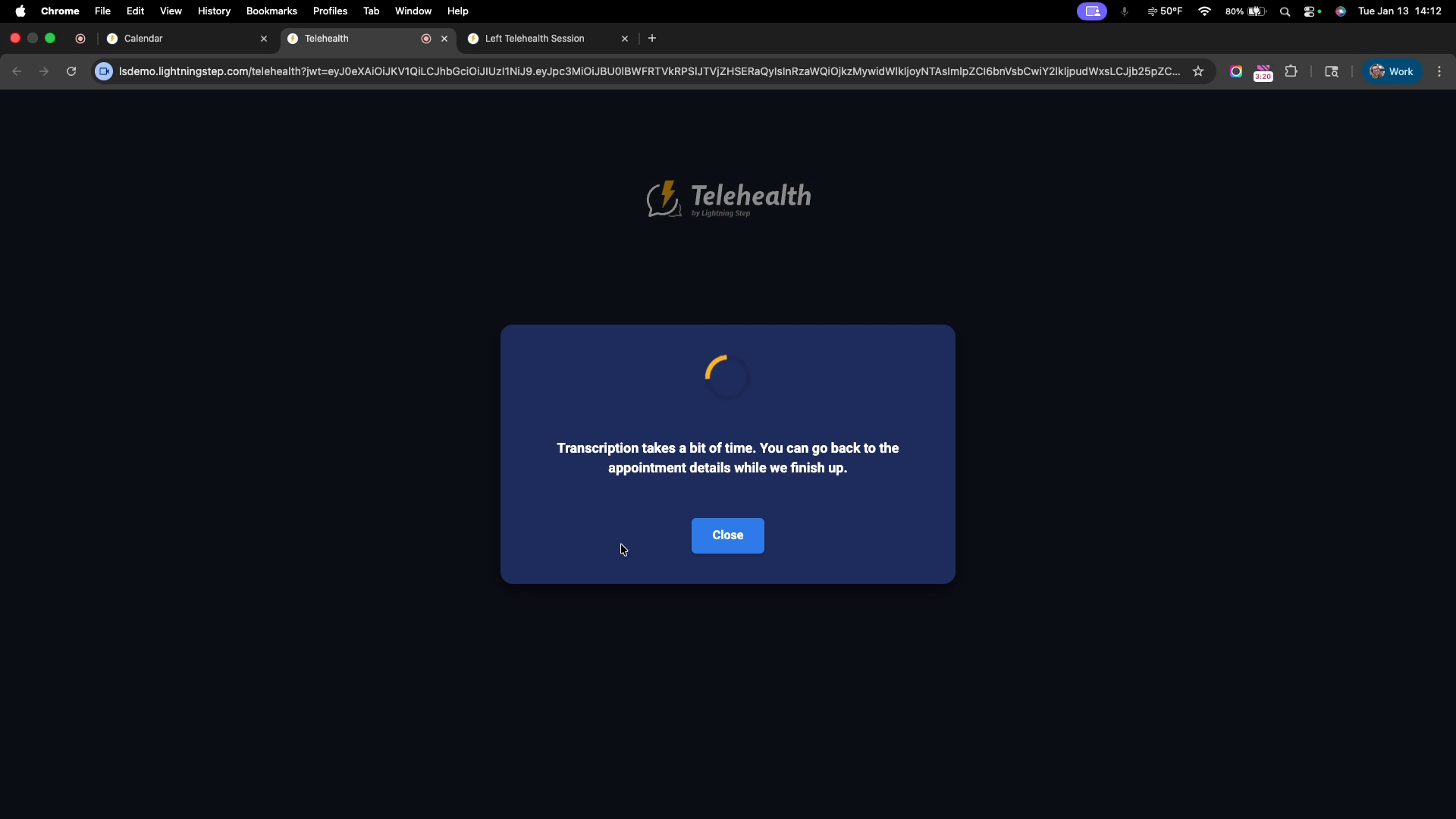
The transcription may take a few minutes to complete, but users can continue to navigate throughout Lightning Step to complete any other tasks or documentation. Once complete the transcription will be available from the calendar appointment.
Access and Edit the Transcription
Step 1: After ending the session, a message will appear indicating transcription is processing. You can return to the appointment and begin your documentation while you wait.
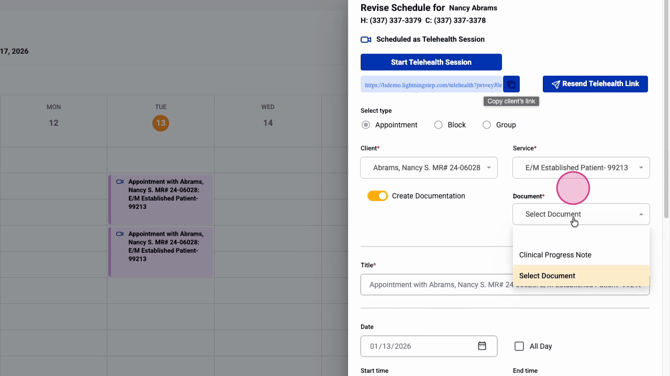
Step 2: When processing is complete, access the telehealth appointment from your Calendar.
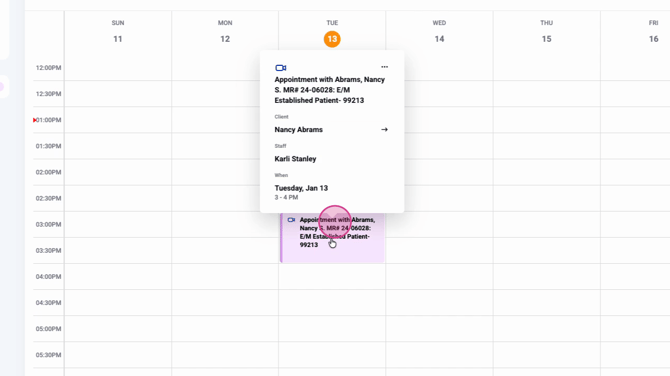
Step 3: Click to open the transcript panel.
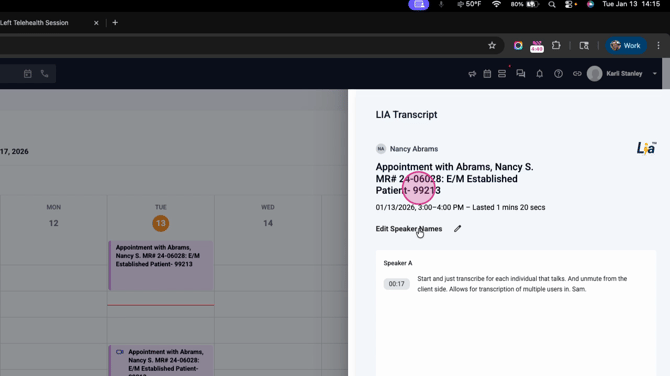
Step 4: Rename speakers as needed for clarity.
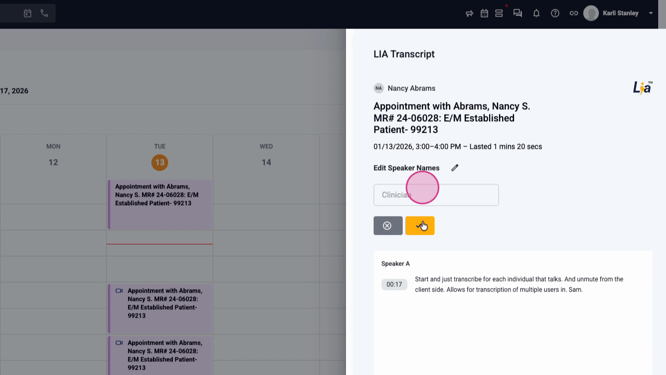
Step 5: Click Done when finished editing.
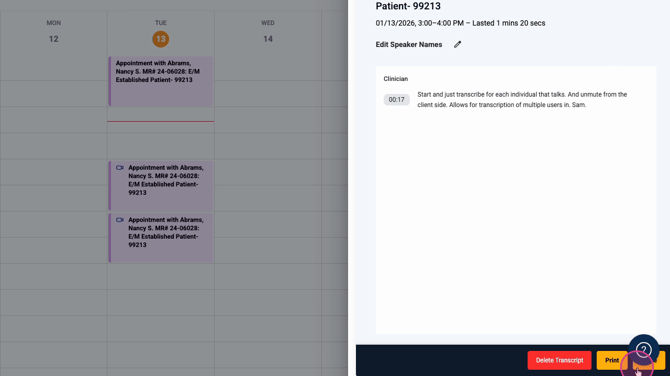
Transcriptions for telehealth sessions are accessible directly from your calendar for future reference. This functionality ensures you have accurate documentation and provides flexibility if multiple users need to be transcribed.
If you have questions or require further support, consult your internal documentation or contact the Lightning Step support team.
