
Follow this walkthrough to understand how to find, filter, and monitor payment plans in one place.
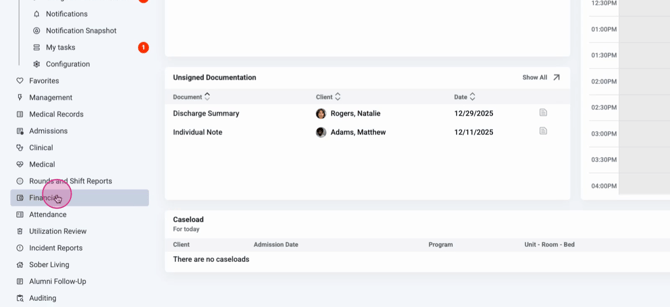
Step 1: From the home screen, select Financial.
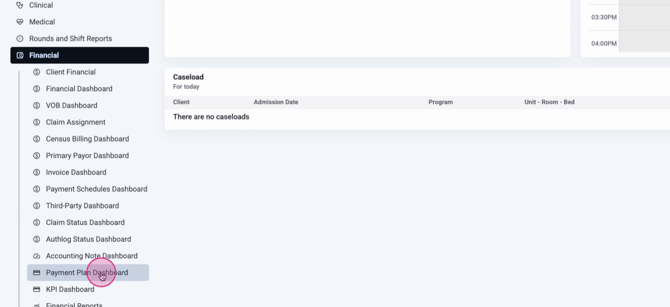
Step 2: Click Payment Plan Dashboard.
Step 3: Use the filters at the top to narrow down what you see. Filter by payment plan start and end date, plan status, location, or choose to include archived plans.
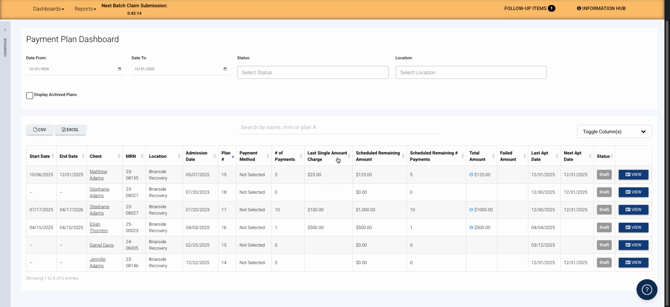
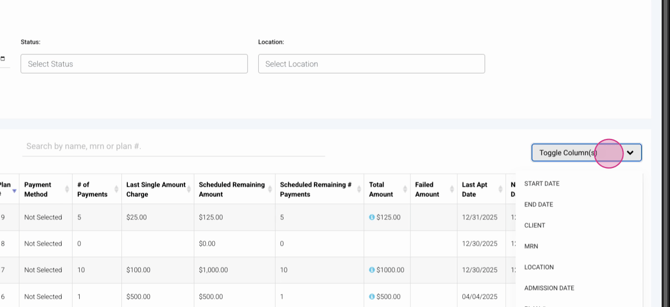
Step 4: Review the results table below the filters. This table displays critical details like:
-
Plan start and end dates
-
Client name
-
MRN (Medical Record Number)
-
Location and admission date
-
Plan ID and payment method
-
Number of payments and last charge amount
-
Remaining amount and payments
-
Total plan amount and any failed payments
-
Last and next appointment dates
-
Plan status, plus a link to view the specific plan

Step 5: Monitor for failed payments and upcoming appointments. This info helps you decide when to rerun a payment, reach out for updated payment info, or discuss a plan in person at your client’s next visit.
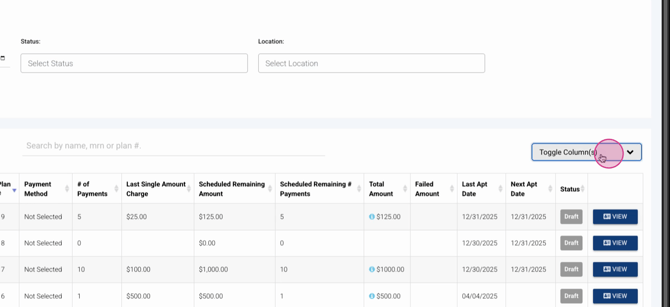
Step 6: Customize what’s visible. Toggle dashboard columns to focus only on the information that supports your workflow.
The Payment Plan Dashboard streamlines collections, keeps your team informed, and helps reduce time to payment. For more details, check your internal documentation or contact the support team with questions.
